

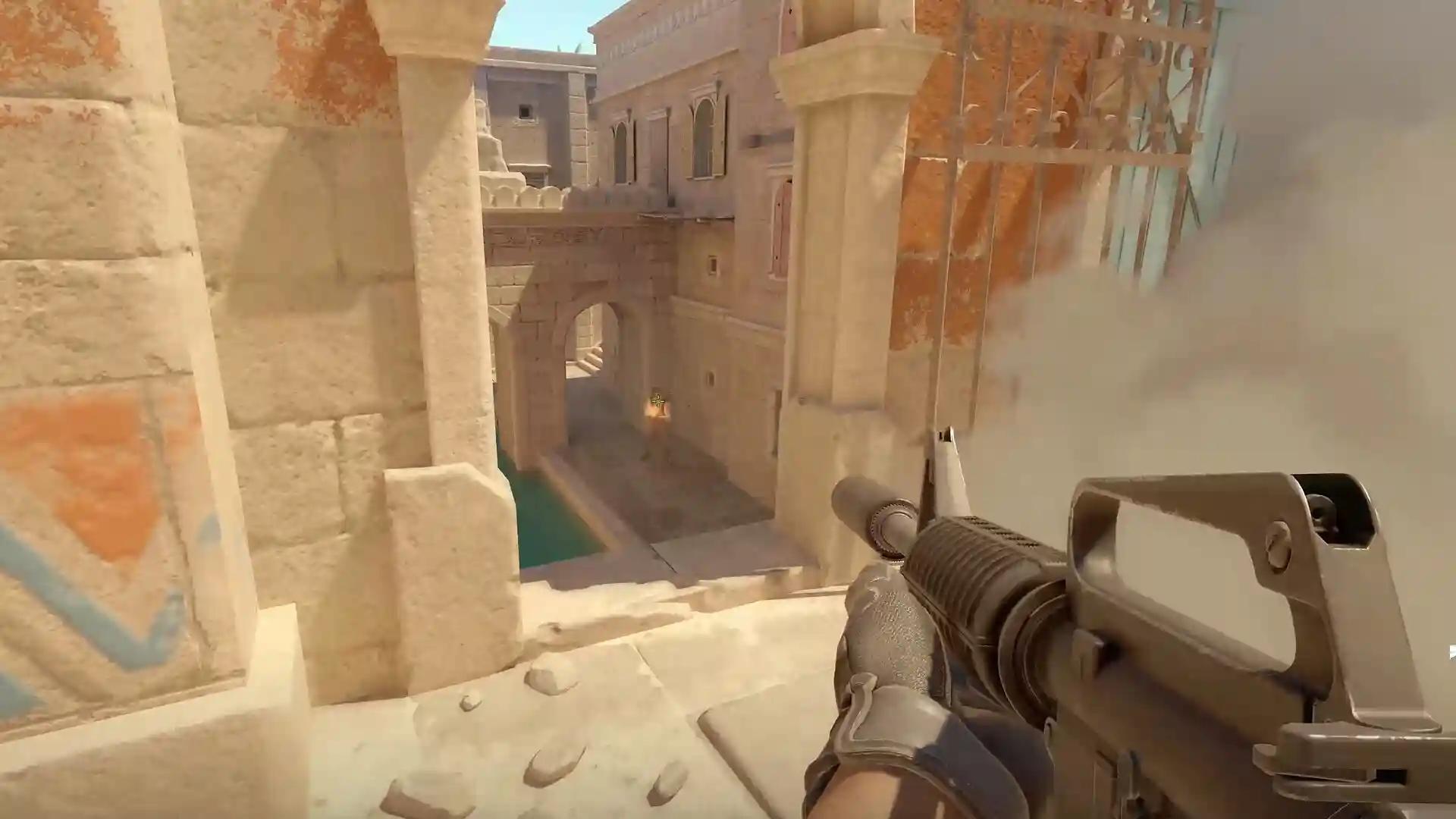
Before assuming your ISP is the problem, enable Counter-Strike 2's built-in network and frame-time telemetry and play several official matchmaking games over a wired Ethernet connection. Record the server type, time of day, ISP, and whether the issue appears as high ping, packet loss, jitter, packet delivery warnings, or poor frame pacing.
This baseline matters because different symptoms require different solutions.
Read the Symptoms Correctly
Ping measures the time required for packets to reach Valve's Steam Datagram Relay network.
Jitter measures how much that latency fluctuates over time.
Packet loss or delayed packet delivery can produce rubber-banding, delayed hit registration, or inconsistent player movement.
FPS and frame time are completely local measurements. A CPU bottleneck, GPU saturation, thermal throttling, or background process can create aiming problems even while network latency remains perfectly stable.
Understanding which metric is unstable prevents unnecessary troubleshooting.
Lowering graphics settings may improve frame time without changing network quality.
Replacing a router may reduce packet loss without increasing FPS.
Buying a faster broadband package increases available bandwidth but does not necessarily improve ISP peering or routing toward Valve's SDR infrastructure.

Test Official Matches Separately From Community Servers
Official matchmaking, Premier, FACEIT, and community servers frequently use different infrastructure and different routing paths.
Always compare identical scenarios.
Record:
- Server type
- Time of day
- Connection method (Ethernet vs Wi-Fi)
- ISP
- Ping
- Jitter
- Packet delivery warnings
- Frame time
Also verify Steam and Counter-Strike service status before assuming the issue originates inside your home network.
Pause cloud backups, game downloads, and large uploads during testing.
If instability appears only while someone uploads files or streams video, local network congestion is the more likely cause.
If many players report identical symptoms simultaneously, the issue may originate on Valve's infrastructure or upstream providers.
Separate Network Problems From PC Problems
For networking:
- Use wired Ethernet whenever possible.
- Update the network adapter driver directly from the hardware manufacturer.
- Verify CS2 game files through Steam.
- Review firewall configuration only if connections fail completely.
- Never disable VAC, Windows Security, or security software as a performance optimization.
For performance:
Monitor:
- Frame time
- CPU utilization
- GPU utilization
- Temperatures
- Background applications
Adjust graphics settings one variable at a time while leaving the network unchanged.
Likewise, evaluate routing changes without modifying graphics settings so each test isolates a single variable.
Compare Route Stability Instead of Only Ping
Average ping tells only part of the story.
A route with slightly higher latency but significantly lower jitter and packet loss often produces a smoother competitive experience than a route showing a lower average ping with unstable packet delivery.
When comparing the default ISP route against NoPing, repeat the same queue, server type, and play session across multiple matches.
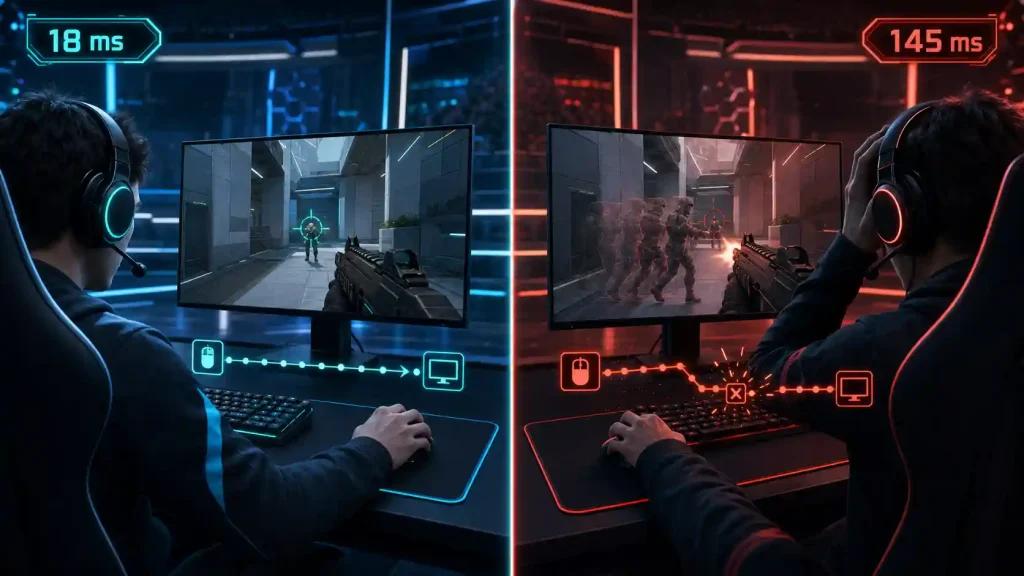
Look for measurable improvements in:
- Ping consistency
- Jitter
- Packet loss
- Packet delivery warnings
- Route stability over time
No routing solution can repair a Valve service outage, overloaded home Wi-Fi, damaged Ethernet hardware, or local CPU/GPU bottlenecks.
Test NoPing only after establishing a clean Ethernet baseline. Keep the optimized route only if repeated official CS2 matches demonstrate measurable improvements in the network metrics directly related to your symptoms.