

Not every CS2 connection issue has the same cause. A Steam login error, a matchmaking timeout, and a disconnect during a competitive match happen at different stages of the connection and require different troubleshooting.
Before assuming the problem is routing, identify exactly where the failure occurs.
- Steam cannot sign in: check Steam service status, account authentication, DNS resolution, or local security software.
- Matchmaking timeout: verify Counter-Strike 2 matchmaking status, Steam backend availability, and regional connectivity.
- Mid-match disconnect: investigate packet loss, Wi-Fi instability, router state, ISP routing, or SDR path changes.
Recording the exact error message and the approximate time it occurred makes troubleshooting much easier.
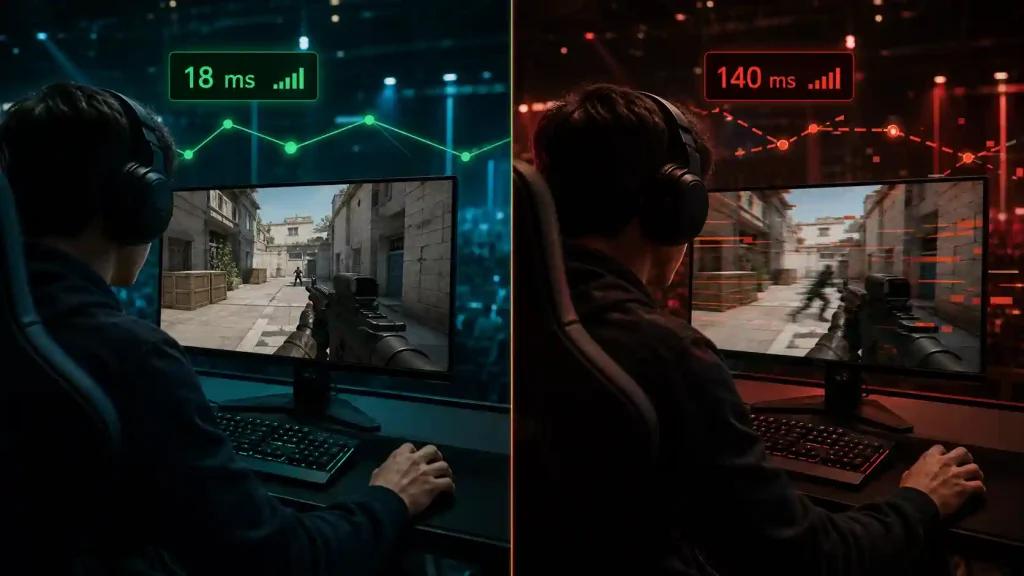
ur metrics are often confused, but they describe completely different problems.
- Ping measures latency between your PC and the game server.
- Jitter measures how much latency fluctuates over time.
- Packet loss occurs when network packets never reach their destination, often causing rubber-banding, teleporting, or complete disconnects.
- FPS measures rendering performance and does not directly affect network connectivity.
A computer running at 40 FPS can remain perfectly connected to a server, while a PC running at 300 FPS may still disconnect because of packet loss.
Troubleshoot CS2 Connection Problems Before Changing Routes
Before testing any routing optimization, complete the official troubleshooting steps first.
- Check Steam and Counter-Strike service status.
- Completely exit Steam and launch it again.
- Verify CS2 game files through Steam.
- Connect by Ethernet directly to the primary router.
- Pause Windows updates, cloud synchronization, downloads, VPNs, and streaming.
- Confirm Windows Firewall or antivirus has not blocked Steam or CS2.
- Join another official match and note the exact error text if the problem repeats.
If the issue disappears after one of these steps, routing was probably not the underlying cause.
Test Another Network Only as a Diagnostic
Connecting briefly through another trusted network—such as a mobile hotspot or another ISP—is useful only for diagnosis.
- If CS2 works normally on another connection, the original router, modem, Wi-Fi environment, or ISP path deserves further investigation.
- If the same error occurs on every network using the same PC, the issue is more likely related to Steam, the game installation, account restrictions, or the local system.
Avoid changing multiple variables simultaneously, since that makes the root cause harder to identify.
Common US ISP Characteristics
Different US providers tend to exhibit different routing behavior depending on metropolitan area and peering relationships.
- Comcast Xfinity may experience evening peering congestion in some regions.
- Spectrum performance varies significantly depending on local infrastructure.
- AT&T Fiber and Verizon Fios generally provide very stable latency where available.
- Quantum Fiber often delivers clean western US routes.
- T-Mobile Home Internet can introduce additional jitter because of wireless access conditions.
These characteristics vary by city and should not be treated as universal behavior.
What Routing Optimization Can and Cannot Fix
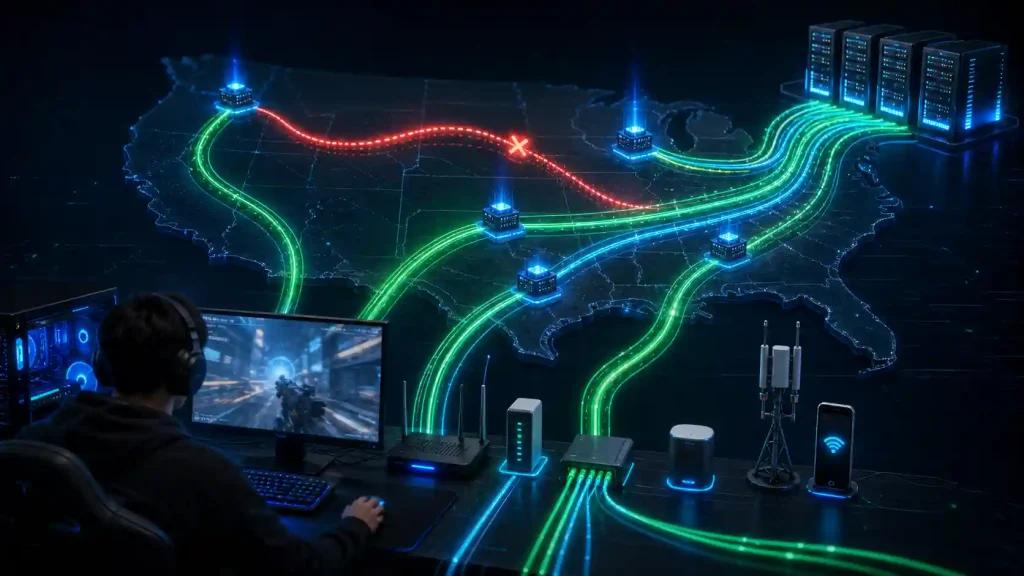
Routing optimization addresses network path quality—it does not repair unrelated problems.
A routing tool may help when disconnects consistently coincide with:
- unstable ISP routes,
- packet loss,
- excessive jitter,
- poor peering,
- or inefficient SDR path selection.
It cannot resolve:
- Steam authentication failures,
- corrupted game files,
- VAC or FACEIT account restrictions,
- hardware instability,
- Wi-Fi signal interruptions,
- overloaded CPUs,
- GPU driver crashes,
- or official Steam outages.
Understanding this distinction prevents unnecessary troubleshooting.
When It Makes Sense to Compare Routes
Once the official checks have been completed and the local network appears stable, compare the default ISP route with NoPing under identical conditions.
For a meaningful comparison:
- use the same official matchmaking queue,
- test during similar hours,
- keep the same server region,
- record average ping,
- monitor jitter,
- monitor packet loss,
- and note whether disconnects still occur.
Repeat multiple sessions before drawing conclusions, since internet routing naturally changes throughout the day.
Honest Recommendation
If repeated testing shows that disconnects are consistently associated with unstable routing, packet loss, or poor ISP peering, trying an alternative route through NoPing may improve connection stability depending on your ISP, location, game server, and time of day.
If the problem persists after changing routes, continue investigating local hardware, Wi-Fi, Steam, or ISP issues instead of assuming routing is the only cause.
Technical Note (Expanded)
Route optimization improves only the network path between your PC and the game server. It does not modify Counter-Strike 2, Steam, VAC Live, FACEIT Anti-Cheat, or Windows security components.
Likewise, lower ping does not automatically eliminate disconnects. Stable packet delivery, low jitter, and reliable routing are often more important than achieving the absolute lowest latency number. Testing under identical conditions remains the most reliable way to determine whether a routing optimization provides measurable benefits for your specific connection.