

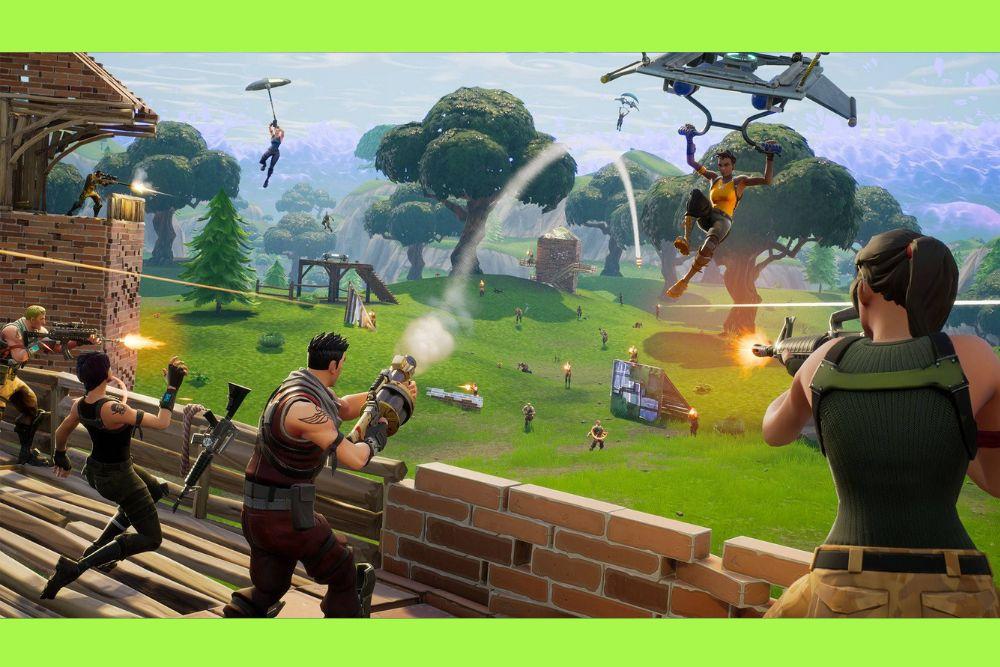
Fortnite not working is a phrase that can ruin any gamer's weekend, especially when a new season just dropped or a live event is around the corner.
Whether you are staring at a stuck loading screen, experiencing frequent crashes, or battling lag that makes the game unplayable, technical hurdles are part of the modern gaming landscape.
In this guide, we will break down exactly why these issues happen and how you can get back to the Battle Bus as quickly as possible.
Are the Fortnite servers actually down?
The first thing you should do is check if the problem is on your end or if Epic Games is having a bad day.
If the servers are undergoing maintenance or experiencing an unplanned outage, no amount of troubleshooting on your hardware will help.
You should visit the official Epic Games Status page to see if services like matchmaking, logins, or the item shop are operational.
During major updates, such as the recent v39.30 patch in January 2026, it is common for the game to go into scheduled downtime.
If the status page shows all systems are green but you still can't connect, then the issue likely lies within your local network or your device's configuration.
You can also monitor the Fortnite Status Twitter/X account for real-time updates on emerging bugs that the developers are currently investigating.

Is my internet connection the real culprit?
If the servers are fine, the next suspect is your internet connection. Online games like Fortnite require a stable flow of data between your device and the game server. Even if your internet is fast enough for 4K streaming, it might be struggling with packet loss or high latency.
You should start by performing a basic power cycle of your networking equipment. Turn off your router and modem, wait for at least thirty seconds, and then plug them back in.
This simple step clears the temporary memory of the router and can resolve IP conflicts that might be preventing a handshake with the Fortnite servers.
Additionally, always prioritize a wired Ethernet connection over Wi-Fi. Wireless signals are prone to interference from other household devices, leading to the dreaded "yellow arrow" or "red X" icons in the top left of your screen.
Why is my ping so high even with fast internet?
High ping is often caused by inefficient routing, which is the path your data takes from your home to the Epic Games data centers.
Your Internet Service Provider (ISP) usually sends your data through the cheapest route rather than the fastest one. This can result in your packets traveling through several unnecessary nodes, increasing the time it takes for your actions to be registered in-game.
To solve this, you can use NoPing, which acts like a specialized GPS for your connection. Instead of following the congested public routes provided by your ISP, NoPing calculates the shortest and most stable path to the Fortnite servers.
Here’s how to use NoPing to fix high ping in Fortnite:
- Sign-up through the website and download NoPing (you can test it for free).
- Open NoPing and search for Fortnite inside the software
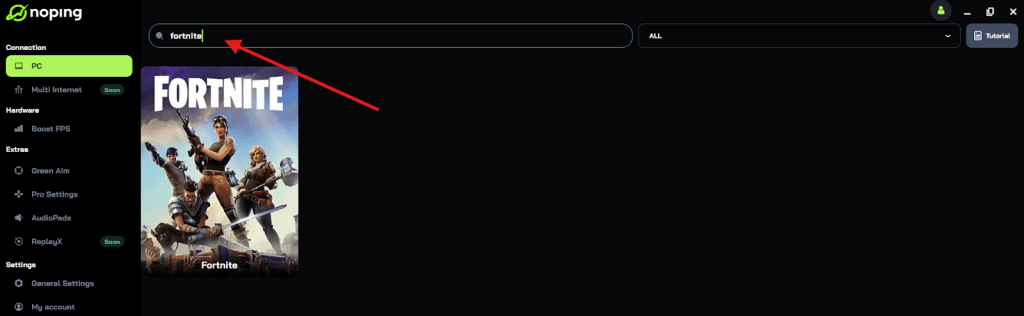
- Once you find Fortnite, click on it and, on the next screen, select “Choose automatic” or “Choose manual” and click “Continue”. We recommend choosing automatic, as NoPing’s technology analyzes all routes on a global scale and automatically selects the best option for you.
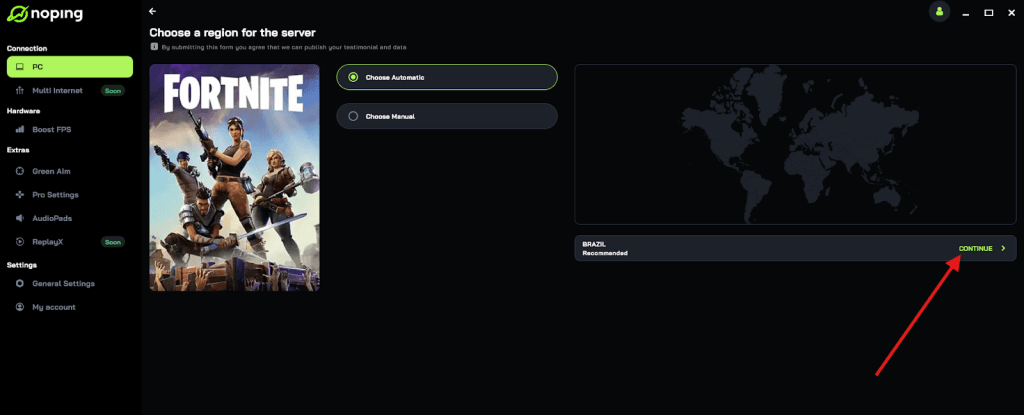
- On the next screen, click on “Optimize Game”.

- And that’s it, you can start playing Fortnite with optimized ping!
You can test different servers within NoPing to see which gives you the lowest latency.
Also read: How Many Skins are in Fortnite [2026 Updated]
Why does Fortnite keep crashing on my PC?
PC players often face crashes due to software conflicts, outdated drivers, or corrupted game files. If your game closes to the desktop without an error message, or if you see a "Fortnite has crashed and will now close" notification, there are several steps you can take:
- Verify Game Files: Open the Epic Games Launcher, go to your Library, click the three dots next to Fortnite, and select Manage. Click on Verify. This will check every game file against the official version and replace anything that is missing or corrupted.
- Run as Administrator: Right-click your Epic Games Launcher shortcut and select Run as Administrator. This ensures the game has the necessary permissions to access system resources.
- Update GPU Drivers: Ensure your NVIDIA, AMD, or Intel graphics drivers are up to date. Manufacturers often release specific "Game Ready" drivers for major Fortnite updates to prevent stability issues.
- Change Render Mode: In the Fortnite settings, you can switch between DirectX 11, DirectX 12, and Performance Mode. If you are experiencing frequent crashes on DX12, switching back to DX11 or Performance Mode can often stabilize the experience.
Also read: How to Enable Cross Platform in Fortnite
How can I fix Fortnite on PS5 and Xbox?
Consoles are generally more stable, but they are not immune to issues.
If Fortnite is not working on your PlayStation or Xbox, the problem is usually related to the system's cache or your NAT type.
To clear the cache on a PS5, you must completely turn off the console, unplug the power cable for one minute, and then plug it back in.
For Xbox Series X or S, hold the power button for ten seconds to perform a full shutdown, then unplug it. This forces the hardware to clear temporary files that might be interfering with the game's launch.
Another crucial factor for console players is the NAT Type. You can check this in your console's network settings.
If your NAT Type is set to "Strict" or "Type 3," you will have significant trouble joining parties or finding matches. You may need to enable UPnP in your router settings or set up Port Forwarding to open the specific ports required by Fortnite and your console's online service.
What should I do about specific error codes?
Error codes like ESP-DIST-001, Error 91, or Error 93 are common roadblocks. Most of these are related to connectivity or party synchronization.
- ESP-DIST-001: This usually points to a DNS issue. Try changing your DNS settings to a public provider like Google (8.8.8.8 and 8.8.4.4) or Cloudflare (1.1.1.1).
- Error 91 & 93: These occur when there is an issue joining a party. Usually, changing your party privacy to "Private" and then back to "Public," or having everyone in the party restart their game, will fix the glitch.
- Easy Anti-Cheat Errors: If you see an EAC error on PC, navigate to the Fortnite installation folder, find the EasyAntiCheat folder, and run the EasyAntiCheat_Setup.exe file to "Repair" the service.
Is my hardware still enough for Fortnite in 2026?
As Fortnite evolves with Unreal Engine 5 updates, the minimum requirements can shift. If the game starts but runs at a very low frame rate or freezes constantly, your hardware might be struggling to keep up with the latest graphical features like Lumen or Nanite.
Check your PC specifications against the latest requirements on the Epic Games Help Center
If you are below the recommended specs, try lowering your resolution scale and turning off high-intensity settings like shadows and global illumination. Using Performance Mode is highly recommended for older hardware, as it strips away unnecessary visual flourishes to prioritize frame rate and stability.
Summary of Quick Fixes
If you are in a rush to get back to the game, follow this checklist:
- Check Epic Games Status for server outages.
- Restart your PC or console and your router.
- Verify your game files through the Epic Games Launcher.
- Switch to a wired connection if you are on Wi-Fi.
- Use NoPing to bypass ISP routing issues and lower your latency.
- Ensure your graphics drivers and system software are fully updated.
By following these steps, you can resolve the majority of technical problems that cause Fortnite to stop working. If the issue persists after all these attempts, it may be time to contact Epic Games Support for a more in-depth investigation into your account or specific hardware configuration.
Play Fortnite without lag. Download NoPing now and start your free trial!