


Fortnite packet loss means some game data does not reach its destination. Check Epic Games status before changing your network. If Fortnite services are operational, enable the game's network statistics, record when loss occurs, pause downloads, and compare Wi-Fi with Ethernet. A route optimizer is relevant only when the local link is stable and the external path is the repeatable fault.

Figure 1. Fortnite network statistics displaying packet loss and latency
Confirm Fortnite packet loss instead of guessing
Epic documents a Net Debug Stats display that exposes network details in game. Use it to separate packet loss from high latency and low FPS. Loss is missing traffic; latency is travel time; jitter is changing travel time. FPS is rendered by the device. Rubber-banding can accompany network loss, while choppy visuals without loss may be a performance issue.
Open the official Epic status page and check Fortnite matchmaking, login, and game services. A system-wide incident cannot be fixed by DNS, a VPN, a route optimizer, or a router reset. If services are healthy, note platform, matchmaking region, time, connection type, loss direction if shown, and whether other players or devices are affected.
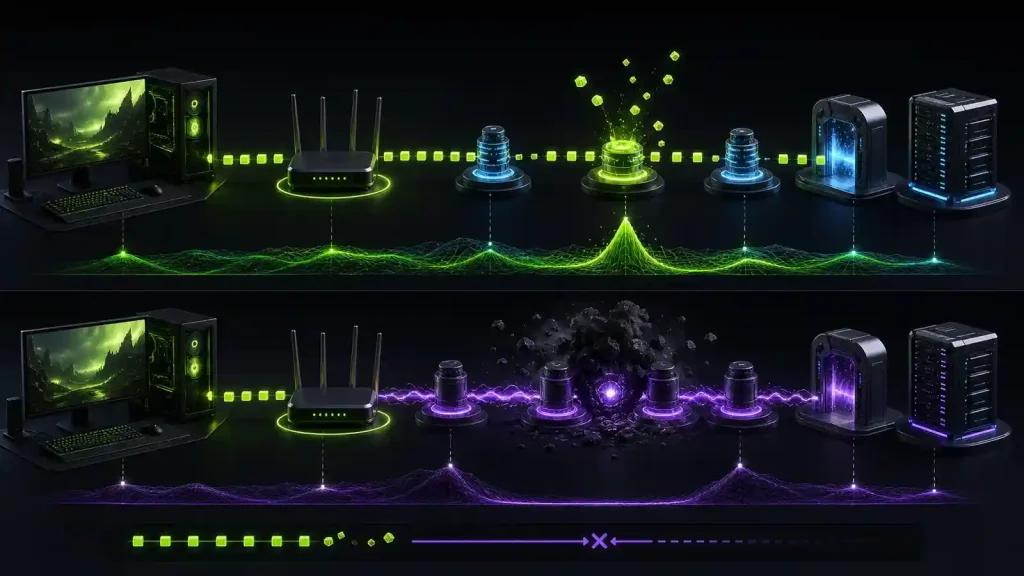
Figure 2. Epic status and local network checks in a packet-loss decision tree
Find where loss begins
Pause updates, backup, streaming, and uploads. Test Ethernet. If loss disappears, repair Wi-Fi signal or interference. If all devices fail, inspect the router and ISP. If one Fortnite region repeatedly fails while the local network remains clean, document the path and time.
Change one variable at a time. Keep the same mode and region and repeat at least three times. A hotspot can briefly compare ISPs, subject to data limits.

Figure 3. Ethernet route comparison prepared with Fortnite background traffic paused
Packet-loss checklist
- Check Epic status for the specific Fortnite component.
- Turn on Net Debug Stats and capture the symptom.
- Pause background traffic and test Ethernet.
- Keep matchmaking region and game mode consistent.
- Repeat at different times and record ISP, ping, jitter, and loss.
- Continue with this consolidated Fortnite packet-loss workflow and review packet-loss features.
When a route optimizer can help
It may help if loss begins beyond a stable home network on one inefficient ISP path. It cannot restore Epic, repair Wi-Fi, stop local saturation, or raise FPS. Routes change, so retest.
Frequently asked questions
Is Fortnite packet loss always an Epic server problem?
No. It can occur on Wi-Fi, the home router, the ISP, an interconnection, or the service side. Status and matched tests narrow the scope.
Does high ping mean packets are being lost?
No. Ping can be high with zero loss. They are different metrics, although either can make play feel unresponsive.
Should I change matchmaking region?
Use the region selected by the game as the baseline. A different region changes distance and destination, so treat it as a separate test, not a direct fix.
Record a baseline, test NoPing against the same mode and region, and keep it only if repeated comparisons reduce loss or instability. Stop if the service is degraded or the local network is the cause.