


Improving FPS in Apex Legends on Windows 11 requires more than simply lowering every graphics setting. The best results come from reducing CPU overhead, optimizing demanding visual options, controlling background applications, maintaining stable frame times, and keeping the network route consistent during matches.
For players targeting 144 FPS, 180 FPS, 240 FPS or higher, the goal should be consistent performance rather than the highest possible FPS shown in menus or quiet areas.
This guide covers the Apex Legends settings that have the greatest impact on FPS, useful Windows 11 optimizations, NoPing Boost FPS, connection optimization, and practical ways to measure whether each change actually improves performance.
Why Does Apex Legends Have FPS Drops on Windows 11?
Apex Legends can become CPU-limited during demanding situations, particularly when several squads, particle effects, abilities, audio sources, and environmental elements need to be processed simultaneously.
This means a powerful GPU alone does not guarantee stable high FPS.
Common causes of FPS drops and stuttering include:
- CPU bottlenecks during intense fights.
- Background applications consuming processor resources.
- Xbox Game Bar and recording features.
- Browser and cloud-storage processes running in the background.
- Driver-related performance regressions.
- Windows services and scheduled tasks.
- Thermal throttling.
- Overlays from gaming and GPU software.
- High graphics settings that increase CPU or GPU load.
Performance should therefore be evaluated using frame-time consistency and 1% low FPS, not only average FPS.
Best Apex Legends Settings for Higher FPS
Display Settings
Display Mode: Full Screen
Full-screen mode is generally the preferred starting point for competitive play.
Resolution: Native monitor resolution
Players who remain GPU-limited after adjusting graphics settings can experiment with lower resolutions, but native resolution usually provides the clearest image.
Graphics Settings
Recommended competitive-performance baseline:
- V-Sync: Disabled
- Adaptive Resolution FPS Target: 0
- Anti-Aliasing: TSAA
- Texture Streaming Budget: Adjust according to available VRAM
- Texture Filtering: 16x Anisotropic
- Ambient Occlusion Quality: Disabled
- Sun Shadow Coverage: Low
- Sun Shadow Detail: Low
- Spot Shadow Detail: Disabled
- Volumetric Lighting: Disabled
- Dynamic Spot Shadows: Disabled
- Model Detail: High
- Effects Detail: Low
- Impact Marks: Low
- Ragdolls: Low
These settings prioritize visibility and consistent performance while reducing unnecessary rendering load.

Should You Cap FPS in Apex Legends?
An FPS cap can help produce more consistent frame times and prevent the system from constantly operating at its maximum rendering capacity.
For a 240 Hz monitor, for example, a cap slightly below the refresh rate can be tested.
Example:
+fps_max 237
The ideal cap depends on your monitor, hardware, adaptive-sync configuration, and ability to maintain the target consistently.
Useful Launch Options
+fps_max 237
Limits maximum FPS to 237. This is commonly tested with 240 Hz displays.
-novid
Skips introductory video sequences.
Launch parameters should be tested individually rather than added blindly. If an option does not produce a measurable improvement on your system, there is little reason to keep it.
Windows 11 Settings to Improve Apex Legends FPS
Set Windows Power Mode for Performance
Go to:
Settings > System > Power & battery > Power mode
Select the performance-focused option available on your system.
This can help prevent aggressive power-saving behavior from limiting CPU performance during gameplay.
Disable Xbox Game Bar If You Do Not Use It
Go to:
Settings > Gaming > Xbox Game Bar
Players who do not use Game Bar recording or capture features can disable them to reduce unnecessary background activity.
Reduce Background Applications
Before launching Apex Legends, check whether unnecessary applications are consuming CPU, memory, disk, or network resources.
Common examples include:
- Browsers with many active tabs.
- Cloud synchronization applications.
- Game launchers running unnecessary background processes.
- Communication software with overlays.
- Automatic update services.
- Recording applications.
- Hardware monitoring utilities.
Use Task Manager > Startup apps to prevent unnecessary programs from launching automatically with Windows.
Avoid disabling Windows services you do not recognize simply because they appear in Task Manager.
NVIDIA and AMD Settings for Apex Legends
Keeping GPU drivers stable is generally more important than installing every new driver immediately.
NVIDIA users can use current stable Game Ready drivers, while AMD users can use stable Adrenalin releases.
If FPS or stuttering becomes noticeably worse immediately after a driver update, compare performance with the previous stable version when practical.
Disable Unnecessary Overlays
Overlays can add background processing and sometimes affect frame-time consistency.
Consider disabling overlays you do not actively use, including:
- NVIDIA overlay.
- AMD Software overlay.
- Discord overlay.
- Xbox Game Bar.
- Third-party recording overlays.
Test performance before and after each change.
How NoPing Boost FPS Can Help
NoPing Boost FPS is designed to reduce unnecessary background resource consumption while you play.
Instead of manually checking numerous Windows processes before every session, Boost FPS can optimize background activity so more system resources remain available to the game.
This can be particularly useful on PCs where Apex Legends is limited by CPU performance or where background applications contribute to inconsistent frame times.
The expected benefit should be evaluated through real gameplay rather than a fixed FPS promise.
Compare:
- Average FPS.
- 1% low FPS.
- Frame-time spikes.
- Stuttering frequency.
- Performance during demanding fights.
Systems already running Apex Legends with significant CPU and GPU headroom may see smaller differences than PCs operating near their performance limits.
FPS and Ping Are Different Problems
High FPS does not automatically produce a smooth online match.
FPS measures how quickly your computer renders frames.
Ping measures network latency between your connection and the game server.
Jitter measures how much that latency fluctuates.
Packet loss occurs when network packets fail to reach their destination correctly.
A player can therefore maintain 240 FPS while still experiencing delayed or inconsistent network behavior.
Likewise, someone can have low ping while experiencing severe FPS drops caused by a CPU or GPU bottleneck.
How NoPing Multi Connection Helps With Network Routing
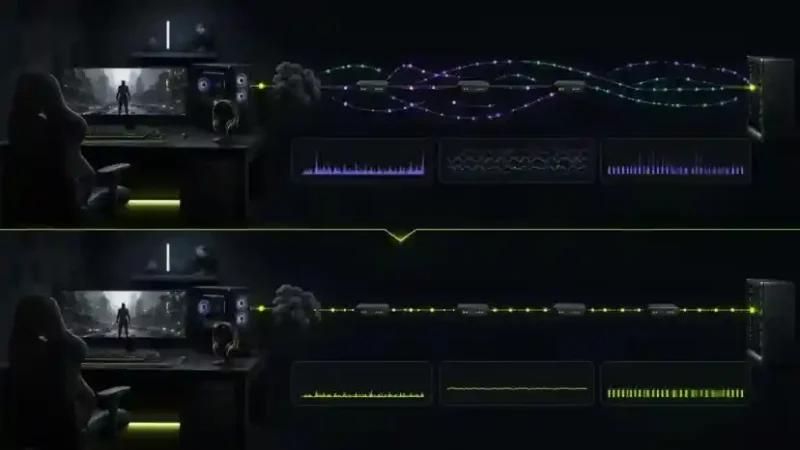
NoPing Multi Connection focuses on the network side of the experience by testing and optimizing routes between the player's connection and the game infrastructure.
The usefulness of route optimization depends on factors such as:
- ISP routing.
- Geographic location.
- Selected server region.
- Network congestion.
- Peering between networks.
- Time of day.
Rather than judging performance exclusively by the lowest displayed ping, compare the overall stability of the connection.
Important metrics include:
- Ping.
- Jitter.
- Packet loss.
- Latency spikes.
- Route stability during matches.
Multi Internet for Connection Stability
NoPing Multi Internet can be useful for players who have access to more than one internet connection.
The feature is intended to improve connection resilience by allowing multiple available links to contribute to connectivity.
This can be particularly relevant when one connection becomes unstable during peak hours.
Network optimization does not increase local rendering FPS. Boost FPS and network optimization address different parts of the gaming experience.
Apex Legends Connection Optimization for US Players
Players in the United States may use providers such as Xfinity, Spectrum, AT&T Fiber, Verizon Fios, T-Mobile Home Internet, Quantum Fiber, Cox, and Optimum.
Connection quality can vary significantly by location, ISP infrastructure, congestion, server destination, and time of day.
A fast broadband plan does not necessarily guarantee the best route to a game server.
Poor peering or an inefficient route can produce higher latency, jitter, or packet loss even when a speed test reports excellent download and upload speeds.
How to Test Your Apex Legends Connection Correctly
Use a controlled comparison instead of relying on a single match.
Step 1: Establish a Baseline
Play several matches without changing your normal configuration.
Record:
- Average ping.
- Jitter.
- Packet loss.
- Latency spikes.
- Average FPS.
- 1% low FPS.
Step 2: Enable Your Optimizations
Apply the Windows, graphics, Boost FPS, and network changes you want to evaluate.
Avoid changing unrelated settings between tests.
Step 3: Repeat Similar Matches
Use the same server region and comparable gameplay conditions whenever possible.
Step 4: Compare the Results
Look for improvements in consistency rather than focusing exclusively on the best number recorded.
A route with slightly higher average ping but substantially lower jitter and packet loss can sometimes feel more consistent than a route that occasionally reaches a lower ping but suffers frequent spikes.
How to Measure 1% Low FPS
Average FPS can hide short performance drops.
The 1% low FPS metric provides a better indication of how the game behaves during its slowest rendering periods.
For example, two systems could both average 200 FPS while producing very different experiences:
- System A: 200 FPS average with 170 FPS 1% lows.
- System B: 200 FPS average with 95 FPS 1% lows.
System A will generally feel more consistent.
Monitor performance during demanding gameplay rather than menus or empty areas.
G-Sync, FreeSync and V-Sync
Disabling traditional V-Sync is common in competitive configurations because V-Sync can introduce additional input latency.
Players with compatible displays can instead test:
- NVIDIA G-Sync.
- AMD FreeSync.
- An FPS cap slightly below the monitor's maximum refresh rate.
The ideal configuration depends on your display and hardware, so evaluate input responsiveness, tearing, and frame-time stability together.
Should You Undervolt Your CPU or GPU?
A stable undervolt can reduce temperatures and power consumption, potentially allowing hardware to maintain higher boost frequencies.
However, undervolting is not required to optimize Apex Legends.
Players should first address simpler factors such as:
- Graphics settings.
- Background processes.
- Power configuration.
- Drivers.
- Temperatures.
- FPS caps.
Any CPU or GPU tuning should be stability-tested carefully.
NoPing vs ExitLag for Apex Legends
The most useful comparison between NoPing and ExitLag is not the lowest advertised ping.
Test both solutions under similar conditions and compare:
- Average ping.
- Jitter.
- Packet loss.
- Latency spikes.
- Route consistency.
- Performance during peak hours.
- Stability across multiple matches.
Results can vary according to ISP, city, server region, network conditions, and time of day.
No routing optimizer can guarantee the same latency reduction for every connection.
How to Test NoPing for Apex Legends
Run a controlled before-and-after test.
Play several matches using your normal connection and record the network and FPS metrics.
Then enable NoPing and repeat the test using the same server region whenever possible.
For FPS testing, pay particular attention to:
- Average FPS.
- 1% lows.
- Frame-time spikes.
- Stuttering during intense fights.
For network testing, monitor:
- Ping.
- Jitter.
- Packet loss.
- Latency spikes.
This provides a more useful comparison than relying on a single match or one displayed ping number.
FAQ: Apex Legends FPS and Performance on Windows 11
How can I increase FPS in Apex Legends on Windows 11?
Start by lowering expensive graphics settings such as ambient occlusion, shadows, volumetric lighting, effects, and ragdolls. Then reduce unnecessary Windows background applications, disable overlays you do not use, select a performance-oriented power mode, and measure 1% low FPS before and after each change.
Can NoPing Boost FPS add 50 FPS?
There is no universal FPS increase that applies to every PC.
The result depends on the CPU, GPU, background processes, thermal conditions, game settings, and existing bottlenecks. Systems affected by heavy background CPU activity may benefit more than PCs that already have substantial performance headroom.
Should I disable Xbox Game Bar?
If you do not use its capture, DVR, or overlay functionality, disabling Xbox Game Bar can reduce unnecessary background activity.
Why does Apex Legends stutter even with high average FPS?
High average FPS can hide poor frame times and low 1% FPS values. CPU spikes, background applications, thermal throttling, drivers, overlays, and demanding gameplay situations can cause brief drops that feel like stuttering.
Does internet speed determine Apex Legends FPS?
No. FPS is primarily determined by local hardware and software performance.
Internet problems affect network metrics such as ping, jitter, and packet loss rather than the rate at which your GPU renders frames.
Can faster internet automatically reduce ping?
Not necessarily.
Once sufficient bandwidth is available, routing and network quality can matter more than maximum download speed. ISP peering, congestion, distance to the server, and the selected network path can all influence latency.
Can NoPing guarantee lower ping?
No. The result depends on the player's ISP, location, server region, congestion, and available routes.
The best approach is to compare the same server or queue before and after route optimization and measure ping, jitter, and packet loss.
What should I monitor besides ping?
Monitor jitter, packet loss, latency spikes, and connection stability. For local performance, also monitor average FPS, 1% lows, frame time, CPU usage, GPU usage, temperatures, and VRAM consumption.
When should I test another network route?
Consider retesting routes when connection quality changes after ISP instability, network congestion, server maintenance, game updates, or when a previously stable route begins producing unusual jitter or packet loss.
Does route optimization interfere with anti-cheat?
Network route optimization should operate without modifying game files or attempting to bypass anti-cheat protections. Players should use supported software and avoid tools that manipulate the game client or circumvent security systems.
Is Apex Legends playable at 240 FPS on an older CPU?
It depends on the processor, GPU, resolution, graphics settings, memory configuration, and the performance target the system can maintain during demanding gameplay.
An older CPU may reach 240 FPS in lighter situations but fall significantly below that target during CPU-intensive fights. Consistent 1% lows are therefore more useful than maximum FPS when evaluating the experience.
Final Performance Checklist
For a smoother Apex Legends experience on Windows 11:
- Use Full Screen mode.
- Disable V-Sync when appropriate for your display setup.
- Reduce shadows, ambient occlusion, volumetric lighting, and effects.
- Set an appropriate FPS cap.
- Use Windows' performance-oriented power configuration.
- Disable unnecessary overlays and background applications.
- Keep stable GPU drivers installed.
- Monitor temperatures and CPU/GPU utilization.
- Measure average FPS and 1% lows.
- Monitor ping, jitter, and packet loss separately from FPS.
- Test route optimization under comparable conditions.
- Evaluate changes across multiple matches rather than a single benchmark.
The best Apex Legends optimization is the configuration that delivers consistent frame times and stable network performance throughout an entire match, not simply the highest FPS number visible on screen.