


The best CS2 booster is the one that improves connection stability on your ISP and server region. NoPing offers parallel routing through Multi Connection and support for multiple internet sources through Multi Internet. GearUP also offers game routing optimization.
Neither tool can guarantee more Premier wins, a higher CS Rating, or better FACEIT Elo. For US players experiencing ping spikes, packet loss, or inconsistent matches, the most useful comparison is to test both tools under similar conditions.
This guide explains how network instability affects Counter-Strike 2, what each booster offers, and how to measure the results.
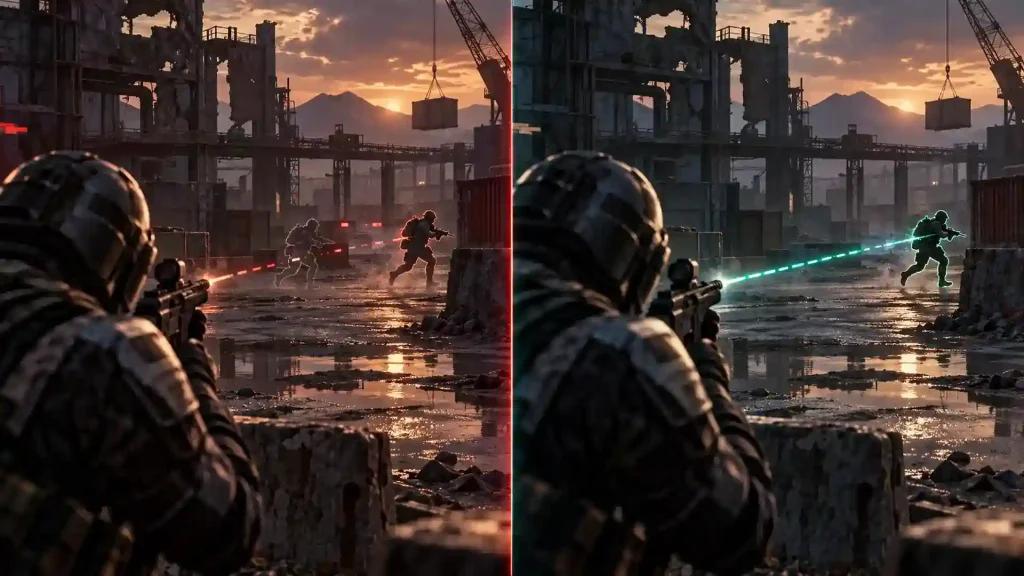
Why CS2 Can Lag Even on a Fast Internet Connection
A high download speed does not guarantee low latency. CS2 depends on game data arriving quickly and consistently.
The main network problems to watch are:
- High ping: data takes longer to travel between your PC and the server.
- Jitter: packet arrival timing varies, making the connection less predictable.
- Packet loss: some data does not reach its destination.
- Congestion: busy networks introduce delays, especially during peak hours.
A connection can handle streaming and downloads comfortably while still struggling during a competitive match.
What Sub-Tick Changes
CS2’s sub-tick architecture records when movement, shots, and grenade throws occur between ticks. This gives the server more precise information about input timing, but it does not eliminate network delays or packet loss.
An unstable connection may cause delayed feedback, movement corrections, or interrupted gameplay. However, a missed shot or lost duel alone does not prove that routing caused the problem.
How US ISP Routing Affects Your Matches
Your ISP, location, selected server region, and time of day all influence connection quality.
Players using Xfinity, Spectrum, AT&T Fiber, Verizon Fios, Cox, Optimum, Quantum Fiber, or T-Mobile Home Internet may get different results even when connecting to the same region.
Valve’s Steam Datagram Relay is part of the networking infrastructure used by CS2. Your connection still needs to reach that infrastructure reliably, so local Wi-Fi problems and ISP congestion remain relevant.
GearUP Booster vs. NoPing: What Each Tool Offers
Both products aim to improve the route used by game traffic. Their features provide a starting point, but your own measurements determine whether either helps.
GearUP Booster: Game Routing Optimization
GearUP describes its CS2 service as selecting routing nodes based on network conditions and the connected game server. Its Adaptive Intelligent Routing feature is designed to adjust the connection during gameplay.
For players experiencing poor ISP routing, GearUP is an option to compare with the default connection.
NoPing Multi Connection: Parallel Routes
According to NoPing, Multi Connection can send copies of game packets across up to five simultaneous routes in supported configurations. The system filters duplicate packets and uses route redundancy to help reduce interruptions when an external path becomes unstable.
This can be useful when instability occurs along the route to the game server. Results depend on the available paths and the source of the connection problem.
NoPing Multi Internet: Multiple Internet Sources
Multi Internet works on the connection between your device and the NoPing network. It can use multiple available internet sources, such as a wired connection and a compatible mobile connection, to improve continuity when one source becomes unstable.
Two connections from different providers may offer more useful redundancy than Ethernet and Wi-Fi connected to the same home router.
Boost FPS: PC Performance Optimization
Network lag and low FPS require different measurements.
When testing Boost FPS, compare frame rate, frame-time spikes, and responsiveness under similar game settings. Any improvement depends on your hardware, background workload, and existing configuration.
A routing improvement does not automatically increase FPS, and higher FPS does not automatically reduce ping.
Which Booster Is Better for CS2 Premier and FACEIT?
There is no universal winner without comparable test results.
NoPing’s parallel routing and multiple internet features make it an option for players seeking additional connection redundancy. GearUP’s routing optimization may also help when an alternative path performs better than the ISP’s default route.
For either product, judge the result by:
- Fewer latency spikes.
- Less packet loss.
- More consistent packet arrival.
- Fewer disconnects.
- Stable performance during your usual playing hours.
Can a Booster Improve Premier CS Rating?
A more stable connection can remove one obstacle to consistent play. It cannot guarantee an increase in CS Rating.
Aim, positioning, utility usage, communication, and team performance still determine match outcomes. Use network telemetry to assess a booster before attributing a rating change to it.
Does Connection Stability Matter on FACEIT?
Yes. Reliable packet delivery matters in competitive play at every level.
A stable connection can make gameplay more consistent, but FACEIT Elo alone cannot isolate a networking improvement. Compare connection metrics alongside your experience during matches.
How to Test GearUP and NoPing on Your US Connection
Compare your default connection, GearUP, and NoPing using similar server regions, settings, and playing hours.
Start With a Clean Baseline
Before testing:
- Connect your PC through Ethernet where possible.
- Pause downloads, cloud backups, and large uploads.
- Keep graphics settings unchanged.
- Use the same matchmaking service and comparable server regions.
- Record several sessions without a booster.
If the problem disappears after switching from Wi-Fi to Ethernet, investigate the home wireless connection first.
Use CS2’s Built-In Telemetry
CS2’s telemetry HUD displays frame rate and network conditions. Its network displays can show packet loss and jitter, helping distinguish connection problems from PC performance issues.
Record the following for each configuration:
- Ping: typical latency and sudden spikes.
- Jitter: variation in packet arrival timing.
- Packet loss: frequency and duration of missing packets.
- Frame time: stutters and inconsistent frame delivery.
- Disconnects: interruptions during comparable sessions.
- Server region: whether the tests used similar locations.
Test Each Booster Separately
Run comparable sessions with GearUP and NoPing separately. Repeat the comparison during the hours when you usually experience problems.
Avoid drawing conclusions from one match. Server conditions and local traffic can change between sessions.
Keep the configuration that consistently improves your network measurements and gameplay stability. If neither improves the baseline, investigate your home network, ISP connection, or server selection.
What to Check Before Changing Your ISP
Cable and Fiber Connections
Even a wired connection can suffer from congestion or inefficient routing. If problems appear mainly in the evening, compare peak-hour sessions with quieter periods.
Routing optimization may help with some external path problems. It cannot repair a faulty cable, overloaded router, or damaged access line.
T-Mobile Home Internet and Other 5G Connections
Fixed wireless performance can vary with signal quality, tower load, and gateway placement.
Before changing services:
- Connect your PC to the gateway through Ethernet.
- Check whether gateway placement improves signal quality.
- Compare results at different times.
- Test an independent second connection if available.
Multi Internet is worth evaluating when you have multiple usable sources, but the outcome depends on their quality and compatibility.
Anti-Cheat Considerations for Premier and FACEIT
Check current support guidance for CS2, FACEIT, and your chosen optimizer. Keep the software updated and meet FACEIT’s applicable PC security requirements.
If an optimizer causes an anti-cheat error or prevents the game from launching, stop using that configuration and contact support.
Try NoPing on Your Own CS2 Connection
NoPing advertises a one-day free trial without a credit card, support for more than 3,000 games, and Multi Connection routing.
Use the trial to compare your normal connection with NoPing during your usual Premier or FACEIT sessions. Focus on measurable improvements in ping spikes, jitter, packet loss, and connection continuity.
A lower advertised ping number matters less than a connection that stays consistent throughout the match.
Frequently Asked Questions
Is NoPing better than GearUP Booster for CS2?
It depends on your connection. NoPing offers parallel routing and multiple internet features, while GearUP offers game routing optimization. Compare ping spikes, jitter, and packet loss on your own ISP before choosing.
Can a CS2 booster guarantee more Premier wins?
No. A booster may improve network conditions, but match results also depend on skill, teamwork, opponents, and server performance.

Does faster internet automatically mean lower ping?
No. Bandwidth measures how much data a connection can carry. Ping measures travel time. Routing, congestion, distance, and local network conditions influence latency.
Does sub-tick eliminate lag?
No. Sub-tick improves input timing information, but CS2 still depends on timely, reliable packet delivery.
Can NoPing help if I have only one internet connection?
Multi Connection is designed to provide external route redundancy without requiring multiple local internet sources. Multi Internet adds another layer when additional compatible sources are available.
Does Boost FPS fix packet loss?
FPS optimization and packet delivery address different problems. Measure frame times separately from ping, jitter, and packet loss.
Does a larger server network automatically mean a better booster?
No. What matters is how well the available routes perform between your connection and the game server. Server count alone does not establish lower latency or greater stability.
When should I test a different route?
Retest when latency spikes or packet loss persist, or after a meaningful change to your ISP, connection, or usual server region. Start by checking whether the problem originates inside your home network.