

GeForce NOW input lag is the full delay from controller action to the streamed response on screen. Check NVIDIA's service status, use a supported client, and compare the same game over Ethernet. If the network is stable, inspect cloud location, stream settings, controller transport, decoding, frame pacing, and display mode. A changed route affects only the internet portion of that chain.
Keyword boundary: this page answers GeForce NOW-specific latency and network-test questions for the desktop client. For broader delay mechanics, use the generic input-lag guide. Keeping the platform name in every target query prevents this page from competing with the generic intent.
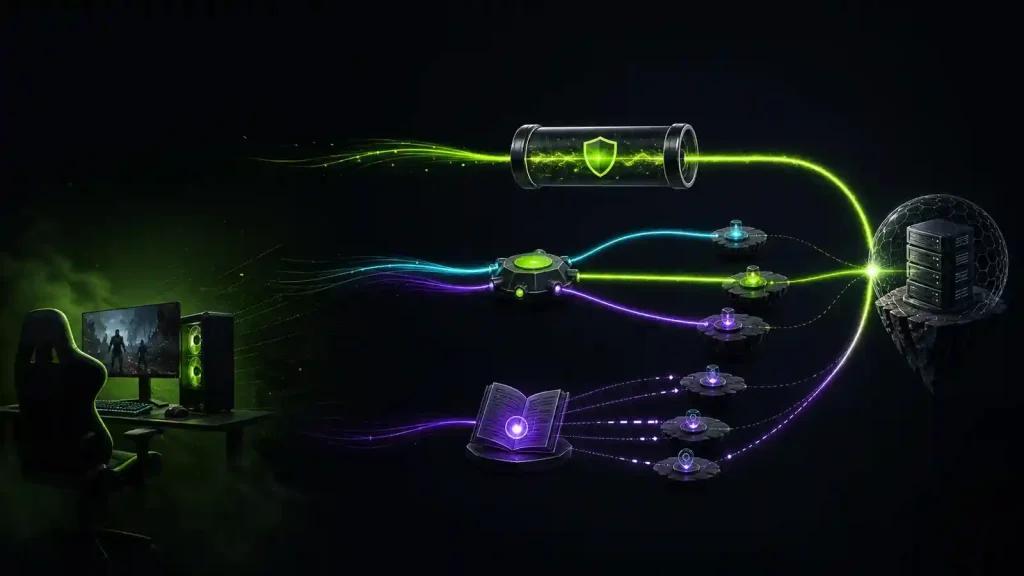
Figure 1. GeForce NOW desktop input and streamed frame response timeline
Break GeForce NOW input lag into stages
The command crosses the controller, device, home network, ISP path, NVIDIA cloud system, encoder, return stream, decoder, and display. Ping measures round trips; jitter measures variation; packet loss is missing data. Decode time and FPS are separate. A sharp image can still respond late.
Confirm that the device, browser or app, controller, and network meet NVIDIA's current requirements. Do not infer a region, frame rate, or resolution from an old guide.
Read the symptom before changing settings
| Symptom | Stronger hypothesis | Controlled check |
| Blocks or brief freezes | Jitter or loss | Ethernet and paused traffic |
| Clean stream, late action | Distance, decode, display | Lower display processing |
| All sessions unavailable | Service incident | NVIDIA status |
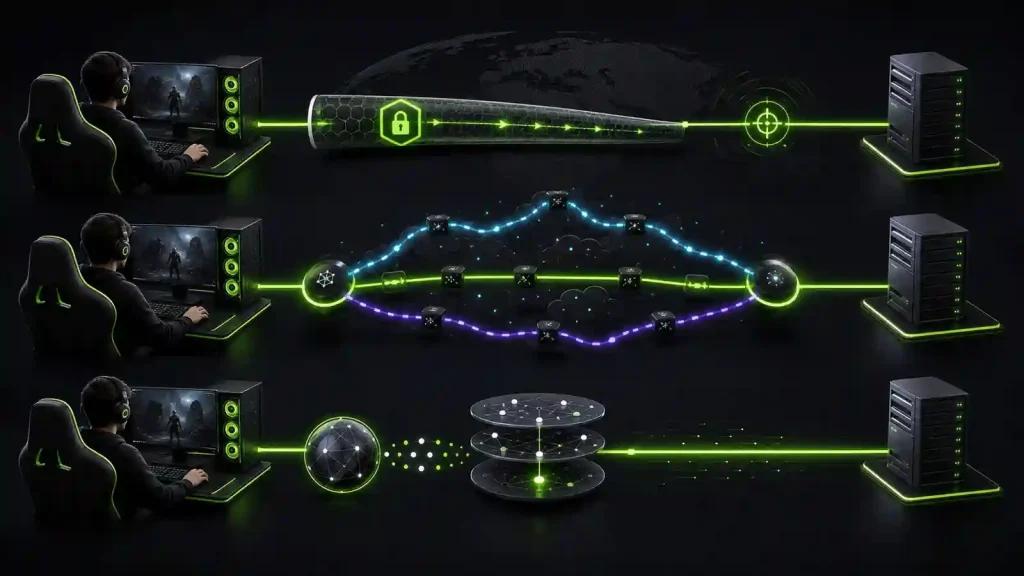
Figure 2. GeForce NOW delay split across network cloud decode and display
Run a matched cloud-gaming test
- Record service status, device, client version, game, time, and selected server location if shown.
- Pause downloads, backups, calls, and household video.
- Test Ethernet, then Wi-Fi, without changing stream quality.
- Use the display's low-latency mode and a wired controller where supported.
- Repeat the same scene and note input response, artifacts, dropped frames, jitter, and disconnects.
- Change one stream or network option and repeat; restore it if the result worsens.
A speed-test peak does not measure every stage. Use the app's supported network diagnostics where available.
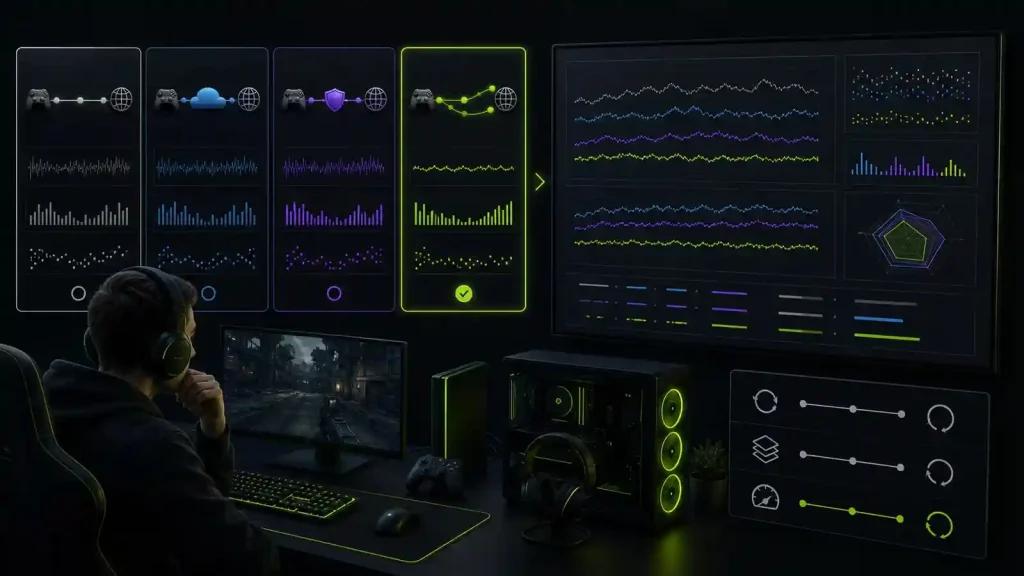
Figure 3. Wired GeForce NOW comparison with desktop and region held constant
When alternate routing can help
Review connection monitoring when NVIDIA is operational, Ethernet is clean, decoding and display are stable, and one cloud destination shows path delay or loss. Another route cannot add capacity, select an unavailable region, accelerate decoding, fix Bluetooth, or guarantee response. Alternate normal and changed-route runs.
Frequently asked questions
Is GeForce NOW input lag always a network problem?
No. Controller transport, remote processing, encoding, device decoding, frame delivery, and display processing all contribute to the visible response.
Does lowering stream quality reduce latency?
It may help a constrained device or connection, but it changes the experiment. Compare one documented setting at a time and keep the result only if it repeats.
Can DNS lower GeForce NOW latency?
DNS helps locate services at connection time. It usually does not steer the established input and video flow, so matched route evidence is required.
Measure the same scene before and after. Test NoPing only when evidence points to the ISP path, and keep it only if repeated comparisons improve response without more artifacts, loss, or disconnects.