

Learning how to favorite games on Roblox is the best way to keep track of the millions of experiences available on the platform without losing your mind.
With over 40 million games currently hosted on the site, it is incredibly easy to play a hidden gem one day and completely forget its name the next.
Favoriting acts as your personal bookmarking system, ensuring that your top picks are always just a click away.
Whether you are a veteran player or just joined the community, organizing your library is essential.
Roblox is an expansive ecosystem where thousands of new experiences launch every single week. If you do not have a system to save what you like, you will spend more time searching than actually playing.
Why should you favorite games on Roblox?
You should favorite games on Roblox because it creates a direct shortcut on your profile and helps the game developers gain visibility within the platform algorithm.
When you mark an experience as a favorite, you are effectively telling the Roblox engine that this content is high quality.
This data point is used to help surface the game to other players, meaning you are directly supporting the creators you enjoy.
Beyond the altruistic aspect, it is purely a matter of convenience. Your "Continue Playing" list often gets cluttered with games you only tried once or twice.
By using the favorite feature, you create a curated list that does not change unless you manually remove something. It is the digital equivalent of a "Best Hits" shelf for your gaming life.
Statistically, Roblox users who organize their favorites tend to have longer play sessions because they bypass the fatigue of browsing a saturated home screen. In a world with millions of options, curation is your best friend.

How do you favorite games on Roblox using a PC?
To favorite a game on a PC, you simply need to navigate to the specific game page and click the star icon located just below the play button.
This process is the most straightforward method and takes less than two seconds once the page loads.
Here is the step by step breakdown for browser users:
- Open your preferred web browser and log into your account at [link suspeito removido].
- Use the search bar at the top to find the game you want to save.
- Click on the game tile to open its main landing page.
- Look for the large green play button.
- Directly underneath that button, you will see a row of icons including a thumbs up, a thumbs down, and a star.
- Click the star icon.
- When the star turns from an outline to a solid color, the game is successfully added to your favorites.
If you ever change your mind, clicking the star again will remove it from the list. It is a toggle system that provides instant feedback.
Is it possible to favorite games on Roblox mobile?
Yes, you can favorite games on the Roblox mobile app by tapping the three dots icon on the game's description page.
The mobile interface is slightly more condensed than the desktop version to save screen real estate, but the functionality remains identical.
Follow these steps on your iOS or Android device:
- Launch the Roblox app and ensure you are logged in.
- Tap the magnifying glass icon to search for your favorite experience.
- Tap on the game to view its details.
- Scroll down slightly past the play button.
- You will see a horizontal bar with various options. Look for the icon that looks like three dots (...) or a star depending on your specific app version update.
- Tap "Favorite" from the menu that appears.
- The star icon will light up, confirming the game is now in your collection.
Mobile gaming accounts for a massive portion of the Roblox player base, so the developers have made sure this process is fluid.
Having your favorites synced across devices means you can start a session on your PC and quickly pick it up on your phone during a commute without searching for the title again.
Can you favorite games on Roblox while playing on a console?
Yes, you can favorite games on Xbox and PlayStation by selecting the game tile and using the sub-menu options before launching the experience.
Since the console UI is designed for controllers, you will not find a mouse cursor to hover over icons, but the logic is very similar.
For console players, follow this path:
- Open the Roblox app on your console.
- Navigate to the game you want to add.
- Instead of pressing the button to play immediately, look for the "Game Details" or "More" option.
- Select the star icon within that menu.
- Press the confirm button (A on Xbox, X on PlayStation) to save it.
This ensures that when you log back into your console later, the game appears in your favorites row on the home screen, saving you the hassle of using the somewhat clunky console search keyboard.
Where can you find your list of favorite games on Roblox?
You can find your favorite games by visiting your profile page and scrolling down to the "Favorites" section or by checking the "Favorites" category on your home screen.
Roblox keeps these lists synchronized across every platform you use.
If you are on a browser and want to see the full list:
- Click on your username or the "Profile" link in the left hand sidebar.
- Scroll down past your "About" section and your "Avatar" showcase.
- Look for the section titled "Favorites."
- If you have many favorites, click the "See All" button or the arrow to cycle through the different categories like Games, Clothing, or Models.
- Select "Games" from the dropdown menu to filter out other items.
On the mobile app, you can usually find a "Favorites" row directly on your home feed, right next to your "Friends" and "Continue Playing" sections.
If it is not appearing there, heading to your profile is the most reliable way to locate the list.
What is the difference between favoriting and following a game?
Favoriting a game adds it to your personal library for quick access, while following a game signs you up for notifications regarding updates and announcements from the developers. Think of favoriting as a bookmark and following as a subscription.
- Favoriting: This is about organization. It affects your profile and helps the game's ranking in the "Most Favorited" category.
- Following: This is about communication. When a developer pushes a major update or a new patch, you will receive a notification in your Roblox inbox or via push notifications if enabled.
You should ideally do both for the games you truly love. Favoriting ensures you can find the game, and following ensures you never miss a limited time event or a new map release.
How many games can you add to your favorites list?
There is no officially stated hard limit on how many games you can favorite, but the interface becomes difficult to manage if you add more than a few hundred.
While the database can handle a massive number of entries, your ability to quickly find a game decreases as the list grows longer.
In the past, some users reported issues when exceeding 200 to 300 items, where older favorites might not display correctly in the "See All" view.
However, for the average player who favorites 20 or 30 top titles, there are zero performance issues or restrictions.
It is better to treat your favorites list as a "Top Tier" collection rather than a graveyard for every game you have ever played.
Can other people see your favorite games on Roblox?
Other people can see your favorite games by default unless you change your inventory privacy settings in the account menu.
Roblox is a social platform, and sharing what you enjoy playing is a core part of the experience.
If you prefer to keep your gaming tastes private, you can adjust this:
- Go to "Settings" (the gear icon).
- Select the "Privacy" tab.
- Look for the section labeled "Who can see my inventory?"
- Change the setting from "Everyone" to "No one" or "Friends."
Since favorites are considered part of your inventory, hiding your inventory will also hide your favorited games from public view.
This is useful if you are a developer working on secret projects or if you just prefer a more private profile.
Why do some favorited games disappear from your list?
Games usually disappear from your favorites list because they have been set to private by the creator, deleted by the developer, or moderated by Roblox for violating terms of service.
When a game is no longer active on the platform, its entry in your favorites list may vanish or turn into a placeholder icon that says "Content Deleted."
Another common reason is that you might have accidentally clicked the star icon again while browsing.
Since there is no "Are you sure?" confirmation for unfavoriting, a stray click can remove a title instantly.
If you notice a beloved game is missing, try searching for it manually to see if it was simply a mistake or if the game has actually been taken down.
How does connection stability affect your favorite Roblox games?
No matter how well organized your favorite games are, a poor connection will ruin the experience through high ping and constant lag spikes.
Roblox servers are distributed globally, and sometimes the route your data takes to reach a game server is not the most efficient.
This is where NoPing becomes a game changer.
By optimizing the route between your computer and the Roblox servers, you can significantly reduce latency and eliminate packet loss.
This is especially crucial in competitive "favorites" like BedWars or Blox Fruits, where a millisecond of lag can be the difference between winning a fight and losing your progress.
If you find that your favorite games are stuttering or disconnecting, it is likely a routing issue rather than a problem with the game itself. You can find more details on how to stabilize your connection at NoPing.
Here’s how to use NoPing to fix lag in Roblox:
- Sign-up through the website and download NoPing (you can try it for free)
- Open NoPing and search for Roblox inside the software
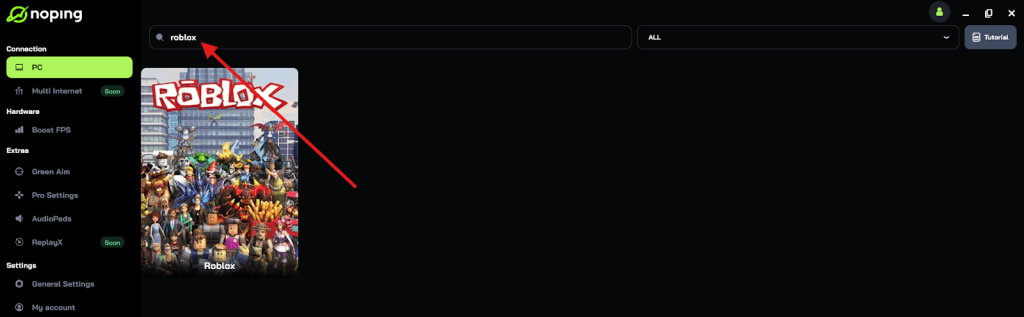
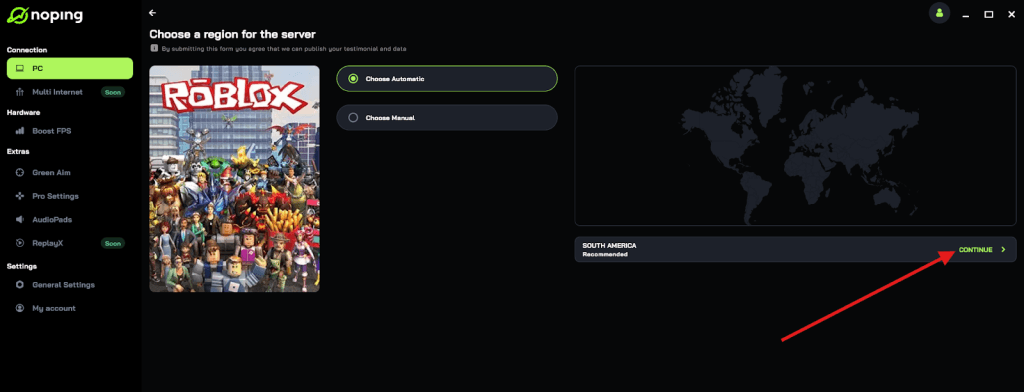
- Once you find Roblox, click on it and, on the next screen, select “Choose automatic” or “Choose manual” and click “Continue”. We recommend choosing automatic, as NoPing’s technology analyzes all routes on a global scale and automatically selects the best option for you.
- On the next screen, click on “Optimize Game”.
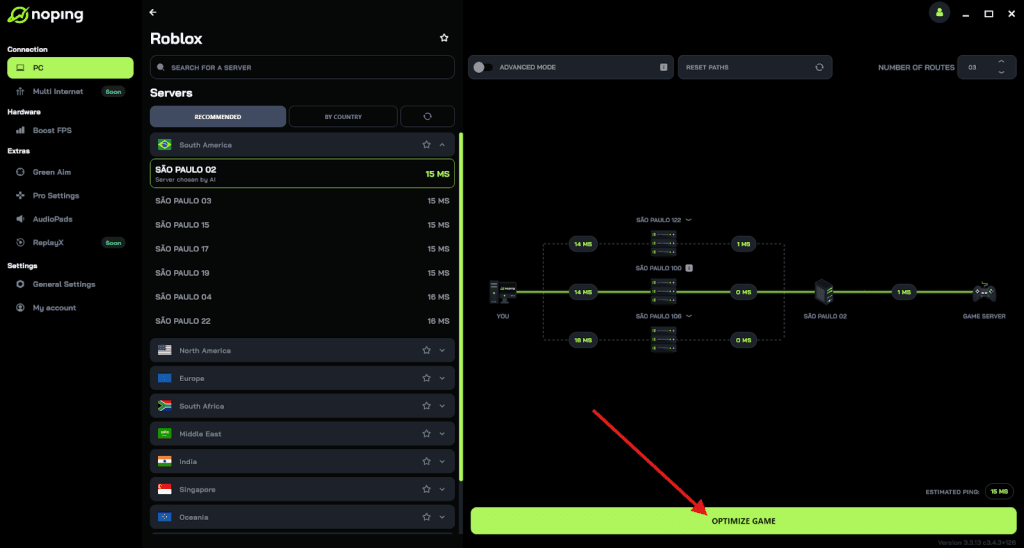
- And that’s it, you can start playing Roblox with optimized ping!
You can test different servers within NoPing to see which gives you the lowest latency.
Is favoriting a game the same as "Liking" it?
No, favoriting and liking are two different metrics that serve different purposes for the Roblox algorithm.
Liking (the thumbs up icon) is a rating of quality, while favoriting (the star icon) is a mark of personal preference and long term interest.
- Likes: These determine the "Rating" percentage you see on a game page (e.g., 92% Positive). It is a quick way to see if a game is broken or if the community enjoys it.
- Favorites: These are more "sticky" and represent a deeper level of engagement.
Developers often look at their "Favorite to Play" ratio to understand how many people are returning to the game versus just trying it once and leaving a like.
If you want to help a small developer grow, doing both is the most effective way to boost their stats.
Can you organize your favorites into folders?
Currently, Roblox does not offer a native folder system to categorize your favorites into groups like "Horror," "Obby," or "Tycoon."
All favorited games are lumped into one large list ordered by the date you added them.
However, many power users utilize browser extensions (like BTRoblox or RoPro) to enhance their profile view, though these are third party tools and not officially supported by Roblox.
If you want to keep things organized natively, the best strategy is to periodically "unfavorite" games you no longer play so that your list remains clean and relevant to your current interests.
What should you do if the favorite button is not working?
If the favorite button is not responding, it is usually due to a browser cache issue, an outdated app version, or a temporary outage on the Roblox servers.
Most technical glitches on the platform can be solved with a few quick resets.
Try these fixes:
- Refresh your browser page (F5).
- Log out and log back into your Roblox account.
- Clear your browser cookies and cache.
- Check Roblox Status to see if the site is experiencing platform wide issues.
- If you are on mobile, check the App Store or Play Store for a mandatory update.
Ninety percent of the time, the issue is a temporary sync error that resolves itself within a few minutes.
Managing your favorite games on Roblox is the smartest move you can make to improve your daily gaming routine.
It turns a chaotic library of millions of experiences into a tight, personalized arcade tailored exactly to your tastes.
Once you have your list set up, make sure your hardware and connection are up to the task so you can enjoy those favorites without the frustration of lag.
Play Roblox without lag. Download NoPing now and start your free trial!