


Error code 600 in Roblox is the message you see when a specific experience (a game) has banned your account from joining it.
It’s not always a platform-wide punishment from Roblox itself, often it’s an action taken by the game creator or by systems that the game uses to block accounts, alt accounts, or connections.
This guide explains what that message means, why it can happen, how creators are implementing bans (the new Ban API and alt-detection features), practical steps you can try, and what you absolutely cannot do.
What is Error Code 600 in Roblox?
Error Code 600 is the dialog Roblox shows when an account has been banned from a particular experience.
The official Roblox help article explains that this ban is usually applied by the experience creator (the game developer) and not directly by Roblox Support, so the ban prevents access to that experience but doesn’t necessarily block you from the entire platform.
In other words: you might still be able to play other Roblox games even if you get error 600 on one.
Since mid-2024 Roblox introduced a Ban API and alt-account detection tools that let creators manage bans more powerfully (and in some cases more broadly) than older, per-account kick scripts.
That API can identify and link accounts it considers “alts” or ban-evaders and apply restrictions that follow multiple accounts or even connections, which is why some users report being unable to join a game from any account on the same connection.
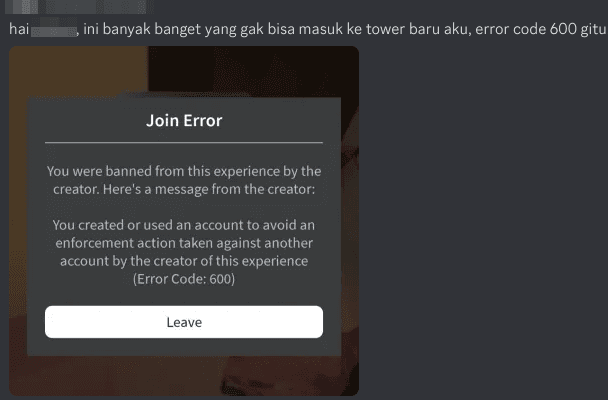
Source: Roblox Developer Forum
How Can You Fix Error Code 600 in Roblox?
Short answer: because many Error Code 600 cases are deliberate bans enforced by the experience (or by its Ban API configuration), there’s no guaranteed universal “fix.”
However, depending on the root cause, there are a few legitimate steps you can try.
Quick fixes people commonly try (these may or may not work depending on the ban type):
- Restart your device and network hardware (router/modem).
- Log out and log back into the Roblox account that was kicked.
- Clear Roblox cache or reinstall the Roblox client (useful if client files are corrupted).
- If the ban is truly an IP-based restriction and you’ve been wrongly flagged, try a different network (e.g., mobile hotspot).
- If a creator banned you by mistake, contact the experience creator (look for their contact info in the game description or group) and ask them to review the ban.
- If your account was banned for policy violations, appeal via Roblox Support only for platform-level bans; note support cannot remove bans issued directly by creators.
I kept that list short so it stays within two lists for the whole article. Below I expand on these steps and explain when each is appropriate.
When to try each step
- If you get a message saying you were banned for a specific reason or that you “created or used an account to avoid an enforcement action,” the Ban API’s alt-detection may be in use. Switching to a different network can prove whether the block is tied to the IP/connection. Devs have reported the Ban API can operate at a connection level, not strictly per account.
- If your client had corrupt files or interruptions while launching, reinstalling Roblox or clearing temporary data is a reasonable diagnostic. Some community posts report reinstall fixed launch-related occurrences that looked like code 600 but were actually client issues.
- If you suspect a mistaken ban by the experience creator (for instance, you were banned without any obvious violation), your only path to resolution for that specific game is to reach out to the creator or the group that runs the game and ask for a review or unban.

The Issue With the Ban API
Roblox’s Ban API and alt-account detection were designed to help creators manage disruptive players, cheaters, and repeated offenders more effectively.
In practice, however, several issues have emerged:
False positives and alt-detection problems: Some developers report users being blocked even when the game didn’t use the Ban API, or users being kicked for “ban evading” after being unbanned, suggesting the system can misattribute or persist bans across related accounts.
Unban propagation problems: There are reports that when one account is unbanned, associated accounts remain marked as ban-evaders; that makes it difficult for players to recover access quickly even after a creator reconsiders a ban.
Potential for misuse: Because the Ban API gives creators powerful controls (including alt linking), malicious scripts, compromised plugins, or mistaken configurations can lead to wide, unintended bans across a game’s player base. Devs on the official DevForum have posted about backdoors or plugins that caused everyone in a server to be banned inadvertently.
Those problems mean sometimes Error Code 600 is not a simple “you did something wrong” message but a symptom of an imperfect moderation toolchain.
Developers and Roblox themselves have been discussing fixes and improvements on the DevForum, but these systems are still evolving.
What Causes Error Code 600 in Roblox?
To summarize the common causes, with sources behind each:
- Creator-issued ban (most common): The game’s moderation tools or scripts banned the account from that experience. This is the expected interpretation per Roblox Support.
- Ban API / alt-account detection: The experience used Roblox’s Ban API, which can flag and block what it determines are alternate accounts or ban-evading connections. This can lead to broader, connection-level blocks.
- False positives or buggy developer scripts/plugins: Misconfigured permissions, malicious plugins, or backdoors have caused incidents where many players get banned unexpectedly. Devs discuss these cases on the DevForum.
- Local client or network issues that mimic a ban: In some cases, corrupted client files, networking problems, or firewall settings can prevent a successful join and present errors that look similar to a ban. Reinstalling or clearing cache can help diagnose this.
If you don’t know which of these is happening, the most practical diagnostic is to test on a different network and/or a different device.
If the same account is blocked across multiple networks and devices, it’s likely an intentional designer-issued ban; if switching networks fixes it, it’s more likely connection/IP related or a false positive tied to your current IP.
How to Play Roblox Without Lag?
Lag can ruin the Roblox experience just as much as errors like 600.
Since Roblox depends heavily on real-time actions, especially in competitive modes, tycoon games, and roleplays with lots of players, having a smooth connection is essential.
Most of the time, lag in Roblox happens because of high ping, packet loss, or unstable routing between your connection and the game server.
Even with a decent internet speed, your data might be taking a longer or less efficient path to reach Roblox’s servers, which creates those annoying delays.
That’s where NoPing comes in. NoPing is a software designed to optimize your internet route to the game server, reducing ping and avoiding packet loss.
Instead of relying on your provider’s default path, it redirects your connection through a faster and more stable route.
Here’s how to use NoPing to fix lag in Roblox:
- Sign-up through the website and download NoPing (you can try it for free)
- Open NoPing and search for Roblox inside the software
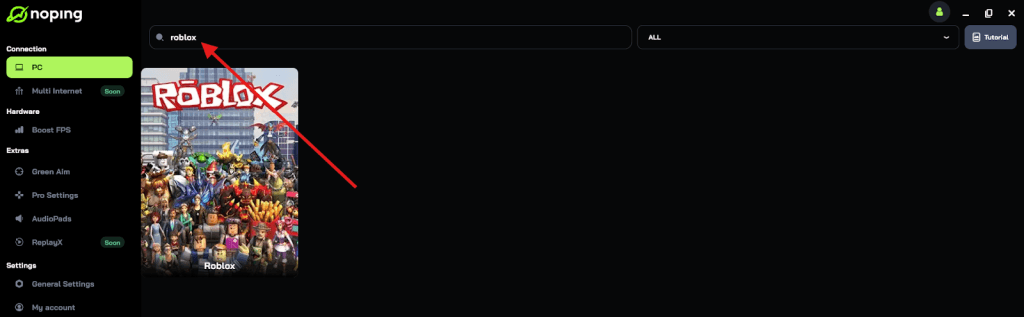
- Once you find Roblox, click on it and, on the next screen, select “Choose automatic” or “Choose manual” and click “Continue”. We recommend choosing automatic, as NoPing’s technology analyzes all routes on a global scale and automatically selects the best option for you.
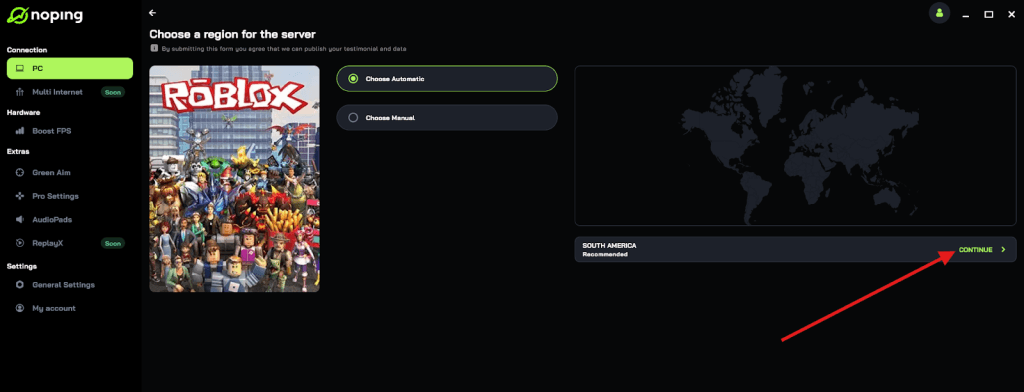
- On the next screen, click on “Optimize Game”.
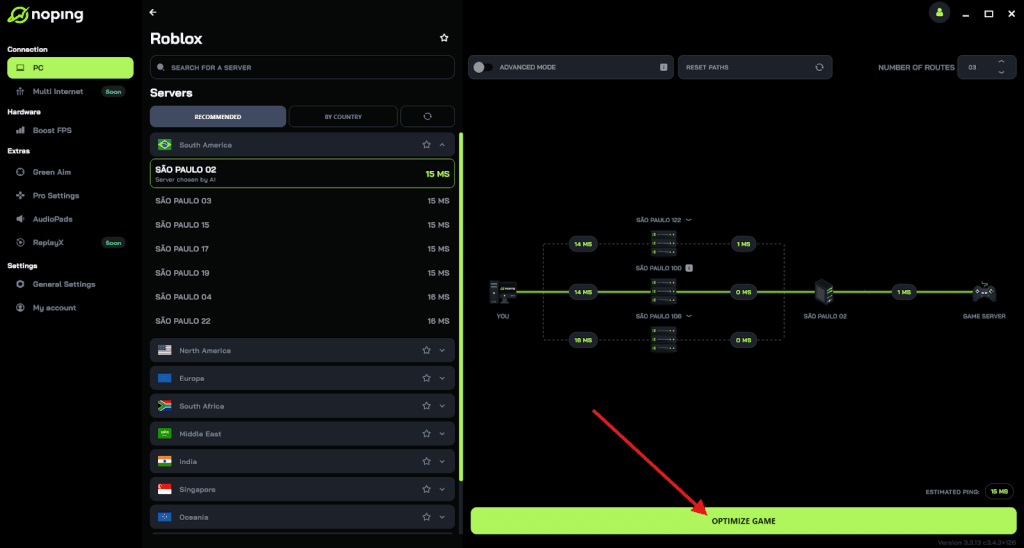
- And that’s it, you can start playing Roblox with optimized ping!
You can test different servers within NoPing to see which gives you the lowest latency.
FAQ - Error Code 600 in Roblox
Q: Can Roblox Support remove an Error Code 600 ban?
A: Generally no. If the ban was set by the experience creator through the game’s moderation controls, Roblox Support cannot remove it for you. Support can act on platform-level enforcement but not creator-managed bans.
Q: If I was banned in one game, will I be banned from other games by the same developer?
A: Potentially yes if the developer configured bans at the group or experience level for multiple games, or if their Ban API usage links accounts across their experiences. But a platform-wide Roblox ban is a different, rarer action handled by Roblox itself.
Q: I’m a developer, how can I check and undo Ban API actions in my experience?
A: Developers can view and manage bans in the game configuration under moderation/bans, and use relevant Ban API admin functions or Open Cloud logs to inspect ban history.
If you see unexpected bans, audit plugins, scripts, and group permissions for anything that could have issued them. DevForum threads contain community troubleshooting tips.
Q: Why do some community guides suggest clearing cache or reinstalling as a fix?
A: Sometimes the error is caused or compounded by client-side problems (corrupt files, temporary data).
Clearing cache or reinstalling can rule out those causes and is a harmless diagnostic step before assuming a permanent ban.
Play all Roblox experiences without lag right now! Download NoPing and start your free trial!