


Running into Marvel Rivals Error Code 220 can be a real buzzkill, especially when you're all set to jump into a match with your favorite superhero.
Whether you're trying to team up with friends or just explore the game solo, error 220 can bring everything to a halt.
But don’t worry, this guide will walk you through what this error means, why it shows up, and, most importantly, how to fix it.
What is the Marvel Rivals Error Code 220?
Marvel Rivals Error Code 220 usually appears when there's a problem with your game client connecting to the servers.
This might happen while you're logging in, during matchmaking, or even mid-game. The error code might show a vague message like "Connection lost" or "Unable to retrieve game data," but it all points back to the same issue, some kind of communication breakdown between your device and the game’s servers.
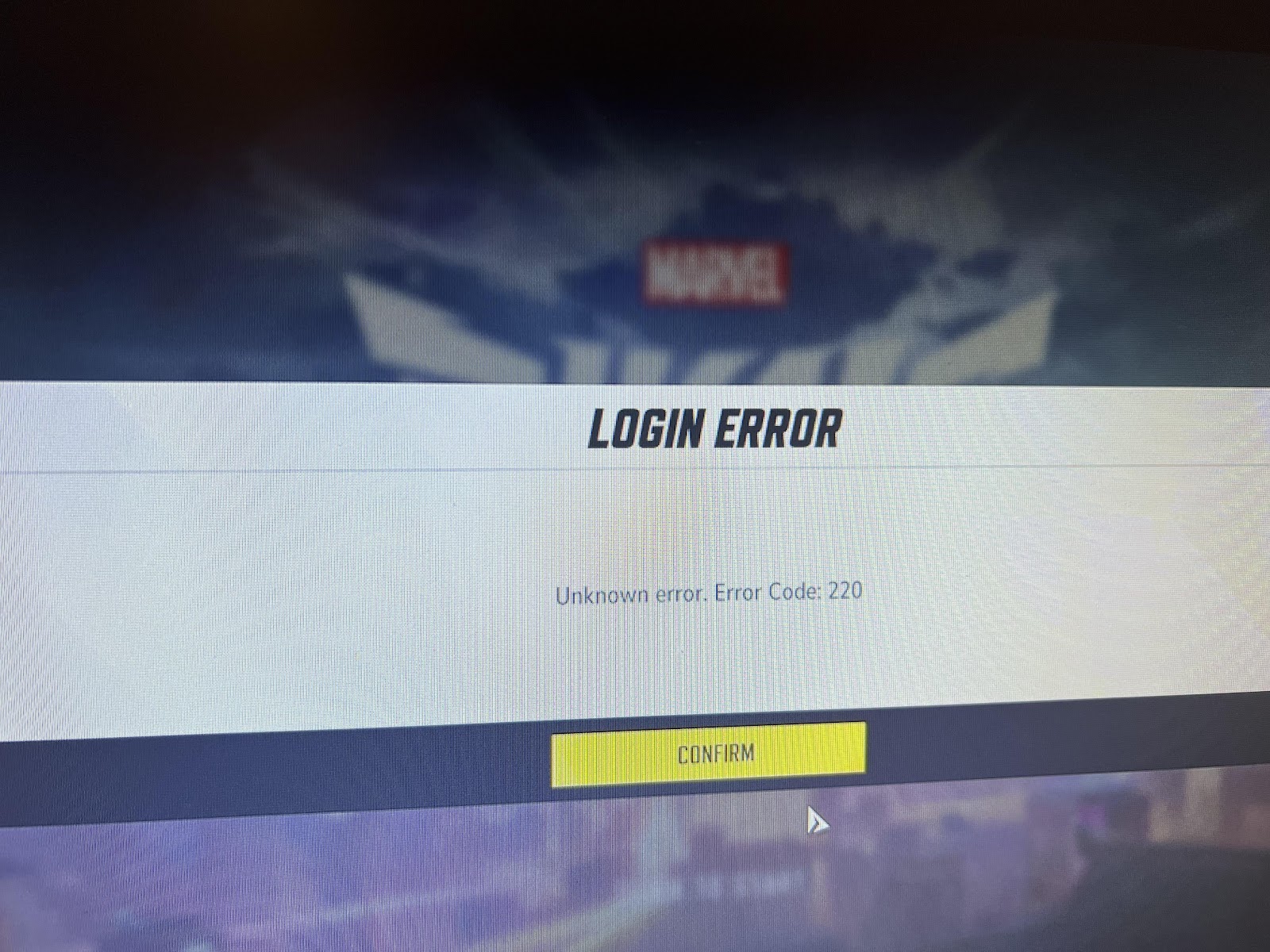
Source: Reddit
It’s not the most specific error code out there, which makes it a bit frustrating. Still, once you understand the common causes and follow the right troubleshooting steps, it’s usually fixable without needing to contact support.
7 Easy Ways to Fix Marvel Rivals Error Code 220
Let’s dive into the practical part. Here are some beginner-friendly methods to fix error 220:
1. Restart Your Game and Launcher
It sounds basic, but closing the game and restarting your launcher (whether it’s Steam or another platform) can reset temporary network glitches. Always start with the simplest option.
2. Check Marvel Rivals Server Status
Before making changes on your end, make sure the problem isn’t on theirs. Check official channels like the game’s Twitter or Discord for maintenance updates or unexpected outages. If the servers are down, there’s not much you can do except wait.
3. Reboot Your Router or Modem
Connection issues are often tied to your internet. Turn off your modem and router for 10–15 seconds, then turn them back on. This can refresh your IP and clear up small connectivity issues.
4. Use NoPing
Sometimes, your route to the game servers is the real problem, especially if you live far from the servers or use a shared connection.
NoPing optimizes your connection path to reduce ping and avoid packet loss. It can even solve route-related disconnection errors like code 220.
Plus, it’s beginner-friendly and doesn’t require complex setup. Just download, select Marvel Rivals, and connect.
Here’s how to use NoPing to fix network issues in Marvel Rivals:
- Sign-up through the website and download NoPing (you can try it for free)
- Open NoPing and search for Marvel Rivals inside the software

- Once you find Marvel Rivals, click on it. Choose your server on the next screen and click on “Optimize Game”.

- And that’s it, you can start playing Marvel Rivals with optimized ping!
You can test different servers within NoPing to see which gives you the lowest latency.
5. Switch to a Wired Connection
Wi-Fi is convenient, but it’s not always stable, especially during online gameplay. Try using an Ethernet cable to get a more stable and consistent connection to the server. This one change alone has fixed error 220 for many players.
6. Flush DNS and Renew IP
Corrupted DNS caches can interfere with game servers. Here's how to flush your DNS on Windows:
- Open Command Prompt as Administrator.
- Type the following commands, pressing Enter after each one:
ipconfig /flushdns
ipconfig /release
ipconfig /renew
After that, try launching the game again.
7. Temporarily Disable Your Firewall or Antivirus
Overprotective firewalls and antivirus software can block Marvel Rivals from connecting to its servers. Try disabling them temporarily and launch the game. If it works, you may need to add the game as an exception in your security settings.
Be careful when disabling firewalls or antivirus software. Always re-enable them once you're done testing.
What Causes Marvel Rivals Error Code 220?
There’s no single cause for error 220, but here are the most common culprits:
- Unstable or weak internet connection – Frequent drops or slow speeds make it hard for the game to stay connected.
- ISP routing problems – Sometimes your internet service provider sends your data through inefficient or congested paths.
- Game server issues – Marvel Rivals servers occasionally go down for maintenance or technical reasons.
- Firewall or antivirus blocking the game – Security software can mistake the game’s connection for something harmful.
- Corrupted game files – Missing or broken files can interfere with how your game connects to the server.
- Outdated network drivers or game client – An old version of your software might not sync correctly with updated servers.
Knowing the root cause can help you apply the right fix faster.
What are Other Error Codes in Marvel Rivals?
Marvel Rivals has a few different error codes that players report. Here's a quick look at some of them:
| Error Code | Description |
| 211 | "Operation frequency too high" – Usually means you're sending too many requests too fast. Wait a bit and try again. |
| 2103 | Often related to server sync or data mismatch issues. A client update or reinstall might help. |
| 270 | This one pops up with login problems, often due to server-side trouble or expired session tokens. |
| 1031 | Usually happens during login and may involve regional access or connection timeout. |
| 401 | Unauthorized access—often a login issue, like incorrect credentials or session expiration. |
Each error code usually points to something specific, even if the game doesn’t explain it well. Knowing what they mean makes troubleshooting faster.
FAQ
Q: Is error code 220 caused by my internet?
A: Most of the time, yes. An unstable or slow internet connection is the number one cause of Marvel Rivals Error Code 220.
Q: Will reinstalling the game fix error 220?
A: It might if the problem is corrupted game files. But try other steps first—like checking your internet or flushing your DNS—before going for a full reinstall.
Q: Can network optimization services help with Marvel Rivals connection issues?
A: Specialized services like NoPing, which are built for gamers, can help by improving your connection route.
Q: Is this error permanent?
A: No. Marvel Rivals Error Code 220 is usually temporary and can be fixed with the right steps. Unless it’s a server-side issue, you should be able to resolve it on your end.
Q: Do I need to contact support if I see error 220?
A: Only as a last resort. Most players can solve the issue by restarting the game, checking their internet, or using connection tools like NoPing. If nothing works, then you can reach out to customer support.
Marvel Rivals is an intense, fast-paced team shooter, and no one wants to deal with disconnects or error messages, especially error 220.
The good news? You don’t have to be a tech expert to fix it. A few simple steps, like resetting your router, flushing your DNS, or using NoPing, can get you back into the action quickly.
So download NoPing now and play Marvel Rivals with the best connection! Start your free trial!