

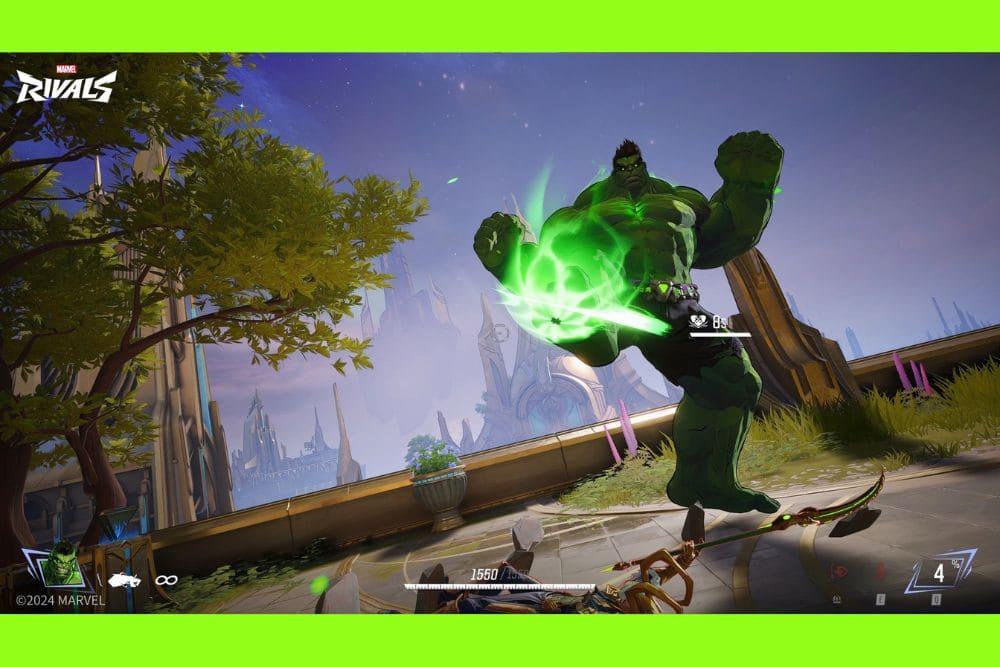
Seeing Marvel Rivals stuck at 99% on the loading screen is the opposite of heroic.
You boot up, matchmaking ticks along, the bar crawls to almost-finished… and then nothing. The worst part? It can cost you time, penalties, and patience.
The good news: most players who hit this snag solve it with a few practical tweaks. This guide pulls together the fixes that are actually working right now, plus why the problem happens in the first place. So, let’s begin!
What is the Stuck at 99% Glitch in Marvel Rivals?
Players describe a specific pattern: when joining a match (or loading into a map), the progress bar climbs normally, then freezes in the 97–99% range.
The game may remain responsive but never completes the transition, or it times out and kicks you.
This issue has shown up since testing periods and persists for some users in live seasons; it’s not every match for everyone, but it’s common enough to have several threads and videos discussing it. Community reports characterize it as a persistent load barrier rather than a full crash.
What Causes Marvel Rivals Stuck at 99% Glitch?
Multiple factors can converge to produce that “nearly there” stall:
Disk speed and install location (HDD vs SSD)
A recurring theme from community experiences and troubleshooting write-ups: the game behaves better when installed on an SSD. Some players specifically link 99% stalls to HDD installs or slow storage. An SSD doesn’t guarantee a fix, but it has a high success rate. Official and community specs also recommend SSD for a better experience.
File integrity or corrupted cache
Corrupted or incomplete files, especially after patches, can manifest as late-stage loading hangs. Users report success after verifying files and wiping leftover folders (e.g., under %AppData% / temp) before reinstalling cleanly.
System requirements or driver/runtime mismatches
Marvel Rivals is a modern DX12 title with a fairly specific floor. Running under the minimum, or with outdated graphics drivers/Windows builds, can result in stalls during asset and shader prep near the end of loading. The Steam page lists the baseline specs and notes the SSD recommendation.

Login/launcher hiccups or server-side issues
At times, the problem has nothing to do with your PC. NetEase recently acknowledged PC login problems on Steam and suggested temporary workarounds while working with Valve, an example of how upstream issues can produce hang-like behavior around the transition into matches.
Anti-cheat conflicts or environment blockers
Anti-cheat is required and has produced edge-case headaches (the team has even had to reverse controversial bans tied to emulation environments). Security software, overlays, or virtualization layers can collide with anti-cheat and stall the final handoff into the match.
How to Fix Marvel Rivals Stuck at 99% Issue?
Try these in order. You’ll probably only need a few.
Move (or reinstall) Marvel Rivals to an SSD
If you installed to an HDD, migrate the game to a solid-state drive. Multiple player reports and guides flag SSD as the single most impactful change for 99% hangs. On Steam, you can right-click the game → Properties → Installed Files → Move Install Folder to an SSD library. If you can’t move, uninstall then reinstall directly to SSD.
Verify game files on Steam
Patches can leave stragglers. In Steam: Properties → Installed Files → Verify integrity. Let it replace or reacquire anything broken. This addresses incomplete asset packs that often bite right at the end of loading. (Corruption and bad leftovers are a common thread in community fixes.)

Do a “clean slate” reinstall (if verification wasn’t enough)
Uninstall the game, then manually delete leftover folders, especially under %AppData% and Temp, before reinstalling on SSD. Players who were stuck at 0%/99% and even getting penalties report this precise sequence fixed it. Tip: back up your settings first if you’ve customized them.
Update your GPU drivers and Windows build (DX12)
Make sure you’re on current NVIDIA/AMD/Intel graphics drivers. Also confirm Windows 10 64-bit (version 1909 or newer) as listed by the game. Marvel Rivals uses DirectX 12; outdated runtimes or a lagging OS can cause late-stage asset prep problems.
Confirm you meet (or exceed) the minimum specs
If your RAM is under 16 GB, or your GPU/CPU falls below the minimum, heavy map loads can hang where memory pressure peaks—right before 100%. Check your rig against the Steam page. Upgrading RAM from 8 → 16 GB has been a turning point for some players.
Reduce overlays and background apps
Disable non-essential overlays (recorders, FPS tools, RGB controllers, chat overlays) and stop heavy background downloads. These can interfere with anti-cheat or starve the game during the final load handoff.
Temporarily relax security software (or add exceptions)
Add Marvel Rivals and its anti-cheat to your antivirus/firewall allow lists. If you’re using aggressive HIPS/sandbox rules, test with them disabled. Anti-cheat and security suites sometimes deadlock right at “mission start.” If things improve, create permanent exceptions rather than leaving protection off.
Tackle possible Steam/login hiccup
If you’re stuck in a loop post-patch, sign out and back into Steam, or restart the client. Developers recently acknowledged login problems and even suggested brute-forcing “Continue” as a temporary workaround while they worked with Valve. Clunky, but it has helped some players break through.
Use NoPing to stabilize routing and reduce stalls caused by network timeouts
If the stall happens during the server handshake rather than asset loading, a bad route (high jitter/packet loss) can push you into a near-100% limbo and ultimately time out.
NoPing picks better network paths to the game servers, reducing the chance of intermittent timeouts during match join.
Here’s how to use NoPing to fix network issues in Marvel Rivals:
- Sign-up through the website and download NoPing (you can try it for free)
- Open NoPing and search for Marvel Rivals inside the software

- Once you find Marvel Rivals, click on it. Choose your server on the next screen and click on “Optimize Game”.

- And that’s it, you can start playing Marvel Rivals with optimized ping!
You can test different servers within NoPing to see which gives you the lowest latency.
Try windowed/borderless and lower texture pool temporarily
If your VRAM/RAM is tight, switching to borderless windowed and stepping down textures for a test match can cut peak memory pressure in that final 1–3% of loading.
Last mile: OS repairs and device sanity checks
If all else fails, run sfc /scannow and DISM to repair Windows components, remove CPU/GPU overclocks, and test system memory (e.g., Windows Memory Diagnostic). Marginal overclocks often show up as “almost loaded” stalls in modern DX12 games.

FAQ - Marvel Rivals Stuck at 99%
Q: Is this a known bug the developers have talked about?
A: While “99% stuck” has been widely reported by players since early test phases, the developer communications tend to focus on broader login/Steam issues or anti-cheat edge cases.
Q: Does installing on an SSD really matter that much?
A: It’s not guaranteed, but it’s one of the highest-percentage fixes seen in community reports and third-party troubleshooting posts. The game’s own recommended notes call out SSD for a better experience, and players have specifically tied HDD installs to the 99% symptom.
Q: What are the official minimum and recommended specs?
A: As listed on Steam: Windows 10 64-bit, Intel i5-6600K / Ryzen 5 1600X, 16 GB RAM, GTX 1060 / RX 580 / Arc A380, DX12, 70 GB storage (SSD recommended). Recommended raises the CPU/GPU tier and keeps the SSD recommendation.
Q: Could anti-cheat be the reason I’m stuck at 99%?
A: It can be a contributing factor if your setup conflicts with it—particularly with virtualization/emulation layers or aggressive security tools. The team has publicly dealt with anti-cheat controversies before (like reversing bans tied to emulation usage), which underscores that environment conflicts are a thing. Try disabling overlays, adding AV exceptions, and avoiding VMs.
Q: I meet the specs and I’m on SSD, but it still hangs. What next?
A: Verify files, clear %AppData% leftovers, and reinstall clean. Make sure your GPU drivers and Windows build are current. Then look at networking: if your route is unstable, a service like NoPing can smooth out the handshake.
Q: Is this only a PC/Steam problem?
A: Marvel Rivals is currently PC-first via Steam, and the overwhelming majority of 99% reports come from there. When Steam or the game backend has a hiccup, the symptoms are most visible on PC.
If you try the SSD move plus a clean file verify and still get the 99% stall, the next best differentiator is figuring out where the hang is: if disk/CPU/RAM spike hard while the network sits idle, you’re likely looking at storage or file integrity; if the network spikes, handshake/route instability may be the culprit.
So download NoPing now and get rid of network issues in Marvel Rivals! Start your free trial!