


If you want to boost FPS in Roblox in 2026 and keep your games running smoothly, you’re already on the right track.
Roblox is packed with endless worlds to explore and create, but low FPS can quickly turn an exciting session into a frustrating one.
When frames start dropping, gameplay feels sluggish, stutters break the flow, and battles or creative builds don’t hit the way they should.
That’s why improving your FPS matters. In this article, we’ll cover how to check your current FPS, effective and up-to-date ways to make it better, and why stable performance makes such a big difference for your Roblox experience.
Also read these articles about Roblox!
- How to Fix Lag on Roblox and Reduce Ping
- How to Fix Ping Spikes in Roblox?
- How to Unblock Someone on Roblox?
How to Boost Your FPS in Roblox?
There’s a lot you can do to improve your FPS in Roblox, and some of these tips can make a significant difference, whether you’re using a high-end PC or a more budget-friendly setup. Here's what you can try in 2026:
1. First, Check How Low is Your Frame Rate
To start, confirm that the frame rate in Roblox is actually low by checking the in-game FPS counter. You can do this by pressing Shift + F5 while playing.
If this key combination doesn’t work, your function keys might be disabled. Many laptops have an Fn key, usually located at the bottom-left corner of the keyboard near the CTRL or Windows key.
Look for the Fn key and check if it has an indicator light. If the light is on, the function keys are enabled. If it’s off, the function keys are disabled. To enable them, press the Fn key, then try pressing Shift + F5 again to check the FPS in Roblox.
2. Lower Graphics Settings in Roblox
One of the easiest ways to boost FPS in Roblox is by adjusting the graphics settings. The higher your graphics settings, the more your computer has to work to render the game. While Roblox isn't the most demanding game out there, reducing your graphics settings can free up resources and make the game run smoother. To do this:
- Open Roblox Studio or the game you want to play.
- Click on the gear icon in the top-right corner of the screen (this is the settings menu).
- Scroll down to the "Settings" section and find the “Graphics Quality” slider.
- Set the slider to a lower value. You can experiment to find the balance between visual quality and performance that works best for you.

Source: Dev forum Roblox
3. Close Background Applications
Sometimes, other programs running on your PC can eat up resources and slow down your game.
To ensure that Roblox has as much power as possible to run smoothly, close unnecessary applications.
This includes web browsers, media players, or anything else you don’t need while gaming. The fewer background tasks, the better your FPS is likely to be.

Source: MS.Codes
4. Update Your Graphics Drivers
Outdated graphics drivers can cause performance issues and impact the quality of your gameplay.
Make sure your GPU drivers are up to date, as updates often come with performance improvements and bug fixes. Depending on whether you’re using Nvidia, AMD, or Intel graphics, you can visit their official websites or use automatic tools to update your drivers.
5. Optimize Your Power Settings
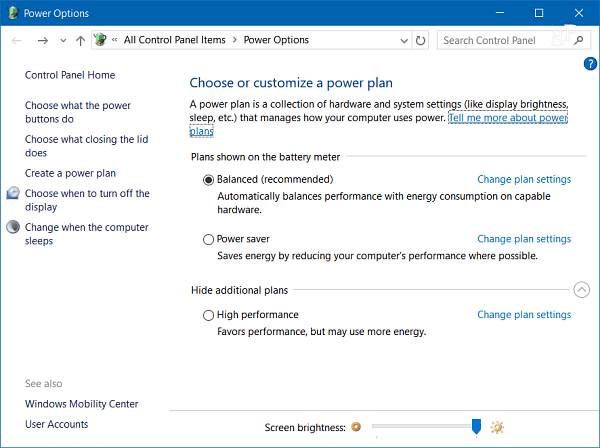
If you’re playing Roblox on a laptop or a PC with power-saving features, it could be limiting your system’s performance to save battery life. To boost your FPS, change your power settings to "High Performance." On Windows:
- Go to the Control Panel and search for "Power Options."
- Select the “High Performance” plan to ensure your system is working at full capacity.
Source: Groovypost
6. Reduce Roblox’s Visual Effects
Certain effects in Roblox can eat up resources and cause performance drops.
To disable some of these, you can tweak the settings in Roblox Studio or the in-game settings.
Disabling features like shadows, reflections, and textures can often help improve performance without impacting your experience too much.
7. Lower Screen Resolution
If you’re playing Roblox in a very high resolution, your system may struggle to render everything smoothly.
Try lowering your screen resolution to reduce the load on your GPU and CPU. You can do this through your PC’s display settings.
Experimenting with different resolutions might help you find a setting that gives you the best balance between visuals and performance.
8. Use a Wired Connection
If you’re playing online, having a stable internet connection is crucial to boost FPS in Roblox.
A wireless connection can sometimes introduce lag, especially if your Wi-Fi signal is weak. For the best experience, use a wired Ethernet connection to ensure you have the most stable and fastest internet connection possible.
9. Optimize Your PC’s Hardware
Sometimes, boosting FPS means improving the hardware itself. If you find that no matter what you do, your FPS still isn’t great, consider upgrading your PC components.
A faster processor (CPU), more RAM, or a dedicated graphics card (GPU) can make a huge difference in performance.
If you’re playing Roblox on an older machine, these upgrades could be well worth it in the long run.
10. Run Roblox as Administrator for Better Performance
Running Roblox as an administrator can help prioritize it over other background processes, allowing your hardware to allocate more resources to the game. This may lead to improved frame rates and reduced lag.
To do this, simply right-click on the Roblox icon and select "Run as administrator." This ensures that Roblox gets priority over other tasks running in the background, potentially enhancing performance.
11. Use NoPing's Boost FPS
In some cases, Roblox may be capped at a certain FPS limit, even though your system can handle higher performance.
How Boost FPS helps to boost FPS in Roblox:
- Closes unnecessary background services
- Frees up RAM and CPU resources
- Optimizes network routes to reduce data congestion (which indirectly helps FPS in online matches)
How to use the Boost FPS feature in Roblox:
- Sign-up through the website and download NoPing (you can test it for free).
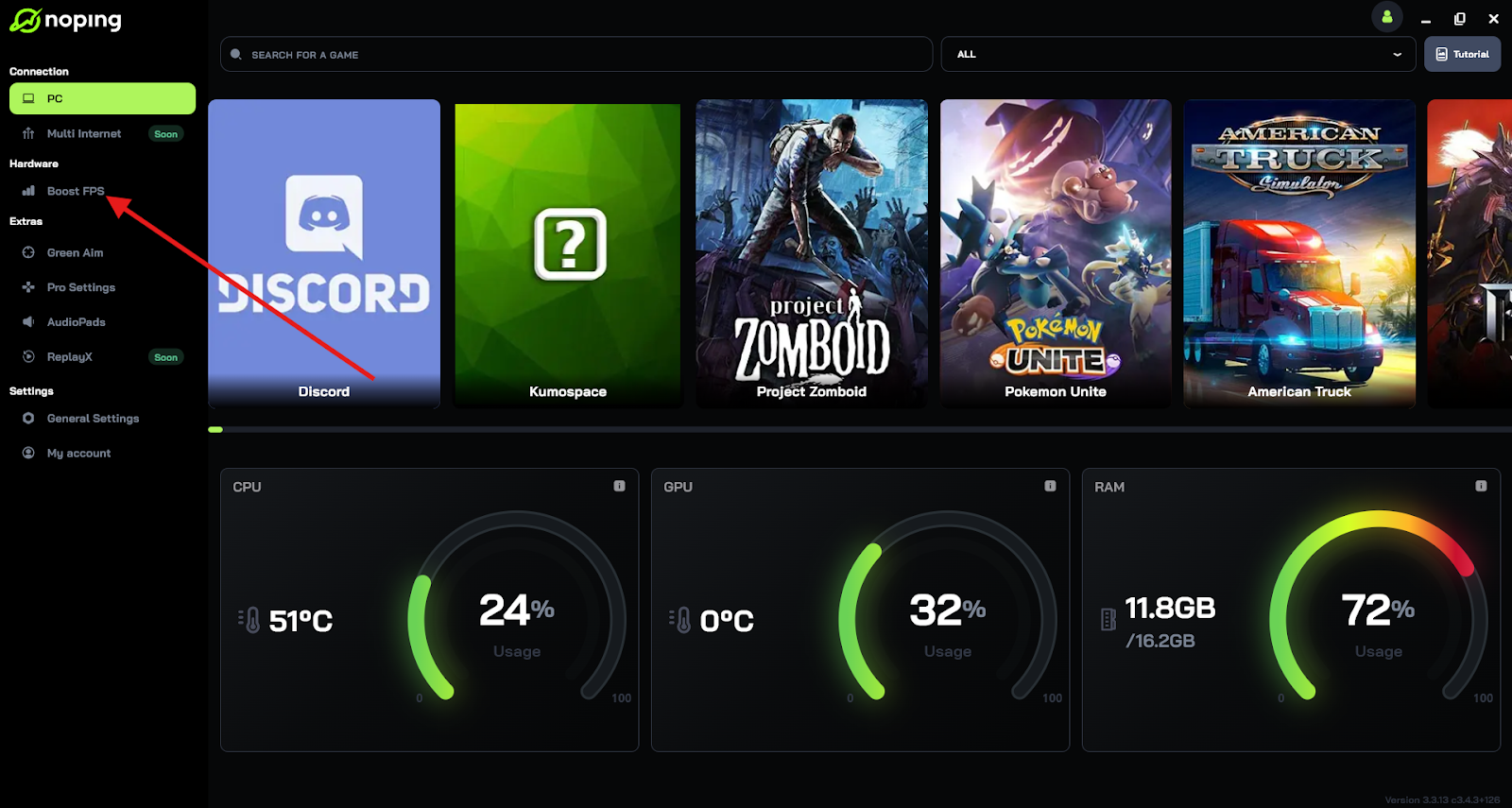
- When you open the software, click on "Boost FPS" in the left side menu.
- On the next screen, you'll see a range of options to customize the feature (there are over 50 settings). You can enable or disable everything and choose between Windows default or user settings. You can also filter the options using the bar on the right.
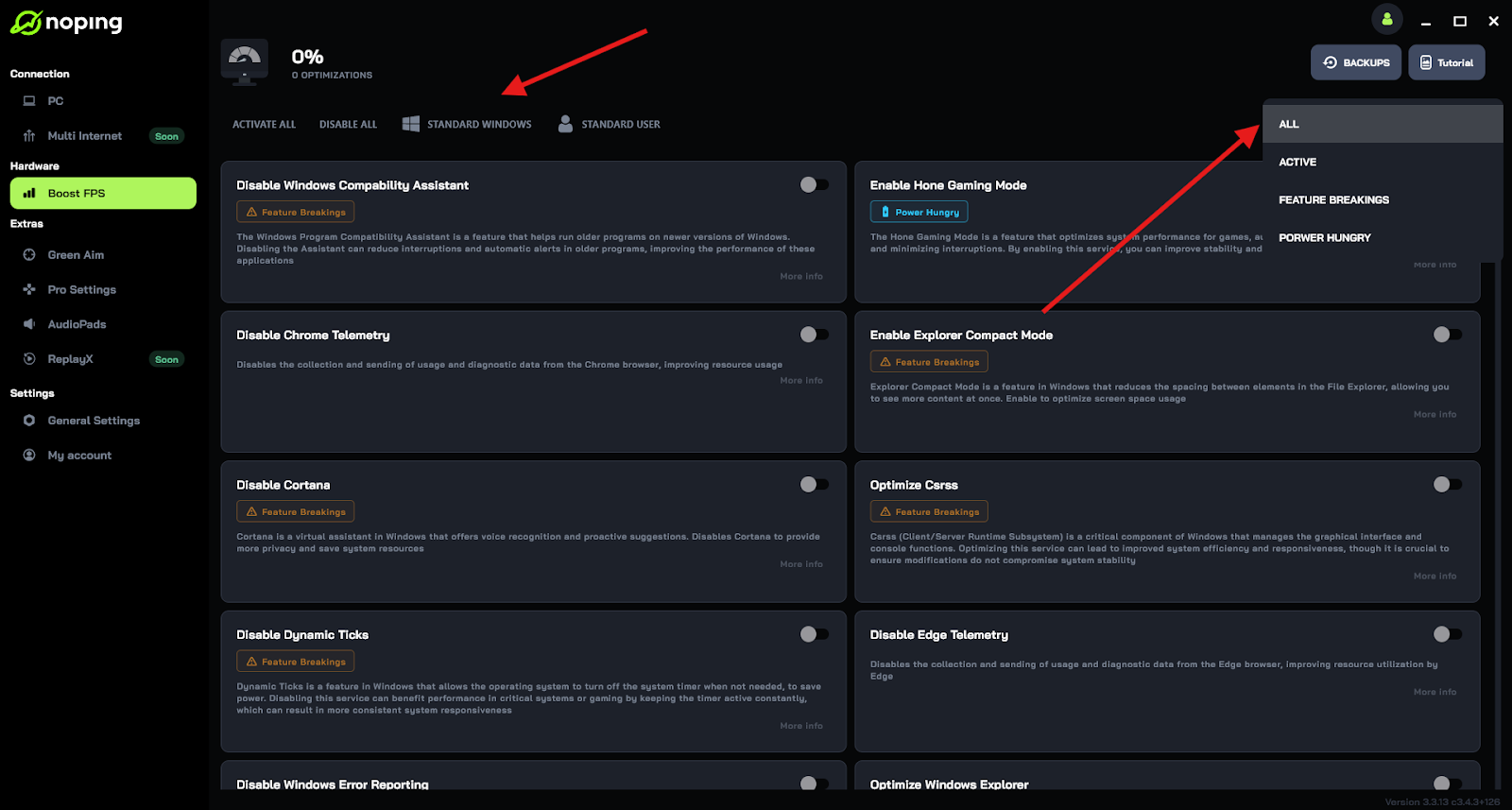
And that's it! Boost FPS is now activated. Just launch Roblox and enjoy high FPS!
Run Roblox in High Performance Graphics Mode
On Windows, you can set individual apps to use the High Performance graphics preference. This forces the system to allocate more GPU power to Roblox instead of saving energy, which can significantly improve FPS, especially on laptops.
To enable this: go to Settings > System > Display > Graphics Settings, add Roblox, and choose “High performance.”
Ensure Roblox Is Running on Your Dedicated GPU
If your PC has both integrated and dedicated graphics (common with gaming laptops), sometimes Roblox runs on the weaker integrated GPU by default. You can force it to use the more powerful GPU through Graphics settings (Windows) or your graphics control panel (NVIDIA/AMD), which can greatly increase FPS.
Improve PC Airflow and Cooling
Poor cooling can cause your CPU or GPU to throttle (slow down) to avoid overheating, which directly reduces FPS during gameplay. Make sure your PC or laptop has good ventilation, free of dust, and consider using a cooling pad for laptops. Keeping components cool helps maintain stable high FPS.
Adjust Roblox Rendering Priority in Windows
Windows may allocate more resources to background tasks than to Roblox by default. You can open Task Manager, find the Roblox process, right‑click it, and set Priority to High. This makes Windows prioritize Roblox over other programs, which can lead to smoother performance and higher FPS.
Limit Background Startup Apps and Services
Many programs launch automatically with Windows and run in the background, consuming CPU and memory. Disabling unnecessary startup apps reduces resource competition, allowing Roblox to use more system power for better FPS. You can manage these in Task Manager > Startup and disable items you don’t need when gaming.
How Can I See My FPS in Roblox?
If you want to know exactly how well Roblox is running on your system, it’s important to be able to check your FPS. Here’s how you can do it:
Enable FPS Display in Roblox Settings
Roblox has a built-in FPS display that can show you how well your system is performing. To enable it:
- Open Roblox and start the game you want to play.
- Press the Shift + F5 keys on your keyboard.
- A small FPS counter will appear in the top-right corner of your screen, showing the current frames per second.

Use Third-Party Software
If you want more detailed information about your system’s performance, you can use third-party software like MSI Afterburner or FRAPS. These tools can provide in-depth data about your FPS, GPU usage, CPU temperature, and more. Some of these programs also allow you to record your gameplay if you’re interested in capturing your Roblox sessions.
Checking your FPS regularly can help you keep track of how well your optimizations are working and whether there are any other tweaks you need to make.
Why is FPS Important in Roblox?
FPS plays a huge role in how your gaming experience feels. In Roblox, smooth gameplay is essential for enjoying the fast-paced, action-packed nature of many of its games. Here’s why it matters:
Better Control and Responsiveness
The smoother your FPS, the more responsive the game will feel.
With higher FPS, your character’s movements will be more fluid, and actions like jumping, running, and attacking will feel more responsive. Low FPS can cause input lag, making the game feel unresponsive and sluggish.
Reduce Motion Sickness
Low FPS can make the game feel choppy, and this can lead to motion sickness or discomfort for some players.
Higher FPS ensures a smooth visual experience, reducing the likelihood of feeling dizzy or nauseous during gameplay.
Better Visual Experience
Having a high FPS means that the game renders smoother, meaning you won’t experience stutter or frame drops.
Roblox games often feature action-packed scenarios, and a high FPS helps to make these moments more immersive and enjoyable. With smoother animations, you'll enjoy a more visually pleasing experience.
Improved Competitive Performance
In Roblox games that require quick reflexes, like racing or first-person shooters, having a high FPS is crucial. Higher FPS means you’ll be able to react faster, see more clearly, and make better decisions, which can help you win or achieve your in-game objectives.
Best Roblox In‑Game Settings for Maximum FPS
While Roblox is not as graphically demanding as AAA games, optimizing its in‑game settings can significantly improve frame rates — especially on low to mid-range PCs. Adjusting a few simple options inside the Roblox client can yield immediate FPS gains without compromising the overall visual experience.
Here are the best in‑game settings for higher FPS:
- Graphics Mode: Set to Manual to gain full control over individual settings.
- Graphics Quality: Drag the slider to Low or Medium. Lowering this reduces shadows, textures, and effects that strain your GPU.
- Fullscreen Mode: Always enable Fullscreen, which allocates more system resources to Roblox.
- Camera Effects: Disable unnecessary visual effects to avoid GPU overload.
- Textures: Lower or disable if your device has limited VRAM.
These changes are especially effective when combined with background optimizations and hardware tweaks. The result is smoother gameplay, faster response time, and a better overall experience.
System Requirements for Playing Roblox Smoothly
Although Roblox is a lightweight platform, performance can still suffer if your device doesn't meet the necessary system requirements. To ensure stable FPS and a responsive game, your PC should meet — or exceed — the following specs:
Minimum Requirements:
- CPU: 1.6 GHz or faster (modern dual-core)
- RAM: 1 GB (2 GB for Windows 10/11)
- GPU: Integrated graphics compatible with DirectX 10+
- Storage: 1 GB of available space
- OS: Windows 7 or higher / macOS 10.10 or later
Recommended for Smooth 60+ FPS:
- CPU: Intel i3 / Ryzen 3 or better
- RAM: 4 GB or more
- GPU: Dedicated GPU (e.g., NVIDIA GT 1030 or equivalent)
- Storage: SSD for faster load times
- Network: Stable connection with ping below 100ms
If you're using an older PC or laptop, lowering your in‑game settings and closing background applications can help Roblox run more smoothly, even under the minimum specs.
Common Performance Issues and How to Fix Them
Many Roblox players experience performance issues that aren't directly tied to graphics settings. Lag, stutters, and random FPS drops can come from system conflicts, network instability, or even outdated software. Knowing how to identify and fix these issues can make a big difference in performance.
Here are the most common performance problems and solutions:
- Sudden FPS drops: Often caused by background processes. Open Task Manager and close resource-heavy apps like Chrome, Discord, or Steam.
- Lag or rubberbanding: Usually related to network latency. Switch to a wired connection or move closer to your router if using Wi‑Fi.
- Stuttering gameplay: May be caused by thermal throttling. Ensure your PC or laptop is properly cooled and free from dust.
- Long loading times: Caused by slow HDDs. Consider upgrading to an SSD.
- Crashes or freezes: Update your graphics drivers, Roblox client, and Windows system to ensure compatibility.
By addressing these issues at the source, you can improve both the consistency and quality of your Roblox sessions.
Frequently Asked Questions (FAQ) on Boosting FPS in Roblox
To further enhance your Roblox gaming experience, here are some additional tips and insights not covered in the main article:
How can I check my current FPS in Roblox?
Press Shift + F5 while in-game to display the FPS counter. If this doesn't work, ensure your function keys are enabled by holding the Fn key and trying again.
What is the "Graphics Mode: Manual" setting?
Activating "Graphics Mode: Manual" allows you to customize individual graphics settings, providing better control over performance. Adjusting settings like texture quality and lighting can help balance visual appeal and FPS.
How can I optimize Roblox Studio for better performance?
In Roblox Studio, reduce the graphics quality by going to the "View" tab and selecting "Quality" to lower settings. Additionally, simplifying models and minimizing the use of complex scripts can enhance performance.
Any tips for improving FPS on mobile devices?
On mobile, close unnecessary background apps, ensure your device is charged, and update to the latest operating system version. These steps can help alleviate lag and improve FPS.
How can I increase the FPS limit beyond 60?
Roblox caps FPS at 60 by default. While some users have attempted to modify settings to increase this limit, such actions may violate Roblox's terms and could lead to account penalties. It's recommended to adhere to the default settings to ensure compliance.
Boosting your FPS in Roblox doesn’t have to be a complicated task.
By following the tips mentioned in this article—whether it’s adjusting settings, upgrading hardware, or optimizing your system—you can improve your gameplay experience and make Roblox run smoother.
Remember, high FPS is key to better performance, smoother visuals, and more responsive controls, all of which make for a much more enjoyable time in Roblox.
So go ahead, tweak those settings, and enjoy the game!
Play Roblox without lag and with optimized FPS now with NoPing. Try it for free!

