

Learning how to unblock someone on Roblox is a straightforward process that every player should know to manage their social interactions effectively.
Managing your social circle is a core part of the experience, and while blocking is a vital tool to avoid toxicity, there are many times when a misunderstanding leads to a restricted contact you later want to restore.
If you have acted impulsively in a lobby or simply want to give a former teammate a second chance, clearing your block list is the way to go.
The steps are simple, but they change depending on whether you are using a PC, a mobile device, or a console.
How to unblock someone on Roblox using a computer?
To unblock a user on a desktop or laptop, you need to access your Account Settings and navigate to the Privacy tab.
Once you are there, scroll to the bottom of the page to find the Blocked Users section, click "Show," and select "Unblock" next to the specific username.
The web version of Roblox offers the most detailed view of your account management. First, log into your account on the official website.
Look for the gear icon in the upper-right corner of the screen. Clicking this will open a dropdown menu where you should select "Settings." On the left-hand sidebar of the settings page, you will see several options. Click on "Privacy."
This page contains all your interaction preferences, such as who can message you or join your private servers.
If you scroll all the way to the bottom, you will see a header labeled "Blocked Users." If the list is hidden, there will be a "Show" button.
Click it to reveal every player you have restricted. To restore their access, simply click the "Unblock" button next to their name. Remember to click "Save" if prompted to ensure the changes take effect.

How to unblock a player on the Roblox mobile app?
On mobile devices, you can unblock someone by tapping the three dots icon in the bottom-right corner, going into "Settings," then "Privacy," and finding the "Blocked Users" list at the bottom.
You just need to tap "Unblock" next to the person's name to remove the restriction.
The mobile interface for Android and iOS is designed for quick navigation, but it hides the settings menu behind the "More" icon.
After opening the app and tapping the three dots, scroll down until you find the gear icon labeled "Settings." Inside the settings menu, tap on "Privacy."
Just like on the desktop version, the blocked users list is located at the very end of the privacy settings.
If you have a long list of blocked players, it might take a second to load. Once the names appear, find the user you are looking for and hit "Unblock."
It is important to note that once you unblock them, they are not automatically your friend again. You will need to send a new friend request if you want them back on your active friends list.
Also read: How to Fix Roblox Error Code 773: Complete Guide
Can you unblock someone while playing on Xbox?
Yes, you can unblock users on Xbox by accessing the main menu or the player list during a game session, selecting the player's profile, and choosing "Unblock" from the "More Options" menu.
Playing on a console offers a slightly different flow. If you are currently in an experience, you can open the player list (the leaderboard) and select the blocked user if they happen to be in the same server.
However, the most reliable way is through the main Roblox app interface on your console interface. Navigate to your friends or the search function to find the profile.
When you open their profile, the "More Options" button (usually represented by three dots or a specific controller button) will give you the choice to lift the block.
What should you do if the unblock button is greyed out or missing?
If you cannot see the unblock option or the list is missing, it is likely because you have an Account PIN enabled or parental controls are active.
You must enter your four-digit PIN or have the account manager disable the restrictions in the "Parental Controls" section before you can modify the block list.
As of 2026, Roblox has significantly strengthened its safety features. If your account is part of a family group, the parent account may have restricted your ability to manage social interactions.
In this case, the "Blocked Users" section might be locked. To fix this, you need to go to "Settings" and then "Parental Controls." If a PIN is active, you will be prompted to enter it. Without the correct PIN, you cannot add or remove anyone from the block list.
This is a security measure designed to prevent unauthorized changes to account safety.
Is there a limit to how many people you can block on Roblox?
Roblox currently allows you to block up to 1000 individual users.
While this limit is quite high for the average player, if you reach it, you will not be able to block anyone else until you remove some names from your current list.
The block limit has evolved over the years. In the early days of the platform, the limit was as low as 50 or 100 users.
As the community grew and the need for better moderation tools increased, Roblox expanded this capacity. If you find yourself unable to block a new harasser or annoying player, it is a good idea to audit your list.
You likely have people blocked from years ago who no longer play the game. Clearing out these old entries ensures you always have space to manage your current gaming environment.
How do you unblock someone directly inside a game?
To unblock a player while you are still inside a game, open the game menu by pressing the Esc key or tapping the Roblox icon, go to the "People" tab, find the user, and click the "Unblock" button next to their name.
This method is the fastest if you realize mid-game that you made a mistake. When you open the Esc menu, you see a list of every player currently in the server.
Blocked players will often have a specific icon next to their name, typically a circle with a line through it.
By clicking on their name or the button next to it, you can instantly toggle the block status.
This is very useful in competitive games where communication is key to winning, and you realize a teammate you previously ignored is actually essential for the strategy.
Does unblocking someone notify them?
No, Roblox does not send a notification when you block or unblock someone.
The action is completely silent, meaning the other player will only realize they are unblocked if they try to send you a message or a friend request and find that the option is now available.
Privacy is a priority for the platform. If the system sent notifications for blocks or unblocks, it could lead to further harassment or awkward social situations.
When you unblock someone, the digital wall between your accounts simply vanishes.
They will see your profile as public again (depending on your other privacy settings), and they can interact with you in experiences.
If you want to keep things low-profile, you can unblock someone without them ever knowing you had restricted them in the first place.
Why is managing your block list important for a better gaming experience?
Managing your connections ensures that your social environment remains positive, which is just as important as maintaining a stable connection through services like NoPing.
A cluttered block list can prevent you from making new friends or rejoining old groups that have moved past previous conflicts.
When your game is running smoothly at 144 FPS and your ping is sitting at a crisp 20ms thanks to our optimization, the last thing you want is social friction. Roblox is a social platform at its core.
By keeping your block list updated, you ensure that you are only interacting with people who make the game fun. If you have resolved a conflict with another player, unblocking them allows you to utilize the full range of Roblox's social features, including voice chat and private servers.
Here’s how to use NoPing to fix lag in Roblox:
- Sign-up through the website and download NoPing (you can try it for free)
- Open NoPing and search for Roblox inside the software
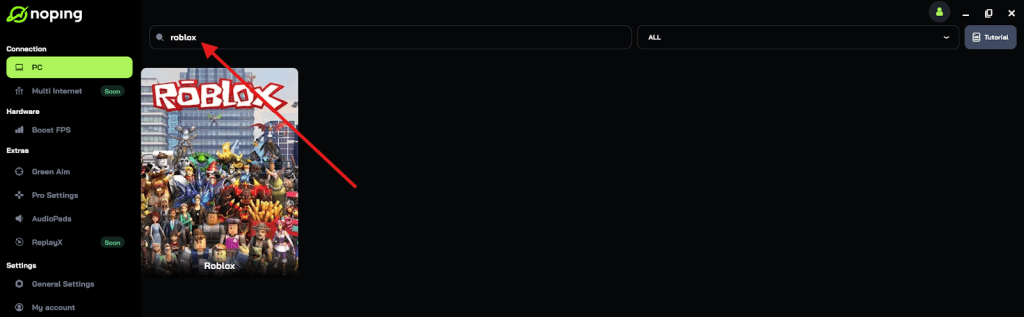
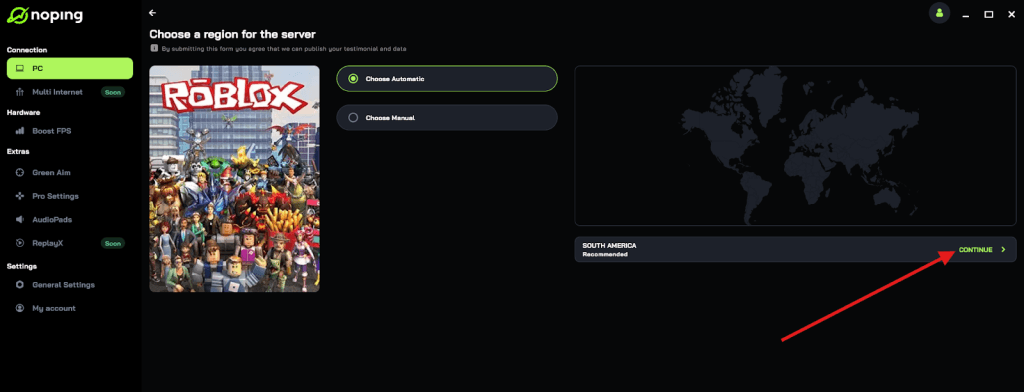
- Once you find Roblox, click on it and, on the next screen, select “Choose automatic” or “Choose manual” and click “Continue”. We recommend choosing automatic, as NoPing’s technology analyzes all routes on a global scale and automatically selects the best option for you.
- On the next screen, click on “Optimize Game”.
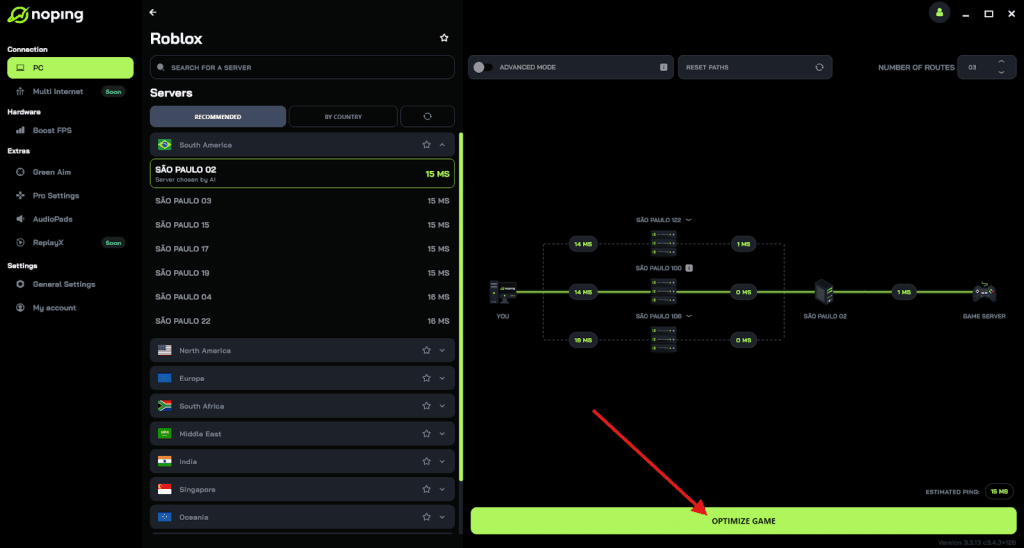
- And that’s it, you can start playing Roblox with optimized ping!
You can test different servers within NoPing to see which gives you the lowest latency.