

If you play Roblox often, you’ve probably noticed that the platform gets new updates all the time. These updates add new features, fix bugs, improve performance, and keep your games running smoothly. That’s why knowing how to update Roblox properly is so important.
The good news? You don’t need to be a tech expert to do it. Whether you’re playing on a PC, a Mac, or your phone, the process is quick and straightforward once you know where to look.
In this guide, we’ll walk you through every method to update Roblox on all major platforms, explain why updates sometimes fail, and share easy fixes for the most common problems.
Why update Roblox?
Keeping your Roblox installation up-to-date is more than just clicking “OK”. Here’s why it matters:
- Updates bring new features and improvements (gameplay tweaks, better performance, accessibility fixes).
- They also fix bugs you might run into if the version is old.
- They usually contain security patches and ensure the platform works smoothly with all the games inside Roblox.
- Sometimes if you try to launch a game with an outdated Roblox version you’ll get an error (for example “error code 280” on PC) telling you you need to update.
So it’s worth making sure your Roblox version is current.
On PC (Windows)
If you’re playing Roblox on a Windows PC, you’ve basically got two common versions: the classic “Roblox Player” you download via browser, and the version from the Microsoft Store. The update process is slightly different for each.
Player via browser / website
- Open your browser and go to Roblox’s official site and log into your account.
- Click on any game/experience and press the “Play” button.
- The browser will trigger Roblox to launch (you may get a prompt like “Open Roblox”). At that moment, if there’s an update, Roblox will download/install it automatically before the game starts.
- Wait for the update to finish, then the game should launch.

Microsoft Store version
- Press the Windows key (or open the Start menu) and launch the Microsoft Store.
- Search for “Roblox”.
- If an update is available, you’ll see an Update button on the app page. Click it and wait until it finishes.

Source: Beebom
If Roblox won’t update
If you run into issues updating, here are some troubleshooting tips:
- Check your internet connection: if it’s unstable, the update may fail.
- Check firewall or antivirus settings: sometimes they block Roblox updating. Add Roblox as an exception.
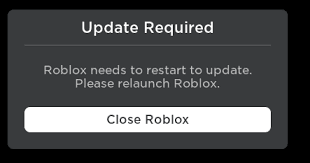
- Clear corrupted temp files: On Windows go to C:\Users\yourname\AppData\Local\Temp and delete files beginning with “RBX-” then try reinstalling.
- Uninstall and reinstall Roblox: If nothing else works, uninstall the app via “Installed Apps” then download fresh from roblox.com or the Microsoft Store.
Source: Roblox Developer Forum
On Mac (macOS)
Updating Roblox on a Mac is pretty similar to the browser version on PC.
- Open your web browser and go to roblox.com. Sign in if necessary.
- Choose any game/experience and click “Play”.
- The browser will ask to launch Roblox; click “Allow” or “Open”.
- Once Roblox launches, it will automatically check for updates and install them before the game actually begins.
If updating fails on Mac
- Make sure the Roblox servers are online – if they’re down, updates may not proceed.
- Try reinstalling: uninstall Roblox, then download the latest .dmg installer from Roblox’s website and install fresh.
On Mobile (Android & iOS)
If you’re playing Roblox on mobile (Android or iOS), updating is straightforward thanks to app stores.
Android
- Open the Google Play Store.
- Search for “Roblox”.
- If there’s an update available, you’ll see an Update button. Tap it and wait until it finishes.

Source: WikiHow
iOS (iPhone/iPad)
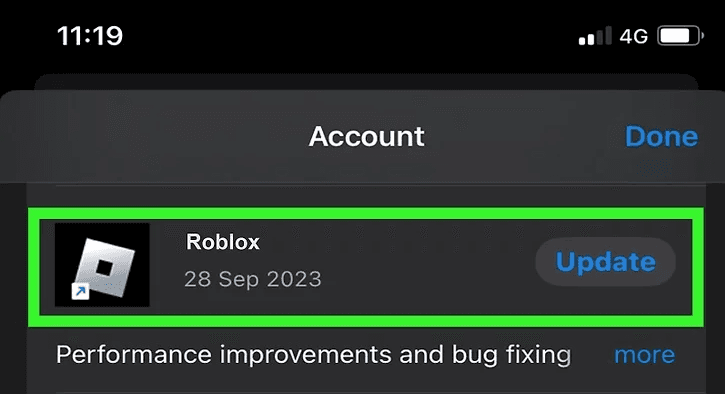
- Open the App Store.
- Tap your profile icon (top right corner).
- Scroll to “Available Updates”.
- If Roblox is listed, tap Update next to it.
Source: WikiHow
Quick Recap
- On PC browser version: visit Roblox site → click a game → let it auto-update before launching.
- On PC Microsoft Store version: open Store → search Roblox → tap Update if available.
- On Mac: same as PC browser version — go to site → Play a game → automatic update.
- On Mobile: open relevant store → find Roblox → update.
- If any version fails to update: check internet, firewall/antivirus, temp files, or uninstall & reinstall.
Also read: How to Enable Voice Chat in Roblox: Step-by-Step Guide
What is Error Code 280 on Roblox?
Error Code 280 on Roblox usually appears when you try to launch a game while your Roblox client is outdated. It’s basically the platform’s way of saying, “Hey, you need to update before you can play.” When this happens, Roblox blocks access to any game until you’ve installed the latest version.
This error is most common on PC, but it can also occur on Mac or even mobile devices if your app hasn’t been updated in a while. The message might read something like “Your version of Roblox is out of date. Please update to continue.”
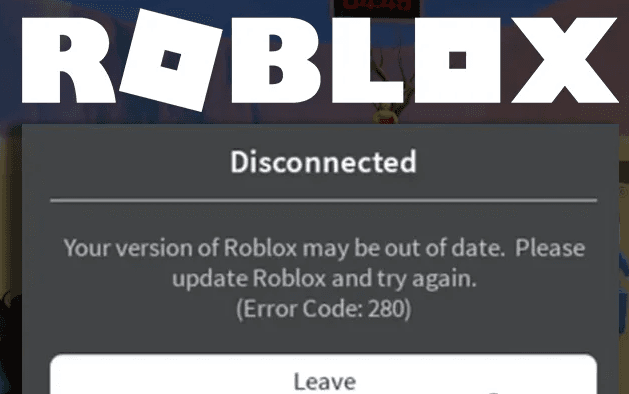
To fix Error 280, simply update Roblox to the newest version. If the update doesn’t start automatically, you can reinstall Roblox or manually check for updates through the Microsoft Store, App Store, or Google Play Store, depending on your device.
How to Stabilize Your Connection in Roblox?
A stable internet connection is essential for a smooth Roblox experience: lag, high ping, and packet loss can completely ruin gameplay.
If you often face lag spikes or disconnections while playing, using a connection optimizer like NoPing can make a big difference.
NoPing works by finding the fastest and most stable route between your computer and Roblox’s servers.
Instead of relying on your ISP’s default path, it reroutes your connection through optimized servers to reduce latency and packet loss.
The result is a more stable and responsive gameplay experience, even in busy Roblox worlds or when your network is crowded.
Here’s how to use NoPing to stabilize your connection on Roblox:
- Sign-up through the website and download NoPing (you can try it for free)
- Open NoPing and search for Roblox inside the software
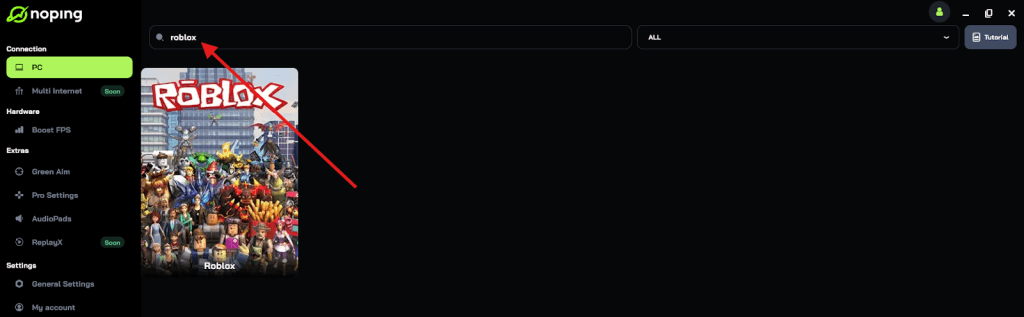
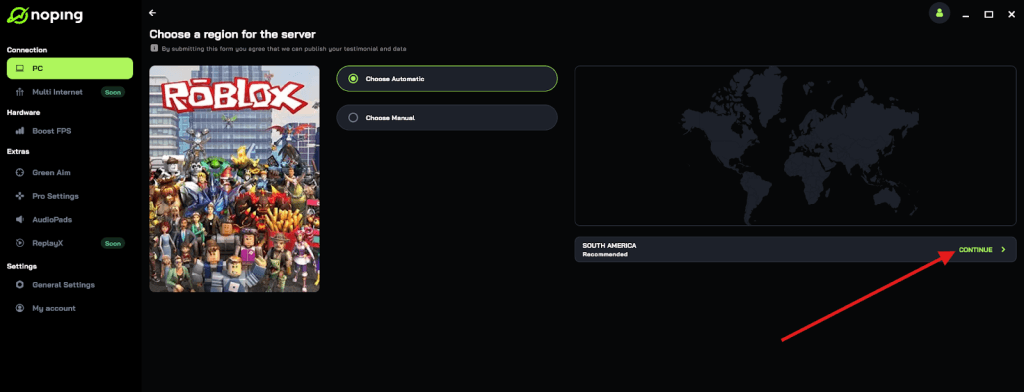
- Once you find Roblox, click on it and, on the next screen, select “Choose automatic” or “Choose manual” and click “Continue”. We recommend choosing automatic, as NoPing’s technology analyzes all routes on a global scale and automatically selects the best option for you.
- On the next screen, click on “Optimize Game”.
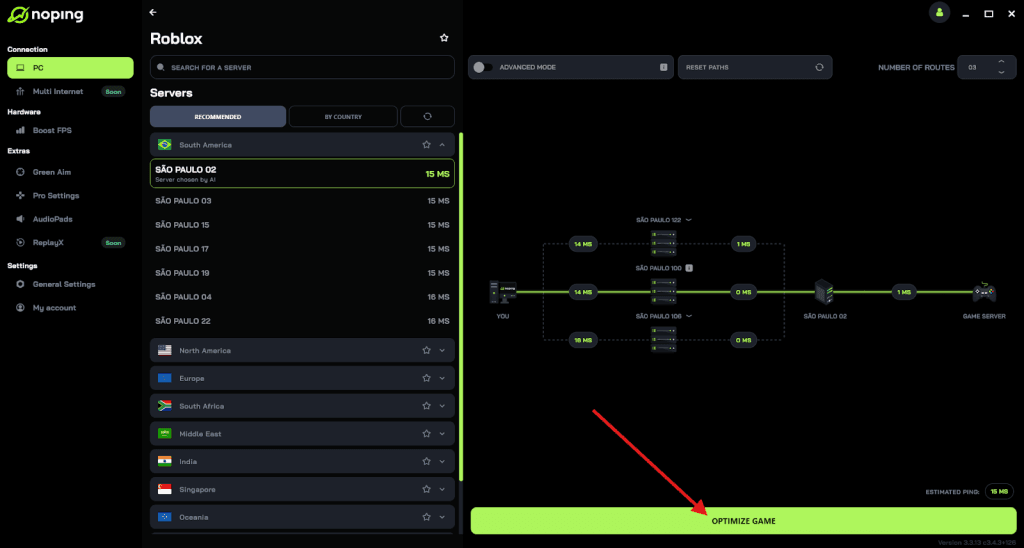
- And that’s it, you can start playing Roblox with optimized ping!
You can test different servers within NoPing to see which gives you the lowest latency.
Updating Roblox is rarely complicated, but it’s one of those things you’ll regret ignoring (especially when you get an error saying your version is out-dated and you can’t launch games).
Whether you’re on a desktop platform or mobile, the key steps are consistent: launch the app or use the store, check for updates, allow installation, and start playing.
And to always play Roblox with top performance, use NoPing! Download now and start your free trial!