

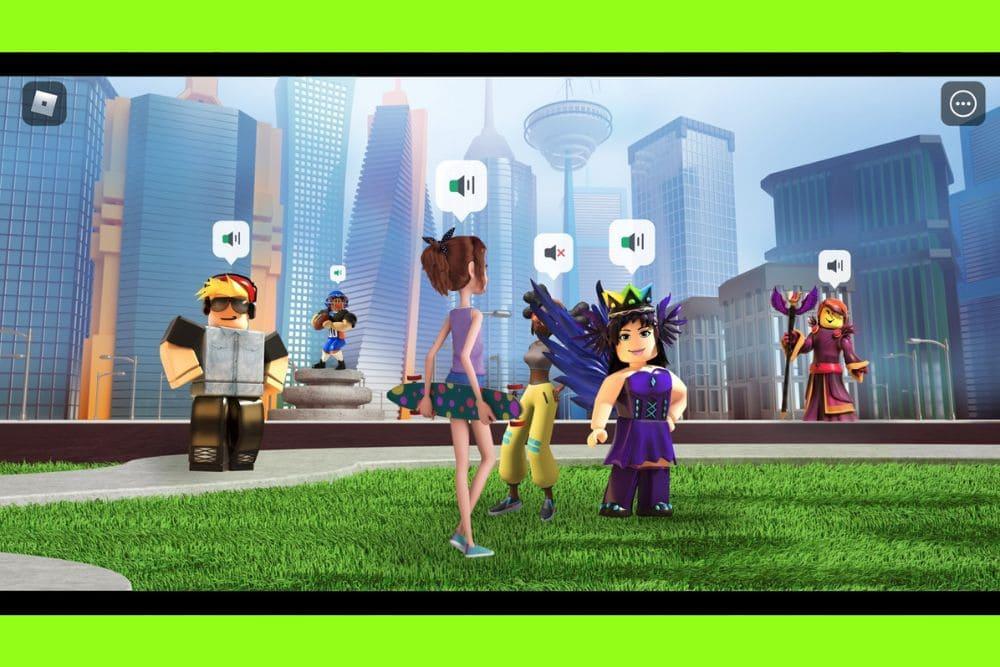
If you’re wondering how to enable voice chat in Roblox so you can talk with friends while playing, you’re in the right place.
Voice chat in Roblox lets you use a microphone to speak in supported games and settings. But it’s not automatically enabled for everyone, there are rules, verification steps, and settings you need to adjust.
In this article, I’ll walk you through exactly how to get voice chat working (if your account qualifies), what to do if it doesn’t show up, and answer common questions.
What is voice chat in Roblox?
Voice chat in Roblox is a feature that allows players to talk to one another using their voice (through a microphone) in certain experiences (games) that support it.
Rather than typing text messages in chat, you can verbally communicate with other players nearby (or in proximity, depending on how the game is built).
It’s not the same as text chat: voice chat is subject to more restrictions due to safety and age verification. Roblox also calls it “Chat with Voice” in some documentation, and it’s tied into their privacy/communication settings.
Because of the potential risks of voice communication, Roblox places some barriers (age limits, ID or phone verification, toggles in settings) so not every account can immediately use voice chat.

Source: Beebom
Guide to enable voice chat in Roblox (Mobile, Desktop, Web or Console)
Here’s how to go about turning on voice chat on different platforms. The underlying requirements are similar (age, verification, settings) but the interface might differ slightly.
Before you start: Make sure your Roblox app is up to date on whatever platform you're using. Sometimes missing updates prevent new features from appearing.
- Meet the eligibility requirements
- You must be at least 13 years old to enable voice chat.
- You must verify your phone number or verify your ID (or both) so Roblox knows your account is truly at least 13.
- After verifying, you must opt into the voice chat feature via your account’s privacy/communication settings.
- Voice chat must be allowed in the particular game or experience you’re in (i.e. the game developer must not have disabled it). (Not always under your control.)
- Enable voice chat via settings (Mobile / Desktop / Web / Console)
The steps are quite similar across platforms, with some small UI differences:
- Go to Settings in Roblox.
- On mobile or desktop app: Tap “More” (… button) then the gear icon → Settings.
- On the Roblox website (browser): Click the gear icon or profile → Settings.
- On console: Use the same in-game settings menu / the Settings UI in Roblox. (Roblox’s docs mention voice chat works consistently across platforms)
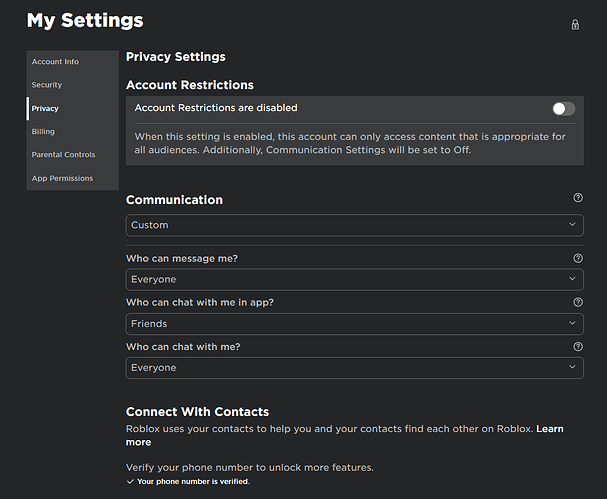
- In Settings, find the Privacy / Communication tab (sometimes “Communication settings”).
- Under Privacy / Communication, look for Voice Chat or Enable Microphone (or “Use microphone to chat with voice”) toggle.
- Turn that toggle on (it should go from gray to blue, or off to enabled).
- If required, complete any verification prompts (phone number, ID, etc.). Sometimes Roblox will prompt you to verify when you first try to enable.
- Once enabled, when you enter a game that supports voice chat, you should see a microphone icon or indication that voice chat is active. Use that to mute/unmute your mic as needed.
- Go to Settings in Roblox.
Source: Reddit
- For example, for PlayStation, Roblox’s support says:
Go to Roblox Settings → Privacy & content restrictions → Communication → Voice Chat and switch the “Enable Microphone” selector to ON. - Using voice chat in a game
Once enabled, in games that allow voice chat, you’ll usually see a mic icon on the screen or in the UI. Tapping/clicking it typically mutes or unmutes your mic. Be aware, if the game is designed with proximity chat, you’ll only hear players who are near you. (That’s a choice by the game developer.) - Important developer & server limits
- Some games might disable voice chat or not include it at all (e.g. for performance or safety reasons).
- There’s a known issue: voice chat doesn’t always work in servers above a certain player count. For example, some reports say voice chat may not function in servers with more than 50 players.
- Even if your account meets all requirements, if the game disables it, you won’t see voice chat in that game.
- Also, enabling voice chat doesn't force everyone in the game to talk. Each person must have enabled it on their account.
That covers most of the steps across devices. The key is: satisfy the age/verification requirements, turn on the toggle in settings, and be in a game that supports voice chat.

How to turn on voice chat in Roblox under 13?
Here is the tricky part: officially, voice chat is only enabled for users who are 13 years or older and have verified their ID or phone.
Roblox’s documentation states you need to be at least 13 for voice chat. Users below 13 are placed under stricter chat filters and parental controls.
Because of that, there is no guaranteed or supported way to legally or officially turn on voice chat if your account is under 13.
Any videos or guides claiming voice chat under 13 without ID are likely exploiting loopholes or are outdated / unofficial, and could violate Roblox’s policies. (I’m not going to detail how to bypass requirements, because that can conflict with Roblox’s rules.)
If you're younger than 13 and want to chat with friends, here are some safer alternatives:
- Use the text chat features (Roblox still offers text chat, with filters)
- Use an external voice app (Discord, etc.) outside Roblox (with proper supervision)
- See if the developer of the particular game offers a built-in voice or party chat system (distinct from Roblox’s voice chat system)
Always keep in mind safety: voice chat can carry higher risks when talking with strangers online, especially for kids, so Roblox has these rules to protect younger users.
Why is my Roblox voice chat not showing up?
If you’ve met all the requirements and still don’t see the voice chat option, here are common reasons and what you can try to fix them:
- Requirement not fully met (age, verification)
- Maybe the age verification or ID/phone verification is incomplete or failed.
- Perhaps your verification is still being processed — it might take time.
- In some cases, you might have verified, but the system hasn’t updated your account yet.
- Region or rollout limitations
- Voice chat may not yet be available in your country or region. Roblox often rolls features gradually.
- Some users report that even after meeting all requirements, they still can’t access voice chat.
- Game doesn’t support voice chat / developer disabled it
- Not all Roblox experiences enable voice chat. If the developer disabled it, no user will see it in that game.
- If the server has too many players (over a threshold like 50), voice chat might be disabled for that server.
- UI / settings cache / client/browser version
- Maybe you're using an older version of Roblox; updating may fix it.
- If on browser, clear cache or log out and log back in.
- Sometimes the toggle doesn’t immediately appear after verification — waiting or refreshing might help.
- Some users report that even after verification, the voice chat option doesn’t appear in privacy settings.
- Platform-specific issues
- On Microsoft Store version of Roblox, some users say voice chat icon doesn’t show in-game though it works in browser.
- On console or certain devices, there might be extra compatibility issues or missing UI support.
- For PlayStation, you might need to explicitly allow microphone permission in system settings.
If your voice chat isn’t showing, double-check all prerequisites, update Roblox, refresh or restart the app, and ensure you're in a game that supports it. If that fails, you may need to contact Roblox Support.
Is Roblox voice chat 18+ or 13+?
Roblox voice chat is 13+, not 18+. The earlier assumption that you had to be 18 was adjusted: Roblox documentation says eligible users 13 and older can opt into voice chat, once they verify their ID or phone.
Roblox’s Voice Chat FAQ states:
"Eligible 13+ users who are phone number verified or ID verified can opt-in to use this feature by turning on the feature in Communication settings.”
Also, in the Roblox Connect FAQ (which deals with their social/communication setup) they mention:
“Users must be age 13+ and Roblox voice-enabled (i.e. be phone-verified or ID-verified).”
That said, there’s some nuance: for certain trust/unfiltered communication features, or in interactions with adults, additional restrictions or verifications may apply. Roblox also uses an age estimation / identity verification system to ensure users are not misrepresenting their age.
There has also been talk that in the future Roblox will require more robust age verification (facial estimation, etc.) for all communication features. But as of current official docs, 13 is the threshold to enable voice chat.
So, you don’t have to be 18 — 13+ is the supported age, with verification. Some misreports online, or older posts, suggest 18, but the up-to-date official info says 13+.
How to play Roblox without lag?
If you want smoother gameplay and fewer connection drops in Roblox to make full use of voice chat, a good solution is to use NoPing.
This software optimizes your network route to Roblox servers, reducing latency and avoiding problems like packet loss or unstable ping.
With NoPing, your connection takes the fastest and most stable path available, which means fewer delays, a more responsive gaming experience and no delay in your voice chat.
Here’s how to use NoPing to fix lag in Roblox:
- Sign-up through the website and download NoPing (you can try it for free)
- Open NoPing and search for Roblox inside the software
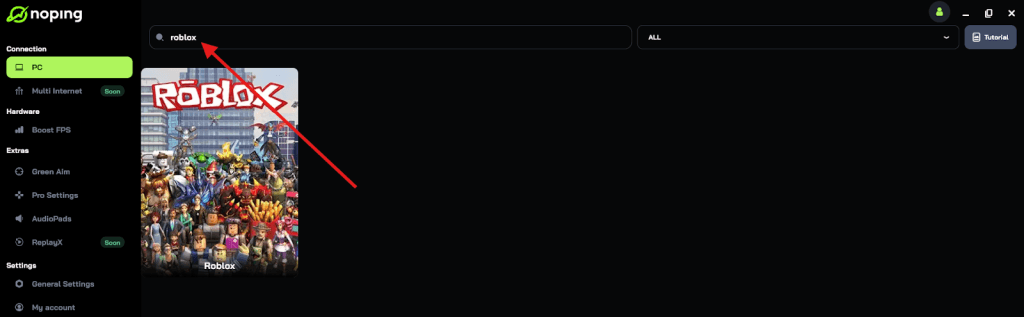
- Once you find Roblox, click on it and, on the next screen, select “Choose automatic” or “Choose manual” and click “Continue”. We recommend choosing automatic, as NoPing’s technology analyzes all routes on a global scale and automatically selects the best option for you.

- On the next screen, click on “Optimize Game”.
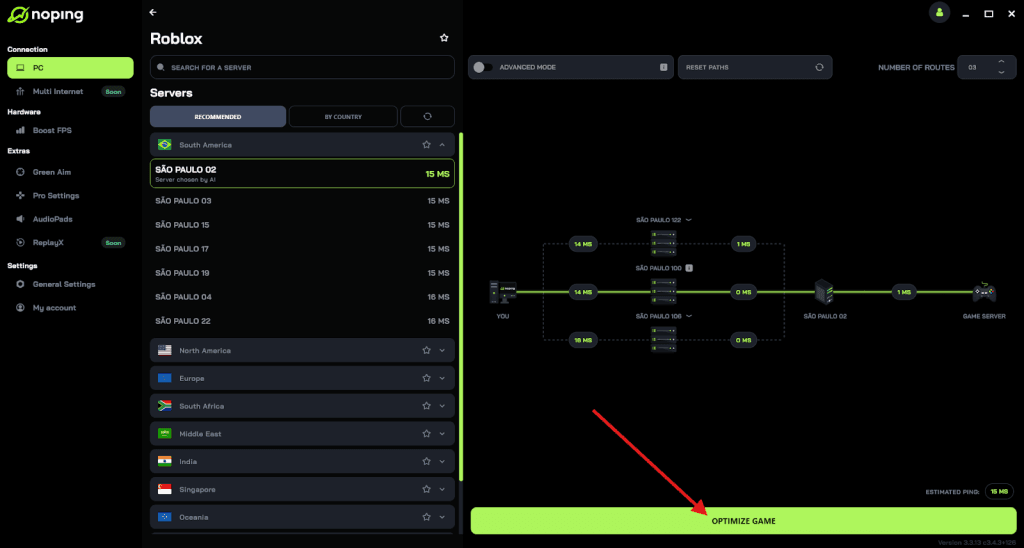
- And that’s it, you can start playing Roblox with optimized ping!
You can test different servers within NoPing to see which gives you the lowest latency.
FAQ - enable voice chat in Roblox
Q: Do you always need to use a government ID to enable voice chat?
A: Not necessarily. Roblox allows either phone number verification or ID verification (depending on region) to qualify. In some cases, users report getting voice chat access just through phone verification (without ID) in supported regions. If the system demands ID in your area, you’ll have to comply with Roblox’s process.
Q: How long does verification take?
A: It depends. Some users have reported it’s nearly instant; others say it takes a few hours or even longer, especially when the verification backlog is large. I found user reports of delays. If your voice chat option doesn’t appear immediately, give it some time.
Q: Can I disable voice chat after enabling it?
A: Yes. You can go back to the same Communication / Privacy settings and toggle off “Use microphone / Voice Chat.” That will disable your mic usage.
Q: Is voice chat filtered or moderated?
A: Yes. Roblox has safety guardrails. Even with voice chat, there will be moderation and limitations to prevent misuse. Also, only trusted connections (verified users) may have less filtering between each other, depending on age and verification status.
Q: Will voice chat work on all games?
A: Not always. The game developer must support voice chat in their experience. Even if your account has it enabled, if the game doesn’t enable it, you won’t see voice chat. Some developers disable it for technical, safety, or player count reasons. (As mentioned, voice chat may be disabled on servers above certain sizes).
Q: What if I verified everything but still don’t see voice chat?
A: Then it’s probably a regional issue, rollout delay, or bug. Some users report that even after meeting all requirements, the “voice chat” toggle doesn’t appear in settings. In that case, report to Roblox Support, wait for the feature rollout, or check community forums for your region.
Q: Is voice chat safe?
A: It comes with risks, like any voice communication. Roblox has implemented moderation, filters, user blocking/muting, and verification systems to reduce misuse. But always be careful about speaking to strangers, sharing personal info, etc. For kids, parental oversight is recommended.
Play all Roblox experiences without lag right now! Download NoPing and start your free trial!