

Dealing with the Roblox error code 773 can be a massive headache when you are in the middle of a gaming session and trying to jump between different worlds.
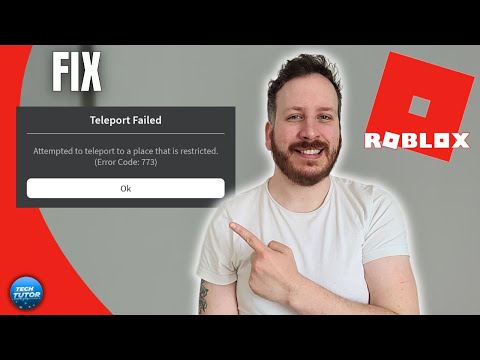
This specific error message usually pops up with a notification stating that the teleport failed because the place you are trying to join is restricted or not yet approved.
Whether you are a player trying to join a friend or a developer testing a new universe, understanding the mechanics behind this failure is the first step toward a permanent fix.
What is Roblox error code 773?
Roblox error code 773 is a teleportation error that occurs when the platform fails to move a player from one "Place" to another within the Roblox ecosystem.
It is essentially a permissions or availability wall. Roblox is structured into "Experiences," which can contain multiple "Places."
When a script triggers a teleport to a new area, the game client must verify that the destination is public, published, and that your account has the right to enter it. If any of these checks fail, the connection is severed, and the 773 alert appears.

Source: Roblox
Why does the "Teleport Failed" message appear?
The message appears because the destination server is rejecting your entry request due to security or status restrictions.
There are usually two main variations of this error. The first says the game has not been approved yet, which typically means Roblox moderators are still reviewing the content for safety compliance.
The second variation mentions a restricted place, which happens if a developer set a sub-game to private or if you are trying to access a reserved server without the proper invitation key.
Is the error caused by Roblox server issues?
Yes, it is very common for server instability to trigger this error even if the game settings are correct.
When Roblox servers are under heavy load or undergoing maintenance, the handshake between the lobby and the destination place can time out.
You can verify if the platform is struggling by checking the official Roblox Status page. If you see "Partial Service Disruption" in the Data Store or Join sectors, you likely just need to wait until the engineers fix the backend.
How can privacy settings block your teleport?
Your account settings might be too restrictive to allow for seamless transitions between different game modules.
If you are using an account with "Account Restrictions" enabled, or if your "Privacy" settings are set to highly private, the game might block incoming teleport requests from third-party scripts.
To fix this, go to your settings, select the Privacy tab, and ensure that your communication and interaction settings are open enough to allow game-to-game transfers.
Can a bad internet connection trigger error 773?
A weak or unstable connection is one of the most overlooked causes of this error. Teleporting requires a clean burst of data transmission to synchronize your player state with a new server.
If your network experiences packet loss or high jitter at the exact moment of the transfer, the destination server might time out the request.
This is where NoPing becomes essential. NoPing optimizes the route your data takes, ensuring that the teleportation packets reach the Roblox clusters through the most stable path possible, which eliminates many of the "Restricted" errors that are actually caused by connection drops.
Here’s how to use NoPing to fix lag in Roblox:
- Sign-up through the website and download NoPing (you can try it for free)
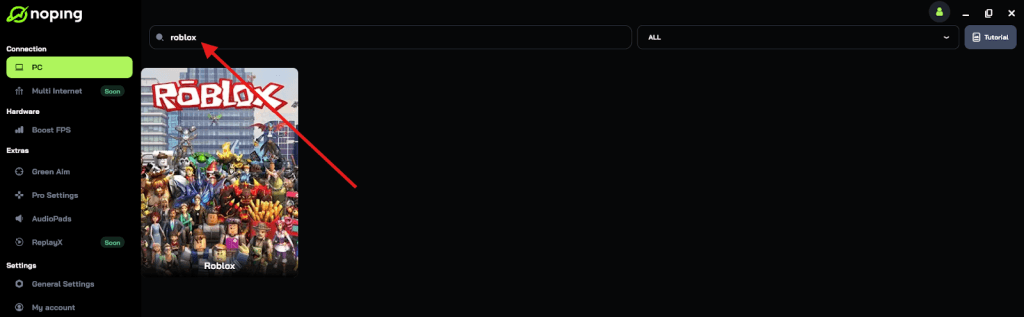
- Open NoPing and search for Roblox inside the software
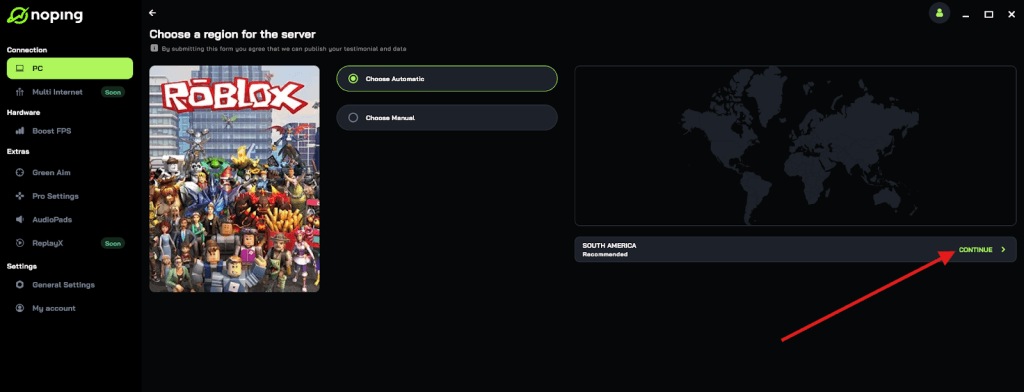
- Once you find Roblox, click on it and, on the next screen, select “Choose automatic” or “Choose manual” and click “Continue”. We recommend choosing automatic, as NoPing’s technology analyzes all routes on a global scale and automatically selects the best option for you.
- On the next screen, click on “Optimize Game”.
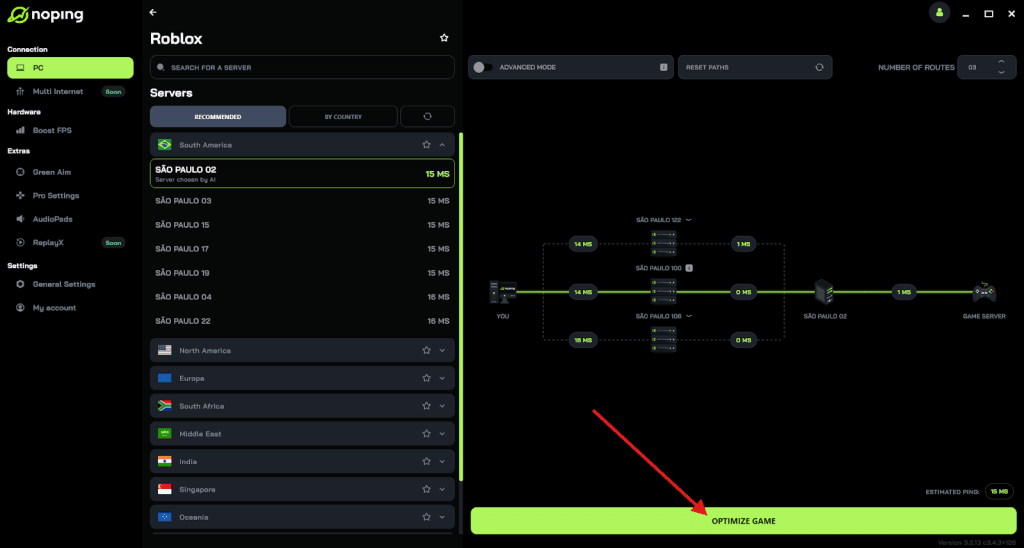
- And that’s it, you can start playing Roblox with optimized ping!
You can test different servers within NoPing to see which gives you the lowest latency.
How do you clear the Roblox cache to fix this?
Corrupted temporary files can lead to the game client thinking a place is restricted when it is actually available. Clearing the cache forces the client to re-download fresh metadata for the game you are trying to join.
On Windows, you can do this by pressing the Windows Key + R, typing %localappdata%, finding the Roblox folder, and deleting the "Versions" and "Downloads" sub-folders.
On mobile devices, going into the app settings and selecting "Clear Data" or "Clear Cache" achieves a similar result.
Does logging out of all sessions help?
Logging out of all active sessions is a powerful way to reset your account's authentication token.
Sometimes, the Roblox backend thinks you are still active in a previous place or on another device, creating a conflict when you try to teleport.
By going to the Security tab in your Roblox settings and clicking "Log Out of All Other Sessions," you force the system to give you a fresh, clean connection the next time you log in, often bypassing the 773 error.
What should developers check to fix this in their games?
If you are a creator and your players are complaining about this error, you need to check your "Game Settings" in Roblox Studio. Ensure that "Allow Third Party Teleports" is toggled on if you are sending players to a place outside your main universe.
Also, double-check that every Place ID in your TeleportService script is accurate and that the destination place is set to "Public." If you are using reserved servers, ensure your script handles the "access code" correctly so players aren't rejected at the gate.
Is reinstalling the game a necessary step?
Reinstalling should be your last resort, but it is effective if the error persists after trying all other fixes.
A clean installation removes any deep-seated registry errors or corrupted executables that might be interfering with the TeleportService.
Make sure to uninstall the "Roblox Player" and "Roblox Studio" through the Control Panel, then download the latest launcher directly from the official website to ensure you have the most up-to-date version of the engine.
Play Roblox without lag. Download NoPing now and start your free trial!