


If you've ever seen the dreaded "Disconnected from game" message in Roblox, you know how frustrating it can be.
Whether you're in the middle of an intense match or exploring a new world, being kicked out can ruin your experience.
But don't worry, there are several reasons this happens and even more ways to fix it.
What is Causing This Problem?
Getting disconnected from Roblox isn't always a sign of a serious issue.
It can happen for various reasons, ranging from simple connectivity problems to more complex server-side issues. Here are some common causes:
- Network Instability: Unstable or slow internet connections can cause your game to disconnect unexpectedly.
- Server Issues: Sometimes, the problem lies with Roblox's servers, which may be experiencing high traffic or technical difficulties.
- Device Conflicts: If you're logged into Roblox on multiple devices simultaneously, it can lead to disconnections.
- Software Conflicts: Antivirus programs and firewalls can interfere with Roblox's connection to its servers.
- Outdated Game Client: Using an outdated version of Roblox can lead to compatibility issues, resulting in disconnections.
Understanding the root cause is the first step toward resolving the issue.

Source: Roblox Developer Forum
What Can You Do to Fix It?
If you're constantly getting disconnected from Roblox, it can feel like nothing is working, but there are plenty of practical steps you can take.
The key is to address both your device and your internet connection while also making sure the game itself is running smoothly.
1. Check Your Internet Connection
A stable internet connection is the most important factor for online games like Roblox. Even minor fluctuations in your network can trigger disconnections. Here are some tips:
- Run a speed test: Use online tools like Speedtest.net to check your download, upload, and ping. Roblox recommends at least 4 Mbps download and 1 Mbps upload for a smooth experience.
- Switch to wired: If possible, connect your device directly to your router using an Ethernet cable. Wired connections are much more stable than Wi-Fi and reduce the chance of dropped connections.
- Reduce network congestion: If others are streaming videos, downloading large files, or gaming at the same time, it can slow your connection. Try pausing these activities while playing Roblox.
- Restart your router: Even if your connection seems fine, a quick router restart can resolve hidden issues. Unplug it for 10–30 seconds, then plug it back in.
2. Update Roblox
Sometimes the issue isn’t with your connection at all—it’s your game client. Roblox regularly releases updates to fix bugs, improve stability, and maintain compatibility with servers.
- Automatic updates: Ensure your device allows apps to update automatically, or manually check for updates in the Roblox app.
- Clear old installations: If you’ve had Roblox installed for a long time, old files could cause conflicts. Reinstalling the game ensures you’re running the latest version with all bug fixes.
3. Check Device Conflicts
Logging into the same Roblox account on multiple devices simultaneously can lead to automatic disconnections. Roblox detects multiple active sessions and may disconnect one to protect your account.
- Single-device login: Always log out from other devices before joining a game on your main device.
- Avoid shared accounts: If multiple people are using the same account, consider creating separate accounts to avoid conflicts.
4. Clear Roblox Cache
Cached data helps Roblox run faster, but corrupted cache files can sometimes cause disconnections. Clearing the cache refreshes your game environment.
- On Windows: Navigate to %localappdata%\Roblox and delete the “logs” and “cache” folders.
- On mobile: Go to your device settings, find Roblox, and clear the app cache.
- Restart after clearing: Once cleared, restart Roblox to let it rebuild a fresh cache.
5. Reinstall Roblox
If nothing else works, a clean reinstall can fix persistent issues. This ensures there are no corrupted files causing disconnections.
- Uninstall properly: Make sure to remove Roblox completely from your device, including leftover folders in your system files.
- Download the latest version: Get Roblox directly from the official website or app store to avoid corrupted downloads.
- Test before adding extras: Try running Roblox without third-party software, mods, or scripts to see if the issue persists. Sometimes external tools can cause conflicts.
6. Check for Background Applications
Some background apps can eat up bandwidth or interfere with Roblox. Video streaming, large downloads, or heavy software and torrents can cause the game to disconnect.
- Close unnecessary apps: Before playing Roblox, close any apps that use the internet heavily.
- Monitor system resources: On PCs, you can open Task Manager (Ctrl + Shift + Esc) to check CPU, RAM, and network usage.
7. Adjust Roblox Graphics Settings
While this doesn’t directly cause disconnections, high graphics settings can stress your device, leading to lag or crashes that may appear as network disconnections.
- Lower graphics: In Roblox settings, reduce graphics quality and turn off unnecessary visual effects.
- Disable fullscreen optimizations: On PC, right-click the Roblox shortcut → Properties → Compatibility → disable fullscreen optimizations. This can prevent certain crashes that might disconnect you.
8. Contact Roblox Support
If none of the above fixes work, the issue might be on Roblox’s end. Their support team can check if your account or region is experiencing server problems.
- Submit a ticket: Include detailed information such as device type, error codes, and steps to reproduce the problem.
- Check server status: Before contacting support, visit the Roblox status page to see if there’s a known issue affecting players.
By following these steps, most players can fix the "Disconnected from game" issue and enjoy smoother, uninterrupted gameplay. The key is to systematically check your internet, device, and Roblox client while ensuring no software conflicts interfere with the connection.
Roblox Error Codes and Their Meanings
Roblox provides specific error codes to help identify the cause of disconnections. Here's what some of them mean:
- Error Code 273: "Disconnected from the game, possibly due to the game joined from another device." This occurs when the same account is logged in on multiple devices simultaneously.
- Error Code 274: "The experience's developer has temporarily shut down the experience server." This indicates that the game server is temporarily unavailable.
- Error Code 280: "Your version of Roblox may be out of date." This suggests that you're using an outdated version of Roblox.
- Error Code 282: "Disconnected from game, please reconnect." This can happen due to network issues or if the game is under review.
Understanding these error codes can help you pinpoint the issue and apply the appropriate fix.
How To Improve Your Connection to Avoid These Errors?
Experiencing frequent disconnections can be frustrating. One effective way to improve your connection is by using NoPing, a service designed to optimize your internet connection for online gaming.
NoPing is a software that routes your internet connection through optimized servers, reducing latency and packet loss. This results in a more stable and faster connection, which can help prevent disconnections in Roblox.
Many Roblox players have reported smoother gameplay and fewer disconnections after using NoPing.
Here’s how to use NoPing to fix connection issues in Roblox:
- Sign-up through the website and download NoPing (you can try it for free)
- Open NoPing and search for Roblox inside the software
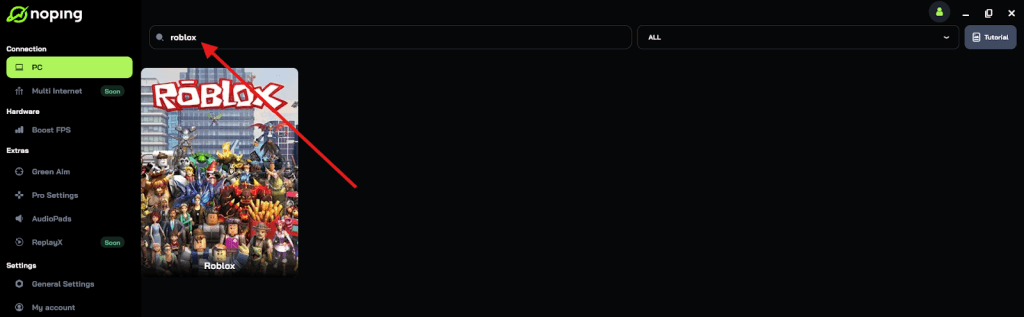
- Once you find Roblox, click on it and, on the next screen, select “Choose automatic” or “Choose manual” and click “Continue”. We recommend choosing automatic, as NoPing’s technology analyzes all routes on a global scale and automatically selects the best option for you.

- On the next screen, click on “Optimize Game”.
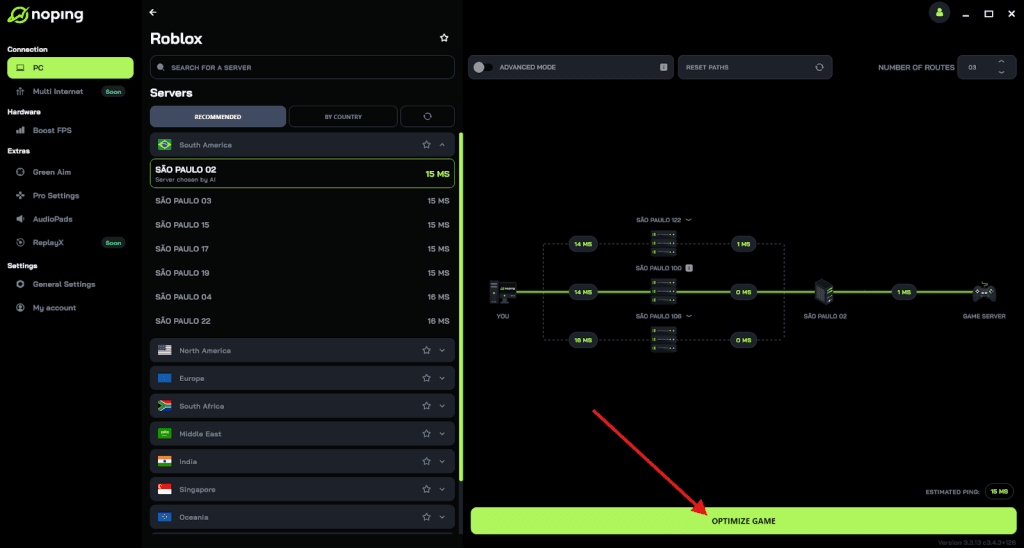
- And that’s it, you can start playing Roblox with optimized ping!
You can test different servers within NoPing to see which gives you the lowest latency.
FAQ - Disconnected From Game in Roblox
Q: Why do I keep getting disconnected from Roblox?
Frequent disconnections can be due to various factors, including network instability, server issues, or device conflicts. Following the troubleshooting steps mentioned earlier can help resolve these issues.
Q: How can I prevent future disconnections?
To prevent future disconnections, ensure your internet connection is stable, avoid using multiple devices simultaneously, and keep Roblox updated. Using services like NoPing can also help maintain a stable connection.
Q: What should I do if I encounter an error code?
If you encounter an error code, refer to the Roblox error code guide to understand its meaning and find the appropriate solution.
Experiencing disconnections in Roblox can be annoying, but with the right steps, you can minimize or even eliminate these issues. By understanding the causes, applying the fixes, and optimizing your connection, you can enjoy a smoother and more enjoyable Roblox experience.
Download NoPing now and play all Roblox experiences without connection issues. Click here and start your free trial!