

Finding the best Fortnite settings is often the primary difference between a Victory Royale and a frustrating trip back to the lobby.
Whether you are a seasoned veteran or just dropping into the island for the first time, your technical configuration determines how fast you build, how accurately you shoot, and how well you can track enemies through the chaos.
In a game where milliseconds matter, playing on default settings is essentially like running a race with your shoelaces tied together.
This guide breaks down every crucial setting for PC and console, focusing on competitive performance and visual clarity.
We will cover everything from graphics and sensitivity to the often ignored network settings that keep your ping low.
Let's dive into the configurations that the pros use to stay at the top of the leaderboard.
What are the best video settings for maximum performance?
You should prioritize frame rate (FPS) over visual beauty if you want to win more fights.
While Fortnite looks stunning with ray tracing and high-quality textures, those features introduce input lag and frame drops that will cost you games.
Most professional players use Performance Mode to ensure the smoothest possible experience.

Rendering Mode and Frame Rate
The first step is choosing the right API. If you are on a PC, Performance: Lower Graphical Fidelity is the industry standard.
It reduces the load on your CPU and GPU, giving you a massive FPS boost and making buildings look "mobile-like," which actually helps with visibility during intense build fights.
- Window Mode: Fullscreen (This provides the lowest input latency).
- Resolution: 1920x1080 (Or your monitor's native resolution).
- Frame Rate Limit: Set this one notch above your monitor's refresh rate. If you have a 144Hz screen, cap it at 160 FPS. If you have a 240Hz screen, cap it at 240 or 280 FPS.
Graphics Quality
Under the Performance Mode settings, you want to keep things lean.
- 3D Resolution: 100%. Lowering this makes the game blurry, which is bad for long-range tracking.
- View Distance: Medium or Near. Contrary to popular belief, this does not affect how far away you see players, only how far away objects and loot render.
- Textures: Low. This saves VRAM and prevents stutters.
- Meshes: Low. This makes builds look like "bubble wrap," which is much easier to see through when you are inside a box.
Advanced Graphics
- V-Sync: Off. Never turn this on, as it adds significant input lag.
- Motion Blur: Off. This makes the game look cinematic but makes it impossible to track fast-moving targets.
- Nvidia Reflex Low Latency: On + Boost. This setting is a game-changer for Nvidia users, as it optimizes the communication between your GPU and CPU to reduce the time it takes for your mouse click to register on screen.
Which display settings provide the best visibility?
The best display settings are those that allow you to see enemies clearly in dark areas or inside the storm.
Fortnite can be quite dark in certain biomes, and the storm circle often obscures vision. Adjusting your brightness and colorblind settings is a common pro trick to fix this.
Brightness and Contrast
Most players benefit from bumping the brightness up. A setting between 120% and 150% is standard for competitive play.
This ensures that enemies hiding in shadows or under wooden structures are easier to spot. Keep your User Interface Contrast at 1x to avoid distracting UI elements.
Colorblind Mode
Even if you aren't colorblind, these settings change the game's color palette.
- Mode: Tritanope.
- Strength: 5 to 10.
Tritanope makes the colors more vibrant and helps you see through the purple haze of the storm much better than the default settings. Many top-tier players, like Peterbot, use these tweaks to gain a visual advantage during end-game rotations.
How should you set up your sensitivity for Keyboard and Mouse?
You should find a balance between speed and precision by using a "Medium-Low" sensitivity. High sensitivity might feel good for flashy building, but it usually ruins your aim with assault rifles and shotguns.
Most professionals stay within a specific range of eDPI (Effective Dots Per Inch).

Mouse DPI and Polling Rate
First, set your mouse hardware. Use 800 DPI as your base. It is the most consistent setting for modern sensors and is what the majority of the community uses.
Ensure your Polling Rate is set to 1000Hz (or higher if your mouse supports 4000Hz/8000Hz) to ensure the most frequent updates to your cursor position.
In-Game Sensitivity
Once your DPI is set to 800, try these in-game values:
- X-Axis Sensitivity: 6.0% to 10.0%.
- Y-Axis Sensitivity: 6.0% to 10.0%.
- Targeting Sensitivity (ADS): 30% to 50%.
- Scope Sensitivity: 30% to 50%.
Lowering your ADS (Aim Down Sights) sensitivity is crucial. It allows you to make large movements to find a target and then slow down for precise headshots.
If you find yourself overshooting your targets, lower your X and Y values by 0.5% at a time until it feels natural.
Also read: Are SOCD or Snaptap Banned in Valorant?
What are the most optimal keybinds for building and editing?
You need to distribute your building tasks across different fingers to maintain full movement control.
If all your build binds are on your keyboard (like Q, E, R, and F), you will struggle to move left or right while building because your fingers are busy pressing those keys instead of W, A, S, or D.
The "Optimal" Bind Strategy
The goal is to use your thumb and mouse buttons for building whenever possible.
- Wall: Side Mouse Button 5 (Front).
- Stair: Side Mouse Button 4 (Back).
- Floor: C, V, or Left Shift.
- Roof (Cone): Left Shift or Q.
- Edit: F or E.
- Scroll Wheel Reset: Bind "Building Edit" and "Reset Build" to Mouse Wheel Down as a secondary bind. This allows you to reset a wall instantly with a flick of the wheel, which is one of the most powerful mechanics in the game.
Using your mouse buttons for walls and stairs allows your index and middle fingers to stay on your movement keys.
This gives you a massive advantage in "piece control," which is the art of claiming building pieces around your opponent before they can react.
Also read: Can You Play Fortnite on Mac in 2026?
How can controller players maximize their aim assist and movement?
Controller players should use the Linear input curve to get the most consistent feel for building and close-range aiming.
Unlike the older "Exponential" setting, Linear provides a raw 1:1 movement of the stick, which is essential for the fast-paced editing required in modern Fortnite.

Sensitivity and Deadzones
A common mistake on controller is having a deadzone that is too high.
- Build Mode Sensitivity: 1.8x to 2.2x.
- Edit Mode Sensitivity: 1.8x to 2.2x.
- Look Horizontal/Vertical Speed: 40% to 45%.
- ADS Sensitivity: 8% to 12%.
- Look Input Curve: Linear.
- Left/Right Stick Deadzone: 5% to 10%.
You want your deadzone to be as low as possible without causing "stick drift," where your character moves even when you aren't touching the controller.
A lower deadzone makes your aim assist feel stickier and your edits feel more responsive.
What audio settings give you a competitive edge?
The single most important audio setting in Fortnite is Visualize Sound Effects. Historically, this was a setting for the hearing impaired, but it is now used by every pro player because it provides a 360-degree visual radar on your screen.
- Visualize Sound Effects: On.
- Sound Quality: High (This consumes more CPU but provides better directional audio).
- 3D Headphones: On (Turn this off if you are using your own surround sound software).
With Visualize Sound Effects on, you will see icons for footsteps, gunshots, vehicles, and chests long before you actually hear them.
It even shows you where enemies are healing or reviving, allowing you to make aggressive plays with perfect information.
How do you eliminate lag and lower your ping?
No matter how good your graphics look or how perfect your sensitivity is, you cannot win if you are lagging.
High ping and packet loss cause "ghost shots" where your bullets don't register, or "wall takes" where opponents take your structures despite you holding the build button.
Network Optimization with NoPing
While hardware changes like using an Ethernet cable are important, software optimization is what truly stabilizes your route to the Fortnite servers.
This is where NoPing comes in. It acts as a specialized tunnel for your game data, finding the shortest and most stable path to the Epic Games servers.
Here’s how to use NoPing to fix high ping in Fortnite:
- Sign-up through the website and download NoPing (you can test it for free).
- Open NoPing and search for Fortnite inside the software
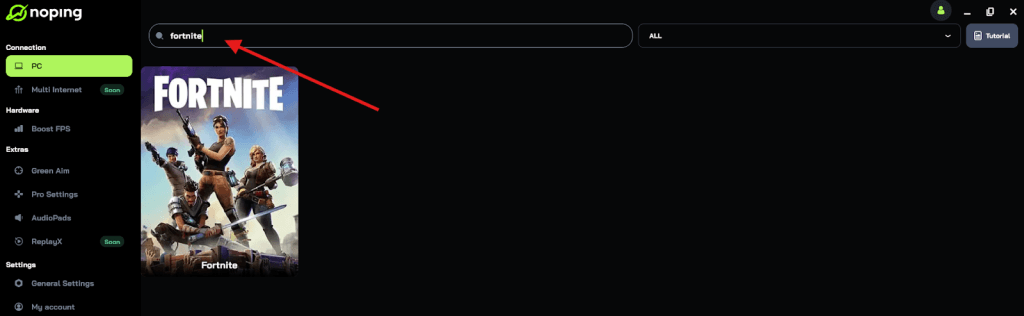
- Once you find Fortnite, click on it and, on the next screen, select “Choose automatic” or “Choose manual” and click “Continue”. We recommend choosing automatic, as NoPing’s technology analyzes all routes on a global scale and automatically selects the best option for you.
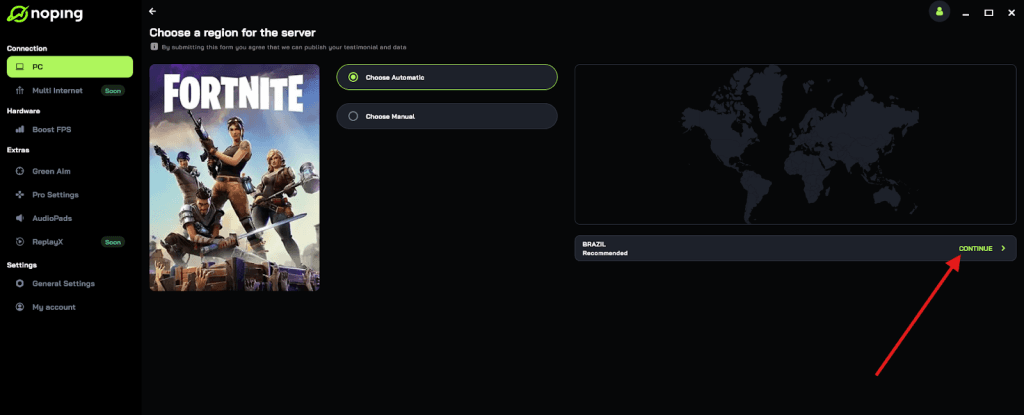
- On the next screen, click on “Optimize Game”.
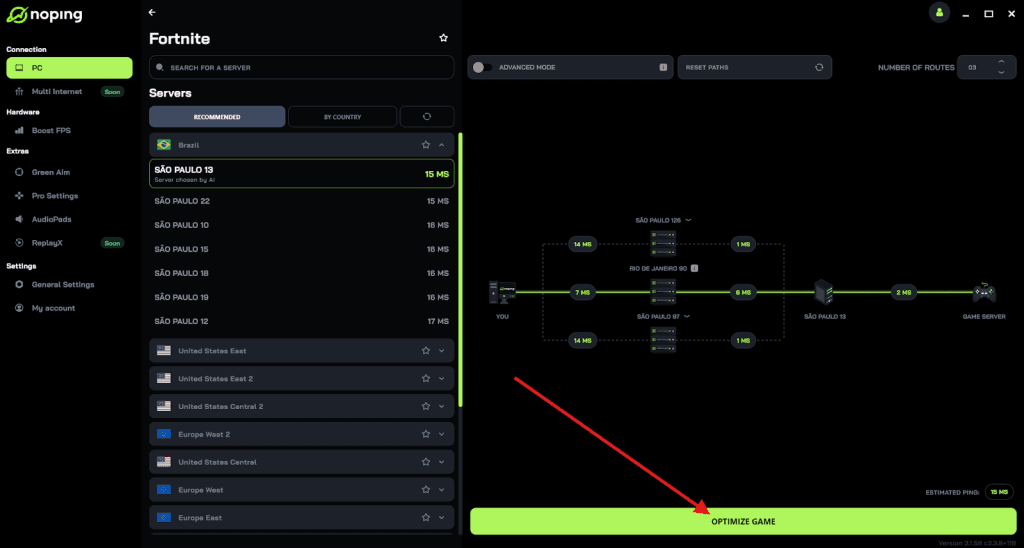
- And that’s it, you can start playing Fortnite with optimized ping!
You can test different servers within NoPing to see which gives you the lowest latency.
Is there a way to boost FPS through Windows settings?
Yes, your operating system often holds your hardware back with power-saving features that are useless for gaming.
You should ensure your PC is running in high-performance mode to prevent your CPU from downclocking during intense end-game circles.
- Type "Choose a power plan" in your Windows search bar.
- Select "High Performance" or "Ultimate Performance."
- Go to "Startup Apps" in Task Manager and disable everything you don't need (like Spotify, Discord, or Steam) to free up resources for the game.
- Ensure "Game Mode" is turned on in your Windows settings, as it helps the OS prioritize Fortnite over background tasks.
Combining these Windows tweaks with the in-game settings mentioned above will result in a much higher average FPS and, more importantly, much more stable "1% lows," which are the frame drops that happen during heavy combat.
Mastering the best Fortnite settings is a journey of fine-tuning and personal preference, but the foundations remain the same: maximize your FPS, clean up your visuals, and stabilize your connection.
By switching to Performance Mode, optimizing your keybinds for movement, and using tools like NoPing to secure a low-latency connection, you are giving yourself the best possible chance to dominate.
Remember that muscle memory takes time. Once you apply these settings, don't change them every time you lose a fight. Stick with them for a few days, get used to the new speed, and watch your win rate climb.
Play Fortnite without lag. Download NoPing now and start your free trial!