

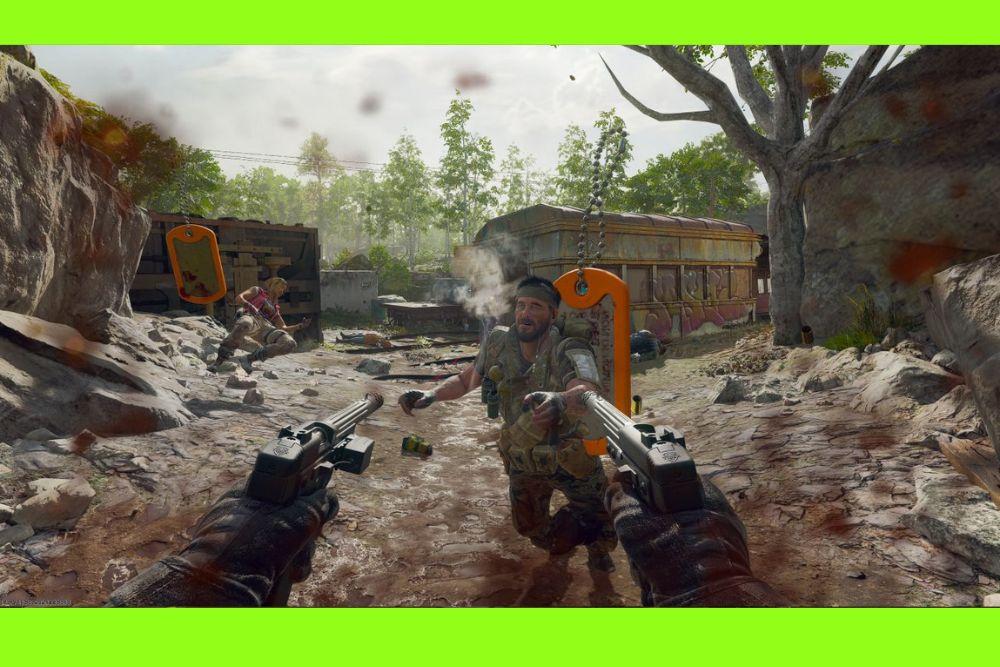
Black Ops 6 DirectX error (error code 0x887a0005) pops up for a lot of players on PC and it's one of the most frustrating crashes because it often sends you straight back to desktop with an ugly message like “DirectX encountered an unrecoverable error.”
In this article we’ll explain what that message usually means, the common causes people see with Black Ops 6, step-by-step fixes to try (from easiest to more technical), and how to reduce lag when you can actually get back into a match.
What is the Black Ops 6 DirectX Error (0x887a0005)?
A “DirectX error” in the context of Black Ops 6 is a crash where the game fails to communicate with Windows’ graphics layer (DirectX / Direct3D).
The error message can vary. Sometimes you’ll get an error code such as 0x887A0005 or a plain “DirectX encountered an unrecoverable error.” In practice this means the game hit a graphics-related failure it couldn’t recover from (shader problem, VRAM overuse, driver fault, corrupted files, etc.).
Microsoft and community threads list 0x887A0005 as a common DirectX-related code tied to VRAM/driver communication problems.

Source: Reddit
How to Fix Black Ops 6 DirectX Error (0x887a0005)?
To fix a Black Ops 6 DirectX error, start by updating or rolling back your GPU drivers.
Verify the game’s files on Battle.net, Steam, or the Xbox app to repair corrupted data.
Lower texture quality and set the VRAM usage limit to around 60–70% in graphics settings.
Add -dx11 as a launch option if crashes persist, since it can improve stability.
Disable overlays like Discord or GeForce Experience and perform a clean boot of Windows.
If nothing works, do a clean reinstall of GPU drivers with DDU and keep Windows updated.
Here's a breakdown:
Restart your PC and close background apps
Simple but effective: restart Windows to clear temporary issues and then close everything nonessential (Discord, Chrome, overlay apps, vendor utilities). If the crash stops, gradually enable programs to find the culprit;
Verify or repair game files
On Steam: Library → right-click Black Ops 6 → Properties → Installed Files → Verify integrity of game files.
On Battle.net: Options → Scan and Repair.
This will replace corrupted shaders or assets that can trigger DirectX errors.

Source: MiniTool
Update or roll back your GPU driver
Check NVIDIA/AMD driver notes. If you updated right before crashes started, try rolling back to the previous stable driver or apply any hotfix the vendor released. If you’re on an old driver, update to the latest Game Ready / Adrenalin release (but check community threads for known bad releases). Many users fixed crashes with a specific hotfix/rollback.
Reinstall or clear shader cache / force shaders to recompile
Delete the game’s shader cache (if there’s an option) or let the game rebuild shaders by clearing local shader folders. This often resolves crashes caused by corrupted compiled shaders. Verify game files afterwards.
Lower texture resolution and graphics settings
Set textures, shadow quality and other heavy settings to medium or low and disable raytracing. Lowering VRAM demand can stop crashes tied to memory pressure. Many players report immediate stability improvements after lowering textures.
Disable overlays and nonessential startup utilities
Turn off Discord overlay, GeForce Experience overlay, Steam overlay, Xbox Game Bar, and any RGB or vendor overlays. If you use third-party GPU tuning/monitoring tools, disable them while testing.
Run DirectX and Windows updates
Run Windows Update, install available updates, and if needed reinstall/update DirectX runtime components from Microsoft. Run dxdiag to look for DirectX issues.
Use DDU (Display Driver Uninstaller) and clean install drivers
If driver corruption is suspected, use DDU in Safe Mode to completely remove GPU drivers, then do a fresh install of the recommended driver (not a beta unless needed). This removes leftover files that can cause DirectX conflicts.
Check thermals, clocks, and reset overclocks
Monitor GPU/CPU temps and return clocks to stock if you run overclocks. Thermal throttling or an unstable OC can cause rendering failures. If temps spike under load, clean fans and ensure proper airflow.
Disable suspicious OEM utilities
If your DxDiag shows a vendor app or background service referenced in errors (people have pointed to apps like Gigabyte utilities), uninstall or disable them and test the game again.
Reinstall the game on a different drive
If file corruption persists, uninstall and reinstall Black Ops 6 on a different drive (SSD preferred), then reverify. This rules out drive-level corruption and shader install issues.
As a last resort: check for hardware issues
If crashes continue across multiple games and after a clean driver reinstall, consider testing the GPU in another system or using manufacturer diagnostics. There could be failing VRAM or GPU hardware problems. Also contact Activision support if the crash produces reproducible dumps.
What Causes Black Ops 6 DirectX Error (0x887a0005)?
Below each likely cause is explained as clearly as possible.
VRAM overload or memory leak
Black Ops 6 is graphically demanding and can use a lot of VRAM at high texture / asset settings. If your GPU runs out of VRAM or the game leaks VRAM over time, DirectX errors are common. Community reports and diagnostic threads often point to VRAM pressure as a repeating theme.
Faulty or incompatible GPU driver
A newly released or buggy GPU driver (NVIDIA/AMD) can introduce instability. Many players report that a particular Game Ready driver caused crashes and that installing a hotfix or rolling back fixed the issue.
Corrupted game files or shaders
If shader caches or other game files are corrupted, the renderer may fail when loading assets. Verifying or forcing a shader recompile frequently resolves crashes tied to corrupted files.
Third-party overlays and background software
Overlays (Discord, GeForce Experience, MSI Afterburner) or vendor utilities (RGB / chipset / GPU helper apps) can conflict with the game’s rendering pipeline and cause DirectX failures. Community troubleshooting often begins by disabling overlays.
Windows / DirectX runtime problems
Missing or corrupted DirectX runtime components or outdated Windows updates can create compatibility problems that show up as DirectX crashes. Running dxdiag and ensuring Windows is fully updated helps isolate this.
Overclocking or unstable hardware
An unstable GPU/CPU overclock, bad VRAM, or thermal throttling can trigger rendering failures. Many users find dropping to stock clocks or checking thermals helps.
Conflicting vendor/utility software (e.g., Gigabyte tools)
Some OEM utilities (for example, Gigabyte background services) have been called out in posts as blocking proper DirectX communication; removing them solved the crash for some players.
Disk/installation location issues
Installing the game on a problematic drive (faulty SSD/HDD) or having insufficient free disk space for shaders and temporary files can lead to corruption and crashes. Verifying files and reinstalling on a different drive are standard checks.
Different DirectX error messages and codes
When a DirectX crash happens in Call of Duty: Black Ops 6, you might see cryptic error codes on screen or in the crash report. While they can look intimidating, each code usually points to a specific type of issue:
- 0x887A0005 (DXGI_ERROR_DEVICE_REMOVED)
This one usually means the GPU driver stopped responding or was reset. It often happens when the graphics card is overloaded, when VRAM usage spikes, or when there’s an unstable overclock. Updating or reinstalling drivers often fixes it. - 0x887A0006 (DXGI_ERROR_DEVICE_HUNG)
This error suggests that the GPU got stuck while processing commands, which can be caused by corrupted game assets, aggressive graphics settings, or background software interfering. Lowering in-game settings and checking for overlays like Discord or GeForce Experience can help. - 0x887A0007 (DXGI_ERROR_DEVICE_RESET)
Similar to the previous ones, this code points to the GPU being reset by Windows due to instability. It can be triggered by overheating, hardware stress, or power delivery issues. Checking temps and making sure your PSU is reliable is important here. - 0x887A0020 (DXGI_ERROR_DRIVER_INTERNAL_ERROR)
This one indicates a deeper driver-level problem, usually tied to corrupted or outdated GPU drivers. A clean driver install using tools like DDU (Display Driver Uninstaller) is often the best fix. - Out of video memory / Direct3D initialization failed
These aren’t numbered codes but are still common. They usually mean your VRAM limit is being exceeded, or the game is failing to access Direct3D properly. Reducing VRAM usage in the game’s settings (like setting the limit to 60%) often prevents these crashes.
By identifying the exact code or message, you can target the solution more effectively instead of troubleshooting blindly.
How to Play Black Ops 6 Without Lag?
If lag and packet loss are your main problems (stutter, rubberbanding, high ping spikes), NoPing can help.
NoPing is a network optimization software for gamers that routes your game traffic through optimized paths to reduce latency, jitter and packet loss to game servers and matches.
Here’s how to use NoPing to fix lag in Call of Duty:
- Sign-up through the website and download NoPing (you can try it for free)
- Open NoPing and search for Call of Duty inside the software
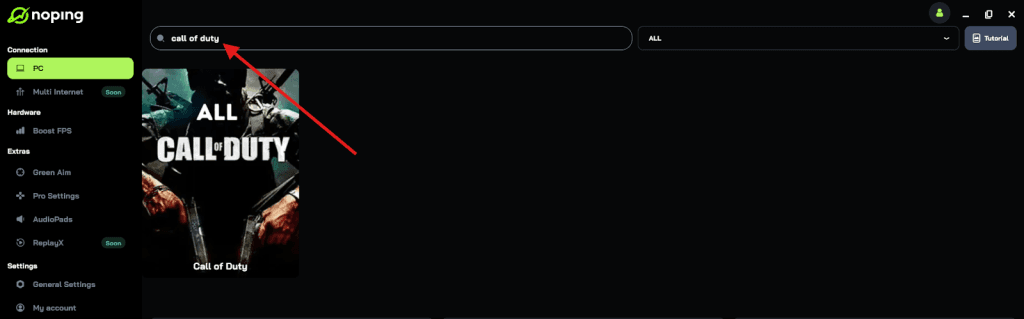
- Once you find Call of Duty, click on it and, on the next screen, select “Choose automatic” or “Choose manual” and click “Continue”. We recommend choosing automatic, as NoPing’s technology analyzes all routes on a global scale and automatically selects the best option for you.

- On the next screen, click on “Optimize Game”.
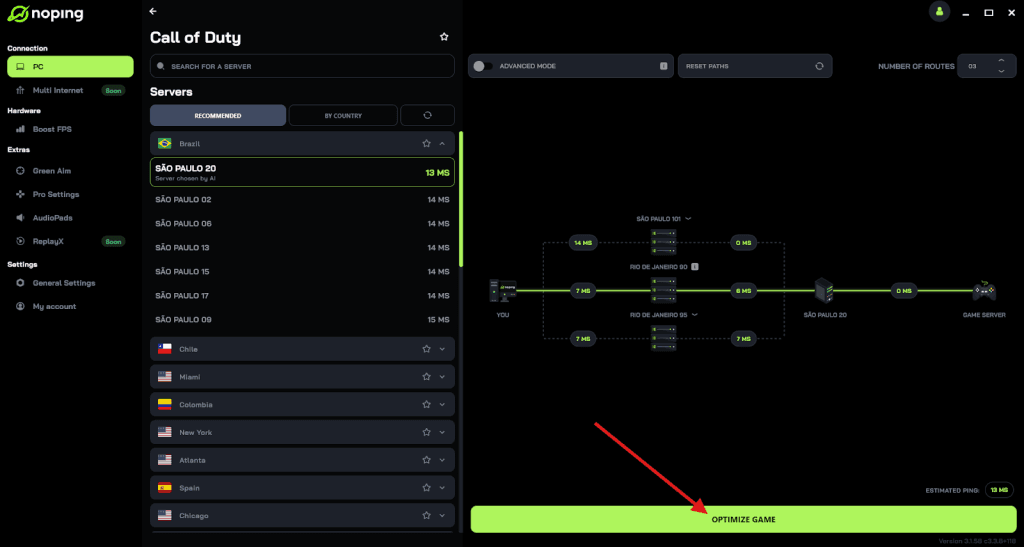
- And that’s it, you can start playing CoD with optimized ping!
You can test different servers within NoPing to see which gives you the lowest latency.
FAQ - Black Ops 6 DirectX Error
Q: Which DirectX error codes are common in Black Ops 6 and what do they mean?
A: Common codes include 0x887A0005 (a Direct3D device failure often tied to VRAM/driver comms) and similar GPU/DirectX codes. They generally indicate a rendering resource or communication failure rather than a specific single bug.
Q: Will reinstalling DirectX from Microsoft help?
A: Yes, reinstalling/updating DirectX runtime components and running dxdiag can fix missing or corrupted DirectX DLLs that the game needs. Don’t download DLLs from unofficial sites; use Microsoft’s official installers.
Q: Is it safe to roll back to an older GPU driver?
A: Yes, if the newest driver is causing the problem. Many community posts report stability after rolling back to a known stable driver or after a GPU vendor hotfix. Use DDU for a clean rollback when possible.
Q: Could running the game in DirectX 11 instead of 12 help?
A: Sometimes forcing the game to use DirectX 11 (if the game supports it) reduces crashes on some hardware, but Black Ops 6 behavior varies.
Q: After all fixes the game still crashes. What next?
A: Collect DxDiag logs and crash dumps and contact Activision/Steam/Battle.net support. Also test GPU in another system or run manufacturer GPU stress tests to rule out hardware failure.
DirectX crashes with Black Ops 6 are frustrating, but most of the time they’re caused by fixable software/configuration issues: driver incompatibilities, corrupted shaders/files, overlays, or VRAM pressure. Work methodically: start with easy steps (restart, disable overlays, verify files), then move to driver clean installs, shader cache clears, and hardware checks.
And to always play Black Ops 6 with optimized FPS and reduced ping, use NoPing! Download now and start your free trial!