

Black Ops 6 packet burst shows up in-game as sudden stutters, rubberbanding, or a packet-burst icon and it usually wrecks firefights more than anything else.
In this article we’ll explain what packet burst actually is, why players in Black Ops 6 keep running into it, and give a practical, step-by-step set of fixes.
What is Packet Burst?
A packet burst is a short, intense surge of packets being delivered (or re-delivered) across a network in a compressed time window.
Instead of a smooth stream of small packets, the network ends up sending a clump of packets together or briefly queuing and releasing a backlog.
For fast multiplayer games, that produces jitter: gameplay stutters, missed inputs, rubberbanding and the “packet burst” warnings you see in Call of Duty.
Packet bursts differ from constant high ping or steady packet loss because they’re intermittent spikes of delivery problems rather than steady-state bad metrics.
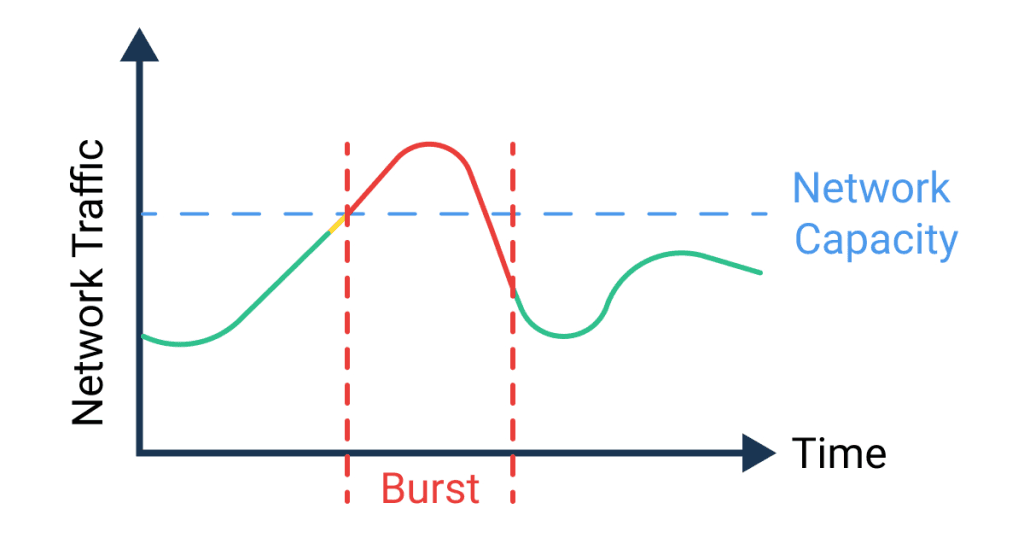
Source: Obkio
What Causes Packet Burst in Black Ops 6?
There isn’t a single cause; packet bursts in Black Ops 6 come from several places, and different players have different root causes. The usual suspects are:
Bufferbloat and router buffering: Some routers or ISP equipment keep large buffers and try not to drop packets. When the buffer fills or flushes, packets come out in bursts instead of a smooth rate, creating jitter. This is a very common network-level cause.
ISP or transit routing issues: The route between your home and Activision’s game servers can change or be congested. If intermediate links drop or delay packets, you’ll see bursts even though your local link looks fine.
Wi-Fi interference or unstable local links: Wireless interference, power-saving features, or poor signal cause retransmits and bursts of traffic once the link recovers. Wired connections reduce this dramatically.
Local CPU/VRAM/GPU stalls and shader issues: In some reported Black Ops 6 cases, high-end PCs still saw packet-burst symptoms that correlated with shader streaming or driver problems. When the game stalls to compile or stream textures, network telemetry and frame delivery get mismatchy and players experience similar symptoms.
Background apps or bandwidth spikes: Uploads/downloads, cloud syncs, or other apps saturating the connection briefly will cause packet queuing and bursts.
Because multiple layers can be involved, the sensible approach is layered troubleshooting: start local, then router, then ISP/routing.
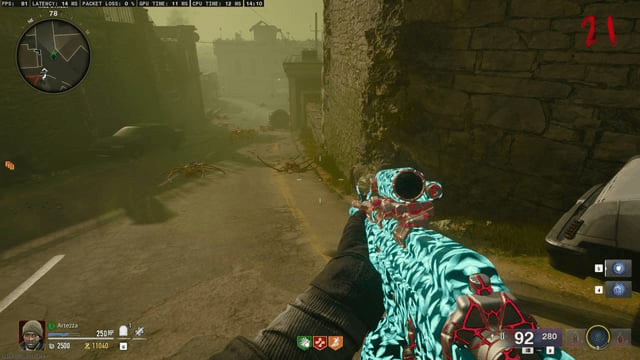
Packet burst icon on the left side of the screen. Source: Reddit
How to Fix Black Ops 6 Packet Burst
Below are practical fixes. Try them one at a time and test in-game after each change so you can see which one actually helped.
Use a wired Ethernet connection
Wired connections remove Wi-Fi instability, retransmissions and local interference from the equation. If you’re on Wi-Fi, plug directly into the router/modem with a quality CAT5e/CAT6 cable and test. For many players, this single change eliminates intermittent bursts caused by wireless packet loss.
Restart your modem, router, and console/PC
Power-cycle your networking gear and your gaming device. This clears transient errors, forces DHCP renewals and sometimes drops stale routing states that can cause bursts. It’s low-effort and worth doing before deeper debugging.
Update network and GPU drivers; do a clean GPU install
Outdated or corrupt network and GPU drivers can interact badly with modern games’ streaming systems. Do a clean reinstall of your GPU drivers (choose the “clean install” option on NVIDIA or use DDU to fully remove drivers before reinstalling), and update your network adapter driver to the latest stable version from the vendor.
Restart or reset shader pre-loading and clear shader cache (BO6 settings)
Some players have fixed a recurring, rhythmic packet-burst-like stutter by resetting the game's shader preloading and removing the shader cache so the game recompiles them properly. In Black Ops 6’s Graphics settings look for “Reset pre-loaded shaders” (or similar), confirm, and then relaunch. If that’s available, follow the in-game prompt and test.
Adjust On-Demand Texture Streaming and cache limits
Black Ops 6’s texture streaming and cache settings can cause micro-stalls while the game pulls data. If the game provides a setting for “On-Demand Texture Streaming” set it to the minimum or lower the download/cache limit; several troubleshooting posts and advice articles recommend this as a specific fix for BO6 packet burst symptoms.

Source: Escapist
Check for background uploads, downloads, and CPU spikes
Close cloud syncs, torrent clients, streaming apps, Windows Update downloads and other background tasks while you play. Also monitor CPU usage and ensure nothing else is saturating the system that could cause I/O stalls correlated with network bursts.
Optimize your router: QoS, SQM, and buffer settings
Modern consumer routers sometimes have QoS-like features that can be tuned. SQM (Smart Queue Management) or proper QoS prevents bufferbloat by shaping traffic and avoiding giant buffer flushes that produce bursts.
Enabling SQM or enabling “gaming priority” for your console/PC (but not expanding buffer sizes) often improves jitter. If your router firmware supports BBR, fq_codel, cake, or similar queue disciplines, those help reduce packet bursts.
If your router is stock and limited, consider third-party firmware (only if you’re comfortable) or a replacement.
Change DNS and test alternate routes
Changing DNS to Cloudflare (1.1.1.1) or Google (8.8.8.8) won’t directly stop packet bursts caused by ISP transit, but it’s a cheap test that sometimes improves route selection or resolves lookup delays that precede a network spike.
More important is to test route quality with tools (see next fix).
Use route diagnostics and monitor packet loss/jitter
Tools like ping, traceroute, MTR, or dedicated network monitors can help reveal exactly where packet loss or latency spikes occur. If the problem shows up beyond your router (on your ISP’s hops) it’s likely an ISP or transit problem and you should open a support ticket with them and provide traceroutes/MTR logs.
Use NoPing
NoPing reroutes your game traffic through alternative, lower-latency paths across their network.
For players whose packet bursts are caused by poor ISP routing or certain congested hops, route optimization services can reduce packet loss and jitter by choosing a more stable transit to the game servers.
Here’s how to use NoPing to fix packet bursts in Call of Duty:
- Sign-up through the website and download NoPing (you can try it for free)
- Open NoPing and search for Call of Duty inside the software
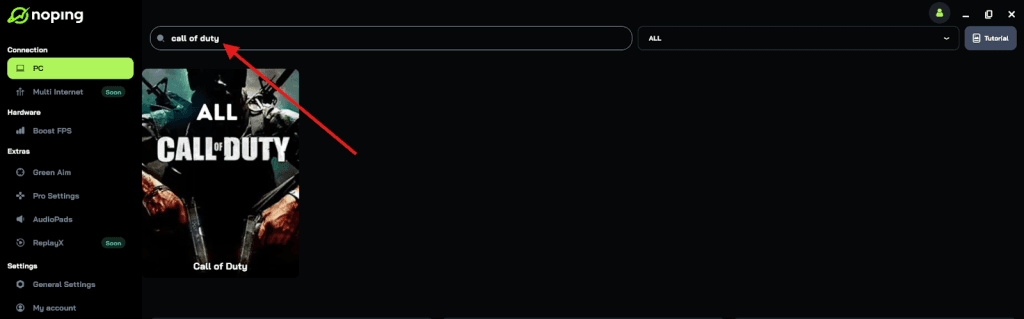
- Once you find Call of Duty, click on it and, on the next screen, select “Choose automatic” or “Choose manual” and click “Continue”. We recommend choosing automatic, as NoPing’s technology analyzes all routes on a global scale and automatically selects the best option for you.
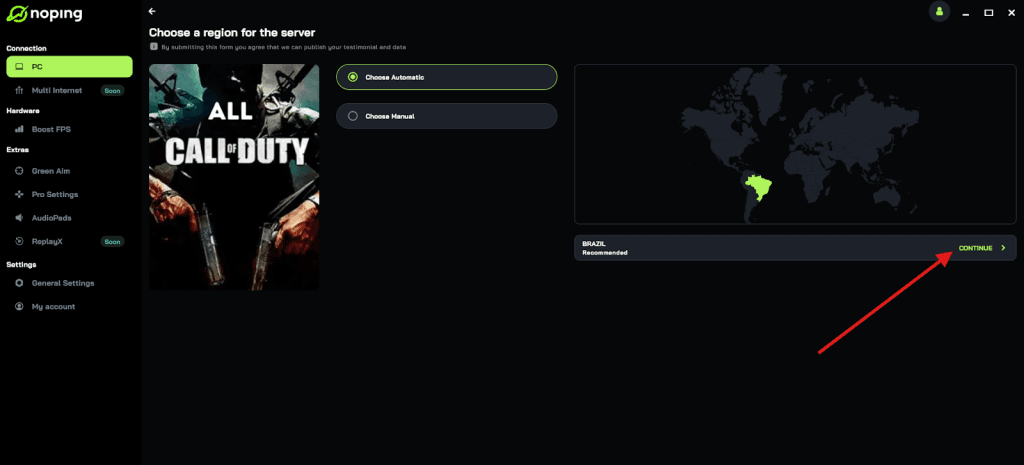
- On the next screen, click on “Optimize Game”.
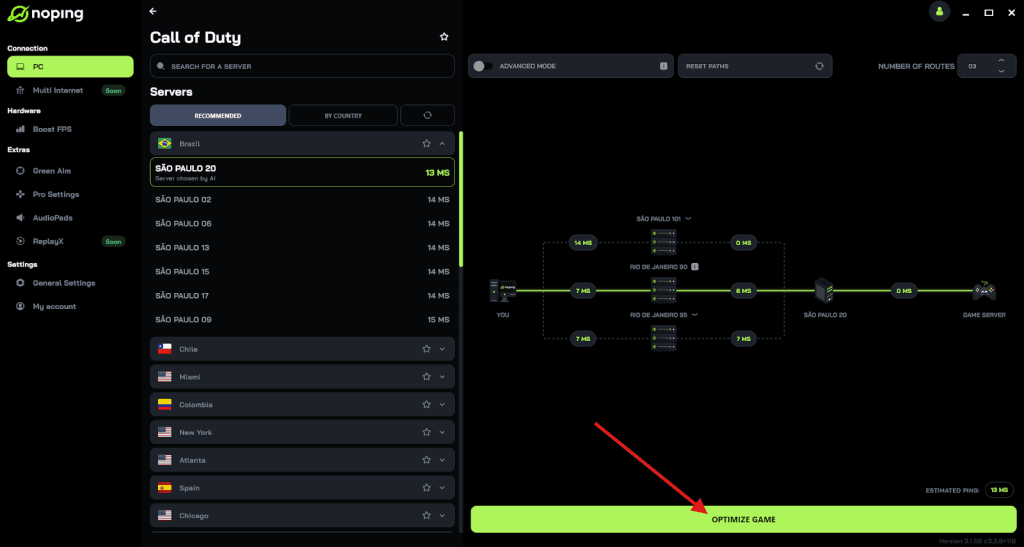
- And that’s it, you can start playing CoD with optimized ping!
You can test different servers within NoPing to see which gives you the lowest latency.
Contact your ISP and report the issue (with traces)
If diagnostics show packet loss/spikes beyond your router, contact your ISP. Provide traceroute or MTR output and the timestamps of the in-game packet bursts. ISPs can check for line errors, congestion or routing issues and escalate to backbone providers if necessary.

FAQ - Black Ops 6 Packet Burst
Q: Are packet bursts the same as packet loss?
No. Packet loss is when packets are dropped and never reach their destination. Packet bursts are short spikes or clumps of packet movement (or re-delivery) that create jitter. Both harm games, but they’re distinct phenomena.
Q: Do consoles and PC experience packet burst differently?
The underlying network behavior is the same, but PCs can have extra variables (background apps, drivers, shader compiles) that make symptoms look similar but have different causes. Many console players report fewer driver/shader problems but can still suffer from Wi-Fi or ISP routing burst issues.
Q: Can I make my router automatically avoid packet bursts?
Some modern routers with SQM (fq_codel, cake) can mitigate bufferbloat and reduce bursts. If your router lacks these features, replacing it or using third-party firmware (if supported) is an option, but that requires comfort with more advanced setup.
Q: How do I provide useful information to Activision support?
Collect traceroutes/MTR logs, timestamps of the bursts, screenshots of in-game network telemetry, and a short list of the troubleshooting steps you’ve tried. That gives engineers better data to investigate server or client-side problems.
Packet burst in Black Ops 6 is a real pain but it’s fixable in many cases. Start with the easy checks — wired connection, reboot, driver clean installs — then move to router tuning, in-game shader/texture tweaks and route diagnostics.
And to always avoid packet bursts in your Black Ops 6 gameplay, use NoPing! Download now and start your free trial!