

"Blade & Soul NEO fatal error"... if that message popped up and kicked you out of the game, welcome to the club.
Crashes and fatal errors on PC games can be maddening: one minute you’re loading in, the next you face a blank crash window or the launcher telling you to send a report.
This guide walks through what that fatal error usually means for Blade & Soul NEO, step-by-step fixes, why it happens, other related errors to watch for, and an FAQ with extra tips not covered earlier.
What is The Blade & Soul NEO Fatal Error?
When people say “fatal error” in the context of Blade & Soul NEO they usually mean the game crashes to desktop or fails to launch with a dialog that calls the crash a fatal error (sometimes coming from the game engine, graphics layer, or an anti-cheat component).
It’s a broad label, not a single bug, and can originate from corrupted game files, drivers, conflicting apps, anti-cheat/anti-tamper systems, or graphics runtime issues (DirectX/Vulkan).
Because the error can come from different subsystems, the right fix depends on what’s actually failing.
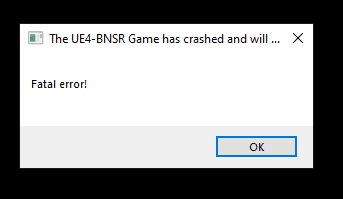
Source: Reddit
How to Fix Blade & Soul NEO Fatal Error?
Below are practical fixes ordered from easiest/fastest to more involved. Try them one at a time and test the game after each change.
Simple checks (quick wins)
Run the launcher and game as Administrator.
Verify game files through the launcher or reinstall the client if verification fails. Corrupted or missing files are a common cause.
Update or reinstall graphics drivers
Update your GPU drivers to the latest stable release from NVIDIA/AMD/Intel. If a recent driver introduced crashes, try the previous stable version. GPU driver issues have caused frequent crashes in Blade & Soul and other UE4/Vulkan games.
Check and install runtimes (Visual C++ / DirectX)
Make sure Visual C++ redistributables and DirectX runtimes are installed/updated. Reinstalling Visual C++ (the common runtimes) is a standard fix for crashes tied to missing DLLs.
Delete client config and force a clean start
Delete or rename ClientConfiguration.xml (or similar config files in the game folder) so the game recreates them. Corrupt configs can make the client crash repeatedly. Also try running the 32-bit client if the launcher offers both modes.
Disable conflicting third-party software
Close or uninstall overlays, screen recorders, and certain utilities (Razer Chroma, Razer services, some Git clients like TortoiseSVN/TortoiseGit) that users have reported interfering with Blade & Soul or the anti-cheat layer.
If you see services like Razer Chroma SDK Service running, try ending them and test the game.
Tackle Vulkan/DirectX selection problems
If the game uses Vulkan or DX12 and crashes immediately, switch to DX11 (if the client allows) or vice versa. Some Vulkan-related crashes happen when the engine targets the “wrong” GPU on multi-GPU systems (integrated + discrete).
Temporarily disable the integrated GPU in Device Manager or set the preferred GPU in your OS/GPU control panel.
Address GPU timeouts and TDR errors
Some fatal errors stem from the GPU timing out (TDR — Timeout Detection and Recovery). You can temporarily increase TdrDelay in the Windows registry to allow the GPU more time to respond, but do this carefully and back up the registry first. This is more of a band-aid for driver/GPU load issues; updating drivers or lowering GPU clocks is safer long term.
Repair or reinstall anti-cheat and gameguard components
If the game’s anti-cheat (or GameGuard-type component) is corrupted or blocked by security software, the launcher may show fatal errors. Try repairing or reinstalling those components and add the game folder to Windows Defender/antivirus exclusions.
Create a clean boot environment
Perform a clean boot (disable all non-Microsoft startup items and services) and start the game. If the crash disappears, re-enable items in small batches to find the conflict. This isolates services that clash with the game/anti-cheat.
Advanced: check hardware and OS
If crashes happen in many games, test your GPU for stability, check VRAM temps, run MemTest86 for RAM faults, and ensure Windows is fully updated. Hardware faults or thermal throttling can cause engine “fatal” errors across multiple titles.
What Causes Blade & Soul NEO Fatal Error?
Here are common root causes reported by players and support threads:
- Corrupted or missing game files (client config, pak files).
- Outdated or buggy GPU drivers that crash under load.
- Conflicting third-party apps (Razer Chroma, certain version control tools, overlays, or anti-virus).
- Graphics API problems (Vulkan/DX12 incompatibilities, wrong GPU selection).
- Anti-cheat/GameGuard interfering with other software or missing/corrupt files.
- Hardware instability: overheating, VRAM errors, or failing GPU.
Other Blade & Soul NEO Errors to Know
- Crash at logo / startup loop — often tied to corrupt config files or background processes (try deleting the config and clean boot first).
- Driver crash / GPU reset — shows as the GPU driver recovering or the screen flickering before the game closes; usually a driver or hardware issue.
- Connection / authentication errors — not the same as a fatal crash but common: server or launcher errors that prevent login (check official service status and your network).
How to Play Blade & Soul NEO Without Lag?
NoPing is a service designed to optimize your route to Blade & Soul’s servers. Sometimes, the normal path your internet provider uses isn’t the fastest.
NoPing reroutes your data through a better, more direct path.
Here’s how to use NoPing to fix network issues in Blade & Soul:
- Sign-up through the website and download NoPing (you can try it for free)
- Open NoPing and search for Blade & Soul inside the software
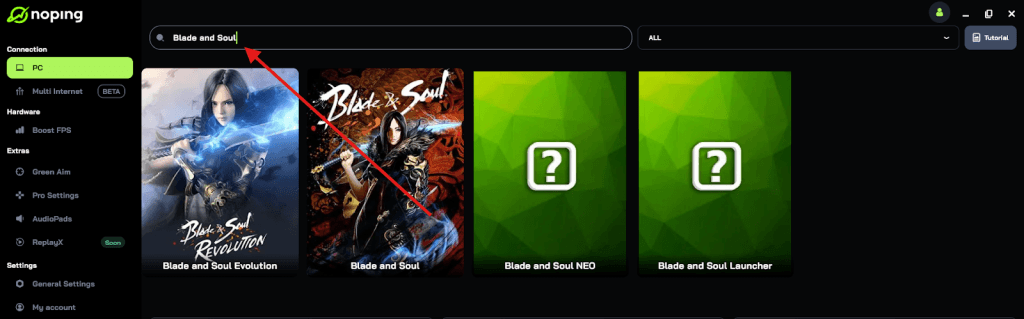
- Once you find Blade & Soul, click on it. Choose your server on the next screen and click on “Optimize Game”.
- And that’s it, you can start playing Blade & Soul with optimized ping!
You can test different servers within NoPing to see which gives you the lowest latency.
FAQ - Blade & Soul NEO Fatal Error
Q: Should I reinstall Windows if fixes don’t work?
A: Reinstalling Windows is a last resort. Before that, try a clean driver uninstall (use DDU — Display Driver Uninstaller in safe mode), remove conflicting apps, and test hardware. Reinstalling Windows can help if many system files or drivers are damaged, but it’s dramatic and usually avoidable.
Q: Is disabling GameGuard or anti-cheat safe?
A: Usually you can’t disable anti-cheat without preventing the game from launching. Instead, add the game and its folders to your antivirus/Windows Defender exclusions and ensure anti-cheat files aren’t quarantined. Contact official support for steps they recommend.
Q: Can cloud saves or mods cause fatal errors?
A: Mods can definitely cause crashes if they modify core files. Blade & Soul NEO’s official client may not support mods; remove them if present. Cloud saves generally don’t cause a startup “fatal error” unless the client fails while downloading or syncing; still, try a fresh install without cloud sync temporarily.
Q: Are there known recent patches that broke the game?
A: Game updates can introduce instability. Check official patch notes and the community forums on the day of the patch. If many players report crashes after an update, developers often roll out hotfixes. Monitor official channels for confirmations.
Q: Which logs should I collect for support?
A: Provide the launcher log, crash dumps (if created), Windows Event Viewer entries at the time of crash (Application/System), GPU driver logs, and a brief system spec (CPU, GPU, RAM, Windows version). That helps support identify whether it’s driver, anti-cheat, or file corruption.
Final notes and quick checklist
If you want a compact checklist to run through quickly, here it is:
- Verify game files; run as admin.
- Update or roll back GPU drivers.
- Reinstall Visual C++ runtimes and DirectX redist.
- Delete ClientConfiguration.xml and try 32-bit client mode.
- Disable/exit Razer/overlays/Tortoise tools; try clean boot.
- Switch graphics API (DX11/DX12/Vulkan) or disable the integrated GPU temporarily.
- Increase TdrDelay carefully or test GPU stability.
- Reinstall anti-cheat/GameGuard, add exclusions in antivirus.
- If nothing works, collect logs and contact official support.
And to always play Blade & Soul NEO with top performance, use NoPing! Download now and start your free trial!