

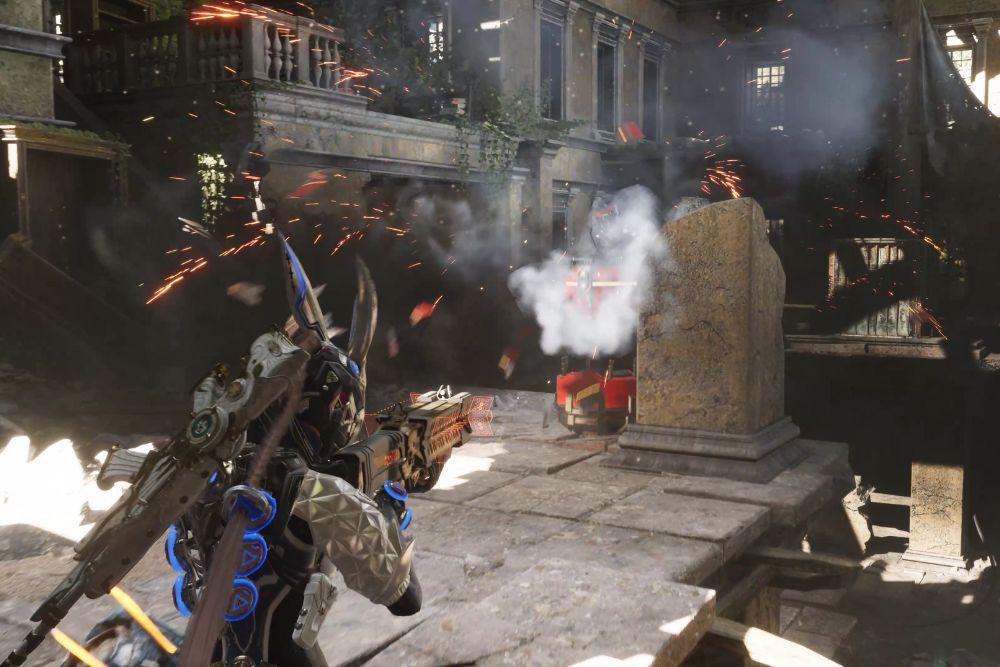
Experiencing FPS drops and stuttering in The First Descendant can ruin even the most exciting moments in this action-packed looter shooter.
Whether you're exploring dungeons solo or coordinating with a team, performance issues like lag spikes, sudden frame drops, and input delay can seriously affect your gameplay.
In this guide, we’ll take a closer look at what causes FPS drops and stuttering problems in the game, and more importantly, how to fix them.
Let’s get into it.
What Causes FPS Drops and Stuttering in The First Descendant?
Before diving into the solutions, it’s worth understanding why FPS drops and stuttering happen in the first place.
While The First Descendant is built on Unreal Engine 5 and delivers visually stunning environments, all that eye candy comes at a performance cost. Here are the most common reasons:
- Unoptimized system settings: If your hardware isn’t properly configured or optimized, it may struggle to handle the game’s demands.
- Outdated drivers: GPU drivers that aren’t up to date can cause compatibility issues or lower performance.
- Background processes: Apps running in the background (like browsers, launchers, or even RGB software) can eat up CPU and RAM.
- Thermal throttling: Overheating hardware, especially your CPU or GPU, can slow itself down to prevent damage.
- Server instability or poor routing: Sometimes, it’s not your PC but your network connection to the game servers.
- Bugs and optimization issues in the game itself: As with many live-service games, launch and update periods can be unstable.
Knowing the cause helps you apply the right fix.
8 Ways to Fix FPS Drops and Stuttering in The First Descendant
Here’s a set of practical, effective tips to get the game running smoothly again. These cover both in-game and system-wide tweaks.
1. Update Your GPU Drivers
This is the first thing you should do. NVIDIA, AMD, and Intel frequently release game-ready drivers for major releases. These drivers often include performance improvements and bug fixes specific to new games like The First Descendant.
- For NVIDIA: Use GeForce Experience or download manually from the NVIDIA site.
- For AMD: Use Adrenalin Software.
- For Intel: Use Intel Driver & Support Assistant.
2. Use NoPing and NoPing’s Boost FPS Feature
If you’re playing online and experiencing stuttering or inconsistent frames during high-load scenes or online co-op, NoPing can make a real difference.
NoPing optimizes your connection path to the game servers, reducing latency and preventing packet loss, which can sometimes cause performance issues during online sessions.
It also comes with a Boost FPS feature, which disables unnecessary services and background processes on your system to free up resources for gaming.
With just a couple of clicks, you can significantly improve stability without getting into complicated settings.
Here’s how to use NoPing to fix stuttering and FPS Drops in online games:
- Sign-up through the website and download NoPing (you can test it for free).
- Open NoPing and search for your game inside the software

- Once you find it, click on it and, on the next screen, select “Choose automatic” or “Choose manual” and click “Continue”. We recommend choosing automatic, as NoPing’s technology analyzes all routes on a global scale and automatically selects the best option for you.

- On the next screen, click on “Optimize Game”.

- And that’s it, you can start playing with optimized ping!
You can test different servers within NoPing to see which gives you the lowest latency.
How to use the Boost FPS feature:
- Sign-up through the website and download NoPing (you can test it for free).
- When you open the software, click on "Boost FPS" in the left side menu.

- On the next screen, you'll see a range of options to customize the feature (there are over 50 settings). You can enable or disable everything and choose between Windows default or user settings. You can also filter the options using the bar on the right.

And that's it! Boost FPS is now activated. Just launch your game and enjoy high FPS!
3. Lower Graphics Settings
Not all systems can handle ultra or high presets, especially when the game is using Unreal Engine 5 features like Lumen or Nanite.
Start by setting everything to “Medium” and disable more demanding settings like:
- Motion Blur
- Volumetric Fog
- Depth of Field
- Anti-Aliasing (use FXAA instead of TAA or TSR)
- Ray Tracing (if available, turn it off)
Then, increase individual settings if your framerate improves.

The First Descendant Graphics Settings on Ultra. Source: TechPowerUp
4. Limit Your FPS or Enable V-Sync
Uncapped FPS may sound good, but it can sometimes cause instability, especially on systems with fluctuating power or temperature levels. Try capping your FPS to 60, 90, or 120 (depending on your monitor’s refresh rate). You can do this through:
- The game’s settings
- Your GPU control panel (NVIDIA or AMD)
- A third-party tool like RivaTuner Statistics Server
Enabling V-Sync or using technologies like G-Sync or FreeSync can also reduce screen tearing and microstutters.
5. Close Background Applications
Use Task Manager (Ctrl + Shift + Esc) to check what’s running in the background. Close heavy apps like:
- Chrome
- Discord (if not using for voice)
- OBS (if not streaming)
- Adobe apps
- Game launchers you don’t need open (Steam, Epic, etc.)
This frees up both CPU and RAM, which helps with stability.
6. Disable Windows Game Mode and Xbox Game Bar
These Windows features don’t always help, and in some cases, they cause stuttering:
- Go to Settings > Gaming > Xbox Game Bar > Turn off
- Then go to Settings > Gaming > Game Mode > Turn off
You can also disable overlays like NVIDIA ShadowPlay or AMD ReLive if you don’t need them.
7. Monitor Your Temperatures
Use free tools like HWMonitor or MSI Afterburner to check your CPU and GPU temps while gaming.
- CPU should stay under 85°C
- GPU should stay under 85–90°C
If you’re overheating, clean your fans, improve airflow, or consider repasting your CPU/GPU.
Thermal throttling can silently kill performance, even if you’re using a powerful rig.
8. Install the Game on an SSD
This one’s often overlooked. The First Descendant has fast-paced loading and heavy texture streaming. Installing it on a solid-state drive instead of a traditional HDD can eliminate a lot of stutter and loading delay.

The First Descendant Settings to Fix FPS Drops and Stuttering
Let’s look at which in-game settings can help stabilize performance while still keeping the visuals decent.
Here’s a recommended configuration for mid-range systems:
| Setting | Recommendation |
| Display Mode | Fullscreen |
| Resolution | Native (not upscaled) |
| V-Sync | On (or G-Sync/FreeSync) |
| Anti-Aliasing | FXAA |
| Shadow Quality | Medium |
| Texture Quality | Medium |
| Effects Quality | Medium or Low |
| Post-Processing | Low |
| Foliage Quality | Low |
| View Distance | Medium |
| Motion Blur | Off |
| Depth of Field | Off |
| Ray Tracing | Off |
| Frame Rate Cap | Match monitor refresh |
| DLSS/FSR/XeSS | Use Balanced or Quality |
You can always test by toggling one setting at a time and watching your FPS using the in-game monitor or external tools like MSI Afterburner.
FAQ
How much VRAM do I need to run The First Descendant smoothly?
Ideally, you want a GPU with at least 6 GB of VRAM for 1080p Medium/High settings. For 1440p or 4K, 8–12 GB VRAM is more comfortable. Unreal Engine 5 games are quite heavy on video memory.
Does The First Descendant support DLSS or FSR?
Yes. As of launch, The First Descendant supports DLSS (NVIDIA), FSR (AMD), and XeSS (Intel). These upscaling technologies can help you boost performance without drastically reducing visual quality.
DLSS Quality or Balanced mode is a good starting point for NVIDIA RTX users.
Why do I still get stuttering even with high FPS?
High FPS doesn’t always mean smooth gameplay. Stuttering can come from background apps, bad frame pacing, thermal throttling, or inconsistent latency in online games. Try enabling V-Sync or G-Sync/FreeSync, lowering your settings, and checking your temperatures.
Also, using NoPing can help reduce spikes caused by network instability.
Is The First Descendant well optimized?
It’s a mixed bag. Like many Unreal Engine 5 games, it has beautiful visuals but can be demanding and occasionally unoptimized. Performance tends to improve over time with patches and driver updates, so keeping everything updated is important.
Can I fix stuttering by reinstalling the game?
It’s not guaranteed, but if you’ve tried everything else and suspect file corruption, reinstalling can help. Before that, try verifying the game files through your launcher (Steam, Epic, etc.).
If you're serious about fixing FPS drops and stuttering in The First Descendant, the key is to go step by step.
Keep your setup clean, cool, and updated, and you'll be back to enjoying smooth gameplay in no time.
Play The First Descendant with your best performance, anywhere! Download NoPing now and start your free trial!