

It is the ultimate frustration for any gamer: you have your loadout planned, your squad is waiting, and suddenly you are staring at a screen saying Fortnite servers not responding.
This error, which translates to servidores do Fortnite não estão respondendo, is a generic wall that hides several different potential issues.
Whether it is a literal outage at Epic Games or a deep-seated routing error in your own network, you need a systematic way to tear that wall down and get back into the Battle Bus.
Is the problem actually on Epic Games' side?
Yes, before you start tearing your hair out or resetting your Windows installation, you need to verify if the world’s most popular battle royale is actually online.
Because Fortnite receives constant content drops, the infrastructure is frequently taken offline for maintenance.
If you try to log in during these windows, the server simply won't respond because it is effectively "closed for renovations."

To verify this, you should check these specific resources:
- Epic Games Status Page: This is the primary source of truth. Check the status.epicgames.com site and look specifically at the Fortnite section. It breaks down Game Services, Matchmaking, and Parties.
- Fortnite Status Twitter: The @FortniteStatus account often reports issues faster than the main status page, especially regarding emergency maintenance or sudden crashes during live events.
- DownDetector: This is a community-driven site that shows spikes in user reports. If you see a massive vertical line in the last 15 minutes, the problem is definitely global.
If these sources show that services are operational, then the "not responding" message is a local handshake failure.
This means your computer or console is shouting into the void, and the server isn't shouting back.
Also read: How to Uninstall Valorant: All Methods
Is my network hardware causing a bottleneck?
If the servers are fine for everyone else, your router or modem might be the culprit.
Over time, these devices can suffer from memory leaks or IP conflicts that prevent them from maintaining a stable socket connection with Epic's servers.
Follow these steps to ensure your hardware is clean:
- Power Cycle: Don't just press the reset button. Pull the power cable out for a full 60 seconds. This allows the capacitors to discharge and clears the internal cache.
- Bypass the Switch: If you use a network switch between your PC and the router, try plugging directly into the router. Switches can fail or overheat, causing dropped packets that look like a server timeout.
- Check for Firmware Updates: Log into your router's admin panel (usually 192.168.0.1 or 192.168.1.1) and check if there is a firmware update. Manufacturers often release patches specifically to improve stability for high-traffic games like Fortnite.
Also read: How to Enable Two-Factor Authentication (2FA) on Fortnite
Could DNS settings be blocking the connection?
Yes, and this is one of the most common reasons for the "servers not responding" error. Your ISP (Internet Service Provider) uses a Domain Name System to translate the game's server addresses into IP addresses.
If your ISP's DNS is slow or outdated, your game client might time out before it even finds where the server is located.
Changing to a gaming-optimized DNS can often solve the problem instantly. Here is how to do it:
- Google DNS: Use 8.8.8.8 as primary and 8.8.4.4 as secondary.
- Cloudflare: Use 1.1.1.1 as primary and 1.0.0.1 as secondary.
On Windows, you can change this in the Network and Sharing Center under your adapter properties. On consoles (PS5, Xbox, Switch), this is found in the Advanced Network Settings under the Wi-Fi or LAN configuration.
Are background applications stealing your bandwidth?
Sometimes the server isn't responding because your connection is too "loud." If you have BitTorrent, Windows Update, or even a high-definition stream running in the background, the small packets of data Fortnite needs to stay connected might get dropped.
Check your Task Manager (Ctrl+Shift+Esc) and look at the Network column. If you see a process using more than 1-2 Mbps while you aren't doing anything, that is a red flag. Specifically, look for:
- Steam/Epic Games Launcher updates: Sometimes the launcher tries to update another game while you are playing.
- Cloud Sync: Apps like OneDrive or Google Drive can saturate your upload speed, which is fatal for gaming stability.
Is your firewall or antivirus being too aggressive?
Fortnite requires several ports to be open to communicate with Epic’s data centers. If your Windows Firewall or a third-party antivirus (like Bitdefender or Norton) sees this sudden burst of traffic, it might flag it as suspicious and cut the connection.
To test this, temporarily disable your firewall and try to launch the game. If it works, you need to add an "Exception" for FortniteClient-Win64-Shipping.exe and the Epic Games Launcher. Additionally, make sure these ports are forwarded in your router settings:
- TCP: 80, 443, 5222
- UDP: 6250, 5060, 5062, 9000-9100
Does the game need a "Hard Reset" of its files?
Sometimes the error isn't in the connection, but in the data that handles the connection. If a configuration file gets corrupted during a crash, the game might be trying to reach a server address that no longer exists.
If you are on PC, you should verify the integrity of the game files. Open the Epic Games Launcher, go to Library, click the three dots under Fortnite, and select Manage > Verify. This will cross-reference your local files with the official ones and replace anything that looks suspicious.
On consoles, the equivalent is clearing the system cache. On PlayStation, this usually involves turning the console off completely and unplugging it. On Xbox, you can clear the "Local Saved Games" (just make sure your saves are synced to the cloud first).
How does routing impact the "Not Responding" error?
This is the most technical part of the problem. Even if your internet is fast and the servers are up, the path your data takes across the country (or the world) matters.
Your ISP might be sending your Fortnite data through a congested hub in a different state before it reaches the game server. This is called "bad routing."
When the routing is bad enough, the server "times out" because your packets took too long to arrive. This is where NoPing becomes essential. It bypasses your ISP's standard, often inefficient route and places you on a dedicated gaming path directly to the Fortnite data centers.
This reduces the distance your data has to travel, significantly lowering the chance of a "servers not responding" error and dropping your ping.
Here’s how to use NoPing to fix high ping in Fortnite:
- Sign-up through the website and download NoPing (you can test it for free).
- Open NoPing and search for Fortnite inside the software
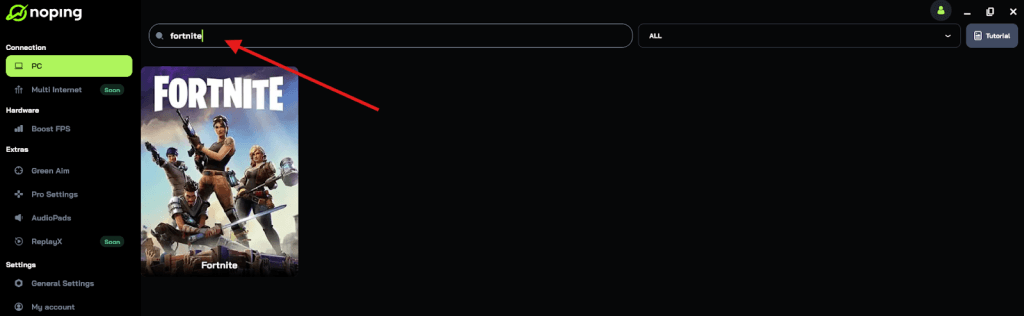
- Once you find Fortnite, click on it and, on the next screen, select “Choose automatic” or “Choose manual” and click “Continue”. We recommend choosing automatic, as NoPing’s technology analyzes all routes on a global scale and automatically selects the best option for you.
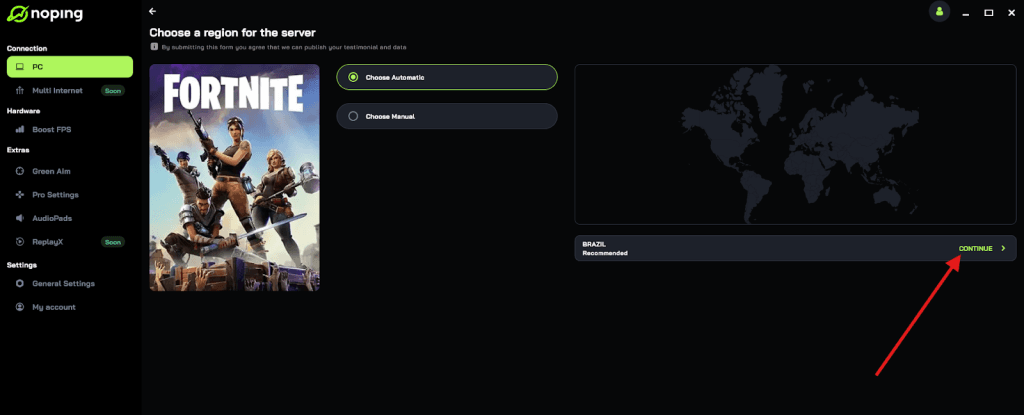
- On the next screen, click on “Optimize Game”.
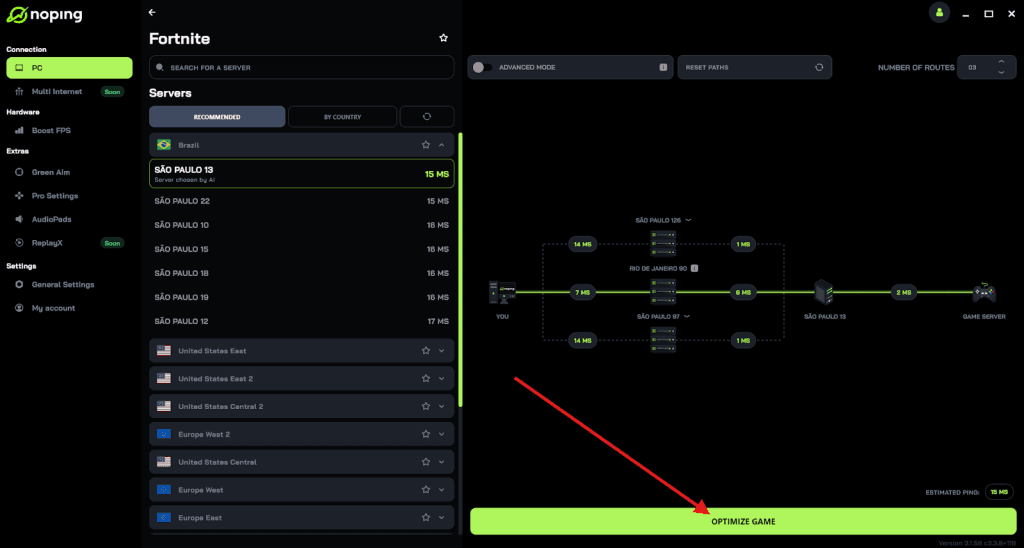
- And that’s it, you can start playing Fortnite with optimized ping!
You can test different servers within NoPing to see which gives you the lowest latency.