


An unstable connection can compromise any Free Fire match, regardless of a player's skill level. Delayed commands, gloo walls appearing too late, abilities failing to activate at the right moment, and shots not registering properly are often linked to network issues or device performance limitations.
While many players associate these situations exclusively with high ping, other factors also directly impact the gaming experience. Jitter, packet loss, network congestion, and route fluctuations between the device and the game server can cause instability even when internet speeds appear sufficient.
For this reason, understanding the causes of lag and knowing the available solutions can help create a more stable and consistent gameplay experience.
Why Does Free Fire Lag on Mobile Devices?
Free Fire relies on constant communication between the player's device and the game's servers. Every action performed during a match must be sent, processed, and returned in real time.
When this communication experiences interference, delays, or data loss, the result appears on screen as freezes, delayed commands, or disconnections.
The most common factors include:
• High ping to the server serving your location;
• Packet loss during data transmission;
• Jitter, which causes latency fluctuations;
• Mobile network congestion during peak hours;
• Unstable Wi-Fi signals;
• Background applications consuming system resources;
• FPS drops caused by hardware limitations.
Even internet connections considered fast can experience some of these issues.
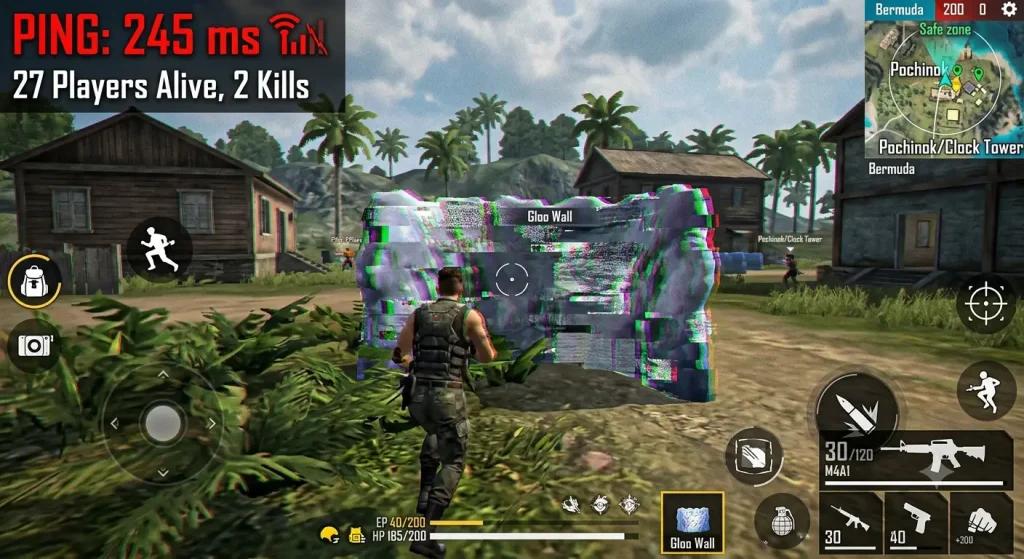
How Jitter Affects the Free Fire Experience
Many players focus only on their ping value. However, the stability of that number is often just as important as latency itself. A consistent connection generally delivers better performance than one that constantly fluctuates during gameplay.
Problems Caused by Jitter
When latency varies continuously, players may experience situations such as:
• Headshots that fail to register properly;
• Delays when deploying gloo walls;
• Abilities activating outside the expected timing;
• Inconsistent movement;
• Rollbacks;
• Sudden teleporting effects;
• Disconnections during critical engagements.
For this reason, reducing jitter is often one of the most effective ways to improve the competitive experience.
Quick Adjustments to Reduce Lag in Free Fire
Before using optimization tools, several simple adjustments may help improve performance.
Adjust In-Game Graphics Settings
Higher graphical settings demand more processing power, RAM, and GPU resources.
On mid-range devices, using Smooth or Standard graphics settings can reduce FPS drops and improve overall stability.
Close Background Applications
Streaming apps, social media platforms, web browsers, and automatic updates may consume valuable system resources.
Closing unnecessary processes helps free memory and processing power for the game.
Use a Stable Internet Connection
Whenever possible, stay close to the router when playing on Wi-Fi.
If you play using mobile data, choose locations with consistent network coverage to minimize signal fluctuations.
Avoid Excessive Network Usage
Downloads, video streaming, and simultaneous updates can increase latency and create instability. Reducing network usage during matches often contributes to a more stable connection.
Technologies That Can Help Stabilize Your Connection
In addition to traditional adjustments, some specialized tools are designed to optimize communication between devices and online gaming servers. NoPing Mobile, available for Android and iOS, offers features developed to reduce network instability and improve the experience during competitive matches.
Multi Connection
This feature uses five simultaneous parallel routes to transmit game data.
According to the company, this approach helps minimize the impact of congestion, route fluctuations, and packet loss on specific network paths.
Instead of relying on a single route, traffic can be transmitted through multiple routes simultaneously.
Multi Internet
This feature allows more than one internet connection to be used at the same time.
On mobile devices, the most common setup combines Wi-Fi with 4G or 5G, creating redundant paths for game data transmission.
As a result, instability affecting one connection tends to have less impact during gameplay.
Boost FPS
Boost FPS focuses on optimizing the device's internal resources.
The technology frees up RAM, reduces background process activity, and prioritizes resources for gaming, helping provide a more stable experience.
How to Configure NoPing Mobile for Free Fire
The setup process can be completed in just a few minutes.
1. Install the App
Download NoPing Mobile on a compatible Android device or iPhone.
2. Activate the Trial Period
The application provides a trial period so players can test the available features.
3. Select Free Fire
Open the app and choose Free Fire from the list of supported games.
4. Enable Multi Connection
Once activated, game traffic will be transmitted through multiple routes simultaneously.
5. Use Wi-Fi and Mobile Data Together
Whenever possible, keep both connections active to take advantage of the Multi Internet feature.
6. Test in Ranked Matches
Play several matches and monitor indicators such as ping stability, command responsiveness, and reduced fluctuations.
What Issues Does NoPing Mobile Aim to Reduce?
The technologies available within the app are designed to help minimize common issues experienced by online gamers.
These include:
• High ping;
• Latency fluctuations;
• Jitter;
• Packet loss;
• Connection drops;
• Instability on mobile networks;
• Performance-related freezes on the device.
Results may vary depending on connection quality, network provider infrastructure, player location, and device specifications.
What Actually Improves Connection Quality in Free Fire?
There is no single solution that works for every scenario.
Gameplay stability depends on multiple factors working together.
Among the most important are:
• Connection quality;
• Stable latency;
• Reduced packet loss;
• Reliable network coverage;
• Proper device settings;
• Efficient routes to the server;
• Sufficient hardware resources.
When these elements are balanced, the game is more likely to respond consistently throughout matches.
FAQ
How Can I Reduce Lag in Free Fire Mobile?
Lowering graphics settings, closing background applications, using a stable connection, and minimizing network fluctuations are among the most effective measures.
What Is Jitter in Free Fire?
Jitter is the variation in latency over time. Even with low ping, significant fluctuations can cause delays and inconsistencies during gameplay.
Is Wi-Fi Better Than 4G or 5G for Gaming?
It depends on the quality of each connection. A stable Wi-Fi network typically offers strong consistency, but mobile connections with reliable coverage can also deliver excellent performance.
Why Aren't My Shots Registering Properly?
Packet loss, high jitter, and delays in communication with the server can prevent certain actions from being processed correctly.
Does Free Fire Use Regional Servers?
Yes. The game operates servers distributed across different regions to help provide lower latency for players. However, the quality of the route between the device and the server still significantly affects the overall experience.
Does NoPing Mobile Modify Game Files?
According to the company, the application focuses on optimizing connection quality and network traffic without modifying Free Fire files or gameplay mechanics.