


High ping in Overwatch can be one of the most frustrating experiences for any gamer. You line up the perfect shot, but your enemy teleports across the screen.
You try to dodge an incoming attack, but the game registers your movement a second too late. Sound familiar? That’s because high ping and latency issues can turn an otherwise smooth gaming experience into a nightmare.
In a game as fast-paced as Overwatch, every millisecond counts. Whether you’re climbing the competitive ranks or just trying to have fun in Quick Play, lag can completely ruin your experience.
Fortunately, there are ways to diagnose and fix high ping problems, and we’re here to guide you through the process.
Let’s dive into how you can check your ping, fix it, and understand what’s causing the issue in the first place.
How to Verify High Ping in Overwatch?
Before you start trying to fix your connection, you first need to confirm that high ping is actually the problem. Here’s how you can check your ping in Overwatch:
- Enable Network Stats in Overwatch:
- Open Overwatch and navigate to the settings.
- Go to the Video tab.
- Scroll down and enable Network Stats. This will display real-time information about your connection.

Source: Storm
- Look at Your Latency (Ping) in a Match:
- Join a match and look at the numbers displayed at the top-left of your screen.
- Ping is measured in milliseconds (ms). Anything below 50ms is great, 50-100ms is playable, and anything above 100ms can start causing noticeable lag.
- If your ping is spiking inconsistently, you might also be experiencing packet loss, which can cause rubberbanding and delays in movement.

Source: Reddit
- Use an External Ping Test:
- If you suspect your ping issues are outside of Overwatch, you can test your connection by running a ping test to Blizzard’s servers.
- Open the Command Prompt on your PC and type:
ping 24.105.30.129 -t
(This is one of Blizzard’s Overwatch servers. Replace with your region’s server if needed.) - Let it run for a few seconds and check if there are any spikes or timeouts.
Once you’ve confirmed that high ping is the issue, it’s time to fix it!
Best Ways to Fix High Ping in Overwatch
Now that you know your ping is high, let’s go over some of the best solutions to get your connection back on track.
1. Restart Your Router and Modem
This is the classic “turn it off and on again” method, and it works more often than you’d think. Unplug your router and modem, wait about 30 seconds, and then plug them back in.
This can help refresh your connection and clear any temporary network issues.
2. Use a Wired Connection Instead of Wi-Fi
Wi-Fi might be convenient, but it’s also unreliable for gaming. If possible, connect your PC or console directly to your router using an Ethernet cable.
This can significantly reduce latency and eliminate lag spikes caused by wireless interference.
3. Close Background Applications
Streaming Netflix, downloading files, or having too many devices connected to your network can eat up bandwidth and increase ping.
Close any unnecessary apps running in the background, especially anything that uses the internet heavily (like Steam downloads, Discord voice chat, or browsers with multiple tabs open).
4. Change Your Overwatch Server Region
Overwatch allows you to switch between different server regions manually. If you’re experiencing high ping, try switching to a different region:
- Open the Battle.net Launcher.
- Click on Overwatch.
- In the bottom-left, look for Region.
- Select a different server and see if it improves your connection.
5. Update Your Network Drivers
Outdated network drivers can cause connection issues. Make sure your drivers are up to date:
- Press Windows + X and select Device Manager.
- Expand Network adapters.
- Right-click your active network adapter and select Update driver.
- Choose Search automatically for drivers.
6. Use NoPing
Sometimes, your ISP routes your traffic inefficiently, leading to higher ping. A ping-reduction tool like NoPing can help reroute your connection through better, lower-latency paths.
Here’s how to use NoPing to fix high ping in Overwatch:
- Sign-up through the website and download NoPing (you can try it for free)
- Open NoPing and search for Overwatch inside the software

- Once you find Overwatch, click on it and, on the next screen, select “Choose automatic” or “Choose manual” and click “Continue”. We recommend choosing automatic, as NoPing’s technology analyzes all routes on a global scale and automatically selects the best option for you.
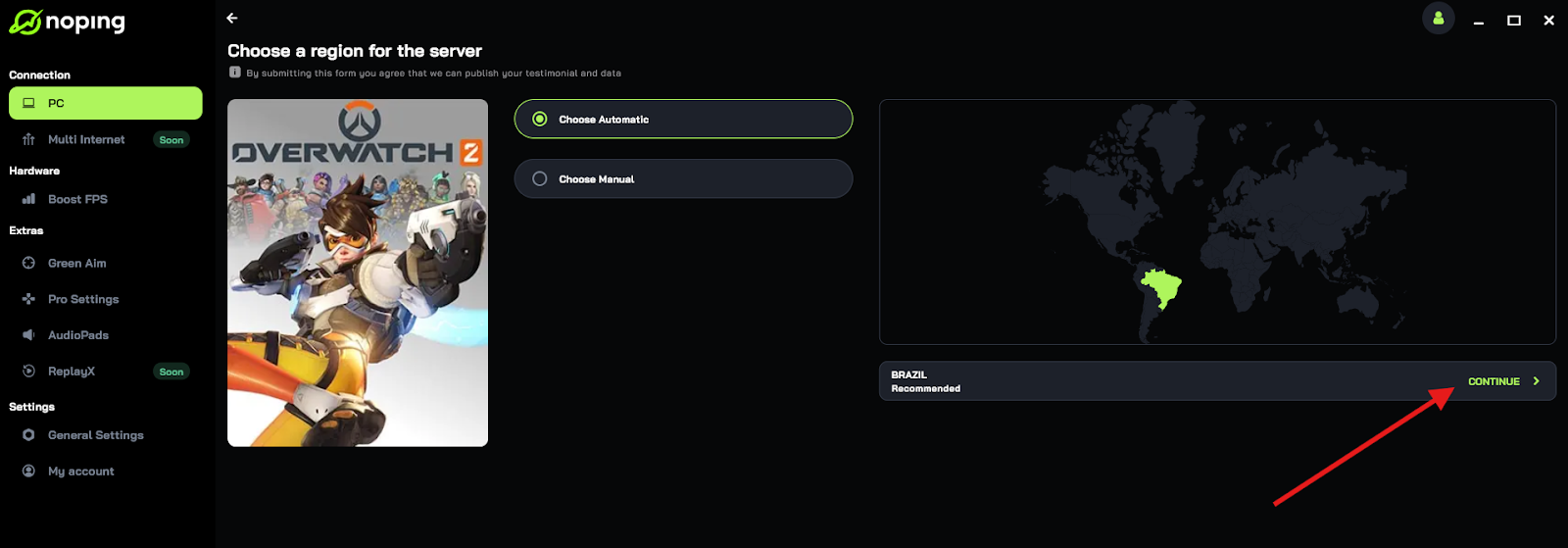
- On the next screen, click on “Optimize Game”.

- And that’s it, you can start playing Overwatch with optimized ping!
You can test different servers within NoPing to see which gives you the lowest latency.
7. Contact Your Internet Service Provider (ISP)
If all else fails, your ISP might be the problem. Contact them to see if there are any network issues in your area or if they can optimize your connection for gaming.
Some ISPs even offer gaming-specific plans with lower latency.
Why Are You Having High Ping in Overwatch?
If you’re constantly dealing with high ping in Overwatch, it’s important to understand what’s causing it. Here are some of the most common reasons:
1. Slow or Unstable Internet Connection
Not all internet connections are created equal. If your speed is too low or your connection is unstable, you’ll experience high ping.
Test your speed at speedtest.net and see if you’re getting what you’re paying for.
2. Server Distance
The farther you are from Overwatch’s servers, the higher your ping will be. If you’re playing on servers located in a different region, expect some delay.
3. Network Congestion
If multiple people in your household are streaming, gaming, or downloading large files, your ping will increase due to bandwidth congestion.
4. ISP Throttling
Some ISPs throttle gaming traffic, leading to higher ping during peak hours. A gaming VPN can help bypass this.
5. Background Applications Using Bandwidth
Applications like Windows updates, cloud backups, and auto-syncing services (Google Drive, OneDrive, etc.) can slow down your connection.
6. Bad Routing from Your ISP
Sometimes, your ISP takes a long or inefficient route to Overwatch’s servers. Using a ping-reduction tool can help reroute your traffic for a faster connection.
7. Hardware or Software Issues
Old or faulty network adapters, outdated router firmware, or even a virus/malware infection can mess with your connection.
Dealing with high ping in Overwatch is frustrating, but it’s not the end of the world. By verifying your ping, applying the right fixes, and understanding what’s causing the issue, you can dramatically improve your gaming experience.
Whether it’s as simple as restarting your router or using advanced solutions like specialized software, there’s always a way to reduce latency.
Play Overwatch lag-free with NoPing. Try it for free for 7 days!