

We all love hopping into a server with friends, but sometimes you just want to grind solo without being bombarded by invites. Knowing how to appear offline on Roblox can give you that much-needed breathing room to focus on your gameplay or simply relax without social pressure.
Whether you are trying to avoid a specific player or just want some peace and quiet while you test a new build, managing your online presence is a key skill for any frequent player.
Unlike some other platforms that offer a simple "Invisible" toggle right on the dashboard, Roblox makes you dig a little deeper to secure your privacy.
Is There a Simple "Appear Offline" Button?
The short answer is no, at least not for PC and mobile users in the way you might expect from Steam or Discord.
Roblox does not currently have a universal switch on the main interface that says "Go Offline" while keeping you logged in.
However, that does not mean you are out of options. You can achieve practically the same result by tweaking specific privacy settings.
By restricting who can message you, join your game, or see your inventory, you effectively become invisible to the public and even your friends list.
For console players, the process is actually much more straightforward because it relies on the system's own settings rather than Roblox's internal menus.
How Do I Appear Offline on Roblox? (Changing My Privacy Settings on PC and Mobile)
For players on computer and mobile devices, "appearing offline" is really about limiting communication and visibility.
Source: Outsider Gaming
You need to configure your account so that no one can interact with you or see what you are doing.
To do this, you need to access your Privacy & Content Restrictions.
- Log into your account on the Roblox website or app.
- Click on the gear icon (Settings) in the top right corner. On mobile, tap the three dots (...) in the bottom right first.
- Select Settings and then navigate to the Privacy tab.
- Scroll down to the Communication section.
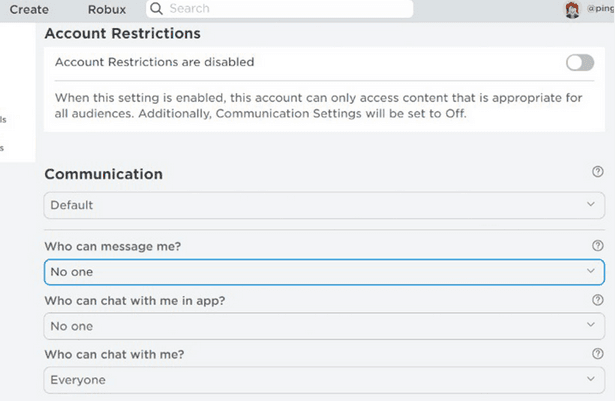
Here is where the magic happens. You will see several options asking "Who can..." (message me, chat with me, etc.). To appear offline, you should change the following settings to No One:
- Who can message me?
- Who can chat with me in app?
- Who can chat with me?
After this, scroll down to Other Settings or Visibility (depending on your region and update version).
Look for "Who can join me in experiences?" and set this to No One as well. This prevents friends from seeing that "Join Game" button next to your name, effectively making it look like you are not playable, even if they can see you are online.

Can I Hide My Online Status Completely?
Roblox has been rolling out updates to their Visibility settings that allow for more granular control. In some regions and for users over a certain age, there is a specific setting under the Privacy tab called "Who can see my online status?".
If you have this option available in your menu:
- Go to Settings > Privacy.
- Look for the Visibility or Status section.
- Set "Who can see my online status" to No One.
This is the holy grail of privacy on the platform. When enabled, the green dot next to your username disappears for everyone, making it look like you are logged out. If you do not see this specific option yet, sticking to the communication restrictions mentioned above is your best bet.
How Do I Appear Offline on Xbox and PlayStation?
Console players have it easier because the "offline" status is handled by the console's operating system, which overrides the game's visibility.
For Xbox Users:
- Press the Xbox button on your controller to open the guide.
- Navigate to Profile & system and select your profile.
- Select My profile > Appear online.
- Change this setting to Appear offline.
For PlayStation Users:
- Go to your Profile from the home screen.
- Select Online Status.
- Choose Appear Offline.
When you do this, Roblox will not broadcast your status to your console friends, and usually, this syncs up to prevent you from appearing active in the in-game friends lists as well.
Why Is My Status Still Green After Changing Settings?
If you have changed everything to "No One" and you still see a green dot next to your own picture, do not panic.
You will always see yourself as online. The true test is to ask a friend (or check from a secondary account) to see how your profile appears to them.
Also, remember that settings can sometimes take a few minutes to update across all servers. If you are still receiving messages immediately after changing your settings, try logging out and logging back in to refresh your session.
Also read: How Many People Play Roblox?
Does "Appearing Offline" Stop Lag?
Changing your visibility settings does not directly impact your ping or latency (FPS), but it does stop the "social lag" of constant notifications and chat pop-ups which can be distracting and use up screen real estate.
If you are looking to improve your actual connection speed and reduce packet loss while gaming, simply hiding your status won't fix a bad route to the game server. For that, you need a dedicated solution that optimizes the traffic between your PC and the Roblox server.
NoPing is a service designed to optimize your route to Roblox’s servers. Sometimes, the normal path your internet provider uses isn’t the fastest.
NoPing reroutes your data through a better, more direct path.
Here’s how to use NoPing to fix lag in Roblox:
- Sign-up through the website and download NoPing (you can try it for free)
- Open NoPing and search for Roblox inside the software
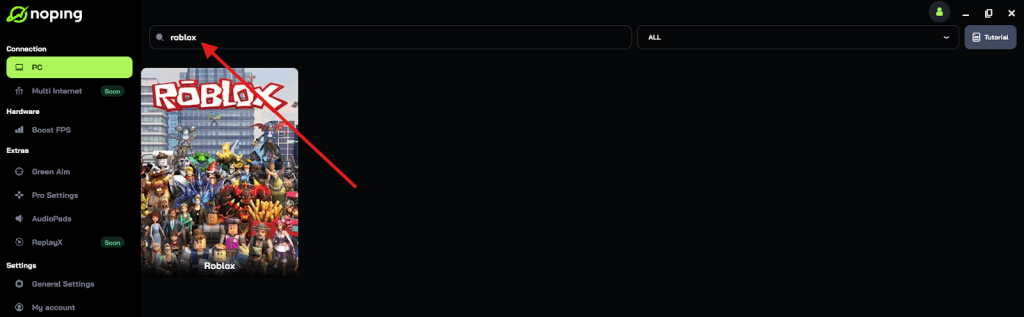
- Once you find Roblox, click on it and, on the next screen, select “Choose automatic” or “Choose manual” and click “Continue”. We recommend choosing automatic, as NoPing’s technology analyzes all routes on a global scale and automatically selects the best option for you.
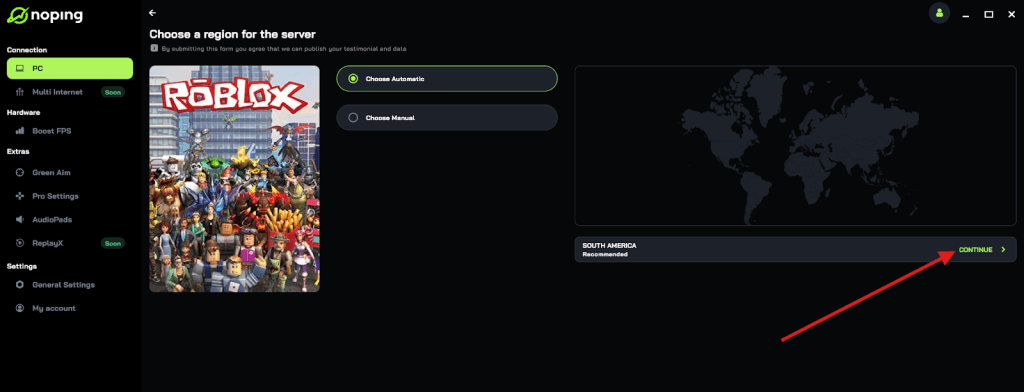
- On the next screen, click on “Optimize Game”.
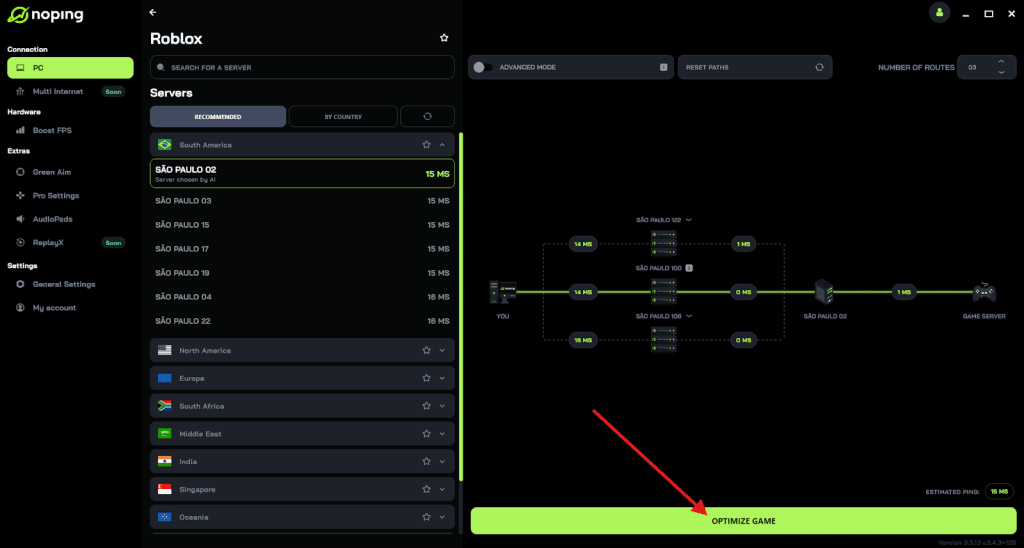
- And that’s it, you can start playing Roblox with optimized ping!
You can test different servers within NoPing to see which gives you the lowest latency.
What Is the "Ghost" Strategy?
If you want to take it a step further without changing every single setting, some players use the "Ghost" strategy. This involves simply blocking invites.
- Go to Settings > Privacy.
- Find "Who can invite me to private servers?".
- Set it to No One.
This is great for streamers or content creators who want to be online and visible to their fans but do not want to be spammed with game invites while they are trying to record a video. It strikes a balance between being ghosted and being available.
Play Roblox without lag! Download NoPing now and start your free trial!