

If you are looking for a simple way to cancel Fortnite Crew, you have come to the right place because managing your gaming subscriptions should be as smooth as your frame rate.
The Fortnite Crew pack is a monthly subscription that offers skins, V-Bucks, and Battle Pass access, but sometimes your budget needs a break or you simply aren't feeling the current month's aesthetic.
Since the subscription renews automatically, knowing the exact steps for your specific platform is the difference between saving money and seeing an unexpected charge on your bank statement.
How do I cancel Fortnite Crew on a PC or Mac?
Managing your subscription on a computer is generally the most reliable method because you are dealing directly with the Epic Games account portal.
If you signed up through the PC version of the game, follow these steps:
- Go to the official Epic Games website and log in to your account.
- Hover over your username in the top right corner and click on Account.
- On the left-hand sidebar menu, locate and click on Subscriptions.
- Find the Fortnite Crew entry in your list of active services.
- Click the gear icon or the Manage button on the right side.
- Select Cancel Subscription and follow the final prompts to confirm.

How can I cancel Fortnite Crew on a PlayStation 5 or PlayStation 4?
Sony handles all game-related subscriptions through the PlayStation Store ecosystem.
Even if you delete Fortnite from your console, the recurring charge will continue unless you manually stop it in the system settings:
- From the PlayStation home screen, navigate to the Settings menu (the gear icon).
- Select Users and Accounts.
- Go to the Account tab and select Payment and Subscriptions.
- Click on Subscriptions.
- Locate Fortnite Crew in the list of services.
- Select Turn Off Auto-Renew at the bottom of the screen.
What are the steps to cancel Fortnite Crew on Xbox Series X|S or Xbox One?
Microsoft allows you to manage your subscriptions either through the console interface or via a web browser. If you choose to do it on your Xbox:
- Press the Xbox button on your controller to open the guide.
- Navigate to Profile & system and then Settings.
- Go to Account and select Subscriptions.
- Choose Fortnite Crew from your list of active subscriptions.
- Select Manage and then choose Cancel subscription.
- Follow the instructions to turn off recurring billing.
Alternatively, you can visit account.microsoft.com/services on any browser to perform the same actions.
Also read: Can You Multibox Mabinogi? Let’s Find Out
How do I stop the Fortnite Crew subscription on Nintendo Switch?
The Nintendo Switch handles these transactions through the eShop.
Unlike other platforms, you cannot always manage this directly through the game's internal menu:
- Select the Nintendo eShop icon from the Switch home screen.
- Select the user profile that originally purchased the subscription.
- Click on your User Icon in the top right corner of the eShop screen.
- Scroll down the menu on the left and select Pass Subscriptions.
- Find Fortnite Crew in the list.
- Select Turn Off Automatic Renewal.
How do I cancel Fortnite Crew on Android or Samsung devices?
If you play on mobile, the process depends on which store you used to install the game.
For users who downloaded the game directly from Epic, use the PC instructions above. For Samsung Galaxy users:
- Open the Galaxy Store app on your Samsung device.
- Tap the Menu icon (three horizontal lines) in the bottom right or top left corner.
- Select Subscriptions.
- Find Fortnite Crew in the list of active apps.
- Tap Cancel to stop future payments.

Will I lose my skins and V-Bucks if I cancel?
No, you will not lose any of the cosmetic items or V-Bucks you have already redeemed when you cancel your subscription. When you end your Fortnite Crew membership, you are simply stopping future payments.
All the skins, back blings, pickaxes, and V-Bucks you received while the subscription was active remain in your locker permanently.
This is a common fear among players, but Epic Games has designed the service to be a "keep what you get" model.
Furthermore, if you received the current season's Battle Pass through the Crew pack, you will continue to have access to that Battle Pass until the season ends, even if your subscription expires mid-season.
The only thing that stops is the arrival of the next month's Crew Pack and the monthly 1,000 V-Bucks deposit.
Also read: How Many Skins are in Fortnite [2026 Updated]
Can I get a refund after canceling Fortnite Crew?
Refunds for Fortnite Crew are generally not offered unless there are specific legal requirements in your region or if you contact support immediately after an accidental renewal.
On platforms like Xbox, you might see a refund option during the cancellation process, but selecting it usually results in the removal of the Crew Pack items and the V-Bucks from your account.
If your account shows a negative V-Buck balance after a refund, it is because the V-Bucks provided by the subscription were already spent before the refund was processed. To avoid this headache, it is better to simply turn off auto-renewal and enjoy the remaining days of the subscription.
For specific billing disputes, you should contact Epic Games Support directly.
Is it possible to rejoin Fortnite Crew later?
Yes, you can rejoin Fortnite Crew at any time through the in-game Item Shop or the Battle Pass tab. Re-subscribing is as simple as clicking the Crew icon and confirming your payment method.
Many players choose to subscribe only during months when the exclusive skin is particularly appealing or when a new season starts to get the Battle Pass for a lower effective price.
Managing your connection is just as important as managing your subscriptions. While you are saving money by optimizing your Crew membership, you should also consider optimizing your gameplay.
If you experience lag or high ping in Fortnite, using NoPing can significantly reduce latency and prevent packet loss, ensuring that your remaining time in the game is as competitive as possible.
Here’s how to use NoPing to fix high ping in Fortnite:
- Sign-up through the website and download NoPing (you can test it for free).
- Open NoPing and search for Fortnite inside the software
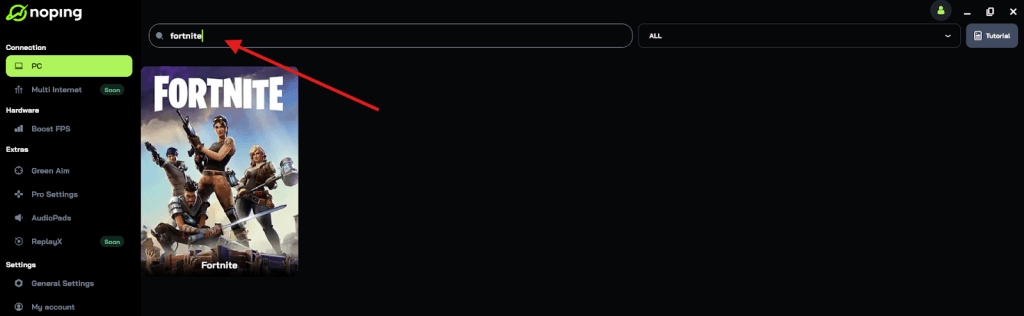
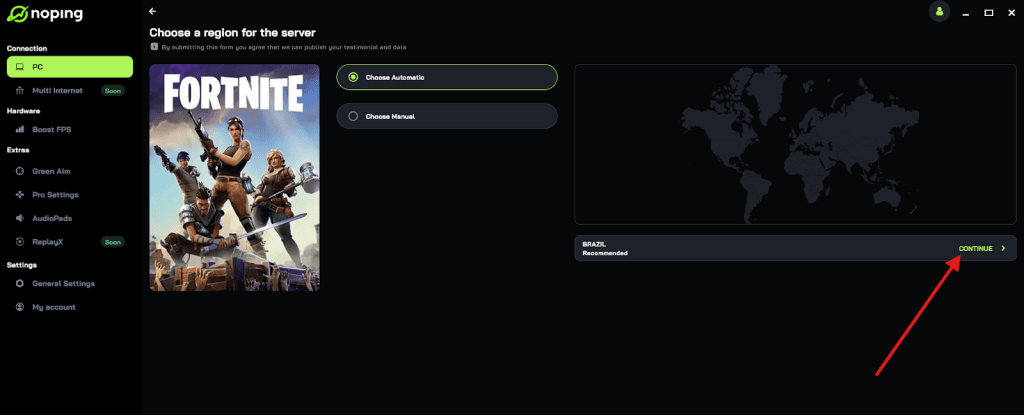
- Once you find Fortnite, click on it and, on the next screen, select “Choose automatic” or “Choose manual” and click “Continue”. We recommend choosing automatic, as NoPing’s technology analyzes all routes on a global scale and automatically selects the best option for you.
- On the next screen, click on “Optimize Game”.
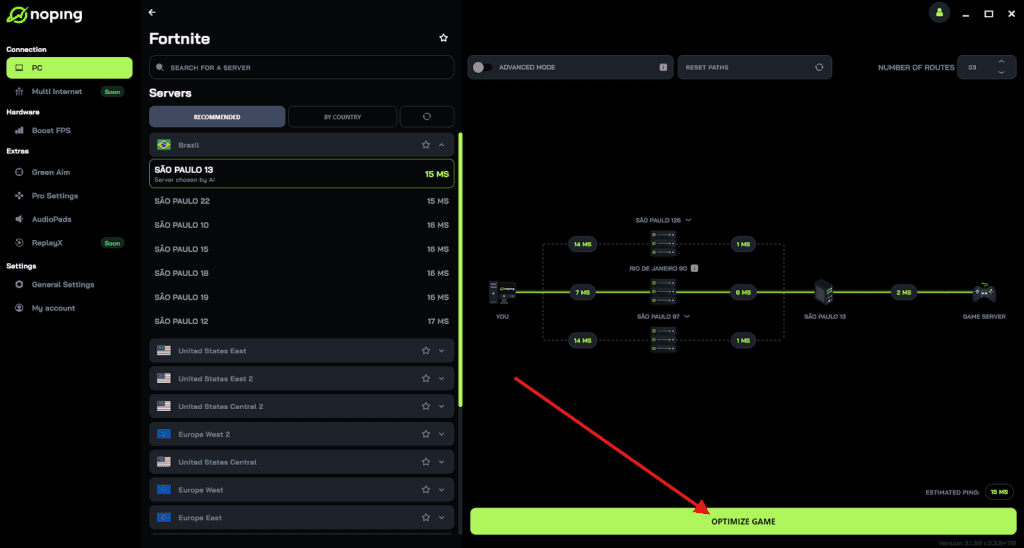
- And that’s it, you can start playing Fortnite with optimized ping!
You can test different servers within NoPing to see which gives you the lowest latency.