

If you want to check monitor refresh rate (verificar a taxa de atualização do monitor) to ensure your gameplay is as smooth as possible, you’ve come to the right place. In the world of competitive gaming, every millisecond counts.
You might have the most expensive GPU on the market, but if your monitor is stuck at 60Hz while it should be running at 144Hz or 240Hz, you are essentially playing with a self-imposed handicap.
What is refresh rate and why does it matter for gamers?
The refresh rate of a monitor is the number of times per second that the screen updates its image. This is measured in Hertz (Hz).
If your monitor has a 144Hz refresh rate, it means the image is being refreshed 144 times every single second.
Why should you care? Because a higher refresh rate leads to much smoother motion. In fast-paced games like Counter-Strike 2, Valorant, or Call of Duty, a higher Hz allows you to track moving targets more easily and reduces motion blur.
Furthermore, it significantly lowers input lag. When the screen updates more frequently, the delay between your mouse movement and the visual representation on the screen is minimized.
Also read: Variable Refresh Rate (VRR) On or Off? The Gaming Guide
How to check monitor refresh rate on Windows 11?
Windows 11 has a modernized interface compared to its predecessor, but finding the display settings is still quite intuitive. Follow these steps to verify your current settings:
- Right-click on any empty space on your Desktop.
- Select Display settings from the context menu.
- Scroll down until you find the Related settings section and click on Advanced display.
- Under the Display information section, you will see your current resolution and the current refresh rate listed in Hz.
- If you want to change it, look for the Choose a refresh rate dropdown menu at the bottom and select the highest value supported by your hardware.

How to check monitor refresh rate on Windows 10?
If you are still using Windows 10, the process is slightly different but follows the same logic. Here is how you do it:
- Click on the Start menu and select the Settings gear icon.
- Go to System and then click on Display in the left sidebar.
- Scroll down to the bottom of the page and click on Advanced display settings.
- Look for the link that says Display adapter properties for Display 1 (or whichever monitor you are checking).
- A new window will pop up. Click on the Monitor tab.
- Under Monitor Settings, you will see the Screen refresh rate dropdown menu. This shows your current setting and allows you to select others.
How to check monitor refresh rate on macOS?
Apple has made significant strides in high-refresh displays with their ProMotion technology. Whether you are using a MacBook Pro or a Studio Display, here is how to check the Hz:
- Click the Apple menu in the top-left corner and select System Settings.
- Navigate to the Displays section in the sidebar.
- Select the monitor you want to check at the top.
- Look for the Refresh Rate dropdown menu. If your monitor supports ProMotion, you might see "Adaptive" listed, or you can choose a fixed rate like 120Hz or 144Hz.

Can you check refresh rate using NVIDIA or AMD software?
Yes, and often the GPU control panels provide more detailed information than the operating system. If you want to dive deeper into your graphics configuration, use these methods:
For NVIDIA users:
- Right-click on the desktop and select NVIDIA Control Panel.
- Under the Display category on the left, click Change resolution.
- On the right side, you will see a list of resolutions and a Refresh rate dropdown. Ensure you have the highest "PC" resolution selected to unlock the maximum Hz.
For AMD users:
- Right-click on the desktop and select AMD Software: Adrenalin Edition.
- Click on the Settings gear icon and go to the Display tab.
- You will find the current refresh rate and options for FreeSync right there in the main display panel.
Also read: Full Guide to Fix HVCI Enabled Error in Valorant
Are there online tools to verify your Hz?
Sometimes the software says one thing, but your eyes tell you another. To confirm that your monitor is actually skipping frames or running at the advertised speed, you should use an independent tool.
The most popular choice is TestUFO. This website runs a synchronization test in your browser. When you open the site, it automatically detects your monitor's refresh rate and shows a moving UFO.
If the motion looks choppy or the site reports a lower Hz than your settings, you might have a browser limitation or a background process interfering with the display sync.
Why is your monitor stuck at 60Hz?
This is one of the most common frustrations for gamers who just bought a high-end 240Hz or 360Hz monitor. If you can't see the high refresh rate options in Windows, the culprit is usually one of the following:
- The Cable: Not all cables are created equal. Older HDMI cables (version 1.4 or lower) often cap out at 60Hz for 4K or 1080p. As of 2026, you should be using HDMI 2.1 or HDMI 2.2 for the best results.
- DisplayPort vs HDMI: For PC gaming, DisplayPort 1.4 or DisplayPort 2.1 is generally preferred over HDMI, as it has historically offered better support for high refresh rates and G-Sync/FreeSync.
- Integrated Graphics: If you plugged your monitor into the motherboard instead of your dedicated GPU, you might be limited by the processor's internal display output.
- Drivers: Outdated GPU drivers can prevent the system from recognizing the full capabilities of your monitor.
Does a high refresh rate reduce lag?
In short: yes. But we need to distinguish between input lag and network lag (ping).
A high refresh rate reduces the time it takes for your actions (clicking the mouse) to show up on the screen.
This is visual latency. However, it does not fix network issues. You can have a 500Hz monitor, but if your connection to the game server is unstable, you will still experience "rubber banding" and delayed hits.
This is where NoPing becomes essential. While your monitor handles the visual smoothness, NoPing optimizes the route your data takes to the server, lowering your ping and eliminating packet loss. The combination of a high-Hz monitor and an optimized connection is the ultimate setup for any serious gamer.
Here’s how to use NoPing to fix high ping in online games:
- Sign-up through the website and download NoPing (you can test it for free).
- Open NoPing and search for your game inside the software
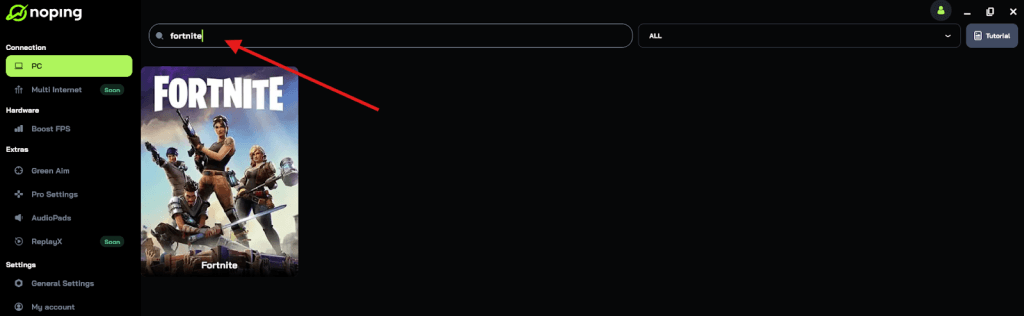
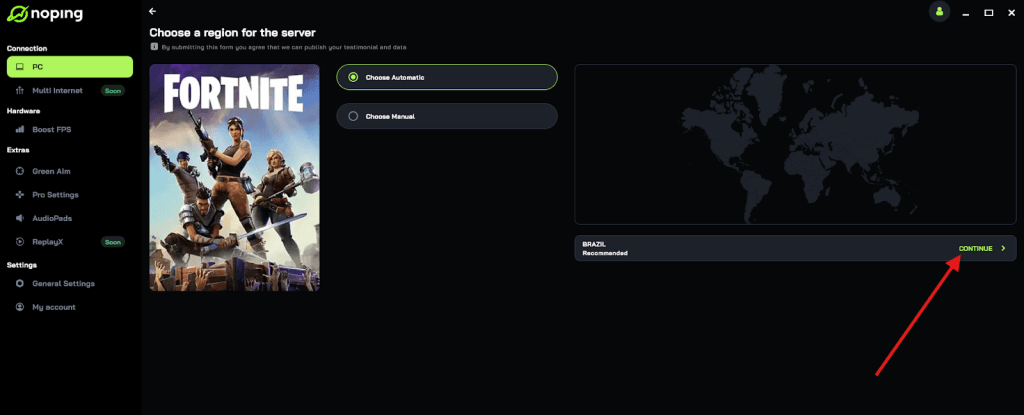
- Once you find it, click on it and, on the next screen, select “Choose automatic” or “Choose manual” and click “Continue”. We recommend choosing automatic, as NoPing’s technology analyzes all routes on a global scale and automatically selects the best option for you.
- On the next screen, click on “Optimize Game”.
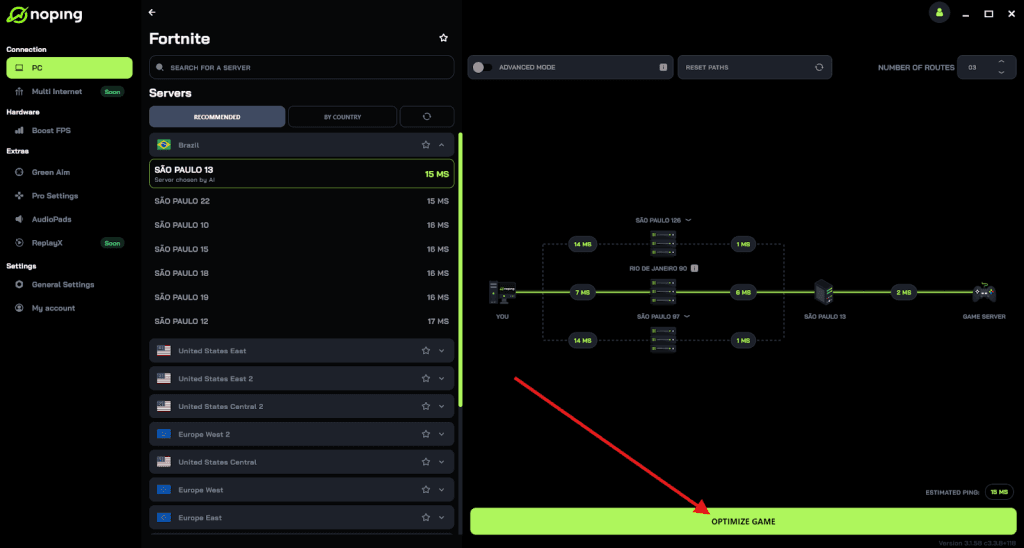
- And that’s it, you can start playing with optimized ping!
You can test different servers within NoPing to see which gives you the lowest latency.
Summary of technical standards in 2026
To reach the highest performance levels currently available, keep these standards in mind:
| Standard | Max Bandwidth | Max Refresh (4K) | Max Refresh (8K) |
| HDMI 2.1 | 48 Gbps | 120Hz | 60Hz |
| HDMI 2.2 | 96 Gbps | 240Hz | 120Hz |
| DisplayPort 1.4 | 32.4 Gbps | 120Hz (with DSC) | 60Hz |
| DisplayPort 2.1 | 80 Gbps | 240Hz | 120Hz |
Checking your refresh rate is just the first step. Ensuring that your hardware, cables, and software are all aligned will give you the competitive edge you need to climb the ranks.
Play more than 3000 games without lag. Download NoPing now and start your free trial!