

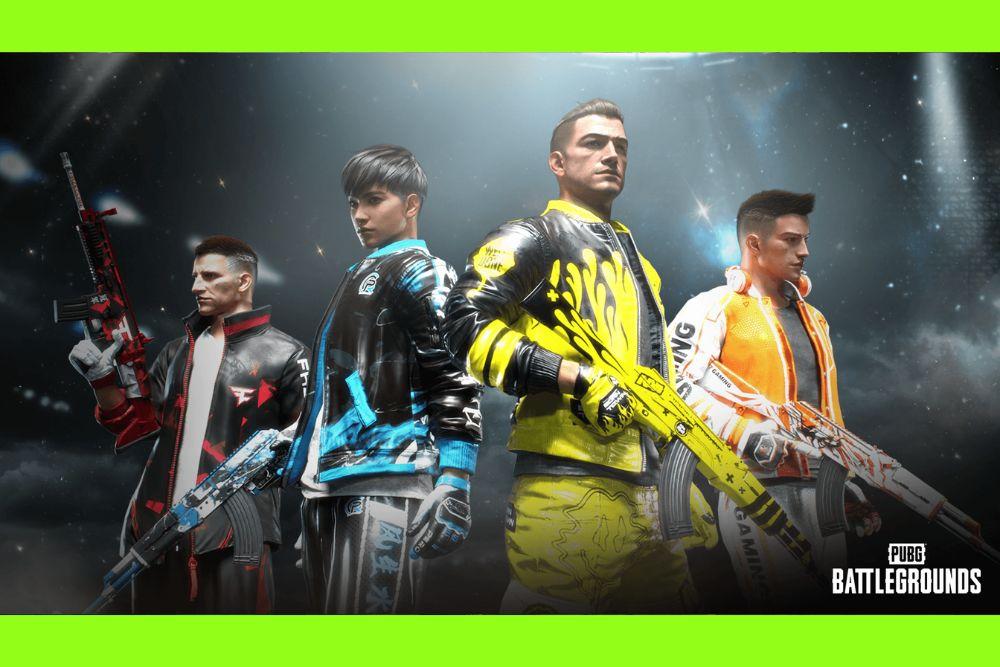
If you’ve been curious about how to create custom skins in PUBG, the idea is pretty appealing.
Skins give players the chance to stand out in matches, show off creativity, or just break away from the default looks everyone else is using.
The catch is that PUBG doesn’t provide a built-in tool for designing them, so the process involves external programs, editing files, or taking part in official creator initiatives.
This guide will walk through the steps, explain what’s possible, and highlight the safest ways to try custom designs.
Does PUBG Have an Official In-Game Skin Editor?
Short answer: No.
But Krafton / PUBG: BATTLEGROUNDS maintains content-creation and creator guidelines and in recent years has rolled out more UGC/creator tooling (including Workshop-like features and mod/UGC tool support in some builds and regions).
For example, PUBG’s public Content Creation Guidelines explain how creators should handle assets, representations, and monetization when producing content for the game. Also, recent announcements and patch notes indicate ongoing work on UGC and creator tools across PUBG titles.
What that means: if you want to make skins for other players to use legitimately, your best route is through the official creator programs or workshop/UGC systems the developers provide for PC (and, as available, mobile variants).
These systems are designed to accept submissions, review them, and,if approved,make them available in the game or marketplace.
Step-by-Step Guide to Create Custom Skins in PUBG
Here’s a clear walkthrough. Remember: this method is primarily for private use, and using it in online matches can risk your account.
1. Grab the tools you’ll need
- A texture modding tool—popular options include UE Viewer or Pak File Extractor to pull files out of .pak archives.
- A graphic editor like Photoshop or GIMP to tweak or paint textures.

Source: Gildor’s Homepage
2. Locate and extract skin textures
- Head to your PUBG installation directory, find the Paks folder, and open it with the extractor tool.
- Identify the texture files you want (weapon, character, vehicle, etc.) and use UE Viewer (or equivalent) to export them as editable images.

3. Edit the textures:
- Open those extracted images in your editor.
- Make your custom design—change colors, add patterns, apply logos—just like you’d do with any graphic file.
- Keep the same format and resolution as the original to avoid glitches when reimporting.
4. Replace and test:
- Put your edited files back into the original file paths, repack with your extractor’s reverse function (Pak editor).
- Launch the game in a private or offline match to test—never use this in official online games, because that can trigger anti-cheat penalties.
That’s four main steps: tools, extraction, editing, repacking/testing. Keep everything consistent with file names, formats, and use it only in private modes to stay safe.
How to Make a PUBG Skin File?
If you’re curious about what a “skin file” actually is, here’s a high-level overview without getting into steps that would encourage tampering with online game systems:
- What it contains: a skin package usually contains one or more texture maps (diffuse/albedo, sometimes normal or roughness maps), metadata (how the texture maps wrap on the model), and packaging that the game engine recognizes.
- Common formats: textures are commonly PNG, TGA, or other uncompressed image formats; in Unreal Engine games (like PUBG), internal asset containers are often .uasset/.uexp within .pak archives. These are engine-level formats, not user-friendly single “skin” files. Community discussion about .uasset handling exists, but successfully editing/importing engine assets is technically complex and error-prone.
- Important caution: extracting, editing and repacking .pak or .uasset files to make them work on live servers is often blocked by anti-cheat systems and can violate the game’s Terms of Service; it can also break updates and lead to bans. For multiplayer and public distribution, always use the official UGC workflow.
If your intent is educational—learning how textures map to 3D models—use local tools and offline sample models rather than live-game assets.
How to Customize a PUBG Avatar?
When people say “customize avatar” in PUBG, they usually mean the official in-game profile/outfit/weapon skin options you can set from your inventory. Legit ways to customize:
- In-game inventory: equip clothing, weapon skins, parachute skins, emotes and profile decorations you own.
- Edit profile / loadout screens: most PUBG titles offer a profile or appearance editor where you can preview and equip cosmetics.
- Creator-content or workshop items: if a user-submitted skin is accepted and distributed officially, you can buy or claim it and then equip it like any other cosmetic.
For console versions, customization options may be more limited than on PC depending on platform support. Always check the in-game menus for “Inventory,” “Customize,” or “Loadout.”

How to Get Skins in PUBG Mobile?
PUBG Mobile’s cosmetics economy is active and varied. Here are the legitimate routes players commonly use:
- Royale Pass / seasonal pass rewards
- In-game shop bundles and limited-time offers
- Lucky spins, crates and prize paths (event mechanics)
- Event participation and challenge rewards
- Redeem codes, livestream drops and tournament giveaways
PUBG Mobile frequently runs themed collaborations and Prize Path events that reward unique skins through UC (the in-game currency) or free-to-play progress mechanics. News and event guides from reputable outlets show these mechanisms remain the core ways mobile players obtain skins.
How to Play PUBG Without Lag?
Nothing ruins a match faster than lag. Even if your aim and strategy are solid, high ping and unstable connections can make your shots miss and movements feel delayed.
To fix this, many players use NoPing.
NoPing works by improving your routing to game servers, reducing ping, packet loss, and jitter.
Instead of your data taking a long, messy path across the internet, NoPing calculates the best route in real time, ensuring smoother and faster communication with PUBG servers.
Here’s how to use NoPing to fix lag in PUBG:
- Sign-up through the website and download NoPing (you can try it for free)
- Open NoPing and search for PUBG inside the software

- Once you find PUBG, click on it and, on the next screen, select “Choose automatic” or “Choose manual” and click “Continue”. We recommend choosing automatic, as NoPing’s technology analyzes all routes on a global scale and automatically selects the best option for you.

- On the next screen, click on “Optimize Game”.

- And that’s it, you can start playing PUBG with optimized ping!
You can test different servers within NoPing to see which gives you the lowest latency.
FAQ - Create Custom Skins in PUBG
Q: Do custom skins give any gameplay advantage in PUBG?
A: No. Skins are purely cosmetic and don’t affect stats, damage, or gameplay mechanics. They only change visual appearance.
Q: Can I share my custom skins with friends?
A: If you make skins through official creator programs, yes,friends can buy or unlock them once approved and published. Privately modified skins, however, only show up on your own system.
Q: Is it legal to sell my custom PUBG skins?
A: Selling is only allowed through official marketplaces or creator programs approved by Krafton. Distributing or selling unofficial mods can lead to account suspension or even legal issues.
Q: Are there limits on design content for skins?
A: Yes. PUBG prohibits offensive, copyrighted, or inappropriate imagery in any submitted skin. Designs have to respect the Content Creation Guidelines.
Q: What happens if PUBG updates the game after I’ve made a custom skin?
A: Game updates can overwrite or break modified files, meaning your custom skin may disappear or cause glitches. Officially released skins are unaffected, since they’re supported by the developers.
Custom skins in PUBG are a great way to bring some personality into the game, but it’s important to keep expectations realistic.
On PC, you can experiment with texture edits and modding tools for private use, while official creator programs offer a legitimate path to share designs with the wider community.
On mobile, customization is limited to what the game makes available through events, crates, and the Royale Pass.
And to always play PUBG with top performance, use NoPing! Download now and start your free trial!