


DirectX 12 in Apex Legends isn’t something you need to unlock with a hidden command anymore, but it’s still a hot topic for many players.
For years, the game relied on DirectX 11, and enabling DirectX 12 meant fiddling with experimental launch options and dealing with bugs.
Fast forward to now, Respawn has made DirectX 12 the standard graphics API, so your game is already running on it by default.
In this guide, we’ll clear up the confusion, explain the differences between DX11 and DX12 in Apex, walk you through how to make sure you’re actually running DX12, and give you tips to avoid common issues.
Should You Launch Apex Legends with DirectX 12?
Yes, today that’s the standard path.
Respawn made DirectX 12 the primary renderer after a long beta period, and later removed the DirectX 11 fallback.
In late 2024, the studio said DX12 had been faster and more stable for most players, especially in CPU-bound Battle Royale scenarios. In early 2025, they warned players that DX11 support would be discontinued, then followed through and removed it in a subsequent patch.
If you previously forced DX11 or added old DX12 beta flags, clearing those out usually gives you the best (and now intended) experience. Respawn has continued to optimize the DX12 path, including CPU-side improvements rolled out during 2024 updates.
What is the Difference Between DirectX 11 and DirectX 12 in Apex Legends
This is the 10-second version, tailored to Apex:
- DX11 is a higher-level API with more driver overhead. Historically it was the default on PC, but it limited how far Respawn could push the renderer across seven platforms.
- DX12 is a lower-level API that lets the game do more work in parallel, improve CPU utilization, and better match what consoles use under the hood. Respawn built a Rendering Hardware Interface (RHI) abstraction so the engine could share more code between PC DX12 and the console graphics APIs. That lowers maintenance costs and enables more ambitious engine work going forward.
In short, DX12 gives Respawn more control and better performance potential, and in practice their data shows DX12 has been the faster/more stable choice for most players when the game is CPU-limited.
How to Enable DirectX 12 in Apex Legends?
Here’s the twist: you don’t actually need to enable anything anymore. DX12 is the default renderer. If your game is already up to date, just launch it normally.
That said, players who tinkered with launch options back during the beta sometimes have legacy flags hanging around that force the wrong behavior or cause errors.
The safest, most future-proof setup is to remove custom DX11/DX12 launch options so Apex uses its current defaults.
Use these steps to “enable” DX12 in the sense of getting back to the correct, modern configuration:
- Steam: Library → right-click Apex Legends → Properties → under Launch Options, clear the box (make it empty). Close the window and launch the game.
- EA app: Library → click the three dots on Apex Legends → View Properties → under Advanced launch options, clear out any custom text. Save and launch.
Why clear everything? Because several older guides tell you to add flags like -eac_launcher_settings SettingsDX12.json (early beta) or -anticheat_settings=SettingsDX12.json (later beta).
Those were valid at the time, but they’re no longer required and can lead to errors such as “SettingsDX12.json not found.” Community and forum posts around early 2025 specifically recommend removing those flags once DX12 became the default.
If you want to double-check that you’re on DX12, a quick sanity check is that current PC system requirements list DirectX 12 and the game’s Easy Anti-Cheat config now targets the DX12 executable when using default settings. (Exact file names and indicators have changed over time, which is why leaving launch options blank is the safest approach.)

Potential Issues with DirectX 12 in Apex Legends and How to Fix
Here are the most common DX12-related hiccups players have reported and the practical fixes that actually work:
- Stutter during first launch or after driver updates (shader compilation):
After a fresh install or GPU driver change, DX12 compiles shaders up front. That can mean longer first-time loads or brief hitching until the cache settles. Respawn has shipped improvements here (including up to ~30% faster post-compile loads on some systems), but the first boot after updates can still feel slower. Let it finish, then restart the game. - Errors caused by outdated launch options:
If you see messages like “SettingsDX12.json not found” or the game fails to start after an update, remove old -eac_launcher_settings ... or -anticheat_settings=SettingsDX12.json flags you added during the beta. Launch with no custom options. - “fs_checkasyncrequest” engine error on DX12 with low texture settings:
This error has been specifically observed with DX12 when Model Textures were set to Low. Bumping texture settings up and/or updating drivers typically resolves it. - Old/unsupported hardware:
Apex requires DirectX 12 feature level 12_0 now. Very old GPUs may not meet that bar. If you’re on legacy hardware, verify your GPU’s feature level in dxdiag and check the official PC requirements. - General performance tuning on DX12:
Keep your GPU drivers current, cap background apps, and consider lowering CPU-heavy settings (Model Detail, Effects, Volumetric Lighting) if you’re CPU-bound. Respawn’s own notes highlight CPU-side wins on DX12, but you can still overwhelm a modest processor with high crowd/physics effects.
How to Play Apex Legends Without Lag? (answer with NoPing)
If your issue isn’t raw FPS but lag, as in high ping, unstable routes, or packet loss, graphics APIs won’t help.
That’s a network path problem, and the fastest way to tackle it is with a gaming route optimizer like NoPing.
What NoPing does in plain English:
- Finds and locks you onto lower-latency routes between your PC and Apex servers.
- Helps stabilize jitter and reduce micro-spikes that mess with aim and peeks.
- Lets you pick or auto-select the best PoP and route for your region/game.
Here’s how to use NoPing to fix lag in Apex Legends:
- Sign-up through the website and download NoPing (you can try it for free)
- Open NoPing and search for Apex Legends inside the software
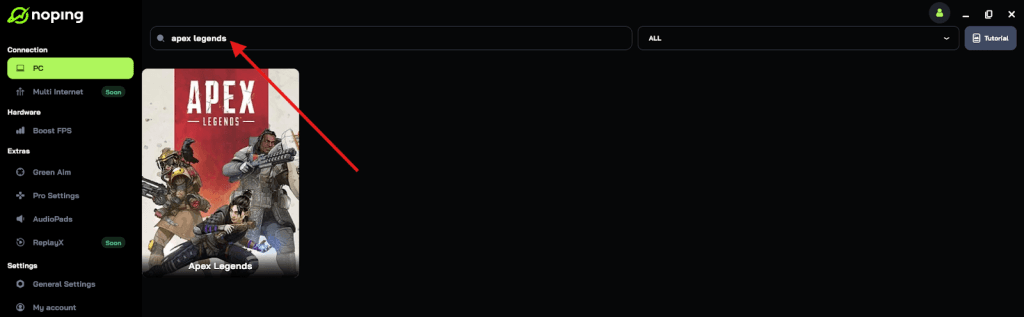
- Once you find Apex Legends, click on it and, on the next screen, select “Choose automatic” or “Choose manual” and click “Continue”. We recommend choosing automatic, as NoPing’s technology analyzes all routes on a global scale and automatically selects the best option for you.

- On the next screen, click on “Optimize Game”.

- And that’s it, you can start playing Apex Legends with optimized ping!
You can test different servers within NoPing to see which gives you the lowest latency.
FAQ - DirectX 12 in Apex Legends
Is DirectX 12 still a beta in Apex Legends?
No. Respawn officially stated DX12 is no longer a beta and reported that it’s generally faster and more stable for most players.
Can I still force the game to run on DirectX 11?
No, DX11 support was removed in 2025 updates. The toggle/launch option for DX11 was phased out and later eliminated.
Do I need any launch options to make DX12 work?
No. Modern builds launch in DX12 by default. In fact, old beta flags are a common cause of crashes or missing-file errors; remove them.
How can I tell which DirectX version I’m using?
Current PC requirements list DirectX 12, and recent game/EAC configs target the DX12 executable by default. If you’ve cleared custom flags and you’re on a supported GPU, you’re on DX12.
Do consoles use DirectX 12 too?
Consoles use their own platform graphics APIs. Respawn’s RHI layer lets them share rendering architecture across PC DX12 and console APIs, which is part of why they moved fully to DX12 on PC.
Why did Respawn remove DX11?
Maintaining DX11 slowed development of the renderer. Moving to DX12 lets the team focus on architectural improvements and future performance/visual upgrades.
My PC meets the specs but I still get choppy gameplay. What now?
Double-check drivers, remove legacy launch flags, let shaders compile fully after updates, and tune CPU-heavy settings. If what you’re feeling is net lag (teleporting players, delayed hit-reg), use a route optimizer like NoPing on top of a wired connection.
So, play Apex Legends without worrying about lag! Download NoPing now and start your free trial!