

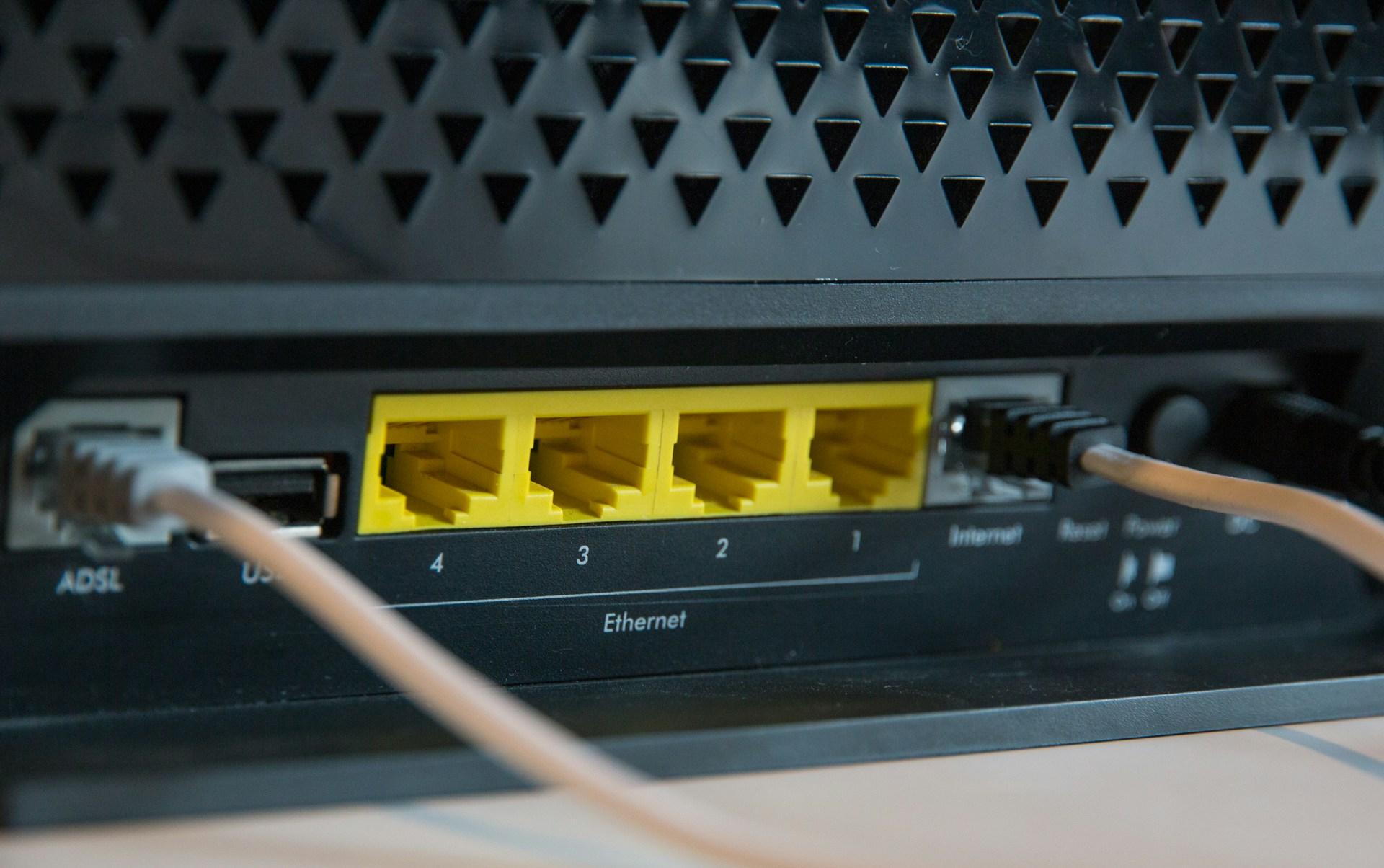
Few things are more annoying than trying to watch a stream, join a meeting, or clutch a match while your unstable internet connection hiccups every few seconds.
The page loads, then stalls. Your voice breaks up. Your character lags.
The good news: most instability has understandable causes and fixable solutions. In this guide, I’ll explain why connections wobble and walk you through 17 practical fixes you can try today. Let’s begin!
What Causes an Unstable Internet Connection?
In plain terms, instability is about inconsistent delivery of data. That inconsistency shows up as jitter, spikes in latency, bursts of packet loss, or temporary drops. A few usual suspects:
Congestion and jitter
When links get crowded (inside your home or upstream on your provider) packets queue, arrive late, or in clumps. That timing variance is called jitter and it’s a classic stability killer.

Source: Integrated Research
Bufferbloat
Many modems/routers hold too much data in their buffers during uploads or heavy use, causing huge latency spikes even if your “speed test” looks fine.

Source: blog.erik.is
Wi-Fi interference and band choice
The 2.4 GHz band travels farther but is slower and crowded; 5 GHz is faster with shorter range. Picking the wrong band or an overused channel can make Wi-Fi feel erratic.
Outages or provider issues
Sometimes it’s not you. Checking your ISP’s status first can save hours of tinkering.
Aging firmware or flaky hardware
Old router firmware or failing cables/NICs can cause dropouts or weird instability. Vendors routinely ship stability fixes in firmware updates.
DNS resolution problems
Slow or unreliable DNS can make browsing feel inconsistent, even if raw bandwidth is fine. Swapping to a fast public resolver often helps.
17 Best Ways to Fix an Unstable Internet Connection
1. Power-cycle your modem and router (properly)
Unplug power for 15–30 seconds, plug the modem back in, wait for it to come fully online, then power the router. This clears stale states and resolves many transient issues without erasing settings. Avoid pressing the tiny “reset” pin unless you intend a factory reset.

Source: GCFGlobal
2. Check for ISP or regional outages before you dig deeper
Open your provider’s status page or app and confirm whether your address is affected. If it is, there’s nothing to fix at home besides waiting it out.
3. Prefer Ethernet for anything mission-critical
A wired connection avoids Wi-Fi interference entirely and evens out latency. If you can plug in your PC/console/streaming box, do it. When you must use Wi-Fi, keep reading.
4. Pick the right Wi-Fi band (and consider 6 GHz if available)
Use 5 GHz for speed and lower interference when you’re close to the router; use 2.4 GHz for range through walls at the cost of speed. If you own a Wi-Fi 6E/7 setup with 6 GHz, it can be extremely stable at short range thanks to cleaner spectrum.
5. Move the router and reduce interference
Place it out in the open, high, near the center of your home, not buried in a cabinet. Keep it away from microwaves, cordless phones, baby monitors, and thick walls that can disrupt signal. Practical placement tips from consumer guides and labs consistently show big gains here.

Source: Nashville Computer Guru
6. Update your router’s firmware
Vendors routinely ship builds that specifically “improve stability” for radio links and backhaul. Log into your router and check for updates. If you run a mesh, update both base and satellites.
7. Tame bufferbloat (especially if uploads are active)
If you notice lag spikes during backups, cloud syncs, or when someone is uploading video, you’re likely hitting bufferbloat. Many modern routers include Smart Queue Management (SQM) or similar features that prioritize interactive traffic and cap queues. Testing tools explain the issue and why it hurts latency so much.
8. Switch to a faster, privacy-friendly DNS (and enable encrypted DNS)
Try a reputable resolver like Cloudflare’s 1.1.1.1. On Android 9+ you can set Private DNS to 1dot1dot1dot1.cloudflare-dns.com, and most operating systems support DNS over HTTPS/TLS for better reliability and privacy.
9. Change crowded Wi-Fi channels
In apartment buildings, channel overlap is common. Manually setting your 2.4 GHz channel to 1/6/11 (whichever is least congested) and letting 5 GHz auto-select a clean channel can stabilize performance. Consumer guides emphasize channel selection as a top fix.
10. Limit background hogs and schedule heavy uploads
Cloud backup, OS updates, and video uploads saturate upstream bandwidth and make everything else feel choppy. Pausing or scheduling those tasks off-hours keeps latency steady, especially on modest upload plans. The effect is closely tied to bufferbloat behavior.
11. Scan for flaky cables and NIC issues
Loose, bent, or damaged Ethernet and coax cables cause intermittent drops. Likewise, an aging network adapter can misbehave under load. Swapping cables and updating NIC drivers is a quick, cheap diagnostic step. Network monitoring guides list cabling faults as a common intermittent culprit.
12. Separate your work/stream device from IoT clutter
Old smart plugs and cameras often use 2.4 GHz and can chatter nonstop. If your router supports band steering, putting low-priority devices on 2.4 GHz while your main device uses 5/6 GHz can smooth things out. Consumer Wi-Fi advice frequently recommends this isolation.
13. Use a mesh system or a better router for larger spaces
If your home has dead zones, a single access point may never be stable across rooms. Mesh Wi-Fi adds nodes to create even coverage and steadier backhaul; vendors explicitly ship stability improvements in mesh firmware updates.
14. Try optimized routing with NoPing (great for games, and it can help apps/browsers too)
For online games, and sometimes other real-time apps, NoPing can route your traffic through faster, more stable paths to the server.
It’s designed to reduce ping and jitter by finding better routes across the internet, and operates in a VPN-like way, which means not only games but other apps and your browser traffic can pass through its tunnel as well.
Here’s how to use NoPing to fix instability in online games and apps:
- Sign-up through the website and download NoPing (you can test it for free).
- Open NoPing and search for your game inside the software

- Once you find it, click on it and, on the next screen, select “Choose automatic” or “Choose manual” and click “Continue”. We recommend choosing automatic, as NoPing’s technology analyzes all routes on a global scale and automatically selects the best option for you.

- On the next screen, click on “Optimize Game”.

- And that’s it, you can start playing with optimized ping!
You can test different servers within NoPing to see which gives you the lowest latency.
15. Check the obvious: device restarts and network toggles
If just one phone or laptop has unstable internet connection, restart it, toggle Wi-Fi/mobile data, and rejoin the network. Mobile and platform help docs list these as first-line steps for good reason.
16. Don’t confuse “reboot” with “reset”
If a quick power cycle doesn’t help, you can try a full reboot via the router’s app or UI, but avoid a factory reset unless you’re prepared to set everything up again. Help articles and consumer how-tos stress this difference.
17. When in doubt, call your ISP and ask for a line check
There may be signal level issues, outside line damage, or provisioning problems only your provider can see and fix. Status centers and support pages encourage contacting them if problems persist after basic troubleshooting.
And How to Fix an Unstable Wi-Fi?
Wi-Fi deserves its own quick talk because it adds a layer of radio physics on top of your internet service.
Start with placement: routers like line-of-sight. Put yours high on a shelf in a central room, away from dense materials and metal.
That single change often stabilizes throughput. Next, pick the right band. Use 5 GHz (or 6 GHz, if you have it) for devices in the same room or nearby; use 2.4 GHz for devices far away.
The 2.4 GHz band is more crowded and slower, but travels farther through walls, while 5 GHz is faster with shorter range. If your router supports band steering, let it guide capable devices to 5/6 GHz automatically.
If your home is big or has multiple floors, consider mesh Wi-Fi. A node upstairs and one near the back room can eliminate weak spots and stabilize connections as you move around.
Keep firmware current; manufacturers routinely publish updates that literally say “improves stability” for backhaul links between nodes.
Finally, watch your channel selection. In crowded buildings, manually choosing a less congested channel can transform a flaky network into a steady one.
One more Wi-Fi-specific tip: if your issues appear only when someone uploads (sending big files, video calls, cloud backup), you may be facing bufferbloat.
Enabling SQM or “QoS” on the router can smooth those spikes by keeping queues short and giving interactive traffic priority. It’s not about raw speed; it’s about keeping latency stable while the network is busy.
FAQ - How to Fix an Unstable Internet Connection
What’s the difference between speed and stability?
Speed is how fast you can transfer data in ideal conditions (e.g., Mbps on a speed test). Stability is how consistent that experience is. You can have high speed but terrible stability if latency spikes, jitter, or packet loss keep interrupting the flow, often due to congestion or bufferbloat.
Why do video calls and online games suffer more than downloads?
Real-time apps need packets to arrive on time, not just eventually. Jitter and latency spikes make voices stutter and game inputs feel delayed, even when your headline speed looks fine. That’s why fixes like SQM, better Wi-Fi channels, and lower congestion matter more than chasing a bigger download number.
Is DNS really worth changing?
If web pages hang before they even start loading, slow or flaky DNS can be the cause. Switching to a fast public resolver like Cloudflare’s 1.1.1.1 and using encrypted DNS (DoH/DoT) often makes browsing feel snappier and more reliable, and it can improve privacy versus default ISP resolvers.
How do I change DNS on Windows 11 or Android?
Windows 11 lets you set DNS via Settings, Control Panel, or Command Prompt; guides walk through each step. On Android 9+, set Private DNS to 1dot1dot1dot1.cloudflare-dns.com for encrypted lookups system-wide.
What exactly is bufferbloat and how can I tell if I have it?
Bufferbloat is excessive buffering in networking gear that makes latency skyrocket under load, especially uploads. When someone in your home starts a big upload and suddenly everything lags, that’s the signature. Testing tools and explainers highlight how it works and why SQM/QoS is the antidote.
When should I replace my router?
If you’ve tried placement, firmware updates, channel changes, and you still see regular dropouts, an upgrade can be worth it, especially moving from older standards to Wi-Fi 6/6E/7 or switching to mesh for larger homes. Consumer Wi-Fi guidance consistently lists upgrading equipment among the highest-impact stability fixes.
I rebooted and it helped. Why?
Routers and modems are small computers. Rebooting clears memory leaks, expired sessions, and odd states that accumulate over time. Support docs from major platforms list power-cycling as a first-line fix because it resolves a surprising share of day-to-day issues.
An unstable internet connection can be caused by anything from simple Wi-Fi interference to deeper issues like bufferbloat or bad routing. The good news is that most fixes don’t require a degree in networking, just a bit of methodical troubleshooting.
And to always have the most stable connection to play your favorite games, use NoPing! Download now and start your free trial!