

The “Apex Legends integrity error” is one of those pop-ups that instantly kills the hype to drop into World’s Edge.
It usually appears at launch and closes the game before you ever see the lobby.
In this guide, we’ll explain what those cryptic codes mean, why they happen, and give you a practical, step-by-step fix list you can follow right now. We’ll also share a simple way to keep your matches smooth and lag-free.
What is Apex Legends Integrity Error 0x8000001?
0x8000001 typically presents as “Apex exited due to a failure of game integrity.” It points to Apex or Easy Anti-Cheat (EAC) detecting missing or altered files, or failing a verification check.

Source: EA Forums
Players and EA forum reps consistently tie this code to damaged game files, launcher cache issues, or even Windows system file problems that prevent proper verification or EAC initialization.
Common triggers reported by players and support staff include:
- Corrupted or incomplete Apex files after an update or crash.
- EA App / Steam cache problems preventing clean validation or repair.
- Broken EAC installation or blocked EAC services.
- Underlying Windows file integrity issues (e.g., SFC/DISM repairs fixing it).
What is Apex Legends Integrity Error 0x8000002?
0x8000002 tends to show up with messages like “Apex exited due to external tools that jeopardize gameplay integrity” or “Badware detected.”

Source: Reddit
In plain English, the anti-cheat thinks something on your PC could tamper with the game. Reports frequently point to virtual drive/emulation tools (like Daemon Tools), controller emulators (e.g., DS4Windows/reWASD), aggressive overlays, macro or cheat-adjacent utilities, and certain monitoring/OS-hooking apps.
Removing or fully closing the conflicting app resolves it for many players.
EA forum posts and community threads describe the same pattern since early 2024: after an update, Apex tightens checks and flags more tools as potential tamper risks until you uninstall or disable them.
How to Fix Both Apex Legends Integrity Errors?
Follow these steps in order. They go from quickest to most involved, and they cover both 0x8000001 and 0x8000002 paths.
You should only need to go as far as step 6–9 in most cases.
- Fully close Apex, the EA App/Steam, and reboot once
A clean reboot resets stuck services and background hooks that can trigger false positives. Then try launching Apex as Administrator once. This is basic hygiene but solves more cases than you’d think. - Repair / verify the game files
- EA App: Library → Apex Legends → Manage → Repair.
- Steam: Library → Right-click Apex → Properties → Installed Files → Verify integrity.
Launcher repairs handle missing or corrupted files that cause 0x8000001. EA’s help docs also recommend repairing as a first-line fix.
- Clear the launcher cache
For the EA App, clearing cache is a common support step when repair alone doesn’t stick after an update. Relaunch and try again. - Reinstall (or repair) Easy Anti-Cheat
Inside Apex’s install folder is an EasyAntiCheat subfolder with a setup/repair tool. Run it to reinstall EAC, then reboot. Community threads on anti-cheat integrity failures regularly point to a broken EAC install as the culprit. - Temporarily disable or uninstall conflicting software
0x8000002 often disappears once the conflicting app is gone. Apps repeatedly implicated by players include:
- Virtual drive/emulation: Daemon Tools (and leftover drivers/services).
- Controller emulators: DS4Windows, reWASD, InputMapper.
- Overlays/monitoring: RivaTuner Statistics Server, MSI Afterburner, some RGB and macro tools.
- Cheat-adjacent utilities: anything that hooks processes or manipulates inputs.
Fully quit them in Task Manager or uninstall and reboot. Many reports specifically call out Daemon Tools and DS4Windows.
- Update or repair key drivers (especially network + input)
A few users fix 0x8000001 by repairing Realtek network drivers, suggesting certain outdated drivers can interfere with anti-cheat checks. While this isn’t universal, it’s a low-risk step: install the latest network, chipset, and controller drivers from the official vendor, then reboot. - Run Windows file integrity repairs (SFC/DISM)
Open Command Prompt (Admin) and run:
sfc /scannow
DISM /Online /Cleanup-Image /RestoreHealth
EA forum helpers have suggested repairing Windows system files when 0x8000001 persists after a clean game repair. If SFC/DISM finds corruption and fixes it, try Apex again.
- Add security exclusions for Apex, then repair again
Over-protective antivirus suites can quarantine or lock game/anti-cheat files and break integrity checks. EA’s help center advises adding Apex/EAC to your AV exclusions and re-running a repair. After testing, you can remove the exclusions if you prefer. - Turn off extra overlays and capture layers
Disable Steam, EA App, Discord, GeForce Experience overlays, and third-party capture tools just for a test run. Several players have reported that removing extra hooks during launch helps pass the integrity check. - Uninstall problem drivers or their leftovers
If you previously had Daemon Tools or similar, scrub leftovers: uninstall, remove associated virtual bus drivers in Device Manager (under Storage/USB controllers), and reboot. Multiple community walkthroughs credit this for clearing 0x8000002. - Reinstall Apex (last resort)
If nothing else works, a clean reinstall ensures the game and EAC are intact. EA support lists reinstall and repair at the top of their standard playbook for integrity-style errors. - Check for broader EAC issues or patch-day spikes
Right after patches, more players report integrity errors until hotfixes land or players remove newly flagged software. If the issue started immediately after an update and many others report 0x8000002 at the same time, keep an eye on official channels while using the steps above.
Why these steps work
- 0x8000001 is usually about file or system integrity. Repairing game files, clearing caches, fixing EAC, and running SFC/DISM directly address that.
- 0x8000002 is about external tools. Removing emulators, virtual drives, overlays, and macro apps tackles the root cause. Multiple first-hand reports specifically call out Daemon Tools and DS4Windows as repeat offenders.

How to Always Play Apex Legends Without Lag? (answer with NoPing)
For smooth, low-latency matches once you’re past the integrity errors, use NoPing. It’s a gaming route optimizer that helps you:
- Lower ping by picking faster, less congested routes between you and Apex servers.
- Reduce jitter & packet loss so your shots and movement feel consistent.
- Auto-select optimal routes when conditions change, keeping your connection stable mid-match.
Here’s how to use NoPing to get rid of lag in Apex Legends:
- Sign-up through the website and download NoPing (you can try it for free)
- Open NoPing and search for Apex Legends inside the software
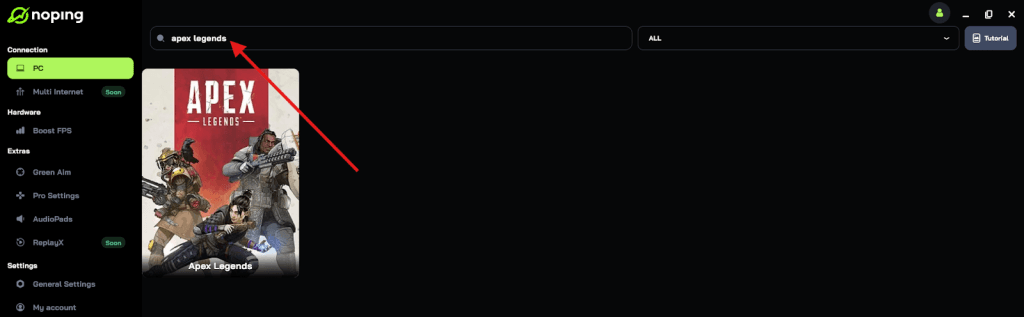
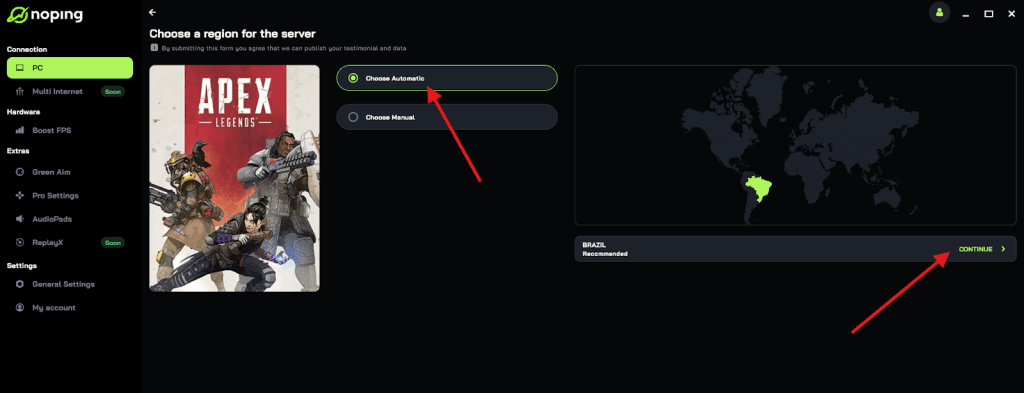
- Once you find Apex Legends, click on it and, on the next screen, select “Choose automatic” or “Choose manual” and click “Continue”. We recommend choosing automatic, as NoPing’s technology analyzes all routes on a global scale and automatically selects the best option for you.
- On the next screen, click on “Optimize Game”.
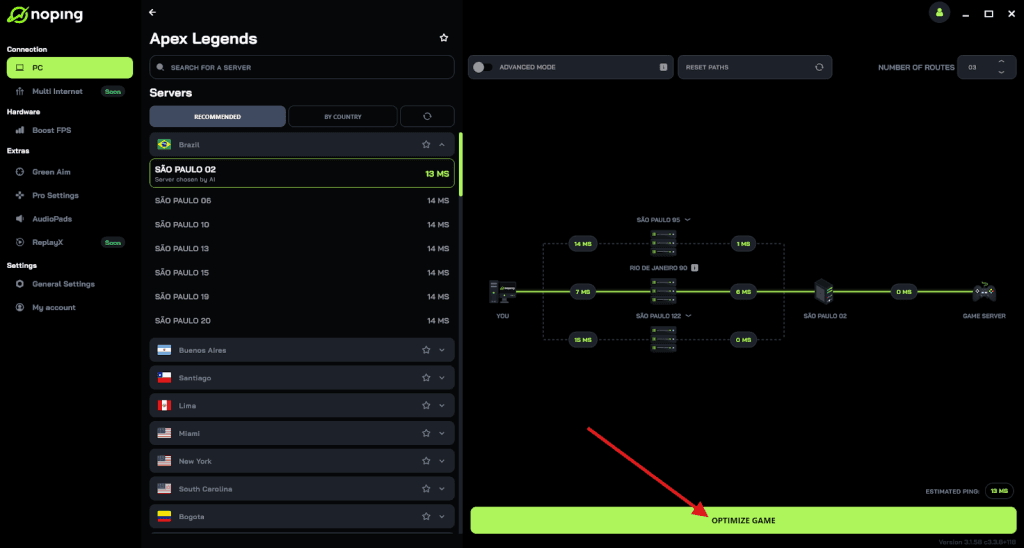
- And that’s it, you can start playing Apex Legends with optimized ping!
You can test different servers within NoPing to see which gives you the lowest latency.
FAQ - Apex Legends Integrity Error
Does verifying files in Steam help if I installed through the EA App?
No. Verify in the launcher you actually use. If you migrated between launchers, make sure the install path the launcher sees is correct, then run its repair. EA’s own guidance focuses on repairing inside the EA App when that’s the launcher in use.
Can controller software cause 0x8000002 even if I’m not using a controller right now?
Yes. If DS4Windows or reWASD is running in the background, EAC can still flag it. Quit or uninstall, then reboot before testing Apex. This has resolved 0x8000002 for many players.
I don’t have Daemon Tools installed. Why do people say it still causes problems?
Leftover virtual bus drivers from past installs can remain. Use an uninstaller to clean traces and check Device Manager for virtual storage/USB drivers to remove, then reboot. Several players report this is what finally cleared the error.
Could outdated network drivers really trigger 0x8000001?
It’s not common, but some users fixed the error by repairing or updating Realtek network drivers. If you’re stuck after repairs and EAC reinstalls, updating drivers is a reasonable next step.
Is antivirus always the villain?
Not always, but AV can quarantine or lock files during updates. Temporarily adding Apex/EAC to exclusions and running a repair is recommended in EA documentation for certain error families. Remove exclusions afterward if you prefer.
Do I need to reinstall Windows?
Almost never. Work through the steps above first. If SFC/DISM consistently finds system corruption it can’t repair, that points to a deeper OS issue, but that’s rare for these Apex errors.
What if nothing here helps?
Capture the exact message text, list of background apps, and what you’ve tried, then post on the EA Apex Technical Issues forum or Reddit with that detail. Look for other players hitting the same code right after a patch; shared timing can indicate a new false-positive that needs a hotfix.
And to always play Apex Legends with optimized FPS and reduced ping, use NoPing! Download now and start your free trial!