


Black Ops 6 dev error 5820 can kick you out of matches and ruin an otherwise good session, especially in private lobbies or when the game tries to connect to multiplayer services.
This guide walks you through what the error is, why it happens, and a practical, step-by-step troubleshooting sequence to get you back into the game as fast as possible.
What is the Black Ops 6 dev error 5820?
Put simply, Dev Error 5820 is an in-game error code that usually appears when the client fails to load or join certain multiplayer sessions. Private matches and hosted lobbies are commonly implicated in reports.
Users have seen it during match joins, when hosting private lobbies, or when certain in-game resources (textures, overlays, profile customizations) are being accessed.
Because the error can have multiple triggers, it behaves inconsistently: sometimes a simple restart fixes it, other times you need to change settings, verify game files, or tweak network-related components.

Source: Reddit
Guide to fixing Black Ops 6 dev error 5820
Below is a prioritized step-by-step sequence. Start at step 1 and move down only if the previous step didn’t work. Many players resolve the issue within the first few steps.
1. Close and restart the game (and client)
Exit Black Ops 6 completely, close the launcher (Battle.net, Steam, or console main menu), then relaunch. Simple restarts often clear temporary glitches.
2. Check server status
Before you dig into local fixes, confirm there are no ongoing server outages for Black Ops 6. If Activision or game status pages report downtime, the error might be on their side. (If servers are down, try again later.)
3. Restart your router/modem and your PC/console
Power cycle your networking gear: turn off, unplug for ~30 seconds, plug back in, then restart your machine. This clears transient network issues that can cause connection errors.
4. Verify/repair game files
On PC, use the launcher’s “Verify integrity” (Steam) or “Scan and Repair” (Battle.net) feature to check for corrupted or missing files and let the client re-download anything broken. Reinstall only if verification fails repeatedly.
5. Turn off On-Demand Texture Streaming (or set to minimal)
Several reports show that the in-game “On-Demand Texture Streaming” or similar dynamic texture options can trigger stability issues; set it to Off/Minimal and test. This is commonly suggested for Call of Duty titles suffering similar dev errors.

6. Disable in-game overlays and third-party overlays (PC)
Turn off overlays from GeForce Experience (ShadowPlay), Discord, Steam, RivaTuner, and any FPS/monitoring overlays. Players have reported conflicts between overlays and the game that cause crashes.
7. Change hosting or private match host (if applicable)
If the error appears while joining/creating private matches, try switching who hosts the match. Let another player be host or change the lobby host options; many players get past the error this way.
8. Edit or refresh your emblem/calling card/loadout
Weird as it sounds, swapping your calling card, emblem, or loadout before joining a match has fixed Dev Error 5820 for some players. It’s an odd workaround but low cost to try.
9. Allow the game through any firewall/antivirus
On PC, ensure Windows Firewall or third-party AV software isn’t blocking Black Ops 6. Add exceptions for the game executable and launcher, and temporarily disable antivirus to test.
10. Disable Teredo (Windows networking fix)
Some players report networking translation services like Teredo causing trouble with Call of Duty networking. To disable it: open an elevated Command Prompt and run netsh interface teredo set state disabled, then reboot. If that helps, you can research how to reconfigure or keep it disabled safely.
11. Reinstall the game as last resort
If nothing works, uninstall Black Ops 6, delete any leftover game folders (cache/temp files), and perform a fresh install. It’s time-consuming but can fix stubborn file corruption or bad installs.
If after all of the above Dev Error 5820 persists, contact Activision/Call of Duty support and include logs/screenshots; they can escalate to engineering if it’s a rarer bug.

What causes the Black Ops 6 dev error 5820?
There isn’t a single root cause. Think of Dev Error 5820 as a symptom of several possible underlying issues:
- Transient server or matchmaking problems. Sometimes the game can’t negotiate a session correctly with Activision servers, especially during private match host handoffs.
- In-game system conflicts. On-demand texture streaming, overlays, or specific profile/customization assets can trigger the crash path.
- Corrupted or missing game files. Bad downloads, interrupted updates, or file corruption after patches can break certain online routines.
- Local network translation or routing issues. Teredo/IPv6 translation or ISP routing quirks can cause multiplayer negotiation failures in some setups.
Because of those multiple causes, the troubleshooting above covers both quick fixes and deeper changes.
How to play Black Ops 6 without lag?
NoPing is a service designed to optimize your route to Call of Duty’s servers. Sometimes, the normal path your internet provider uses isn’t the fastest. NoPing reroutes your data through a better, more direct path.
Here’s how to use NoPing to fix lag in Call of Duty:
- Sign-up through the website and download NoPing (you can try it for free)
- Open NoPing and search for Call of Duty inside the software
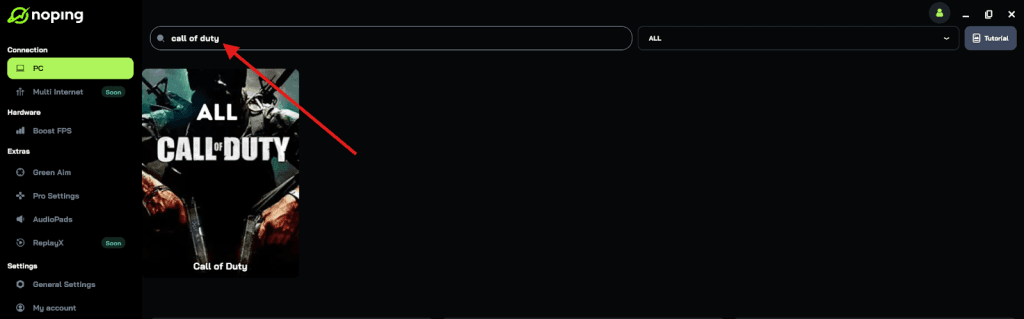
- Once you find Call of Duty, click on it and, on the next screen, select “Choose automatic” or “Choose manual” and click “Continue”. We recommend choosing automatic, as NoPing’s technology analyzes all routes on a global scale and automatically selects the best option for you.

- On the next screen, click on “Optimize Game”.
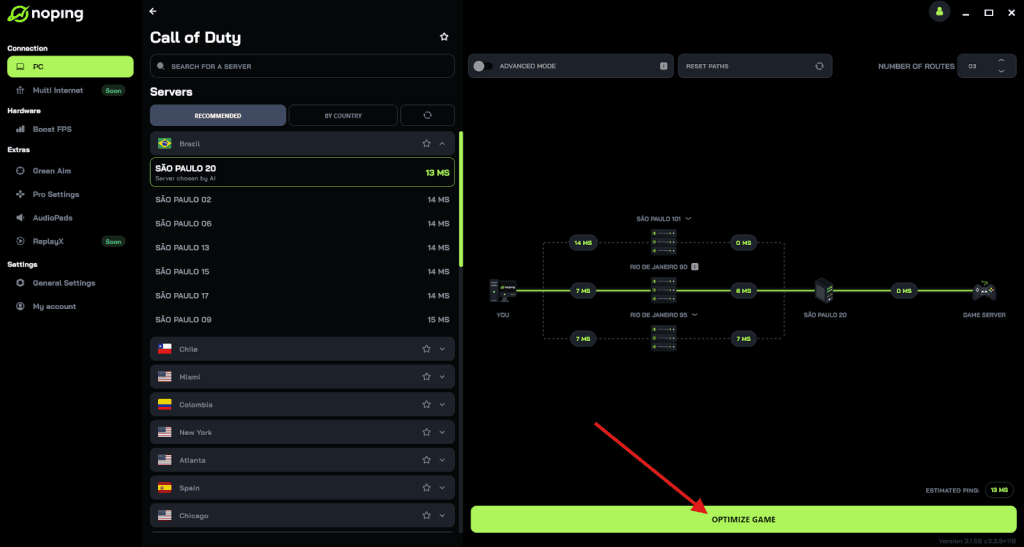
- And that’s it, you can start playing CoD with optimized ping!
You can test different servers within NoPing to see which gives you the lowest latency.
Quick checklist
- Restart game + launcher → check server status → restart router/PC.
- Verify game files → disable On-Demand Texture Streaming → disable overlays.
- Change private match host → change calling card/emblem → allow through firewall.
- Disable Teredo (Windows) → reinstall as last resort.
FAQ - Black Ops 6 Dev Error 5820
Q: Does Dev Error 5820 mean I’m banned or penalized?
A: No. Dev Error 5820 is a technical error, not a disciplinary code. It indicates a problem in the client/server handshake or local environment; it doesn’t reflect moderation status.
Q: Is this error more common on PC or console?
A: Reports have appeared on both PC and consoles. The exact frequency can swing by platform and by patch; private match hosting bugs have often been reported on consoles and PC alike. If you see platform-specific behavior, note it when contacting support.
Q: Will changing regions/servers in the game help?
A: It can. If the problem is related to regional servers or a routing issue, switching region or using NoPing may help you test that hypothesis.
Q: I tried everything. What logs should I send to Activision support?
A: Include timestamp, platform, exact steps that cause the error (joining private match, launching, etc.), screenshots of the error, and your system/connection info (ISP, wired/wireless, NAT type). That will speed up their diagnosis.
Q: Are there temporary workarounds that let me keep playing?
A: Yes, many players can avoid the error by switching to public matches, letting someone else host private lobbies, or temporarily disabling the on-demand texture streaming setting.
Dev Error 5820 is annoying because it’s inconsistent, but most players can resolve it with a few steps.
And to always have the best connection to play Black Ops 6, use NoPing! Download now and start your free trial!