


Getting the best Black Ops 6 settings can feel overwhelming, especially with so many options in the menus.
Whether you’re focused on pushing higher FPS, improving audio awareness, or dialing in your sensitivity, small adjustments can make a big difference in how the game feels.
The goal isn’t to max out every slider, but to find a balance between performance and comfort so that you can react faster and stay consistent in every match.
In this guide, we’ll break down the most important settings step by step (graphics, audio, mouse, controller, and even system-level tweaks) so you can spend less time testing menus and more time playing.
Best Graphics Settings — High FPS / Performance in Black Ops 6
If your goal is high, stable FPS, prioritize CPU/GPU budget and latency over shiny visuals you won’t notice in a fast multiplayer match (shadows, motion blur, high-resolution ambient occlusion).
The best general approach is: turn off eye candy that costs CPU/GPU and keep the things that help gameplay clarity.
Practical settings to start with
- Resolution: native at 100% for clarity; if FPS is low, reduce render scale (85–95%) instead of dropping native display resolution.
- Upscaling (DLSS/FSR/XeSS): many community guides recommend testing on your system—turning off upscalers sometimes improves results due to engine timing; others get big FPS boosts from DLSS/FSR depending on GPU. Test both.
- Texture Quality: set to what fits your VRAM—if you have 6–8 GB, “Normal” is a sensible sweet spot; very high textures cost VRAM and can cause stutters.
- Shadows & Screen Space Shadows: lower to Medium or Off for big CPU/GPU gains—shadows are expensive and rarely give a competitive advantage.
- Ray Tracing: Off unless you have a high-end GPU and you prefer visuals over FPS.
- Motion Blur / Depth of Field: Off—these hurt clarity and aiming.
- Particle Resolution / Shader Quality: Medium/High depending on GPU; particles at high can tank FPS in chaotic fights.
- On-demand texture streaming: leave optimized/enabled to avoid stuttering during map load.
One practical summary from multiple PC guides (and current community benchmarking) aligns with keeping upscalers off for some rigs, using normal textures, dropping shadows, and using anisotropic filtering or texture filtering at a moderate-high level because it’s cheap and improves clarity.
Quick checklist (two-minute profile):
- Render scale: 85–95% if struggling
- Upscaling: test off and on (see notes below)
- Texture quality: Normal (or tuned to VRAM)
- Shadows & ray tracing: Off or Low
- Motion blur & depth of field: Off
Note about upscalers: some community reports and bench tests have shown that, on certain driver/engine versions, enabling DLSS/XeSS/FSR can introduce extra temporal calculations that temporarily reduce FPS before upscaling kicks in, resulting in worse net frame rates on affected builds.
This appears to be patch-dependent and can vary by GPU; if you see worse FPS after turning on an upscaler, switch it off and lower render scale instead until a patch fixes the issue.

Best Audio Settings in Black Ops 6
In Black Ops 6, audio is a tactical advantage.
Clear footsteps, directional gunfire, and environmental cues can mean the difference between victory and defeat. To help you fine-tune your audio setup, we've compiled the most effective settings based on expert recommendations and community feedback.
Essential Audio Settings for Competitive Play
To optimize your in-game audio experience, consider the following settings:
- Master Volume: Set to 100 for maximum clarity.
- Gameplay Music Volume: 0 (turn off to eliminate distractions).
- Dialogue Volume: 50 (balances voice chat and in-game sounds).
- Effects Volume: 100 (prioritizes critical sound cues like footsteps).
- Cinematic Music Volume: 0 (turn off to focus on gameplay sounds).
These settings ensure that essential audio cues are prominent, while non-essential sounds are minimized.
Audio Device Configuration
- Audio Mix: Headphones Bass Boost (enhances low-frequency sounds).
- Mono Audio: Off (preserves spatial audio).
- Mute Licensed Music: Off (keeps all in-game sounds active).
- Asymmetrical Hearing Compensation: Off (unless you have hearing differences).
For PC users, enabling Loudness Equalization can further enhance subtle sounds:
- Right-click the sound icon in the taskbar and select 'Sounds'.
- Choose your playback device and click 'Properties'.
- Navigate to the 'Enhancements' tab and check 'Loudness Equalization'.
- Click 'Apply' and then 'OK'.
This feature amplifies quieter sounds, like distant footsteps, making them more audible.
Voice Chat Settings
Effective communication is key in team-based modes:
- Voice Chat: On
- Voice Chat Volume: Adjust to your preference, typically around 50.
- Proximity Chat: On (enables communication with nearby players).
- Body Shield Chat: On (allows teammates to hear you when shielded).
- Last Words Voice Chat: On (hear final words of eliminated players).
- Game Voice Channel: Party Only (prevents in-game voice chat distractions).
These settings ensure clear communication without overwhelming in-game sounds.
Advanced Audio Features
- Enhanced Headphone Mode: Off (disables additional audio processing).
- Reduce Tinnitus Sound: On (diminishes the ringing effect from flashbangs).
- Hitmarker Preset: Classic (provides clear feedback upon hits).
Disabling Enhanced Headphone Mode can prevent audio from sounding muffled or unnatural.
Console-Specific Tips
For PlayStation 5 users:
- Navigate to Settings > Sound > Volume.
- Under Accessibility, select 'Audio Focus'.
- Choose 'Boost High Pitch' to enhance high-frequency sounds like footsteps.
This setting makes subtle audio cues more prominent, aiding in enemy detection.

Best Mouse Sensitivity in Black Ops 6
Mouse sensitivity is personal, but there are practical ways to find a consistent setup:
- Use a DPI between 400 and 1600 depending on your mouse and playstyle. Many pros sit in 400–800 DPI.
- In-game sensitivity: aim for a sens that allows you a full 180° turn with a comfortable horizontal sweep (try 30–40 cm at your DPI for a low-sense playstyle; shorter if you prefer high sens).
- Turn off mouse acceleration in Windows and the game—acceleration breaks muscle memory.
- Use consistent polling rate (1000 Hz is common), and make sure your mouse firmware is up to date.
- If available, use “ADS sensitivity multiplier” to fine-tune aim-down-sights speed relative to hip fire.
If you need a quick test: open a practice match, pick a wall and try 1–2 full turns while adjusting until you can reliably flick 180° without overshooting. Consistency and practice beat extreme numbers.
Best Controller Settings in Black Ops 6
If you're aiming to elevate your gameplay in Black Ops 6, fine-tuning your controller settings is crucial. The default configurations might not suit every player's style, and adjusting them can lead to improved responsiveness and precision.
Based on expert recommendations and community feedback, here's a comprehensive guide to optimizing your controller settings.
Input Settings
- Button Layout: Tactical
- Swapping crouch/prone with melee allows for smoother movement without removing your thumb from the right stick.
- Swapping crouch/prone with melee allows for smoother movement without removing your thumb from the right stick.
- Stick Layout: Default
- Maintains standard control mapping.
- Maintains standard control mapping.
- Horizontal Stick Sensitivity: 9
- Faster horizontal movements are beneficial for quick reactions.
- Faster horizontal movements are beneficial for quick reactions.
- Vertical Stick Sensitivity: 8
- Slightly lower to ensure controlled vertical aiming.
- Slightly lower to ensure controlled vertical aiming.
- ADS Sensitivity Multiplier: 0.83
- Reduces sensitivity during aiming down sights for precision.
- Reduces sensitivity during aiming down sights for precision.
- Aim Response Curve Type: Dynamic
- Offers a balance between responsiveness and control.
- Offers a balance between responsiveness and control.
- Controller Vibration: Off
- Disabling vibration prevents distractions and maintains focus.
Deadzone Settings
- Left Stick Min: 1
- Left Stick Max: 60
- Right Stick Min: 4
- Right Stick Max: 99
- L2/R2 Button Deadzone: 0
Adjusting deadzones ensures that minor stick movements are registered, enhancing responsiveness. However, if you experience stick drift, slightly increasing the minimum deadzone can help mitigate this issue.
🏃♂️ Movement Settings
- Sprint Assist: On
- Ensures continuous sprinting without needing to click the left stick.
- Ensures continuous sprinting without needing to click the left stick.
- Slide/Dive Behavior: Slide Only
- Streamlines movement by focusing on sliding.
- Streamlines movement by focusing on sliding.
- Tactical Sprint Behavior: Single Tap Sprint
- Allows for quick tactical sprints with a single button press.
- Allows for quick tactical sprints with a single button press.
- Automatic Airborne Mantle: Off
- Prevents automatic climbing, giving you more control over movement.
Combat Settings
- Aim Down Sight Behavior: Hold
- Ensures that aiming down sights requires intentional input.
- Ensures that aiming down sights requires intentional input.
- Weapon Mount Activation: ADS + Melee
- Combines aiming down sights with melee for efficient mounting.
- Combines aiming down sights with melee for efficient mounting.
- Equipment Behavior: Hold
- Requires holding the button to use equipment, preventing accidental throws.
- Requires holding the button to use equipment, preventing accidental throws.
- Quick C4 Detonation: Grouped
- Allows for simultaneous detonation of multiple C4s.
- Allows for simultaneous detonation of multiple C4s.
- Manual Fire Behavior: Press
- Requires pressing the button to fire, offering more control.
- Requires pressing the button to fire, offering more control.
- Interact/Reload Behavior: Tap to Reload
- Simplifies reloading by tapping the button.
How to Boost FPS in Black Ops 6?
NoPing’s Boost FPS is a system-level optimization feature that targets background processes and system resources to free CPU and RAM for your game.
In short, it does not change the in-game graphics pipeline; it reduces system interference and re-prioritizes processes so the game can access more compute resources.
How to use the Boost FPS feature:
- Sign-up through the website and download NoPing (you can test it for free).
- When you open the software, click on "Boost FPS" in the left side menu.
- On the next screen, you'll see a range of options to customize the feature (there are over 50 settings). You can enable or disable everything and choose between Windows default or user settings. You can also filter the options using the bar on the right.
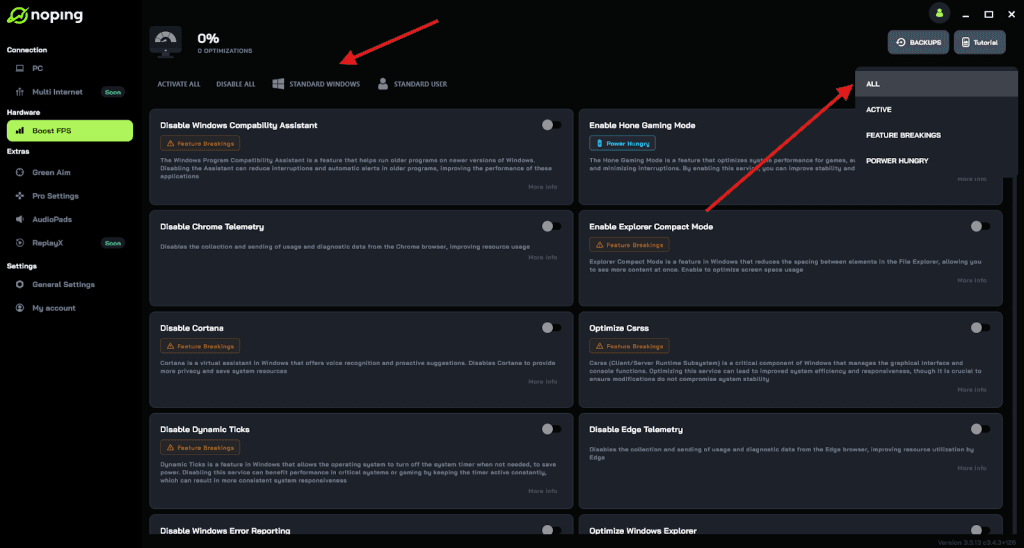
And that's it! Boost FPS is now activated. Just launch your game and enjoy high FPS!
FAQ - Best Black Ops 6 Settings
Q: Should I enable DLSS or FSR by default?
A: No universal default. Try both. DLSS/XeSS/FSR often give big boosts on supported GPUs, but some community reports indicate occasional engine timing issues that make upscalers temporarily harmful on certain patches. If an upscaler reduces your FPS, switch it off and lower render scale until a driver or game patch fixes it.
Q: Does enabling “Frame Generation” (NVIDIA) help in Black Ops 6?
A: Frame generation can improve perceived smoothness on GPUs that support it, but it adds latency and may generate visual artifacts in fast action. Use it only if your display latency budget allows and you prefer frame-rate over pure input responsiveness. Test in practice mode.
Q: Is 120 Hz / 240 Hz worth it?
A: Yes, if your GPU can push high frame rates and your monitor supports low input lag at those refresh rates. The difference is most noticeable when FPS is consistently above your monitor’s refresh rate.
Q: What driver/Windows settings should I check?
A: Keep GPU drivers updated, enable Windows Game Mode, and ensure power plan is set to “High performance” (or “Ultimate Performance” on desktops) when testing. Disable unnecessary overlays (some overlays add microstutter).
Final tips and wrap-up
- Start with the quick checklist: lower shadows, motion blur off, textures to match VRAM, test upscalers, and use render scale before full-resolution drops.
- Use NoPing’s Boost FPS if your system has lots of background processes or you want an easy way to free CPU/RAM for the game.
- Tune input (mouse/controller) carefully—comfort and consistency beat extreme numbers.
- Keep drivers and Windows updated; small driver fixes and game patches can change the best settings over time.
And to always play Black Ops 6 with the best performance, use NoPing! Download now and start your free trial!