

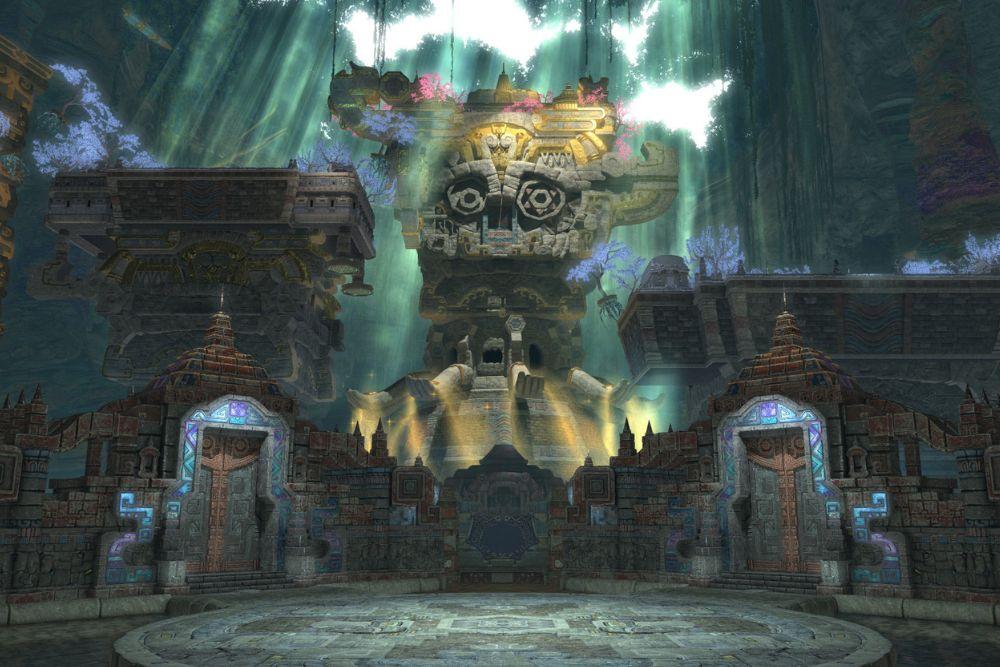
FFXIV: Dawntrail FPS drops can be frustrating, especially when you're deep into a battle or exploring the lush new zones introduced in the expansion.
If you've just downloaded Dawntrail and noticed that your frames per second have taken a nosedive, you're not alone.
The good news is: there are real solutions out there. Let’s go over what causes these FPS drops and what you can actually do to fix them.
What Causes FPS Drops in FFXIV?
First things first: why is your game stuttering now when it ran perfectly before?
Several factors can cause FPS drops in Final Fantasy XIV: Dawntrail, especially after a big update or expansion. Here are some of the most common reasons:
- Higher system demands: Dawntrail brings new areas, character models, textures, and graphical improvements. Even if your PC ran Endwalker smoothly, Dawntrail might be pushing it harder.
- Outdated drivers: New content means the game might rely on updated graphics drivers to run efficiently.
- Background processes: Other applications running in the background can compete for your system’s resources.
- Overheating or thermal throttling: Your PC might reduce performance to cool down if it’s getting too hot, especially during long sessions or in busy zones.
- Connection issues: While technically not FPS-related, network lag can feel like FPS drops in online games.
- Buggy patches or optimization issues: It’s not uncommon for early versions of expansions to have performance hiccups.
So if you’re asking yourself “Why am I getting low FPS in Dawntrail?”, it’s likely a combination of these reasons. Fortunately, most of these can be fixed.

Source: Reddit
What Can You Do To Fix FFXIV: Dawntrail FPS Drops?
If your performance tanked after installing Dawntrail, don’t panic. There are multiple ways to fix FPS drops before even touching your in-game graphics settings. The trick is identifying what’s causing the issue (hardware, software, or a mix of both) and taking action. Let’s go step by step.
Update Your GPU Drivers
One of the most common culprits behind sudden FPS drops in any game, especially after a major expansion, is outdated graphics drivers.
GPU manufacturers like NVIDIA and AMD frequently release Game Ready Drivers. These are specifically tuned for new releases and expansions, often including bug fixes and performance boosts. If you haven’t updated in a while, you could be missing key optimizations for Dawntrail.
Here’s how to update:
- NVIDIA users: Download the latest drivers from NVIDIA’s official website.
- AMD users: Go to AMD’s support page.
- You can also use tools like GeForce Experience or AMD Software: Adrenalin Edition to automate the process.
After updating, restart your PC and test FFXIV again. You might be surprised how much smoother it runs.
Close Unnecessary Background Applications
Games like FFXIV rely heavily on your CPU and RAM, especially in crowded areas like Limsa Lominsa or during alliance raids. If you’ve got multiple programs running in the background, especially heavy apps like Chrome, Discord with overlays, OBS, or even Windows Update. They’re eating up valuable system resources.
What to do:
- Open Task Manager (Ctrl+Shift+Esc).
- Sort by CPU and Memory usage.
- End tasks that are not essential while gaming.
- Disable any game launchers (like Steam or Epic) from downloading updates while you play.
- Consider turning off Discord’s Hardware Acceleration (under Settings > Advanced) to reduce strain on your GPU.

Source: Minitool
This step alone can free up a lot of resources, especially on lower- or mid-range PCs.
Set Your Power Mode to High Performance
This one might sound basic, but it’s often overlooked, especially on laptops. By default, Windows may throttle your system to save power, especially if it detects you're on battery or using a balanced power plan.
The “Balanced” mode is good for general use but not for gaming. It can slow down your CPU and GPU clocks, leading to inconsistent FPS or stutters in demanding zones like Solution Nine or Tuliyollal.
To change it:
- Open Control Panel.
- Go to Power Options.
- Select High Performance (or Ultimate Performance, if available).
- For laptops, also check the manufacturer’s control panel (like ASUS Armoury Crate or MSI Dragon Center) and make sure the system profile is set to Gaming or Performance mode.

Source: MS.Codes
Bonus tip: If you're on a gaming laptop, always plug it in. Performance drops significantly on battery, no matter what mode you're in.
Monitor Your Temperatures (and Clean Your System)
Thermal throttling happens when your CPU or GPU gets too hot. When that happens, your system deliberately slows itself down to avoid damage. The result? Sudden FPS drops, stutters, or even full crashes.
FFXIV: Dawntrail’s new environments, particle effects, and player congestion can push your system harder than older expansions.
How to monitor temps:
- Use tools like HWMonitor, MSI Afterburner, or HWiNFO.
- Check your GPU temperature (keep it under 85°C) and CPU temperature (ideally under 80°C).
- If it’s running hot, clean out your PC case or laptop vents using compressed air.
- Consider reapplying thermal paste or upgrading your cooling solution if you’ve had the machine for several years.
You can also adjust fan curves with tools like FanControl or built-in BIOS settings to keep temperatures in check during longer sessions.
Check for Bottlenecks and System Limits
Sometimes the issue isn’t Dawntrail: it’s your setup. While FFXIV is known for running on a wide range of hardware, the new expansion brings more demand, especially at higher settings or resolutions.
Here’s what could be holding you back:
- CPU bottlenecks: FFXIV is a CPU-heavy game. If your processor is older or has fewer cores (like dual-core or early quad-core CPUs), you might hit limits faster than you expect.
- RAM limitations: Running the game with only 8GB of RAM can work, but you'll see better stability with 16GB or more, especially if you like to multitask.
- GPU limits: If you’re on an older graphics card like the GTX 960 or RX 560, consider dropping the resolution or effects.
Use Windows Resource Monitor or tools like CapFrameX to see where the bottleneck is happening (CPU, GPU, or RAM) and adjust accordingly.
Disable Overlays and Recorders
It might be tempting to keep overlays for Discord, Steam, GeForce Experience, or even Razer Cortex running, but these can interfere with performance.
They add additional layers for your system to process, and depending on how they hook into the game, they can introduce frame pacing issues or even crashes.
If you notice consistent stutters or slowdowns when a friend messages you on Discord or when you get an achievement notification, overlays could be to blame.
Disable them like this:
- Steam: Right-click FFXIV in your library > Properties > Uncheck “Enable the Steam Overlay.”
- Discord: Go to Settings > Game Overlay > Toggle it off completely or disable it just for FFXIV.
- NVIDIA GeForce Experience: Turn off In-Game Overlay under the Settings menu.
- AMD Radeon Software: Disable Radeon Overlay and Instant Replay if you’re not using them.

Source: Business Insider
Disabling these won’t hurt your gaming experience, and might give you back some precious frames.
Use a Wired Connection Instead of Wi-Fi
While this doesn’t technically improve FPS, it improves the feel of the game. In online games like FFXIV, a poor or unstable connection can cause lag spikes or rubberbanding that feels like frame drops.
If you’re on Wi-Fi and experience choppy performance in dungeons or trials, your network could be to blame.
Switch to Ethernet when possible. A wired connection:
- Reduces packet loss
- Provides a more stable ping
- Avoids interference from other devices or neighbors
If Ethernet isn’t an option, at least try a 5GHz Wi-Fi network instead of 2.4GHz, and make sure you're not too far from the router.
FFXIV: Dawntrail Game Settings to Fix FPS Drops
FFXIV is surprisingly flexible when it comes to graphics settings. You don’t have to tank visual quality completely just to get better performance. Tweaking a few key options can make a big difference.
Here are the in-game settings you should focus on:
Resolution and Display Settings
- Screen Mode: Fullscreen (not borderless or windowed) often gives better performance.
- Resolution: Lowering from 1440p to 1080p can drastically increase FPS if your GPU is struggling.
- UI Resolution: Set this to the same as your game resolution to avoid unnecessary processing.
Graphics Settings
- Shadow Quality: Set to “Low” or “Standard.” Shadows are a big FPS killer.
- Ambient Occlusion: Disabling this can provide a noticeable boost without drastically affecting visuals.
- Anti-Aliasing: Use FXAA instead of MSAA. FXAA is less taxing on your GPU.
- Real-time Reflections: Set to “Low” or “Off” unless you absolutely need them.
- Water and Grass Quality: Lower these if you’re mostly outdoors or in open zones like Tuliyollal.
Effects and Draw Distance
- Transparent Lighting Quality: Reduce to lessen the strain during flashy spells or group content.
- LOD on Characters: Enable this to reduce detail on distant players/NPCs, especially useful in crowded areas.
- Character and Object Draw Distance: Lowering this can help in large raids or hub zones like cities.
You don’t have to lower everything. Target the resource-heavy features and try a mix of medium and low settings. Run around a zone like Solution Nine or join a FATE to test how it performs under stress.

FFXIV: Dawntrail Official Benchmark
Before Dawntrail even launched, Square Enix released an official benchmark tool. If you haven’t tried it yet, it’s worth downloading. It simulates actual gameplay and gives you a performance score based on your current system settings.
What’s great about the benchmark:
- It allows you to preview the game’s performance without logging in.
- You can test different resolutions and graphics presets to see what works best.
- It helps determine if your PC is underpowered or just needs fine-tuning.
To use it:
- Download it from the official Final Fantasy XIV benchmark page.
- Run it using your current settings.
- Adjust graphics presets and try again.

Source: WCCF Tech
If your benchmark score is in the “Standard” or lower range, that means your hardware is likely the bottleneck.
But if it scores well and you're still having issues in-game, something else, like background processes or thermal throttling, is likely to blame.
How to Increase Your FPS in FFXIV: Dawntrail?
Now let’s talk about something a bit more specialized: NoPing.
NoPing is known mostly for lowering ping in online games, but it also has a Boost FPS feature that can help improve performance. Here’s how it works:
- Closes unnecessary system services and background tasks that could be hogging CPU or memory.
- Prioritizes FFXIV in your system’s task scheduling, giving the game more resources.
- Adjusts network routing to reduce lag spikes, which can sometimes look like frame drops during raids or movement.
How to use the Boost FPS feature:
- Sign-up through the website and download NoPing (you can test it for free).
- When you open the software, click on "Boost FPS" in the left side menu.

- On the next screen, you'll see a range of options to customize the feature (there are over 50 settings). You can enable or disable everything and choose between Windows default or user settings. You can also filter the options using the bar on the right.

And that's it! Boost FPS is now activated. Just launch your game and enjoy high FPS!
A lot of players report smoother gameplay not just from better ping, but from more stable FPS, especially in instanced content or PvP. It’s a good option if you’ve already optimized your in-game settings but want a little more stability or performance.
FFXIV: Dawntrail is an incredible expansion, but it’s also more demanding than its predecessors. Whether it’s the updated visuals, crowded zones, or just the sheer size of new content, FPS drops can happen, even on decent systems.
The key is to:
- Keep your system clean and updated,
- Tweak in-game settings with performance in mind,
- Use tools like the official benchmark and services like NoPing to push your setup a little further.
You don’t need to buy a new GPU or build a whole new PC. With the right changes, you can get back to enjoying the game without lag or stutters killing the vibe.
Play FFXIV right now without worrying about lag! Download NoPing and start tour free trial!