

Getting hit with a Fortnite matchmaking error right as you are ready to drop from the Battle Bus is one of the most frustrating experiences for any player.
You have your squad ready, your skins picked out, and then a vague message pops up saying the connection failed.
Whether you are dealing with Error #1, #2, or #3, these issues usually boil down to communication breakdowns between your device and the Epic Games servers.
In this guide, we will break down exactly how to get back into the game without losing your mind.
What are the different types of Fortnite matchmaking errors?
There are three main culprits that haunt the lobby, and knowing which one you have is the first step to fixing it.
Error #1 is the most common and generally means there is a generic connection failure or a problem with your game files.

Error #2 is more specific, often relating to the content beacon service, which basically means your game cannot "talk" to the part of the server that manages match data.
Error #3 usually pops up when the servers are literally full or under extreme stress, telling you the Battle Bus is packed.
While they have different numbers, the solutions often overlap because they all point to a disrupted data flow.
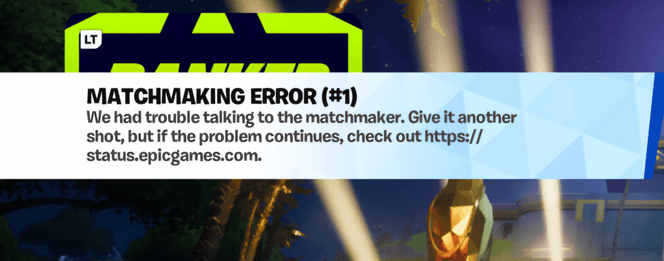
Source: Reddit
Is the Fortnite matchmaking error caused by the servers or my internet?
Before you start tearing your router apart, you need to determine if the problem is on your end or Epic’s.
The fastest way to check is the official Fortnite Status page or their dedicated X account. If you see a sea of green "Operational" marks, the issue is likely local.
However, if there is a "Major Outage" listed under matchmaking, no amount of troubleshooting will help until Epic deploys a fix.
You can also check community sites like Downdetector to see if other players in your specific region are reporting similar spikes in connectivity issues.
How do I fix a Fortnite matchmaking error on PC?
PC players have the most tools at their disposal but also the most potential software conflicts.
If you are stuck in a loop, follow these steps to clear out the digital cobwebs:
- Verify Game Files: Open the Epic Games Launcher, go to your Library, click the three dots under Fortnite, select Manage, and hit Verify. This checks for any corrupted files that might be blocking the connection.
- Clear the Launcher Cache: Close the launcher completely. Press Windows Key + R, type %localappdata%, and hit enter. Find the EpicGamesLauncher folder, open Saved, and delete any folders starting with "webcache".
- Run as Administrator: Right click the Epic Games Launcher icon and select Run as Administrator. This ensures the game has all the permissions it needs to access your network.
- Flush Your DNS: Open the Command Prompt as an admin and type ipconfig /flushdns. This clears old, potentially broken pathing data from your internet settings.
- Disable Background Apps: Apps like Discord, Spotify, or even certain browser tabs can hog bandwidth. Close anything non essential before queuing up.
What should console players do to resolve matchmaking issues?
Consoles are generally more "plug and play," but they still suffer from cache buildup and NAT type restrictions. If you are on PlayStation, Xbox, or Switch, try these platform specific fixes:
- PlayStation 5 / PS4: Perform a full power cycle. Turn off the console completely (not rest mode), unplug the power cord for 30 seconds, and restart. You can also go to Settings > Network > Test Internet Connection to see if your NAT Type is Type 2 (Open) or Type 3 (Strict). Type 3 will almost always cause matchmaking errors.
- Xbox Series X/S: Clear your persistent storage. Go to Settings > Devices & Connections > Blu-ray > Persistent Storage and clear it. Even if you don't use discs, this clears a specific cache used by the system that often interferes with game data.
- Nintendo Switch: Manual DNS settings often work wonders here. Go to Internet Settings, select your network, and change DNS to Manual. Use 8.8.8.8 as Primary and 8.8.4.4 as Secondary.
Can changing my matchmaking region fix the error?
Sometimes, the specific server node you are assigned to is having a bad day. If you keep getting an error on your "Auto" region, go to the in game Settings, click the Gear icon, and manually select the next closest region with a low ms (milliseconds) count.
If you normally play on NA East, try NA Central or NA West. You might have slightly higher ping, but it can bypass a localized server outage and let you play while the main node recovers.
Just remember to switch it back once the issue is resolved globally.
Why does disabling cross-play cause matchmaking errors?
This is a known "feature" that feels more like a bug. If you have disabled cross-play in your account settings because you want to avoid players on other platforms, Fortnite often struggles to find enough players with that same setting to fill a 100 person lobby.
This results in the matchmaking system timing out and throwing an Error #1.
For the fastest and most stable experience, keeping cross-play enabled is almost always necessary in the current ecosystem of the game.
Also read: High Ping Playing Fortnite in India? See How to Fix it
How does NoPing help with Fortnite matchmaking errors?
Many matchmaking errors are actually "timeout" errors where your computer fails to receive a response from the server within a set window.
NoPing solves this by optimizing the route your data takes. Standard internet service providers often send your data through a long, congested "highway" with many unnecessary stops.
NoPing acts like a GPS for your game packets, finding the shortest and most stable path directly to the Fortnite servers.
By reducing packet loss and jitter, it ensures that the "handshake" between your game and the matchmaking service happens instantly, preventing the errors caused by unstable routing.
Here’s how to use NoPing to fix high ping in online games:
- Sign-up through the website and download NoPing (you can test it for free).
- Open NoPing and search for your game inside the software
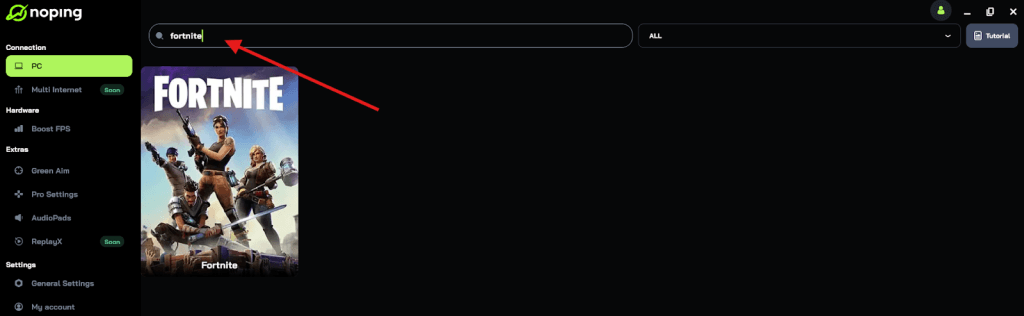
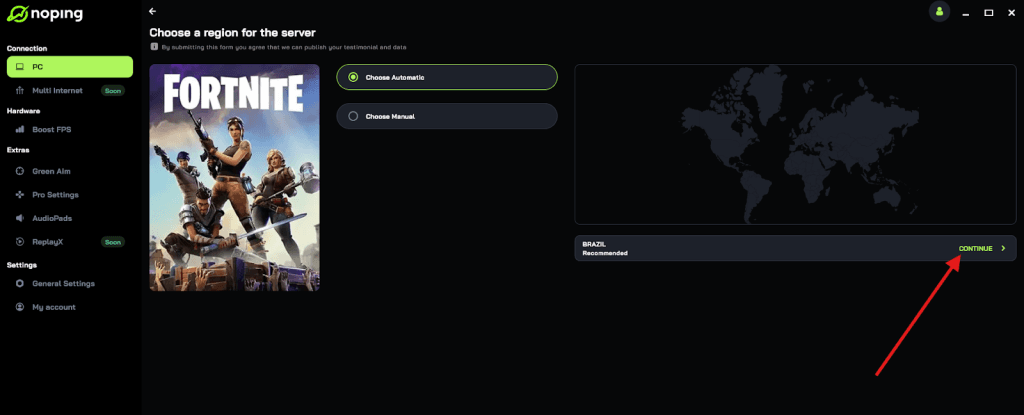
- Once you find it, click on it and, on the next screen, select “Choose automatic” or “Choose manual” and click “Continue”. We recommend choosing automatic, as NoPing’s technology analyzes all routes on a global scale and automatically selects the best option for you.
- On the next screen, click on “Optimize Game”.
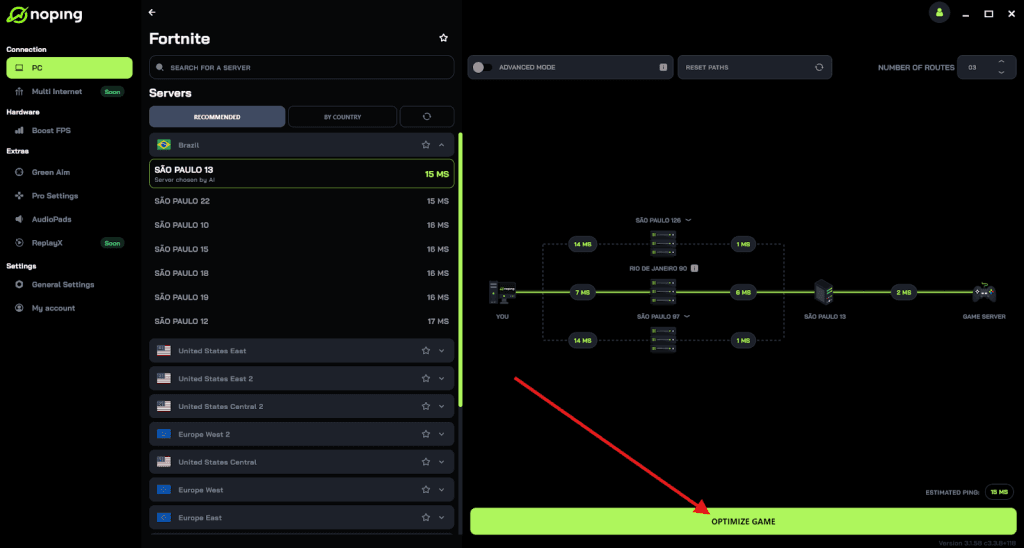
- And that’s it, you can start playing with optimized ping!
You can test different servers within NoPing to see which gives you the lowest latency.
What if I have a custom matchmaking key active?
If you were recently playing in a tournament or a private scrim, you might have left a custom matchmaking key in your settings.
Having any text in that box will prevent you from joining standard public matches. Go to the game mode selection screen, look for the "Custom Key" or "Matchmaking Options" button at the bottom right, and make sure the text field is completely empty.
Accept the changes and try queuing for a normal Battle Royale match again.
Is my router’s NAT type the hidden problem?
NAT (Network Address Translation) determines how easily your router allows incoming data from the internet. If your NAT is "Strict" or "Type 3," your router is basically acting like a very paranoid bouncer, blocking the server's attempts to connect you to a match.
To fix this, you can enable UPnP (Universal Plug and Play) in your router settings or set up Port Forwarding for Fortnite.
Using an optimization tool can also help navigate these restrictions by creating a more streamlined connection that is less likely to be blocked by aggressive firewall settings.
Play Fortnite without lag. Download NoPing now and start your free trial!