


If you’re trying to fix lag on PC, you first need to figure out what kind of lag you’re dealing with.
Stutter and low FPS usually point to hardware or software performance on your machine. Rubberbanding, hit-reg issues, and delayed actions point to network latency.
Those two buckets behave differently, so the right fix depends on the symptoms.
Below, I’ll help you quickly tell them apart and then walk you through 21 proven fixes you can apply today.
Why is Your PC Lagging?
“Lag” is an umbrella term. Two common types:
- Performance lag shows up as low or unstable FPS, hitching when new areas load, or sudden dips when many effects appear. Causes include outdated graphics drivers, background apps eating resources, insufficient RAM or VRAM, thermal throttling from heat, heavy visual effects, or storage that’s too full or slow. Windows settings like visual effects and power modes can also get in the way. Microsoft’s own guides call out background apps, storage pressure, and visual effects as frequent culprits and provide built-in tools to help.
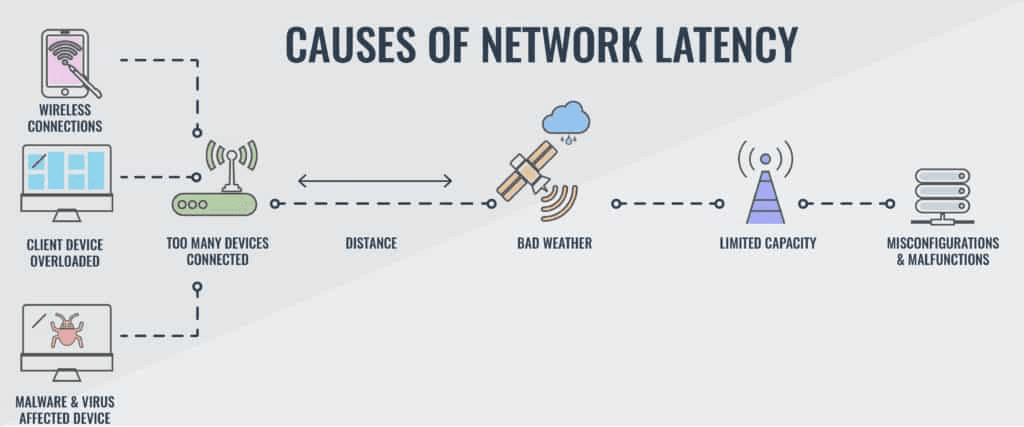
- Network lag shows up as delayed actions, teleporting players, or shots not registering. That’s about latency and packet delivery to the game server rather than FPS. Game support teams consistently distinguish the two: low FPS is rendered locally, latency is your connection to the server.
Understanding which one you have lets you target the right fixes instead of changing random settings.
10 Ways to Fix Lag on PC
Use the list like a checklist. Start with the quick wins at the top, then move down to deeper optimizations.
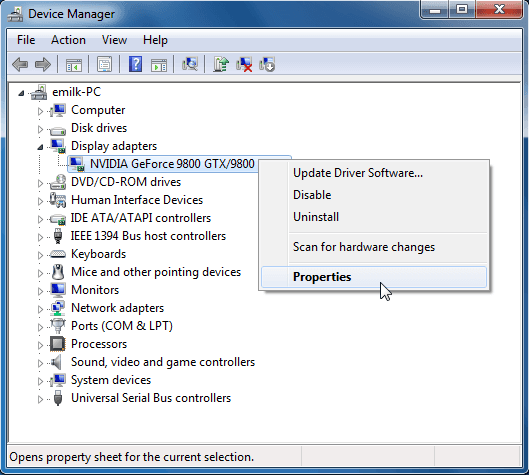
1. Update your GPU and chipset drivers (first thing to try)
Step 1 — Identify your GPU (NVIDIA, AMD, Intel).
Step 2 — Download the official updater: NVIDIA GeForce Experience or NVIDIA drivers page, AMD Adrenalin / Auto-Detect, or Intel Driver & Support Assistant.
Step 3 — Run the updater; choose a clean install if you have persistent problems.
Step 4 — Restart and test a game. If a new driver creates issues, roll back to the previous driver or use a clean uninstall tool (DDU) and reinstall a stable driver.
Why this matters: GPU drivers often fix rendering bugs and performance regressions; vendors publish regular updates and rollback options.
Source: Algodoo
2. Check for thermal throttling and improve cooling
Step 1 — Monitor temps with a utility (your motherboard vendor’s tool, Intel XTU, HWMonitor, or Speccy).
Step 2 — Run a stress test or play a demanding game and watch whether clock speeds drop as temps rise. If clocks fall sharply when temperatures climb, you likely have throttling.
Step 3 — Clean dust from fans and heatsinks; ensure case airflow is unobstructed.
Step 4 — Re-apply CPU/GPU thermal paste if the system is old or paste looks dried (only if you’re comfortable opening the PC).
Step 5 — Consider a better CPU cooler, additional case fans, or a laptop cooling pad for notebooks.
Thermal throttling forces CPUs/GPUs to slow down to protect hardware, which shows up as sudden stutter. Manufacturer guidance covers correct cooling and installation practices.
3. Reduce background resource hogs and tweak Windows for gaming
Step 1 — Open Task Manager → Startup and disable unneeded startup apps.
Step 2 — In Task Manager’s Processes tab, sort by CPU, Memory, Disk and close resource-heavy apps while gaming (browser tabs, updaters, cloud sync).
Step 3 — Turn on Windows Game Mode (Settings → Gaming → Game Mode) to reduce background interruptions.
Step 4 — Use Storage Sense to free disk space and remove large temporary files (Settings → System → Storage → Storage Sense).
Step 5 — Set Power Mode to “Best performance” while plugged in (Settings → System → Power).
Freeing CPU, RAM and disk I/O for your game often fixes stutter caused by system contention; Windows includes Game Mode and Storage Sense for exactly these tasks.
4. Move games to a fast SSD (or NVMe) and keep drive healthy
Step 1 — Check where your game is installed. If it’s on an HDD, plan to move it to an SSD (SATA SSD) or, for best results, an NVMe drive.
Step 2 — Back up saves, then use your game launcher’s “move install” option or reinstall to the SSD/NVMe.
Step 3 — Keep at least ~15–20% free space on the drive used for games and enable TRIM (modern OSes do this automatically).
Step 4 — If you still see in-game streaming pop-in, confirm the game supports asset streaming optimizations and that texture/streaming settings aren’t set higher than your GPU/VRAM can handle.
SSDs—especially NVMe—reduce load times and can reduce some asset-streaming stutters, though results vary by game and engine.
5. Use a wired Ethernet connection and reduce network noise
Step 1 — If you’re on Wi-Fi, plug directly into the router with an Ethernet cable and retest ping.
Step 2 — If you must use Wi-Fi, move to 5 GHz, reduce interference, or use a Wi-Fi 6 router and place the router closer.
Step 3 — On the router, enable QoS or traffic prioritization for your gaming device (if available), and pause large downloads from other devices while gaming.
Wired Ethernet typically delivers lower latency and fewer packet drops than Wi-Fi, which is crucial for multiplayer responsiveness.
6. Use NoPing
NoPing is a service designed to optimize your route to games’ servers.
Sometimes, the normal path your internet provider uses isn’t the fastest. NoPing reroutes your data through a better, more direct path. And this dramatically reduces lag.
Here’s how to use NoPing to fix lag in online games:
- Sign-up through the website and download NoPing (you can test it for free).
- Open NoPing and search for your game inside the software
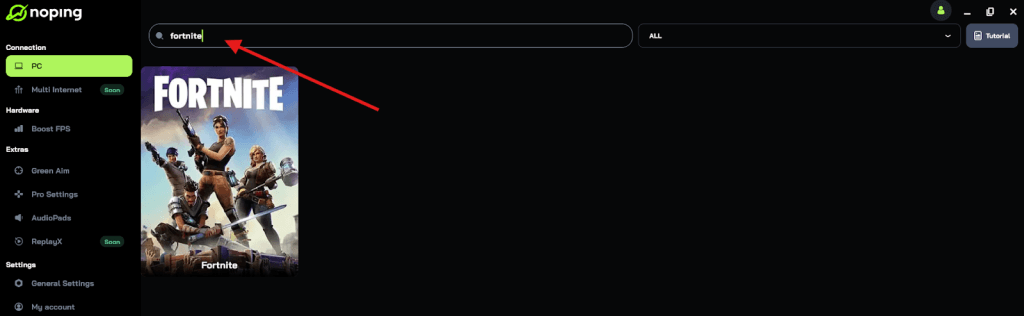
- Once you find it, click on it and, on the next screen, select “Choose automatic” or “Choose manual” and click “Continue”. We recommend choosing automatic, as NoPing’s technology analyzes all routes on a global scale and automatically selects the best option for you.
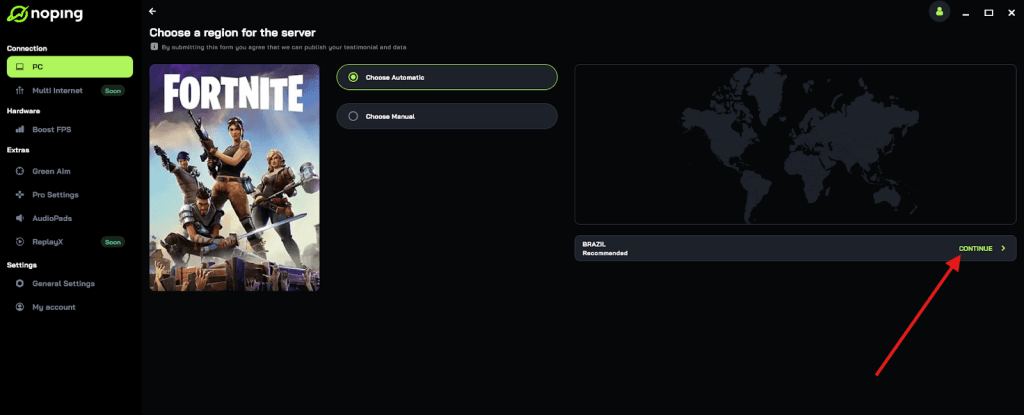
- On the next screen, click on “Optimize Game”.
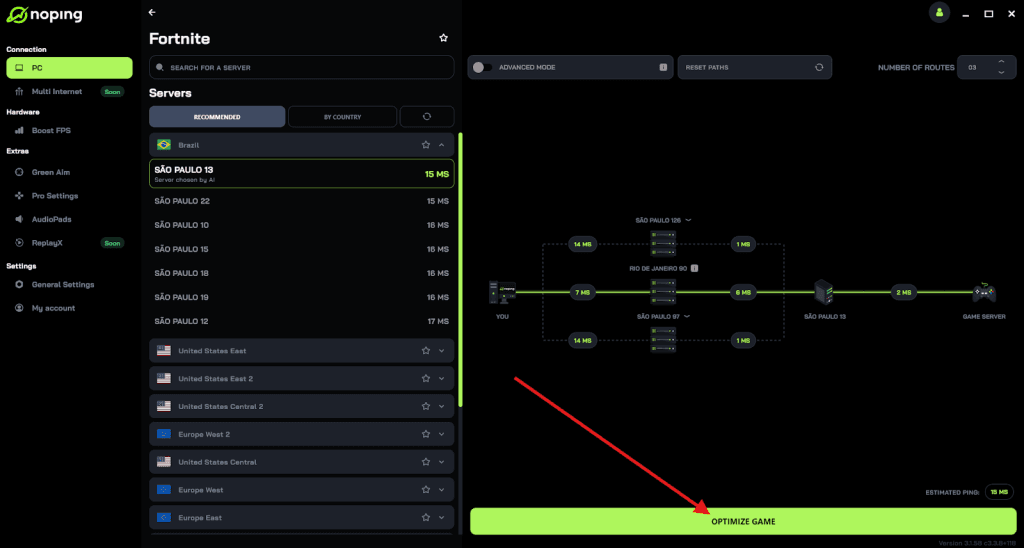
- And that’s it, you can start playing with optimized ping!
You can test different servers within NoPing to see which gives you the lowest latency.
7. Tune in-game graphics and frame pacing (adaptive sync / framerate caps)
Step 1 — Lower the heaviest settings first: resolution scale, shadows, ray tracing, volumetrics, and high-res textures.
Step 2 — Enable V-Sync only if you have stutter from tear; better: enable G-SYNC or FreeSync if your monitor and GPU support it.
Step 3 — Try capping FPS slightly above your monitor’s refresh rate (or to a stable value) to reduce frame-time spikes.
Step 4 — Test frametime consistency using an in-game FPS counter or tools (RTSS / built-in overlays) rather than relying on average FPS.
Smooth frametimes often matter more than the absolute FPS number; adaptive sync and sensible caps can yield a much smoother experience.
8. Check RAM usage and page file; upgrade if needed
Step 1 — Open Task Manager → Performance → Memory while running your game and see whether RAM is maxed out.
Step 2 — Close background apps or browsers that use lots of memory.
Step 3 — If you frequently hit high RAM usage, add more RAM (matching speed and timings) or increase Windows page file as a temporary measure.
Step 4 — After adding RAM, test again—many open-world and modern games benefit from 16–32 GB depending on settings and mods.
Running out of RAM forces Windows to swap, which shows up as severe stutter. Monitor before buying to be sure it’s the bottleneck. (Manufacturer and platform guides recommend monitoring RAM pressure as a first step.)
9. Repair game files, verify integrity, and keep launchers updated
Step 1 — In Steam/Epic/Origin/Uplay/Galaxy, use the “Verify game files” or “Repair” function.
Step 2 — Clear shader caches if the launcher or game supports it (some games store a compiled shader cache that can become corrupted).
Step 3 — Keep the game and launcher up to date, and check the game’s official forums if a recent patch introduced regressions.
Corrupted assets or broken caches can cause odd, reproducible stuttering for specific titles; verification is a low-risk troubleshooting step.
10. Last resort: reset Windows or clean reinstall
Step 1 — Back up saves, keys, and any important data.
Step 2 — Try “Reset this PC” with the “Keep my files” option, then reinstall fresh drivers and required software.
Step 3 — If problems persist, perform a full clean install of Windows and reinstall only what you need for testing.
A reset or reinstall removes accumulated cruft and driver conflicts, but it’s disruptive, only use this to fix lag on PC after other steps fail.
FAQ - Fix Lag on PC
How can I tell if my problem is FPS or network latency?
Watch your game’s performance overlay. If FPS stays high but actions feel delayed or players snap around, that’s latency. If the game looks choppy and FPS dips, that’s performance. Game and platform support teams treat these as different issues for a reason.
Is Game Mode worth using on Windows 11?
Yes, it’s very low effort and can cut background noise while you play. It won’t magically add 50 FPS, but it helps with consistency on busy systems, and it’s officially supported in Windows Settings.
What temps are normal under load?
Typical gaming temps vary by chip, cooler, and case. What matters is stability and avoiding thermal throttling. If clocks drop suddenly as temps rise, improve cooling and airflow. Intel’s material explains throttling as a protective behavior when temperatures exceed safe limits.
Should I enable Hardware-accelerated GPU scheduling?
If your GPU and driver support it, try both On and Off. Microsoft’s DirectX team notes the toggle only appears on supported systems, and it can reduce CPU overhead in some cases. Test it with a demanding title and keep whichever setting is smoother for you.
How much free space should I keep on my game drive?
As a rule of thumb, keep at least 15–20 percent free. Windows and many games stream data and write caches in the background, and full drives cause stutter. Storage Sense can automate cleanup.
Do overlays and capture apps really affect performance?
They can. Some updates introduce regressions that impact streaming and capture, and turning off overlays or changing capture modes often helps until patches land.
If you made it this far, you have a solid game plan to fix lag on PC. Start with drivers, Windows updates, startup apps, and storage space. If your issue is network-side, go wired and test routing with NoPing. Then tune graphics settings and cooling. With those steps, most PCs can go from stuttery and spiky to smooth and responsive.
Download NoPing now and play more than 3000 games without lag! Start your free trial!