


If you’ve been jumping into matches lately, chances are you’ve run into Marvel Rivals lag at some point.
Maybe your character rubberbands across the map, maybe the frame rate tanks during a big fight, or maybe the game just hangs forever on the loading screen. Whatever form it takes, lag makes the game feel worse than it should.
The upside is that most of these problems can be narrowed down to a few common causes, and with the right tweaks, you can usually smooth things out.
This guide breaks down what’s going wrong, why it happens, and how to fix it step by step.
What Types of Lag You Might Have in Marvel Rivals
Lag isn’t one thing. In a fast 6v6 hero shooter, different bottlenecks look similar in the moment but need different fixes. The most common types:
Network latency and packet loss
This shows up as delayed ability activations, rubberbanding, “shot around the corner” moments, teleports, or team fights that feel a full beat behind. Your FPS counter might be fine, but the game feels out of sync with the server.
FPS drops and stutter
These are performance issues on your PC. You feel frame pacing hiccups, micro-stutter, or big dips when a fight gets busy. Your ping is stable, but aiming and tracking feel choppy.
Disk or asset streaming stalls
Long loads, a “stuck at 99%” moment, or mid-match streaming pauses when new assets load. This is often storage-related, especially when installed on a slow or external drive.
App conflicts and overlays
Overlays, recorders, RGB tools, or hardware monitoring apps can hook into the game and cause intermittent stutter or capture-related hitches.
Server or match quality variance
Sometimes everything on your end is fine, but the match feels worse than the previous one. That’s often server load or routing variance to the specific data center you landed in. Community reports mention match-to-match ping swings and spikes.
What Causes Lag in Marvel Rivals?
There are a few Marvel-Rivals-specific notes worth calling out.
First, it’s a fast, ability-dense hero shooter with destructible environments and lots of simultaneous effects.
That’s a perfect recipe for both CPU-bound (lots of actors, physics, and ability logic) and GPU-bound (VFX-heavy) scenarios.
If your rig is under the recommended bar or you’re right at the minimum, expect frame pacing challenges during big team fights.

The game’s official Steam page confirms anti-cheat is “NetEase Game Security,” which can also add some overhead while it monitors the process.
Second, Marvel Rivals has had community-documented issues around loading and the “99%” hang that improves when the game is installed on an SSD instead of a hard drive or slow external device.
While not a guaranteed cure, many players report the 99% symptom or long loads drastically improve after moving the install to an internal SSD.
Third, match quality can vary. Steam and community threads include reports of pre-match ping looking fine but then spiking in-match, suggesting server-side load or routing variance to the active match server.
That indicates part of the lag picture is outside your PC and depends on network path quality to the current data center.
Finally, make sure your system meets or exceeds requirements. Several reputable roundups put the minimum CPU around an Intel i5-6600K or Ryzen 5 1600X and the GPU around a GTX 1060 or RX 580, with Windows 10 64-bit and tens of gigabytes of space.
If you’re below that bar, you’ll fight FPS jitter no matter what you tweak.

Source: The Gamer
16 Ways to Fix Lag in Marvel Rivals
Use the quick checks first, then move to deeper fixes. Combine network and performance steps for best results.
1. Verify you meet or beat the game’s specs
If you’re under the commonly cited minimums (i5-6600K/R5 1600X, 12–16 GB RAM, GTX 1060/RX 580, Windows 10 64-bit, ~70 GB storage), you’ll struggle in team fights. Check your parts and plan upgrades if needed.
2. Move Marvel Rivals to an internal SSD
If you installed on an HDD or external drive, relocate it to a fast internal SSD. This specifically helps long loads and the notorious “99%” stall, and can reduce asset-streaming hitches. It’s one of the most frequently reported community fixes.
3. Update GPU drivers cleanly
Install the latest NVIDIA/AMD/Intel graphics drivers. If you’ve done many updates, use a clean install option to remove old profiles. New drivers often include shader compilation changes and optimizations for current seasons in popular games.
4. Cap your FPS to your monitor and turn off Frame Generation if unstable
A hard 60, 120, or 144 FPS cap can stabilize frame pacing. If you’re experimenting with features like Frame Generation and seeing jitter, test the game with those off to isolate whether they’re causing micro-stutter. Community posts mention trying this while chasing packet loss symptoms.
5. Tame the big hitters in graphics settings
Lower volumetrics, shadows, post-processing, and effects first. Keep textures moderate if you have limited VRAM. The goal is to reduce spikes in heavy team fights that feel like lag but are actually CPU/GPU stalls.
6. Close overlays and capture tools
Disable Discord overlay, Steam overlay, GPU overlays, Xbox Game Bar, GeForce Experience instant replay, MSI Afterburner/Rivatuner, and any screen recorders while testing. Overlays can introduce hook-related stutter that feels like lag.
7. Use NoPing for smarter routing
High ping and packet loss are often route issues between your ISP and the game’s data center.
NoPing is a network optimizer that can improve your path to the server, reduce jitter, and cut spikes by tunneling through less congested routes.
Here’s how to use NoPing to fix lag in Marvel Rivals:
- Sign-up through the website and download NoPing (you can try it for free)
- Open NoPing and search for Marvel Rivals inside the software

- Once you find Marvel Rivals, click on it. Choose your server on the next screen and click on “Optimize Game”.

- And that’s it, you can start playing Marvel Rivals with optimized ping!
You can test different servers within NoPing to see which gives you the lowest latency.
8. Go wired and clean up your local network
If you’re on Wi-Fi, switch to Ethernet. Reboot your modem/router, and disconnect bandwidth-hungry devices or downloads. If you must use Wi-Fi, use the 5 GHz band near the router, or a dedicated gaming SSID, and avoid DFS channels if your router keeps hopping.
9. Power plan and background apps
Use the High Performance (or AMD/NVIDIA equivalent) power plan on desktop. On laptops, set plugged-in performance to maximum. Close browsers with many tabs, cloud sync clients, torrent apps, RGB suites, and other background tasks that can cause CPU interrupts or bursts of disk I/O.
10. Verify game files
Corrupted assets can cause stutters or loads that hang. Use Steam’s “Verify integrity of game files.” Players dealing with long loads and 99% stalls report verifying files as part of a successful fix stack.
11. Keep Windows lean
Update Windows, chipset drivers, and your motherboard BIOS if you’re seeing odd CPU scheduling or USB dropouts with headsets and controllers. Disable third-party overlays that boot with Windows. A clean startup helps isolate conflicts.
12. Avoid external USB drives for installation
Even if they’re “SSD,” external drives can add latency or hiccups depending on controllers and cables. Community advice for this game specifically warns against non-internal drives and recommends an internal SSD.
13. Try windowed fullscreen and consistent foreground focus
If you alt-tab a lot or run multiple monitors, test borderless fullscreen and keep the game focused. Some systems see stutter when the game loses focus and frame presentation fights with the desktop compositor.
14. Reduce audio buffer stress
High CPU usage can come from sound devices and effects stacks. Set your default playback device to a simple output, disable spatial audio temporarily, and close audio software while testing.
15. Keep an eye on thermals and clocks
Thermal throttling feels like random lag because clocks drop suddenly in the middle of fights. Monitor CPU/GPU temps and ensure fans are clean and profiles are sensible. Undervolting and fresh thermal paste can stabilize clocks on older rigs.
16. Reinstall on a clean path if all else fails
If you’ve tried everything, do a clean reinstall on the internal SSD after removing leftover folders in the game’s install directory and AppData. A clean slate occasionally resolves stubborn stutter caused by modded configs or stale caches.

Why is Marvel Rivals Loading Screen so Laggy?
Two big reasons keep coming up in player reports:
First, storage speed. Installing the game on a traditional hard drive or an external device is strongly linked to the “stuck at 99%” symptom and very long loads.
Moving the game to an internal SSD is one of the most frequently cited fixes, both in Steam discussions and Reddit threads. Even if it doesn’t cure every case, enough people report success that it’s worth trying early.
Second, file integrity and overlays. Corrupt assets or background overlays can make the loader stall. Verifying files and stripping overlays during testing are simple steps many players take right before the issue clears.
Some guides and community posts also suggest disabling extra overlays or capture tools while loading, and a few video walkthroughs show SSD moves and file verify as the core flow.
There’s also the match-to-match angle. A lobby might look fine, then the first seconds after “99%” feel sluggish because the match server you landed on is under load or your route to it isn’t ideal. That doesn’t always show up in a menu ping number, which is why players sometimes see a good pre-match ping and worse in-match results.
Best Graphics Settings for Marvel Rivals
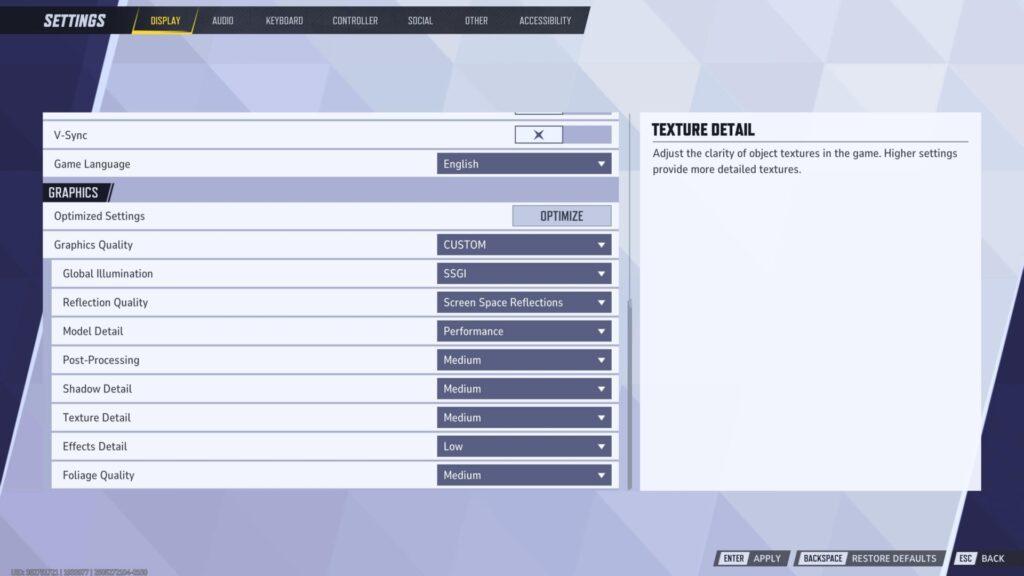
Not all settings in Marvel Rivals affect performance equally. Some eat up resources with little visual payoff, while others can be lowered without changing how the game looks much at all. If you’re struggling with FPS drops or stutter, start by tuning the following:
- Shadows: One of the biggest performance hogs. Set shadows to medium or low for a major boost without breaking immersion.
- Volumetrics and effects: Explosions, smoke, and particle effects look cool, but they’re demanding. Lowering these often smooths out hectic team fights.
- Post-processing: Effects like motion blur and bloom can add extra strain. Disabling or reducing them makes the game feel more responsive.
- Textures: Keep textures as high as your GPU’s VRAM can handle. Dropping them too low can actually cause stutter when assets load in.
- Resolution and render scale: Running at native resolution is ideal, but if you’re below the recommended GPU, lowering render scale to 90% or 85% can free up frames while keeping visuals sharp.
The key is balancing clarity with stability. Many players find that a mix of medium and high settings delivers smooth performance without the game looking too stripped down.
Always lock your FPS to what your system can sustain, whether that’s 60, 120, or 144, so frame pacing stays consistent.
Source: Esports Insider
Marvel Rivals Server Status and Outages
Sometimes lag has nothing to do with your PC or internet, it’s the servers.
Marvel Rivals uses regional servers, and like any online game, they can experience outages, maintenance, or spikes in traffic. If you’re seeing unusually high ping or frequent disconnects, it’s worth checking whether the problem is on their end.
Here are a few ways to check server status:
- Steam community hub and announcements: Developers often post updates about maintenance windows or issues.
- Official Marvel Rivals social channels: Twitter (X), Discord, or the game’s website usually share live updates during outages.
- Community reports: Reddit threads and Steam discussions can reveal if many players are experiencing the same problems at the same time.
If the servers are having trouble, there isn’t much you can do beyond waiting or switching regions if the game allows it.
But knowing it’s not your hardware or network saves you time troubleshooting the wrong things.
Troubleshooting Marvel Rivals Crashes vs. Lag
It’s easy to confuse crashes with lag, since both interrupt gameplay, but they come from very different causes. Lag is usually a delay or stutter that lets you keep playing, while a crash hard-stops the game. Distinguishing between the two helps you pick the right fix.
- Lag symptoms: delayed inputs, rubber-banding, FPS dips, or stuttering audio. The game keeps running, but it feels unresponsive.
- Crash symptoms: sudden exit to desktop, error messages, or the game freezing entirely until you force close it.
If you’re dealing with crashes, focus on:
- Updating GPU drivers and DirectX.
- Verifying game files through Steam.
- Checking for conflicts with overlays, antivirus, or third-party apps.
- Ensuring you’re not running out of RAM or VRAM, especially during longer play sessions.
For lag, the fixes are more about optimizing performance and stabilizing your connection (like moving the game to an SSD, tweaking graphics, or using routing tools like NoPing).
By separating crashes from lag, you avoid chasing the wrong solution and save time getting back into matches.
FAQ - Marvel Rivals Lag
How do I know if my lag is network or FPS related?
Watch your in-game FPS counter and your ping or network graph at the same time. If FPS tanks when abilities and VFX erupt but ping is steady, that’s performance. If FPS is fine but you rubber-band or abilities trigger late, that’s network. Test both: lower graphics and cap FPS, then separately test wired Ethernet and close bandwidth-hungry apps.
Does Marvel Rivals have anti-cheat that might affect performance?
Yes. The Steam page lists “NetEase Game Security.” Like most anti-cheats, it can add some overhead, but on a healthy system that overhead is usually small compared to graphics and CPU load from the match itself.
What are the minimum specs I should realistically target?
Community and spec roundups point to at least an i5-6600K/R5 1600X, 12–16 GB RAM, and a GTX 1060/RX 580-class GPU, with Windows 10 64-bit and around 70 GB of space. If you’re under that, expect to compromise on settings and still see dips.
Can I pick a server region in Marvel Rivals to lower ping?
The game doesn’t prominently expose manual server selection on the Steam page, and player reports mostly discuss ping variance between matches rather than a clear “choose region” toggle. Treat routing as variable and focus on improving your path and local network quality.
Is the 99% loading bug always fixed by moving to SSD?
Not always, but it’s the most commonly reported fix. Combine it with verifying files and disabling overlays during testing. If you were installed on an external drive, moving to an internal SSD is especially important.
Why does my ping look fine in the menu but spike in matches?
Menu ping may reflect a nearby or lightly loaded endpoint, while the actual match spins up on a different server or route. That’s why you can see 40–50 ms before queue and then 80+ ms with spikes once you’re in the round, as players have reported. Network optimizers and wired connections help here.
Should I reinstall Windows to fix Marvel Rivals lag?
That’s a last resort. Most users fix issues by moving the game to an internal SSD, verifying files, updating drivers, simplifying overlays, and stabilizing their network path. Only consider a full OS reinstall if you see system-wide problems in multiple games.
Does cross-play affect lag?
Cross-play itself isn’t what causes lag. What you’re feeling is almost always a combination of network path quality, server load, and your PC’s frame delivery under pressure. If your FPS is stable and your ping is clean, cross-play won’t change much.
Where can I confirm official details about the game?
The Steam page lists the developer, anti-cheat, release date, and general features. For system requirements and ongoing notes, check reputable roundups and benchmarks in addition to the Steam page and community hub.
If you try the list in order, you’ll quickly figure out whether your pain is network, performance, or storage.
Start with the internal SSD move and file verify if your symptom is long loads or a sticky “99%,” then tackle FPS stability, then network path quality with a wired connection and routing optimizer with NoPing.
So, download NoPing now and play Marvel Rivals without lag! Start your free trial!