

Playing CS2 should feel sharp and responsive, but sometimes it just doesn’t. Net jitter in CS2 is one of the biggest reasons why your shots miss, your movement feels clunky, or enemies seem to teleport around.
It’s not the same as plain high ping. It comes in unpredictable spikes, making the game inconsistent and frustrating.
The good news is that jitter can be fixed, and in this guide we’ll go over what it is, how to spot it, what usually causes it, and the most effective ways to get rid of it.
Read these articles about CS2!
- How to Boost FPS in Counter-Strike 2?
- Fixing Packet Loss in CS2: A Complete Guide
- Best Ways to Fix Rubberbanding in CS2?
What is Net Jitter in CS2?
Net jitter is the variability in the time it takes for packets to travel between your PC and the CS2 server.
In human terms: ping tells you the average delay, jitter tells you how consistent that delay is. High jitter means your latency is unstable (sometimes packets arrive fast, sometimes they’re delayed) causing micro-stutters, inconsistent hits, and erratic player movement on screen.
This isn’t the same as constant high ping; you can have low average ping but still suffer if jitter is high.

Source: Reddit
How to Fix Net Jitter in CS2?
Below are standalone fixes. Each technique can be applied independently; combine several for the best result.
Use a wired (Ethernet) connection
Wi-Fi is inherently more variable than Ethernet due to radio interference, signal strength changes and shared channels.
For competitive shooters like CS2, switching to a wired connection is one of the fastest, most reliable ways to reduce jitter.
Use a good-quality Cat5e or Cat6 cable and plug directly into your router or, better, your modem/router combo’s Ethernet port.
Restart and update networking gear
A full reboot of your modem and router clears transient routing issues and can resolve jitter caused by overloaded devices. Also make sure your router firmware and modem firmware are up to date; some stability bugs are fixed in updates.
If your ISP provided an ISP-branded router, you can try a brief test with a different router or modem (if available) to rule out hardware faults.
Disable background bandwidth-hogging apps
Uploads and downloads from cloud services, Windows updates, streaming services and other devices on your network will increase jitter by introducing congestion.
Before a session close apps like Steam downloads, OneDrive/Google Drive sync, streaming, or large file transfers on other devices. Use Task Manager to check which local apps use bandwidth and either shut them down or pause syncing during play.
Tweak NIC (network adapter) and power settings
Some network adapters (especially certain Realtek controllers) have Windows power-saving and offload features that introduce packet timing variability.
Disabling power saving and toggling advanced adapter options (e.g., interrupt moderation, energy-efficient Ethernet, offloads) has helped players reduce jitter.
If you have a Realtek or non-Intel controller and notice problems, try changing those settings in Device Manager → Network adapters → Properties → Advanced. Be cautious and change one option at a time.
Limit your max acceptable ping / select nearest servers
CS2 matchmaking and server selection can affect how often your packets traverse unstable routes.
Some players decrease jitter by tightening their allowed max ping or selecting regions closer to them, even if that slightly increases match wait time, because it reduces the number of intermediate hops and keeps the route more stable.
This is a trade-off: longer queue for more stable play.
Use NoPing to optimize routing and reduce jitter
NoPing improves routing between players and game servers, which lowers ping and reduce jitter by choosing better network paths.
Here’s how to use NoPing to fix net jitter in Counter-Strike 2:
- Sign-up through the website and download NoPing (you can try it for free)
- Open NoPing and search for Counter-Strike 2 inside the software
- Once you find Counter-Strike 2, click on it and, on the next screen, select “Choose automatic” or “Choose manual” and click “Continue”. We recommend choosing automatic, as NoPing’s technology analyzes all routes on a global scale and automatically selects the best option for you.
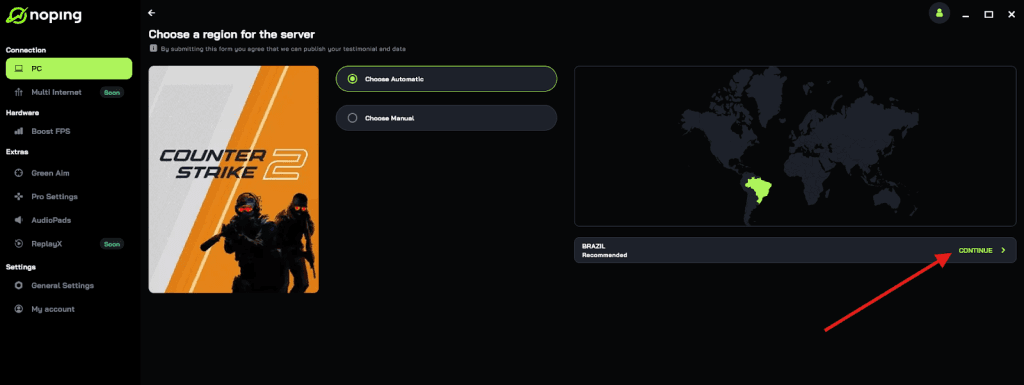
- On the next screen, click on “Optimize Game”.

- And that’s it, you can start playing CS2 with optimized ping!
You can test different servers within NoPing to see which gives you the lowest latency.
Check and, if needed, call your ISP
If you see constant packet loss or jitter that nothing on your end fixes, the issue may be on your ISP’s route to the game servers.
Running traceroutes or sending your ISP a packet loss/jitter report and asking them to check routing can lead to fixes on their side. Some ISPs are responsive; others require persistence.

How to Check Net Jitter in CS2?
CS2 provides telemetry and there are a few straightforward ways to inspect jitter in-game and from your system. Try these checks:
- Enable the in-game Telemetry HUD (CS2 settings) or use console telemetry commands to show packet loss and jitter graphs on screen. The Telemetry HUD reports network stats that include packet loss and jitter-like info.
- Use the developer console commands (e.g., telemetry-related console vars) to display server receive graphs and logs. Exact command names can change across updates, so check the latest CS2 console docs or community posts for the current variables.
- Run external tools: ping, tracert/traceroute and continuous ping tests to the CS2 server IP can show variability in response times. For advanced users, tools like WinMTR show per-hop packet loss and jitter over time.
What is Causing Net Jitter in CS2?
Jitter is almost always the result of inconsistent delivery times between your PC and the game server. Common causes include:
- Local Wi-Fi interference or poor Wi-Fi signal strength, causing variable packet timing.
- Congestion on your local network (other users/devices streaming, large uploads).
- Router/modem issues or buggy firmware leading to unstable packet forwarding.
- Suboptimal ISP routing or transient problems on the path to the game servers. Sometimes a single hop in the route causes spikes.
- Network adapter driver quirks or power-saving features that alter packet handling timing (Realtek and similar controllers are mentioned repeatedly in community reports).
Jitter vs Packet Loss vs Choke in CS2
When troubleshooting network issues in Counter-Strike 2, you’ll hear several technical terms that all relate to how data travels between your PC and the game servers, but they aren’t the same thing, and understanding the differences helps you figure out what’s going wrong.
Jitter is the variation in how long it takes packets to travel between your computer and the server. If packets don’t arrive at consistent intervals, the game has trouble synchronizing your inputs with the server state.
This can lead to teleporting enemies, delayed actions, or stutter even when your ping is low and seemingly stable. The game uses metrics like Net Jitter to warn you when packet timing is unreliable.
Packet loss refers to packets that never make it from your PC to the server or back at all. When packets are lost, the server doesn’t get critical information (movements, shots, grenade throws) so it can’t update the game correctly.
In CS2 this often feels like rubberbanding, delayed movement, or shots that clearly should hit but don’t register. Because the server doesn’t receive some of your data, it must estimate your position until more information arrives.
Choke is subtle but important: it happens when the server declines to send you packets because your client asked for more data than it can handle, often due to your network settings (like cl_updaterate) or congestion.
In essence, the server buffers or drops outgoing packets because it can’t keep up. On a network graph (net_graph) it’s measured separately from loss and can indicate that your connection settings aren’t aligned with what the server expects.
All three can create a feeling of lag or inconsistency in CS2, but the underlying causes differ. Jitter is about timing variation, packet loss is about missing data, and choke is about the server not sending enough data back.
Distinguishing them on net graphs or telemetry makes diagnosing your connection much more effective.
How Server Tickrate Influences the Perception of Jitter
If you’re familiar with CS:GO, you know tickrate used to be one of the biggest factors in how smooth gameplay felt. In CS2, Valve introduced something called sub-tick networking, but the concept of ticks still matters.
In traditional FPS networking, tickrate refers to how many times per second the server processes and relays game state information.
CS2 servers operate at a baseline of 64 ticks per second—meaning updates about players’ positions, shots, and actions are sent 64 times every second.
With sub-tick, CS2 takes this a step further: instead of only registering events at discrete tick moments, the server attaches timestamps to player inputs as they happen, which gets incorporated into the next update. This improves precision and compensates for limitations of a fixed tickrate.
However, this system still relies on the network delivering packets in a predictable way. If jitter is high—meaning packets arrive at inconsistent intervals, then even with sub-tick the server receives your actions later or unevenly compared to other players.
This can make movement feel uneven or shot registration inconsistent, because the server’s understanding of the timeline becomes noisy.
In contrast, a more stable connection with minimal jitter allows sub-tick updates to function as intended: smoother hit registration and predictability even at the same nominal tickrate.
So while CS2 doesn’t run on the higher 128 tick servers commonly used in third-party matchmaking platforms, consistent network timing becomes even more important because the server expects precise arrival times to align with subtick inputs. Jitter undermines that expectation, making gameplay feel like lag even when ping is low.
How Jitter Affects Different Playstyles in CS2
Not all players are affected by jitter in the same way, and the impact can vary a lot depending on your role or playstyle in CS2.
Entry Fraggers and Duelists
Players who peek first and engage enemies head-on rely on rapid, precise timing: peek, spot, shoot. With jitter, the server may receive your peek or shot late relative to the opponent, making your timing feel off and your trade-frags inconsistent.
Movement might also look jumpy to others because of irregular packet timing, hurting your aggression rhythm and coordination.
AWPers and Precision Shooters
Jitter hits precision roles hard. Because these players depend on single bullets and split-second reactions, variation in latency timing means the server might register your shot after a brief delay or perceive your position slightly differently from what you see.
This increases the chance that scoped shots miss or feel inconsistent, even when your aim is spot-on.
Support and Utility Roles
Players focused on nades, smokes, flashes, and coordination can suffer from timing errors introduced by jitter.
Grenade throws might detonate slightly late or early on the server relative to what you see, disrupting execute timings that rely on coordinated utility usage. This isn’t just visual—it impacts round planning where milliseconds matter.
Anchors and Defenders
Defensive players who hold angles and wait for opponents can also be negatively affected because jitter alters perceived enemy positions.
If packet arrival varies, enemies might appear closer or farther than they actually are, making pre-aims less reliable. Even if ping stays low, high jitter will feel like the game is unpredictable when opponents appear around corners.
Across all these styles, the common thread is that consistent packet timing matters more than low ping alone.
A stable connection allows the server to interpret your actions as close to real time as possible, which is key for competitive accuracy and reaction timing.
FAQ - Net Jitter in CS2
Q: Can in-game graphics settings affect network jitter?
A: Not directly. GPU settings affect frame generation and local frame timing, not packet delivery. However, extreme GPU/CPU overload can produce inconsistent frame times that feel like network stutter. So if you see stutter that coincides with heavy FPS drops, optimize game settings to rule out local performance as the cause.
Q: Are specific CS2 server locations more jitter-prone?
A: Yes. Some geographies and specific data centers show more instability due to regional routing or overloaded infrastructure. If you consistently see jitter, try playing on a different nearby region to compare—if one region is stable and another isn’t, it’s likely server-side or ISP-route related.
Q: Is packet loss the same as jitter?
A: Not exactly. Packet loss in CS2 means some packets never arrive; jitter means packets arrive at inconsistent intervals. Both can cause stutter and lost hits in a shooter, and they often appear together, but they are distinct metrics. Use telemetry and tools to separate them.
Q: How much jitter is “acceptable” for CS2?
A: There’s no universal threshold because human perception and server behavior vary. As a rule of thumb, keep jitter under ~20 ms for a solid competitive feel; above that you may notice inconsistent movement or shot registration.
If you see frequent spikes much higher than that, start troubleshooting. This number is a practical guideline based on community experience, not an official Valve spec.
Fix net jitter in CS2 now with NoPing! Download and start your free trial!