


Path of Exile 2 stuttering can be a real buzzkill, especially when you’re in the middle of an intense boss fight or trying to clear a crowded map.
While the game offers a ton of depth and excitement, performance issues like stuttering can quickly pull you out of the experience.
In this guide, we’ll cover the causes of stuttering and show you how to get your game running buttery smooth again, so you can focus on looting and leveling, not frame drops.
What Causes Stuttering in Path of Exile 2?
“Stutter” usually means inconsistent frame delivery. You might still see high average FPS, but the timing between frames is uneven, so the game feels choppy. The main culprits tend to be:
- Shader compilation & asset streaming. PoE2 renders a ton of effects, and when the engine compiles shaders or streams in new assets, you can get brief hitches. Choosing the right renderer (DirectX 12 vs. Vulkan) and managing shader caches can help.
- GPU/CPU bottlenecks and settings choices. Heavy shadows/GI, vsync/triple buffering combos, and upscaling settings can smooth or destabilize frame pacing depending on your hardware.
- Drivers and overlays. Old or buggy drivers, plus overlays from Discord, Steam, and GPU software, can add hitching or input latency.
- Storage and disk access. An HDD—or an SSD that’s nearly full or busy—can cause streaming hitches when the game loads new assets. The recommended spec calls for an SSD.
- Network jitter/packet loss. PoE’s lockstep style networking makes unstable connections feel like “stutter.” Picking the nearest gateway and stabilizing your route reduces rubberbanding and spikes.

Source: Integrated Research
17 Ways to Fix Path of Exile 2 Stuttering
1. Start With the In-Game Performance Graphs (F1)
On PC, press F1 in-game to cycle the performance graphs (FPS, frame time, CPU/GPU, latency). Watch which line spikes when stutter happens—graphics (rendering/VRAM), CPU, or network (latency). That tells you which fixes to test first.

Source: Path of Exile Forum
2. Switch Renderer: DirectX 12 vs. Vulkan
PoE2 supports both DX12 and Vulkan. Some rigs run smoother on DX12; others see fewer hitches on Vulkan. Test both and keep the one with the most stable frame-time. (Many players report DX12 feels smoother while Vulkan can be steadier on some setups.) Change it under Graphics → Renderer.
3. Update (or Reinstall) Your GPU Drivers
NVIDIA and AMD ship optimizations and fixes for PoE2. Install the latest Game Ready/Adrenalin driver, and consider a clean install if you’ve been upgrading over old versions
4. If a New Driver Made Things Worse, Roll Back
It happens: sometimes a brand-new driver introduces micro-stutter or crashes. If you noticed issues right after updating, roll back to your last known-good driver and retest. (NVIDIA’s own support notes how to manually clean-install, which you can also use to revert.)
5. Pick a Stable Upscaler: DLSS/FSR/XeSS
Upscaling can reduce GPU load and smooth frame delivery. PoE2 supports modern upscalers; AMD’s official FSR list includes Path of Exile 2. Try DLSS/FSR/XeSS at a balanced mode first, then adjust. If you see ghosting or shimmering that bothers you, switch the upscaler or raise the quality preset.
6. Cap Your Frame Rate and Revisit VSync/Triple Buffering
Fast, unstable FPS often feels worse than a slightly lower but rock-solid cap. Limit FPS to your monitor’s refresh (or a multiple), test VSync Off plus a cap, and try Triple Buffering if you insist on VSync. GameSpot’s testing notes Triple Buffering can help some rigs; your goal is clean frame-times, not the biggest number.
7. Engine Multithreading: Keep It On
Engine Multithreading distributes work more evenly across CPU cores and is generally recommended for smoother play. Keep it On unless you have a specific reason to disable it during troubleshooting.

Source: Path of Exile Forum
8. Tame the Heavy Hitters: Shadows/GI and Shading
If you’re spiking in busy scenes, first lower Shadows + Global Illumination and Shading Quality, they’re high-impact settings in PoE2. Textures stress VRAM; keep them High only if you have the headroom.
9. Toggle NVIDIA Reflex (and Similar Latency Features)
Reflex can reduce input latency, but on some systems it may hurt stability. Try On or On + Boost, play for a bit, then compare with it Off. Keep whichever gives steadier frame-times.
10. Disable Overlays and Background Recorders
Discord overlay, Steam overlay, Xbox Game Bar capture/recording, third-party FPS counters, and GPU overlays can introduce hitching. Disable them while you test. If stutter improves, bring them back one at a time.
11. Close Background Apps That Hook or Stream
Wallpaper/live-background apps, browser tabs with hardware acceleration (Chrome/Edge), and RGB or monitoring apps can cause spikes. GGG forum troubleshooting lists these as common stutter sources: kill them for a session and retest.
12. Use a Wired Connection and the Nearest Gateway
If your spikes correlate with the latency line, you’re looking at network stutter. Use Ethernet if possible, and pick the closest gateway/realm in the login menu (avoid “Auto” if it keeps picking something far). This reduces jitter and packet loss.
13. Use NoPing to Optimize Your Route
If your ISP’s path to the game servers is the problem, NoPing can reduce ping in Path of Exile 2, jitter, and packet loss by steering traffic through a better path.
Here’s how to use NoPing to fix stuttering in online games:
- Sign-up through the website and download NoPing (you can test it for free).
- Open NoPing and search for your game inside the software

- Once you find it, click on it and, on the next screen, select “Choose automatic” or “Choose manual” and click “Continue”. We recommend choosing automatic, as NoPing’s technology analyzes all routes on a global scale and automatically selects the best option for you.

- On the next screen, click on “Optimize Game”.
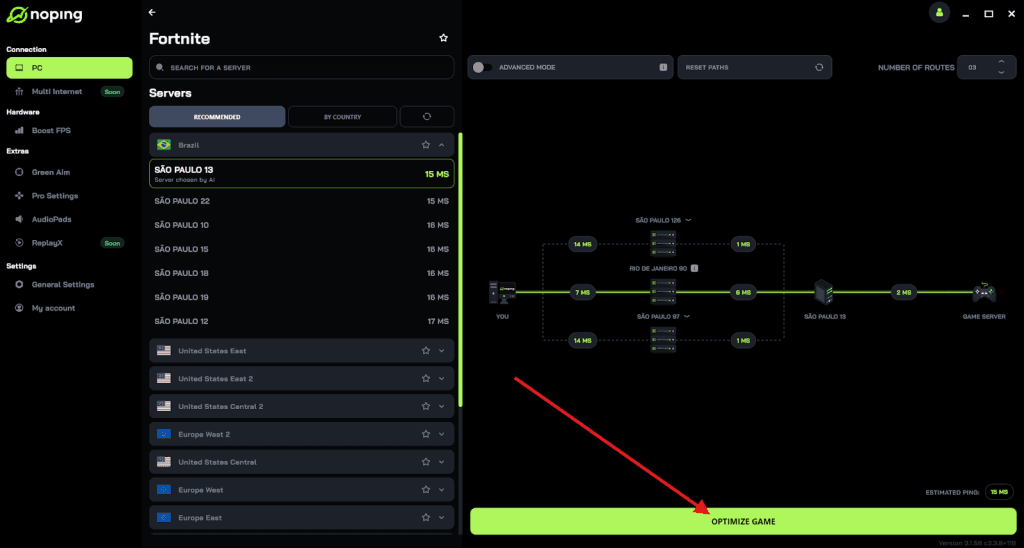
- And that’s it, you can start playing with optimized ping!
You can test different servers within NoPing to see which gives you the lowest latency.
14. Clear/Regenerate Shader Caches
Corrupted or bloated shader caches can cause hitching during compiles. Two ways to refresh:
• Windows Disk Cleanup → clear DirectX Shader Cache; and/or
• Temporarily disable then re-enable shader caching (in NVIDIA Control Panel) to force a rebuild. NVIDIA’s docs also explain why shader caches exist and how they affect stutter.
15. Verify Game Files and (If You Can) Install on an SSD
Broken or partial files = glitches and hitches. In Steam: Library → POE2 → Properties → Installed Files → Verify integrity. If you’re still on a hard drive, move the game to a fast SSD; the recommended spec calls for SSD storage.
16. Windows Tweaks: Game Mode and HAGS
Enable Game Mode (Windows 10/11) so Windows minimizes background interference. Consider testing Hardware-Accelerated GPU Scheduling (HAGS): it can help some DX12 workloads, though benefits vary by GPU/driver—so A/B test with PoE2.
17. Don’t Disable Fullscreen Optimizations (Despite Old Advice)
Older PC guides often recommend turning this off. For PoE, community troubleshooting lists now specifically flag disabling Fullscreen Optimizations as not recommended due to the negative effect on performance/stability. Leave it on unless you have a very specific reason.
Path of Exile 2 Settings to Avoid Stuttering
Use the performance graphs to decide what to tweak first, then try this approach:
- Renderer: Test DX12 and Vulkan for 10–15 minutes each in the same scene (town + a busy map). Keep the one with cleaner frame-times (not just higher average FPS).
- Upscaling: Try DLSS/FSR/XeSS at Balanced as a starting point; if you notice artifacting, go Quality. Upscaling lowers GPU load and often tames frametime spikes. (FSR support is officially listed for PoE2.)
- VSync/Triple Buffering: If you get tearing or uneven pacing, use a frame cap and consider Triple Buffering with VSync; otherwise, VSync Off + a cap can also stabilize things.
- Heavy settings to turn down first: Shadows + GI, Shading Quality. Keep Engine Multithreading On. If VRAM is tight, lower Texture Quality.
- VRR/G-Sync/FreeSync (optional): If your monitor supports it, enabling variable refresh rate can make fluctuating FPS feel much smoother.
Path of Exile 2 System Requirements
From the Steam store page (Windows).
Minimum (1080p Low, ~30 FPS target):
- OS: Windows 10 64-bit
- CPU: Intel Core i5-2500K / AMD FX-8100
- RAM: 8 GB
- GPU: NVIDIA GTX 950 / AMD Radeon R7 370
- Storage: 40 GB available space (SSD recommended)
Recommended (1080p High, ~60 FPS target):
- OS: Windows 10 64-bit
- CPU: Intel Core i7-6700 / AMD Ryzen 5 1600
- RAM: 16 GB
- GPU: NVIDIA GTX 1070 / AMD Radeon RX 5600 XT
- Storage: 40 GB SSD
Tip: Meeting “Recommended” doesn’t guarantee zero stutter in every scenario. Busy scenes, loot explosions, and certain skills will always stress the engine more, so keep an eye on the frame-time graph and adjust the heaviest settings first.
FAQ - Path of Exile 2 stuttering
Is Path of Exile 2 still in Early Access?
Yes. Early Access began December 6, 2024, with ongoing patches and balance/performance updates since then. Expect improvements (and occasional regressions) across updates as GGG iterates.
Does PoE2 support modern upscalers like DLSS or FSR?
Yes, PoE2 supports modern upscalers, and Path of Exile 2 appears on AMD’s official FidelityFX Super Resolution (FSR) supported games list. If you see ghosting or visual issues with one upscaler, try another or move to a higher quality preset.
What’s the easiest way to compare settings changes?
Use the in-game performance graphs (press F1 on PC) and test in the same area for a few minutes per change. You’re looking for fewer/smaller frame-time spikes on the graph, not just higher average FPS.
Which renderer is “best,” DX12 or Vulkan?
There isn’t a universal winner. Many players find DX12 a bit smoother, while others report Vulkan avoids specific hitches on their setup. Test both for your hardware and stick with the one that feels most consistent.
Can a bad route to the server really look like stutter?
Absolutely. Packet loss and jitter can cause rubberbanding and input delay that feels like stutter. Use Ethernet, pick the nearest gateway, and consider a route optimizer like NoPing if your ISP’s path is the bottleneck.
Should I disable Windows security features for performance?
Windows offers options like Game Mode and Hardware-Accelerated GPU Scheduling that are generally safe to try. Disabling security features (like Memory Integrity/Virtualization) may show gains but comes with risk; only do so if you understand the trade-offs and revert when you’re done.
Path of Exile 2 stuttering is solvable when you approach it methodically: identify whether the spikes are render, CPU, or network; test the renderer; trim the heaviest settings; clean up drivers and shader caches; stabilize your connection (and gateway); and only then reach for the more experimental tweaks.
And to always have the best connection to avoid stuttering in Path of Exile 2, use NoPing! Download now and start your free trial!