

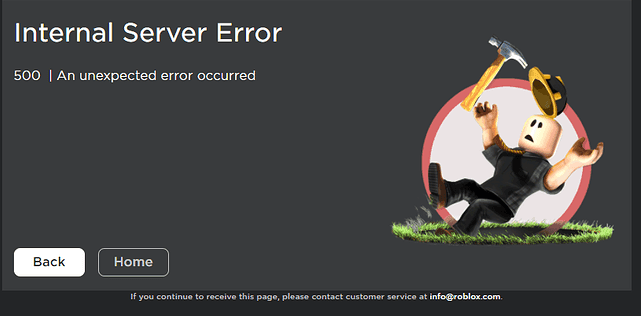
Roblox error 500 pops up when something goes wrong on Roblox’s servers and the site or Studio cannot complete your request.
It is one of those vague messages that does not tell you what failed, only that the server knew something was wrong and could not finish the job.
In this guide I’ll explain what the error means, what usually causes it, and a practical list of fixes and workarounds you can try right now.
What is Roblox Error 500?
A 500 Internal Server Error is an HTTP status code that means the server encountered an unexpected condition and could not fulfill the request.
In plain terms, your request reached Roblox’s servers but something went wrong while processing it. This is different from network errors where your computer fails to reach the server in the first place.
For general background on the meaning of 500 errors across the web, see a plain-language explanation.
On Roblox, 500 errors commonly appear in these situations:
- Publishing a place or asset from Roblox Studio
- Opening a game page or asset page on the website
- Using APIs like DataStores or GroupService in scripts
- Developer dashboard pages such as payouts or analytics (sometimes tied to CDN/origin issues)
Also read: How to Lower Ping in Roblox and Adjust Your Connection
How to Fix Roblox Error 500
Because many 500 errors are server-side, no single client-side fix works every time.
Still, the following steps are practical and have helped many developers and players get around the problem or confirm whether the issue is on Roblox’s side.
Check Roblox status and outage trackers
First step: check Roblox’s official status page or third-party outage trackers to see if there is a known outage.
If Roblox or major CDN providers like CloudFront/Cloudflare are having issues, you will likely see reports from other users.
Major infrastructure outages (AWS, Cloudflare, etc.) can produce widespread 500 errors across many services, Roblox included. If an outage is reported, you mostly need to wait for Roblox or the provider to fix it.
Reload and retry
Simple but effective: reload the page, retry the publish, or try again in Studio. Temporary glitches sometimes resolve in seconds or minutes.
Restart Roblox Studio and your browser
Close and reopen Studio or the browser tab. For Studio, completely quit the application (not just minimize) and relaunch. This clears transient states that can trigger retries that fail.
Save locally before retrying
If publishing a place or asset, save a local copy of your work before attempting more publishes.
Several devs recommend saving locally then closing Studio to force a save prompt which can act as a temporary bypass for the error in some cases.
Check permissions and ownership
If only you are affected and others can publish or edit the same place, you might lack the correct permissions.
A common scenario: attempting to publish a place you are not the Owner of, or lacking publish permissions for a Group experience.
Ask the place owner to publish or grant you permission. This is a frequent cause when the 500 appears only for a single user.
Turn off Team Create (if applicable)
There have been times when Team Create-related issues caused 500s while publishing. If Team Create is enabled and you suspect it is related, try disabling it temporarily, save a local copy, and attempt publishing again.
Inspect Studio’s Output and Network logs
Developers who are comfortable with the Studio output window can look for specific error messages or repeated exceptions.
If you see a specific API failing (for example GroupService), try optimizing the calls or adding retries with pcall in scripts. For DataStore calls, add error handling and backoff logic; the server could be overloaded and retries with delay reduce pressure.
Try a different machine or account
If possible, attempt the same action from another PC or account. If it works elsewhere, the problem is likely local to your environment.
Contact Roblox Support with logs
If nothing helps and the problem blocks crucial tasks, open a support ticket and include timestamps, Studio logs, and a clear description of what you tried.
This gives Roblox engineers the data they need to investigate deeper.

Also read: How to Boost FPS in Roblox and Increase Your Performance
What Causes Roblox Error 500?
Here are the common root causes based on community reports and Roblox engineering notes:
- Server-side bugs or backend outages: The most common cause. Complex backend systems, CDN misconfigurations, or cloud provider outages can lead to 500 responses for many users at once.
- API or service overload: High load on DataStores, Asset API, or other services can trigger internal errors when servers cannot handle requests reliably.
- Permission issues: Lack of publish permissions for a place or group causes some requests to fail and gives the appearance of a server error for the caller.
- Client-side abnormal requests: Very large uploads, corrupted assets, or malformed requests sometimes trigger unhandled server-side exceptions that return 500.
- Networking and CDN routing problems: If CloudFront or another CDN can’t reach Roblox origin servers, users can see 500 or related errors for dashboard pages or asset endpoints.
Other Roblox Error Codes
A few other codes you might encounter and what they usually mean:
- 400 Bad Request: The request is malformed or missing required data. Often client-side.
- 401 Unauthorized / 403 Forbidden: Authentication or permission problem. Check login or ownership.
- 404 Not Found: The requested asset or page no longer exists.
- 502 Bad Gateway / 503 Service Unavailable / 504 Gateway Timeout: Upstream server problems or temporary overload. These often indicate wider outages or maintenance windows.
- 429 Too Many Requests: You are being rate limited for making too many requests in a short time.
FAQ
Q: Will reinstalling Roblox or clearing cache fix Error 500?
A: It might help for client-side problems, but if the root cause is a server-side issue, reinstalling will not fix it. Clearing browser cache can help if the website served a bad cached response, but this is not a guaranteed fix.
Q: Is Error 500 the same as being banned or suspended?
A: No. Error 500 is a technical/server error. Account suspensions or bans usually show different messages or explicit notices in your account settings or emails.
Q: How long do Roblox 500 outages usually last?
A: There is no fixed time. Some incidents resolve in minutes, others take hours depending on the cause and whether the issue is with Roblox’s backend or a third-party provider. When major cloud providers are involved it can take longer while routing and infrastructure recover. Check Roblox status and community updates for estimates.
Q: I keep getting 500 on DataStore calls in my live game. Should I pause the game?
A: Add robust error handling and exponential backoff for DataStore calls. Pausing the whole game is rarely necessary. Instead, prevent data loss by saving locally when possible and informing players that persistence may be delayed.
Q: Are there permanent fixes I can make to prevent 500 errors?
A: Because many 500 errors originate on Roblox’s servers, you cannot permanently prevent them. What you can do is make your client and server logic resilient: add retries, backoff, thorough error handling, and informative user messages. Also keep local backups of work and assets before publishing.
Play Roblox without lag. Download NoPing now and start your free trial!