

To optimize a gaming PC for low latency you need to treat the problem as both a network issue and a system-wide tuning task.
One affects packets on the wire, the other affects how fast your PC turns those packets into frames and responds to your input.
I’ll walk you through what latency actually is, the different kinds of latency that matter for gamers, and a practical, step-by-step checklist to reduce it on a Windows gaming PC.
What is Latency?
Latency is the delay between an action and its result.
In networking terms it’s usually the time a data packet takes to travel from your PC to a server and back; people call this round-trip time (RTT) and measure it in milliseconds.
For gaming, lower latency means faster hit registration, snappier movement, and more immediate responses to input. Network latency is only one piece of the puzzle—system latency (how fast your PC processes input and displays frames) matters just as much.
What are the types of latency?
Latency in gaming is the sum of several delays. Here are the categories you should know about:
Network latency: the time for packets to reach the server and come back (RTT). Influenced by routing, physical distance, ISP peering, and congestion.

Source: Cisco
Input latency: time between your input device (mouse/keyboard/controller) registering a press and the OS receiving it. USB polling rate, wireless vs wired, and drivers affect this.
Processing/rendering latency: CPU and GPU time to simulate a frame and produce the image that will be presented. This includes game engine logic, draw calls, GPU work, and driver overhead.
Display latency (present-to-display): time between the GPU presenting a frame and the display actually lighting pixels. This is affected by refresh rate, vsync, display processing, and technologies like G-Sync/FreeSync.
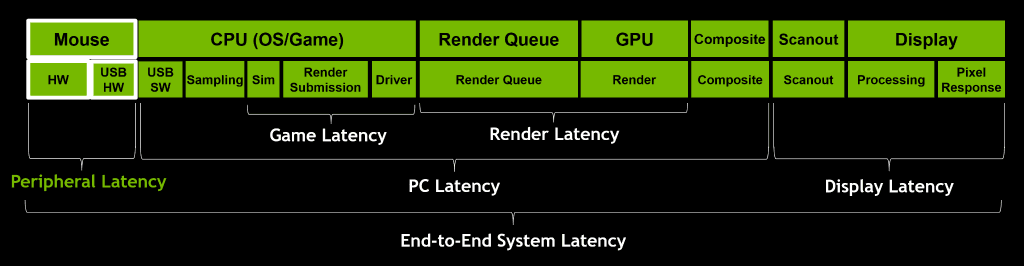
Source: NVIDIA
Bufferbloat and queuing delay: extra latency caused by oversized buffers in home routers or modems that intentionally hold packets (to avoid loss) but increase delay under load. This is especially noticeable when someone else in the house starts a big download or a stream.
Understanding which of these dominates your experience is the first step to fixing lag.
Step-by-Step to Optimize a Gaming PC for Low Latency
Below is a practical sequence you can follow.
I organize it from simplest checks to deeper system and network changes. Follow as many as apply: each one chips away at different latency sources.
Use wired Ethernet first
Swap Wi-Fi for a gigabit Ethernet cable when possible. Wireless adds variable delay, interference, and often higher jitter. If you must use Wi-Fi, use 5 GHz, place the PC closer to the router, and avoid crowded channels.
Test your baseline (ping, traceroute, bufferbloat)
Run ping to your game server (or common servers) to measure RTT. Use tracert/traceroute to see routing hops. For bufferbloat, try an online test (search for "DSLReports bufferbloat test") to see if your router queues are the culprit. These tests help identify whether the problem is ISP/routing or local.
Prioritize the gaming device at the router (QoS)
Enable QoS or Smart Queue Management (SQM) on your router and prioritize your PC's IP/MAC or the ports your game uses. SQM implementations that control bufferbloat (cake, fq_codel) are especially effective. If your ISP modem and router are combined, check whether they expose QoS settings.
Keep drivers and firmware updated (but be cautious)
Update GPU drivers, motherboard chipset drivers, and network adapter drivers from official vendor sites. Also check your router/modem firmware. However, avoid beta drivers unless you need them for a specific fix. Updated drivers often include latency-related fixes and better USB/PCIe handling.
Use a high-quality network adapter and cable
A modern Gigabit Ethernet NIC performs better than cheap USB adapters. Use good Cat5e/Cat6 cables. If you use USB dongles for adapters or for input devices, prefer USB 2.0 vs 3.0 ports depending on device recommendations to avoid electrical interference.
Tweak Windows for gaming latency
Turn on Game Mode (or test turning it off if you see problems): Windows' Game Mode tries to prioritize game processes and reduce background interruptions; results vary across setups so test both.
Set your game executable to High Performance in Graphics Settings (System > Display > Graphics > Browse > set performance).
Use a High Performance power plan to avoid CPU throttling during gaming.
Reduce background network traffic and heavy disk/CPU tasks
Close or suspend cloud backups, streaming, torrent clients, Windows Update downloads, and other heavy network/disk tasks while gaming. A single large upload/download can dramatically increase latency due to queueing.
Tune in-game settings for responsiveness
Aim for frame rates higher than your display refresh rate for minimum input-to-display latency. Turn off V-Sync if you see increased input lag, or use adaptive sync technologies (G-Sync/FreeSync) which reduce tearing without the latency penalty of traditional V-Sync.
Lower overly expensive graphics options that cause CPU or GPU bottlenecks, which can increase frame time variance and perceived lag.
Adjust USB polling rates and input hardware settings
For wired mice, increase polling rate (e.g., 1000 Hz) if supported and if your system handles it. For wireless devices, use dedicated dongles or low-latency modes (e.g., “Pro” mode on some gaming mice) to avoid added input delay.
Consider MTU and TCP/Nagle tweaks only if you know what you’re doing
Changing MTU and disabling Nagle (TCP_NODELAY) are advanced network tweaks that can help in very specific situations but can also cause problems. Most gamers should only try these if they’ve diagnosed a TCP-level delay and know how to revert the change.
Use NoPing
NoPing is a service designed to optimize your route to games’ servers. Sometimes, the normal path your internet provider uses isn’t the fastest. NoPing reroutes your data through a better, more direct path.
Here’s how to use NoPing to fix high ping in online games:
- Sign-up through the website and download NoPing (you can test it for free).
- Open NoPing and search for your game inside the software
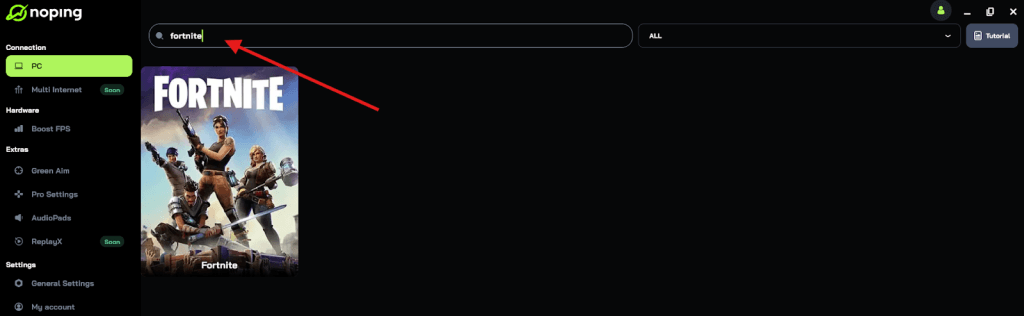
- Once you find it, click on it and, on the next screen, select “Choose automatic” or “Choose manual” and click “Continue”. We recommend choosing automatic, as NoPing’s technology analyzes all routes on a global scale and automatically selects the best option for you.
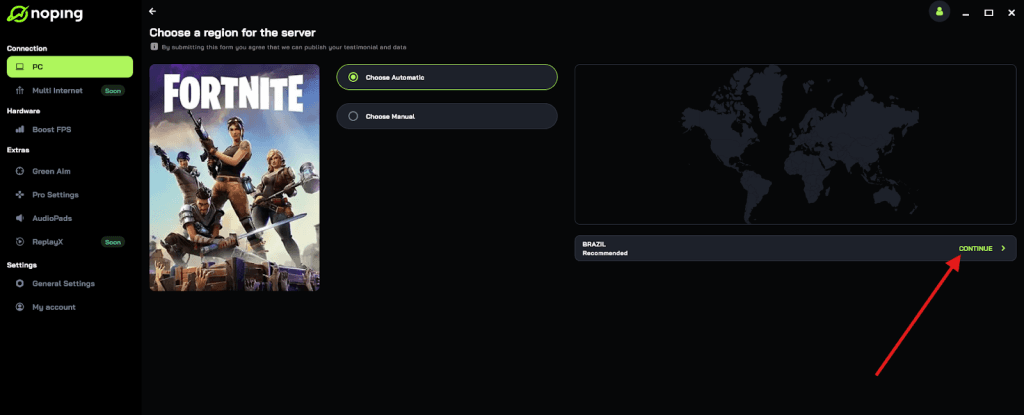
- On the next screen, click on “Optimize Game”.
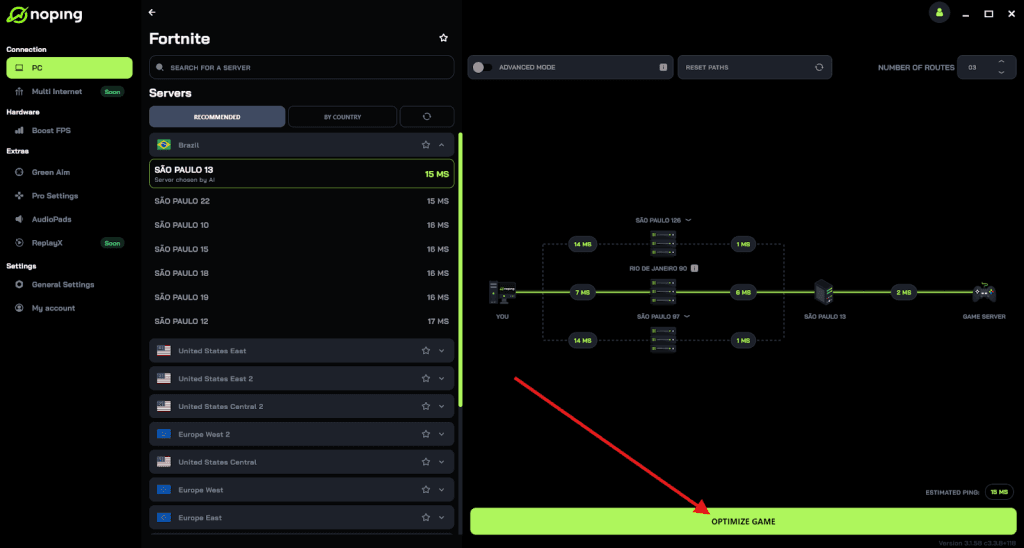
- And that’s it, you can start playing with optimized ping!
You can test different servers within NoPing to see which gives you the lowest latency.
Monitor and measure regularly
Use tools like pingplotter, integrated game server ping displays, and LatencyMon to track improvements and spot regressions. Keep notes of changes you make so you can revert if something makes things worse.
FAQ - optimize gaming PC for low latency
Q: My ping spikes only when someone in the house starts a call or watches 4K video. Is that bufferbloat?
A: Yes, what you’re seeing is classic bufferbloat or queuing delay. When upstream (upload) is saturated, buffers in modems/routers hold packets that increase latency for interactive traffic. Solutions include enabling SQM (cake/fq_codel) on a compatible router, limiting upload speeds for devices via QoS, or upgrading your router/modem to one with better CPU and QoS features. If your ISP modem is the bottleneck and doesn’t allow custom firmware, using a separate router that supports SQM between the modem and your network can help.
Q: Windows Game Mode causes stuttering: should I turn it off?
A: If you experience micro-stutters with Game Mode on, try toggling it off—reports are mixed and it can help some setups while hurting others. Test with real gameplay and measure. Keep drivers and Windows updated, since Microsoft occasionally adjusts Game Mode behavior.
Q: Will upgrading to 2.5GbE or 10GbE reduce my latency?
A: Upgrading to faster Ethernet (2.5GbE/10GbE) reduces bandwidth bottlenecks but doesn’t directly reduce RTT to remote servers—the biggest wins are lower congestion on local LAN transfers. For internet latency to remote servers, you'll only see improvements if your existing uplink or local switch was saturating or introducing processing delays.
Q: How much improvement should I expect after tuning?
A: If the issue is local (Wi-Fi jitter, bufferbloat, background uploads), you can see major improvements: stable pings, lower jitter, and fewer spikes. If the issue is physical distance to the game server or poor ISP peering, improvements will be smaller unless you fix routing by switching ISP, using a routing-optimiser service, or connecting to a nearer server.
Latency is a system problem: network, input, processing, and display all add up. The pragmatic approach is to measure first, fix the low-hanging fruit (wired connection, QoS, close background traffic), and then iterate, test one change at a time and keep measurements so you know what actually helped.
And to always have the best connection to play your favorite games without lag, use NoPing! Download now and start your free trial!