

Communication in a fast-paced shooter is the backbone of your strategy.
In Battlefield 6, where the maps are larger and the destruction is more intense than ever, being able to talk to your squad can be the difference between a successful push and a total wipeout.
Whether you are a veteran of the franchise or a newcomer joining the 2026 chaos, mastering the communication tools is essential for survival.
How do you enable voice chat in Battlefield 6?
You enable voice chat by:
- navigating to the Audio section within the Settings menu
- Once there, scroll down to the Voice Chat or VOIP category and toggle the main switch to On.
By default, the game might have this set to off or squad-only, so ensuring it is active is your first step toward coordination.
After turning it on, you can choose between Open Mic and Push to Talk. If you are on a PC, Push to Talk is highly recommended to avoid broadcasting your background noise to twenty other people.
On consoles like PS5 and Xbox Series X|S, the system usually defaults to Open Mic, but you can adjust the microphone threshold to ensure it only picks up your voice when you are actually speaking.

What are the best settings for clear voice communication?
The best settings involve balancing the game audio with the chat volume and setting a proper microphone threshold.
In the same Audio menu, you should look for the Voice Chat Ducking option, which automatically lowers the game's explosions and gunfire sounds when a teammate speaks.
Setting your Voice Chat Volume to around 80% and the Microphone Volume to 100% usually provides a good balance.
If your friends tell you that they can hear your keyboard or your breathing, increase the Microphone Threshold.
This setting tells the game to ignore any sound quieter than a certain decibel level, keeping the channel clean for actual tactical callouts.
Also read: All Battlefield 6 Errors and How to Fix Them
How do you use text chat on consoles?
To use text chat on a console, you need to:
- press the Options button
- hit the Touchpad (on PlayStation) or the View button (on Xbox).
- This brings up the virtual keyboard where you can type your message.
While it is slower than using a headset, it is a vital tool for communicating with players who might not have voice chat enabled.
You can switch between different chat channels (All, Team, or Squad) by pressing R1 or RB while the text box is open.
Many players in 2026 are now connecting physical USB keyboards to their consoles to type faster, which the game fully supports. This is particularly useful for giving complex instructions or requesting specific vehicle repairs.
Also read: Pax Armata in Battlefield 6: All You Need to Know
Does Battlefield 6 feature proximity chat?
Yes, Battlefield 6 features proximity chat specifically within its Battle Royale and large-scale extraction modes.
This allows you to hear and speak to nearby enemies, adding a layer of psychological warfare and spontaneous social interaction that was previously missing from the franchise.
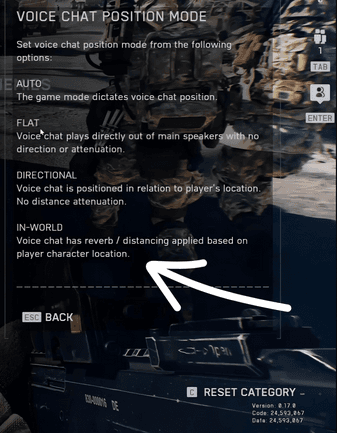
You can manage this in the Social Settings or Audio menu. If you find the enemy chatter distracting or toxic, you can toggle proximity chat off while keeping your squad voice chat active.
This feature is a game-changer for stealthy players who want to overhear enemy plans before they strike.
Is cross-platform communication supported?
Yes, cross-platform communication is fully supported through the EA Connect system.
This means that if you are on a PC, you can talk directly to your friends on PS5 or Xbox Series X|S without needing third-party apps like Discord, though many still prefer them for stability.
To manage your cross-play friends, press TAB (PC), R2 (PS5), or RT (Xbox) to open the EA Connect overlay.
From here, you can invite players from other platforms to your squad. Once they join, the in-game voice chat will bridge the gap between platforms automatically.
How to fix voice chat lag and stuttering?
Voice chat lag is usually fixed by optimizing your network routing and reducing jitter through a specialized service like NoPing.
When your ping is high or unstable, the Voice Over IP (VOIP) packets are the first to suffer, leading to robotic voices or delayed communication that can ruin a match.
By using NoPing, you can find a more direct route to the game servers, which stabilizes the connection for both your gameplay and your voice data.
Here’s how to use NoPing to fix network issues in Battlefield 6:
- Sign-up through the website and download NoPing (you can try it for free)
- Open NoPing and search for Battlefield 6 inside the software
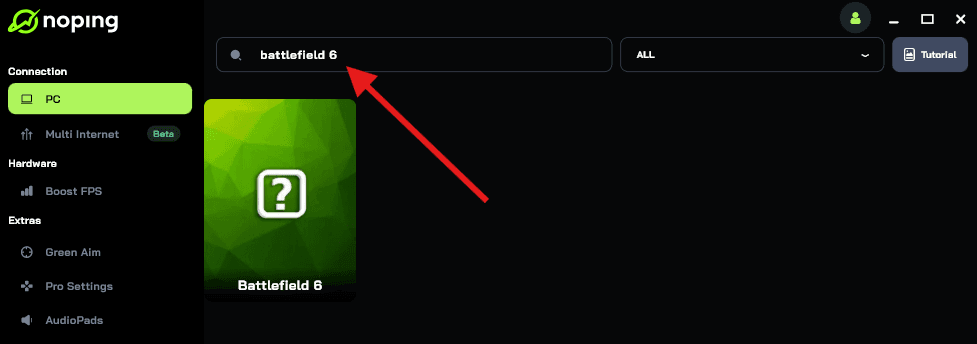
- Once you find Battlefield 6, click on it. Choose your server on the next screen and click on “Optimize Game”.
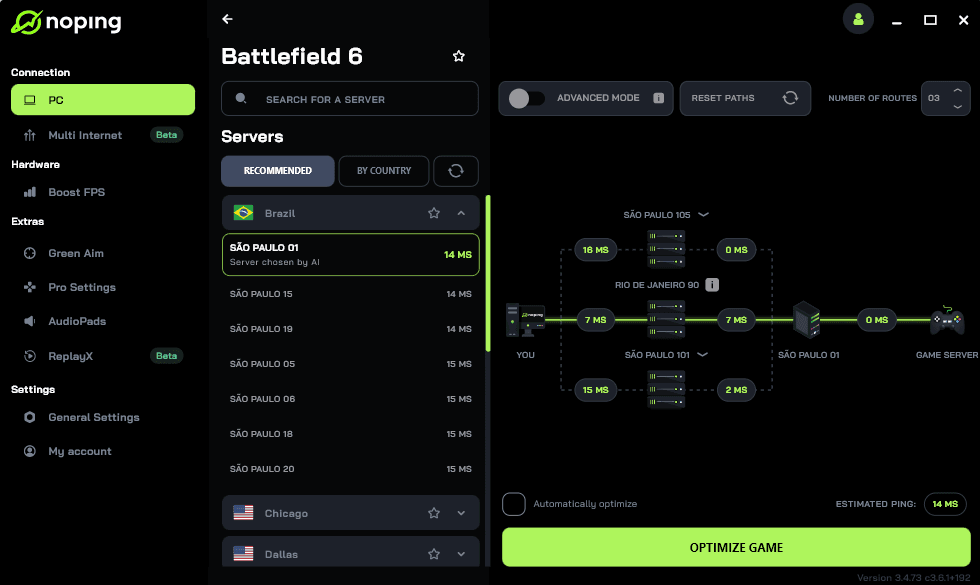
- And that’s it, you can start playing Battlefield 6 with optimized ping!
You can test different servers within NoPing to see which gives you the lowest latency.
Can you mute specific players easily?
You can mute specific players by opening the Squad/Players menu during a match, selecting the individual's name, and clicking the Mute icon.
This is a crucial feature for maintaining a positive gaming environment and blocking out players with low-quality microphones or offensive behavior.
The game also offers a Mute All option in the settings if you prefer to play in silence or are already in a private party chat. Managing your social experience is just as important as managing your loadout.
Play Battlefield 6 without voice lag! Download NoPing now and start your free trial!