


The latest NoPing version (4.0.57) brings connection optimization, PC performance tools, voice communication, gameplay recording and aim training together in one application. This guide explains where to find each feature, how to enable it and which in-app warnings players should understand before using specific tools.
What's new in NoPing 4.0?
The sidebar now includes shortcuts for Home, Connections, Multi Internet, Boost FPS, Audio Pads, Tools, LITE and Settings. The application is available in Portuguese, with a configurable language option.
The main additions include Audio Pads noise cancellation, the redesigned Boost FPS, Lite Mode, AI Translator and PC Improve. Existing features such as Restore Point, Multi Internet and connection routes are also available.
1. Connections: routing, automatic servers and automatic switching
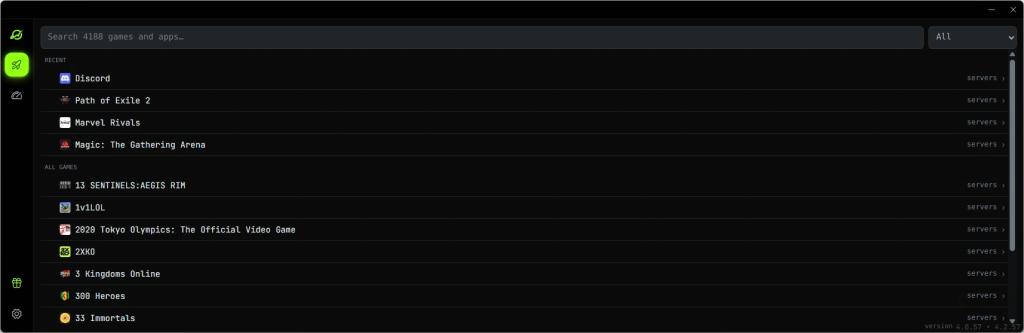
In the Connections tab, search for your game, click its image and select Proxy. Some games may ask you to choose a connection method the first time you use the feature:
- Automatic Server (recommended): NoPing searches for the best connection when you enter a match.
- Manual Server: Choose a server from the list. You can change your selection later.
Before connecting, the interface displays the Connection Route, showing the path between your computer and the game server. The hops are NoPing's intermediate servers along that route, each with its own latency. The top of the screen displays the estimated ping.
In Advanced Mode, you can select between 1 and 5 simultaneous routes and manually change the hops used by each route. When using only one route, the app recommends selecting two or more hops.
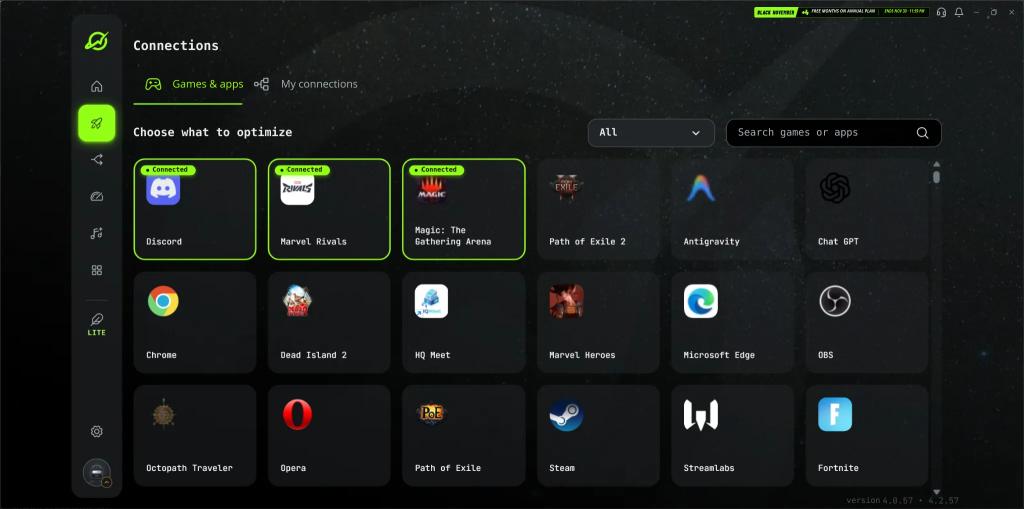
There are two ways to switch servers while playing:
- Quick Server Switch: Opens the server selector while the game is connected or uses a keyboard shortcut, such as CTRL + 0.
- Automatic Switching: When enabled, NoPing automatically switches to the server with the lowest ping during your session. When disabled, you remain connected to the server you selected.
Games launched through a launcher also have a Launcher Server toggle. When enabled, the launcher uses the selected server. When disabled, NoPing optimizes only the game's connection.
Connection analysis
The Open Analysis button launches a floating window showing the server currently in use, real-time ping and a list of nearby NoPing servers.
It also identifies the game server used during your session, allowing you to select the same region in NoPing. The app recommends keeping the game open for approximately five minutes so the analysis can identify the server.
2. Multi Internet: using multiple network connections simultaneously
Multi Internet keeps more than one network connection active on your computer, such as Ethernet and Wi-Fi. If your current connection drops, you can quickly switch to the other network without changing Windows settings.
This feature does not combine the bandwidth of multiple connections.
To configure it:
- Open Multi Internet.
- Enable Enable Multi Internet.
- Select the networks you want to use and turn on Keep Wi-Fi and Ethernet connected simultaneously.
- Under Disconnection Alerts, choose how you want to receive notifications.
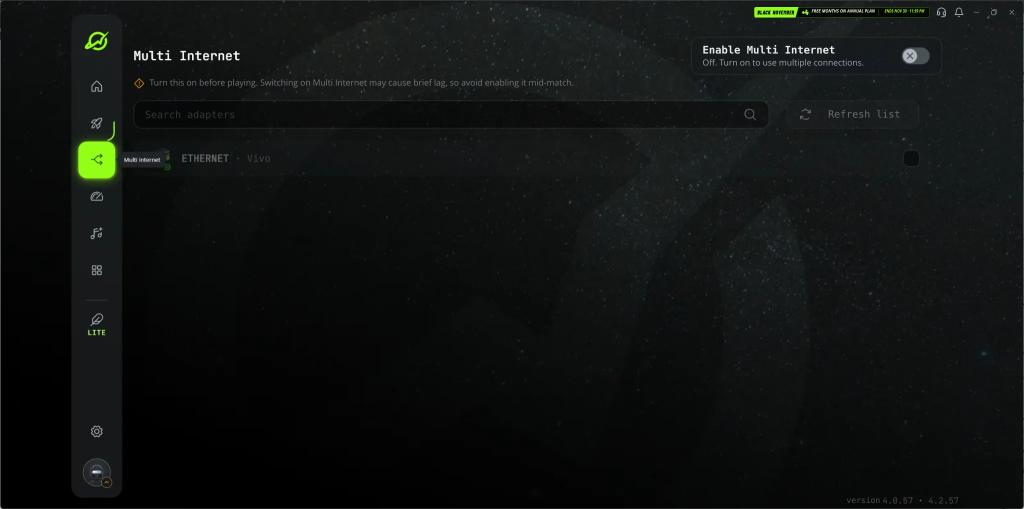
Enable this feature before starting a game. NoPing warns that activating it may cause a brief adjustment lag while the network connections are being configured.
3. Boost FPS: three optimization profiles and Advanced Mode
In the Boost FPS tab, Basic Mode detects your CPU, GPU and RAM and recommends one of three profiles:
- Light: PCs with up to 8 GB of RAM or without a dedicated graphics card.
- Balanced: Mid-range PCs with a dedicated GPU or between 16 and 31 GB of RAM.
- Maximum: High-performance systems with RTX 40-series or newer GPUs, RX 7000-series or newer GPUs, and at least 32 GB of RAM.
Click Optimize With and select your preferred profile.
Advanced Mode offers more than 50 optimization options organized into Performance, Graphics, Network and System, as well as Presets for saving custom combinations.
The app warns that more boosts do not necessarily mean better performance. The ideal combination depends on your hardware.
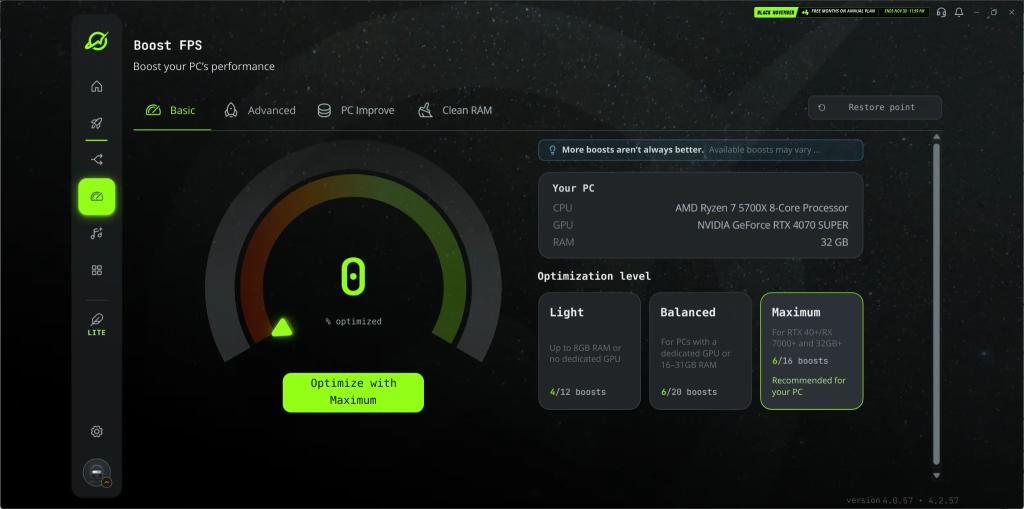
Before applying changes, you can create a Restore Point in the upper-right corner. If you are unhappy with the results, restore Windows to its previous state.
4. Free up RAM with a global keyboard shortcut
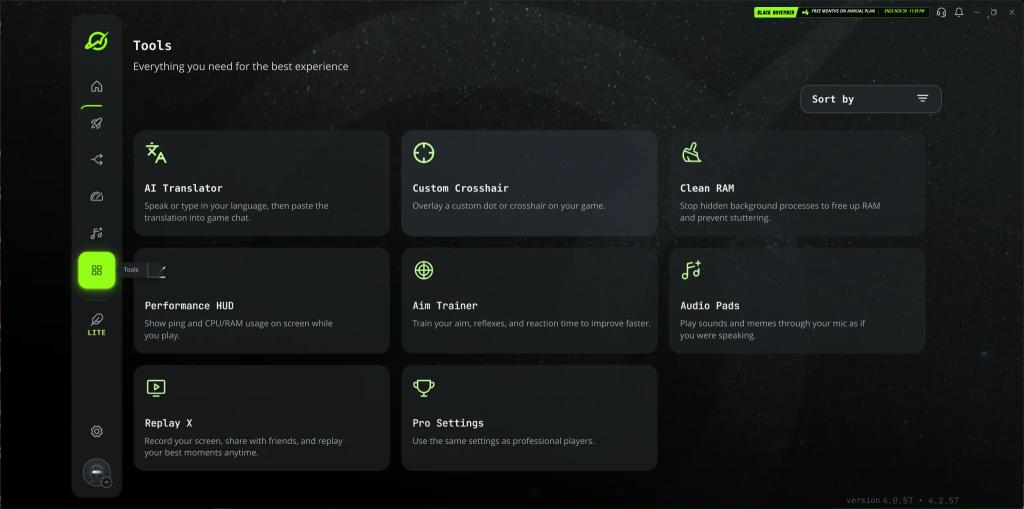
The Clean RAM tool closes background processes that are not currently in use. There are three ways to run it:
- Click the button in the Tools tab or the Clean shortcut on the RAM card on the Home screen.
- Use the global keyboard shortcut, enabled through Enable RAM Cleaning Shortcut (for example, CTRL + 1). It also works while you are playing.
- Right-click the NoPing icon in the Windows system tray.
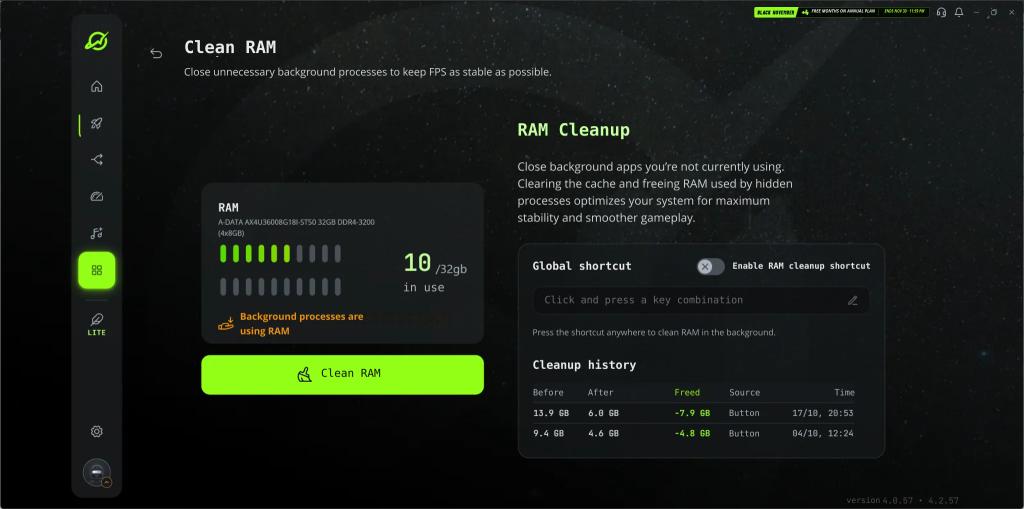
The history records the source of each cleanup, its date and the amount of memory released.
5. AI Translator: translate voice messages in-game
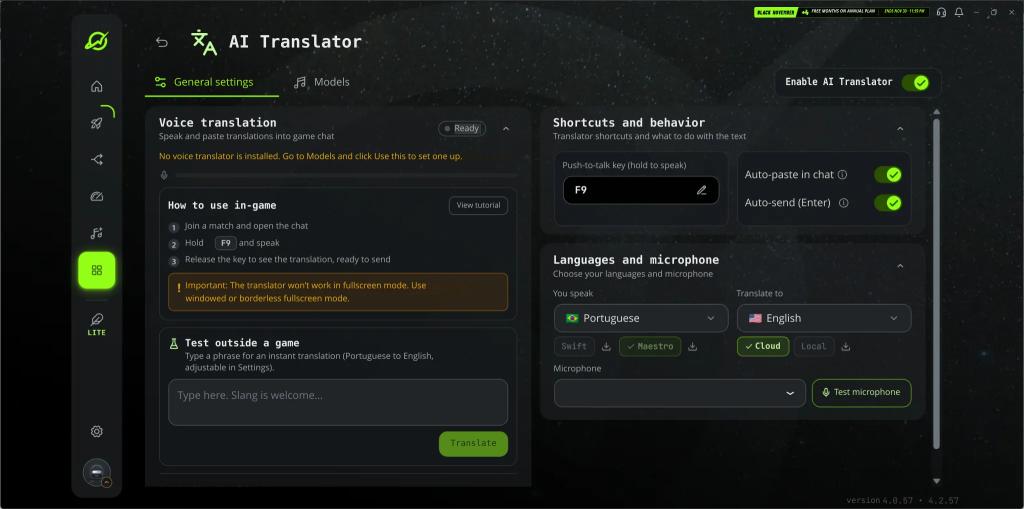
The AI Translator recognizes your speech, translates it into your selected language and inserts the translated message into the game's chat.
To use it:
- Open Tools and select AI Translator.
- Choose your language pair and voice model. NoPing downloads the selected model the first time you use it.
- During a match, click the chat box, hold the push-to-talk key (configurable, such as F9) and speak.
- Release the key to insert the translated text.
With Auto-paste into chat and Auto-send (Enter) enabled, messages are inserted and sent without additional manual steps.
The Test Without Game area lets you try the translator outside a match.
The feature does not work in exclusive fullscreen mode. You must use windowed mode or borderless fullscreen.
6. Custom Crosshair: customize your in-game aim overlay
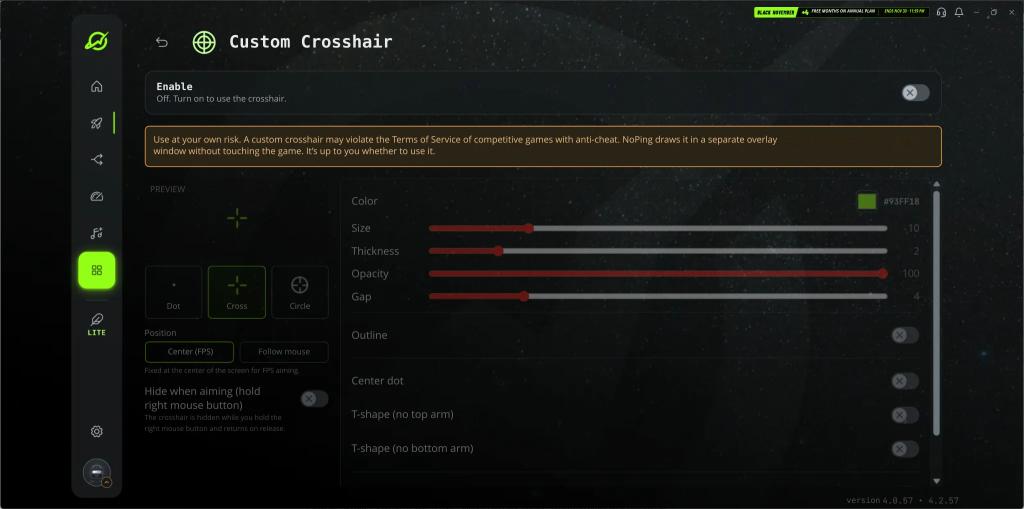
Custom Crosshair is an overlay displayed on top of the game. Your original in-game crosshair remains visible, while the Hide While Aiming option hides the custom crosshair whenever you hold the right mouse button.
You can customize its shape (dot, cross or circle), color, size, thickness, opacity, outline and position, with a real-time preview.
In-app warning: The application displays the message "use at your own risk."
A custom crosshair may violate the Terms of Service of competitive games that use anti-cheat systems. NoPing renders the crosshair in a separate window and does not modify the game itself, but the decision to use it remains the player's responsibility.
7. Audio Pads and noise cancellation
Audio Pads has its own sidebar shortcut and includes three sections:
- Library: Sounds and memes played through your microphone, each with its own keyboard shortcut. You can also add your own audio files. This feature installs a NoPing audio driver.
- Explore: Trending audio clips organized by country.
- Voice & Sound: A new feature in version 4.0.57.
Under Your Voice, noise cancellation removes keyboard sounds, fans and background noise before your voice reaches Discord and the game. You can choose between Maximum and Light quality and adjust the intensity.
Under Other People's Sound, the filter reduces background noise in incoming audio through your headphones, with separate settings for each application.
8. PC Improve and Renew IP
PC Improve brings together Windows cleanup and maintenance tools, including:
- Temporary files.
- Browser cache.
- Old log files.
- Thumbnail and icon cache.
- Font cache.
- Recent documents.
- Discord cache.
- GPU shader cache.
- DNS cleanup.
- Management of programs that launch with Windows.
- Renew IP (Network).
Each tool displays the amount of storage that can be freed and includes a Clean Now button.
9. Performance HUD, Replay X, Pro Settings and Aim Trainer
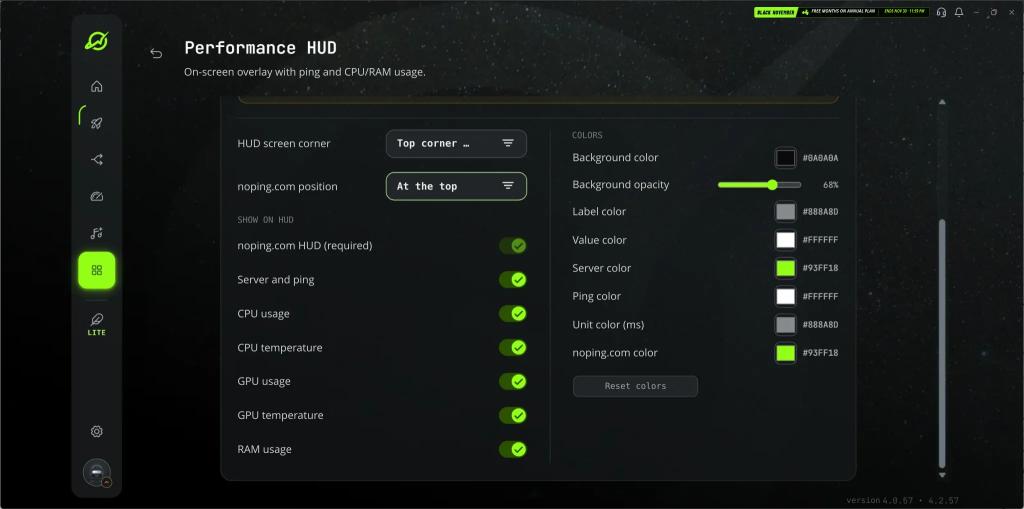
- Performance HUD: An overlay displaying the server, ping, CPU and GPU usage and temperatures, and RAM usage. Its position, displayed information and colors are customizable. Like AI Translator, it does not appear in exclusive fullscreen mode.
- Replay X: Records your monitor or a selected window. Using the Highlight shortcut (for example, SHIFT + 0), you can save the last few seconds of gameplay. Highlight duration is configurable, and clips are stored in an in-app gallery.
- Pro Settings: Displays mouse, HUD, viewmodel and other settings used by professional players, with an option to copy their values.
- Aim Trainer (GreenAim): An aim training tool featuring scenarios, leaderboards and challenges for games such as Valorant, Counter-Strike 2, Fortnite, Overwatch 2, Apex Legends and PUBG.
10. Lite Mode and GPU Acceleration
Lite Mode is a compact version of the application designed to use less RAM and processing power. It is recommended for lower-end PCs and players who want to minimize background resource usage while gaming.
It includes three sections: Connections, Modules (Boost FPS and Clean RAM) and Settings.
To enable it, click the LITE shortcut in the sidebar or navigate to Settings → General Settings → Lite Mode. The Standard Version button returns you to the full application.
GPU Acceleration is an option under General Settings that uses your graphics card to render the application interface. Its behavior varies depending on your GPU and drivers.
Which NoPing 4.0 features should you try first?
- Lite Mode, if you have a lower-end PC.
- Boost FPS using the recommended profile, after creating a Restore Point.
- Clean RAM and its global keyboard shortcut.
- Multi Internet, enabled before playing, if you have more than one network connection.
- Automatic Server and Automatic Switching in the Connections tab.
- Performance HUD to monitor ping and hardware usage.
- AI Translator and Custom Crosshair, taking each feature's warnings into account.
Change one setting at a time and compare your game's performance before and after each adjustment.