

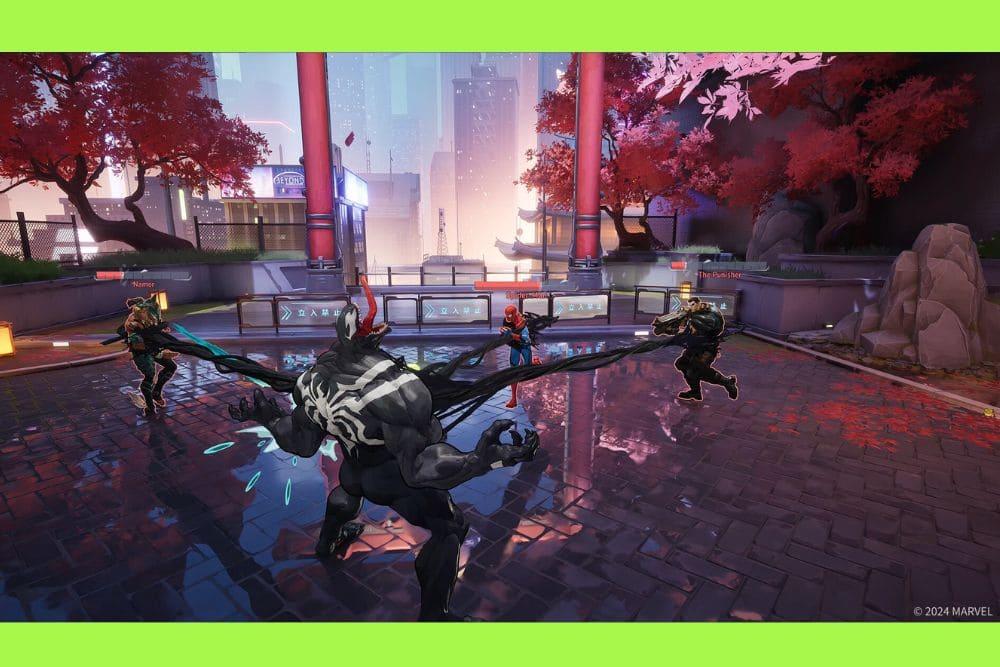
Nailing your Marvel Rivals optimization is the difference between a game-winning ultimate and a frustrating trip back to the spawn room.
In a fast-paced hero shooter where every frame counts, you cannot afford to let stuttering or high ping ruin your climb up the ranked ladder.
Whether you are flying through the air as Iron Man or smashing through walls as Hulk, the game demands a high level of responsiveness that only a finely tuned system can provide.
At NoPing, we know that performance is not just about having the latest hardware: it is about how you use it.
This guide is your ultimate roadmap to squeezing every bit of power out of your PC and ensuring your connection is as solid as Captain America’s shield. We will look into the best graphics settings, Windows tweaks, and networking secrets that the pros use to stay ahead of the competition.
What are the system requirements for Marvel Rivals?
To run Marvel Rivals effectively, you need a modern 64-bit operating system and at least 16GB of RAM.
While the game is visually stunning with its stylized art, it is also quite demanding on the CPU due to the sheer amount of destruction and character abilities happening simultaneously.
Here is what you need to keep under the hood:
Minimum Requirements
- OS: Windows 10 64-bit (version 1909 or later)
- Processor: Intel Core i5-6600K or AMD Ryzen 5 1600X
- Memory: 16 GB RAM
- Graphics: NVIDIA GeForce GTX 1060 / AMD RX 580 / Intel Arc A380
- DirectX: Version 12
- Storage: 70 GB available space (SSD highly recommended)
Recommended Requirements
- OS: Windows 10 64-bit (version 1909 or later)
- Processor: Intel Core i5-10400 or AMD Ryzen 5 5600X
- Memory: 16 GB RAM
- Graphics: NVIDIA GeForce RTX 2060 Super / AMD RX 5700-XT / Intel Arc A750
- Storage: 70 GB available space (SSD highly recommended)
If you are running an older machine, do not panic. The game is fairly accessible, but reaching those high refresh rates (144Hz or 240Hz) will require some strategic sacrifices in the settings menu.
One thing to note is the storage: always install the game on an SSD. Mechanical hard drives will lead to long loading times and potential asset streaming hitches during gameplay.
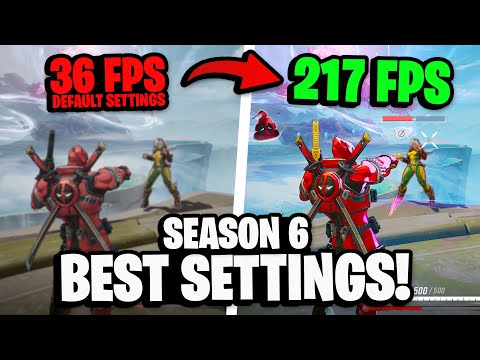
Which display settings provide the best performance?
The best display settings for Marvel Rivals prioritize low input latency and a stable frame rate over eye candy.
You want to set your Display Mode to Fullscreen, use your monitor's native resolution, and disable V-Sync to ensure your mouse movements feel instantaneous.
Here is a breakdown of the essential display tweaks:
- Display Mode: Fullscreen. This gives the game priority over Windows resources and reduces input lag compared to Borderless Windowed.
- Resolution: Native (e.g., 1920x1080). If you are struggling with FPS, use a scaling technology like DLSS rather than lowering this resolution manually.
- V-Sync: Off. V-Sync introduces significant input delay. If you see screen tearing, consider using a G-Sync or FreeSync monitor instead.
- Limit FPS: Off (or set it to your monitor's refresh rate + 3). Uncapping FPS can sometimes cause CPU spikes, so capping it just above your refresh rate is a safe bet for consistency.
- NVIDIA Reflex Low Latency: On + Boost. If you have an NVIDIA card, this is mandatory. It reduces the "click-to-photon" delay, making the game feel much snappier.
- Frame Generation: Off. While Frame Gen can make the game look smoother, it adds input latency, which is a death sentence in a competitive shooter.
How should you configure your graphics settings for maximum FPS?
To get the most frames per second, you should set Global Illumination to SSGI (Low) and keep Shadow and Effects Detail on Low or Medium.
Most of the game's beauty comes from its art style, which remains intact even when you dial down the more demanding technical features.
Let's look at the specific impact of each setting:
The Heavy Hitters
- Global Illumination: This is the biggest performance killer. Switching from Lumen (high-end lighting) to SSGI (Low) can give you a massive boost in FPS.
- Shadow Detail: Shadows look great, but in the heat of battle, you won't notice them. Set this to Low or Medium.
- Effects Detail: Since Marvel Rivals is filled with explosions and magic, high effects can tank your FPS during 6v6 team fights. Set this to Low to keep your frame rate stable when things get chaotic.
The Visual Balance
- Texture Detail: If your GPU has more than 6GB of VRAM, you can safely set this to High or Ultra. It has a minimal impact on FPS but makes the characters and environments look much sharper.
- Model Detail: Medium is the sweet spot. It ensures enemies are clearly visible at a distance without overloading your CPU.
- Post-Processing: Set this to Low. It usually controls things like motion blur and depth of field, which actually hinder your ability to see enemies clearly.
Scaling and Sharpening
- Super Resolution Type: Use DLSS for NVIDIA, FSR for AMD, or TSR for a general option.
- Super Resolution Mode: Set this to "Quality" or "Balanced." Going down to "Performance" might make the game look a bit blurry, but it is a life-saver for budget rigs.
Can Windows tweaks really improve Marvel Rivals performance?
Yes, optimizing your Windows settings ensures that your operating system is not stealing precious CPU cycles from the game.
Enabling Game Mode and Hardware-Accelerated GPU Scheduling are two simple steps that provide measurable improvements in frame stability.
Follow these steps to prepare your OS for battle:
- Enable Game Mode: Go to Settings > Gaming > Game Mode and toggle it On. This stops Windows Update from installing drivers in the background and prioritizes your game’s process.
- Hardware-Accelerated GPU Scheduling (HAGS): Go to Settings > System > Display > Graphics settings and turn this on. It allows your GPU to manage its own memory more efficiently.
- Power Plan: Set your PC to the "High Performance" or "Ultimate Performance" plan in the Control Panel's Power Options.
- Disable Overlays: Turn off the Discord Overlay, Steam Overlay, and Xbox Game Bar. These are notorious for causing micro-stutters.
- Clean Drivers: Use DDU (Display Driver Uninstaller) to completely wipe old drivers before installing the latest ones from NVIDIA or AMD. This prevents file conflicts that often lead to crashes.
How do you fix lag and high ping in Marvel Rivals?
Fixing lag requires a two-pronged approach: optimizing your local hardware and using NoPing.
While your ISP handles your general internet traffic, it often sends your game data through congested or inefficient paths, leading to high ping and packet loss.
Here is how to stabilize your connection:
- Switch to Ethernet: This is the most important rule in gaming. Wi-Fi is prone to interference from walls, microwaves, and other devices. A physical cable ensures a steady stream of data.
- Update Your DNS: Using Google DNS (8.8.8.8 and 8.8.4.4) or Cloudflare (1.1.1.1) can sometimes improve the initial "handshake" between your PC and the game servers.
- Close Background Apps: Apps like Chrome, Spotify, or Steam downloads eat up your bandwidth. Use the Task Manager to kill any process that is using the network while you play.
- Check Server Status: Sometimes the lag isn't your fault. Check the official Marvel Rivals Twitter/X or Discord to see if there is scheduled maintenance.
If you have tried all of the above and still see those "latency" icons on your screen, it is time to look at professional solutions.
Why is NoPing the best tool for Marvel Rivals?
NoPing is the ultimate solution for Marvel Rivals because it uses multi-route technology to find the fastest path between your computer and the game servers.
Instead of relying on your ISP's generic routing, NoPing analyzes dozens of possible paths and chooses the one with the lowest latency and zero packet loss.
Using NoPing offers several advantages:
- Ping Reduction: By finding a more direct route, NoPing can significantly lower your milliseconds, giving you an edge in reaction-based duels.
- Stability: It eliminates "jitter," which is the variation in your ping. A stable 50ms is much better than a connection that jumps between 30ms and 100ms.
- Packet Loss Prevention: NoPing sends your data through optimized "tunnels" that are less likely to drop information, ensuring your abilities actually fire when you press the key.
- Ease of Use: You just open the app, search for Marvel Rivals, and click "Optimize." It handles all the complex networking stuff in the background.
Here’s how to use NoPing to fix network issues in Marvel Rivals:
- Sign-up through the website and download NoPing (you can try it for free)
- Open NoPing and search for Marvel Rivals inside the software
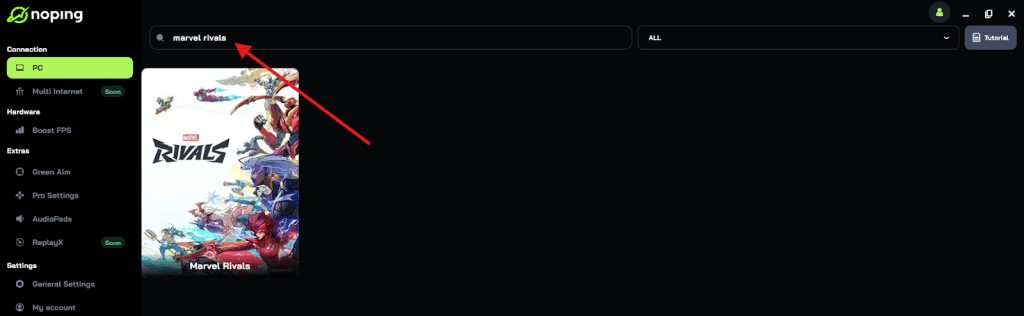
- Once you find Marvel Rivals, click on it. Choose your server on the next screen and click on “Optimize Game”.
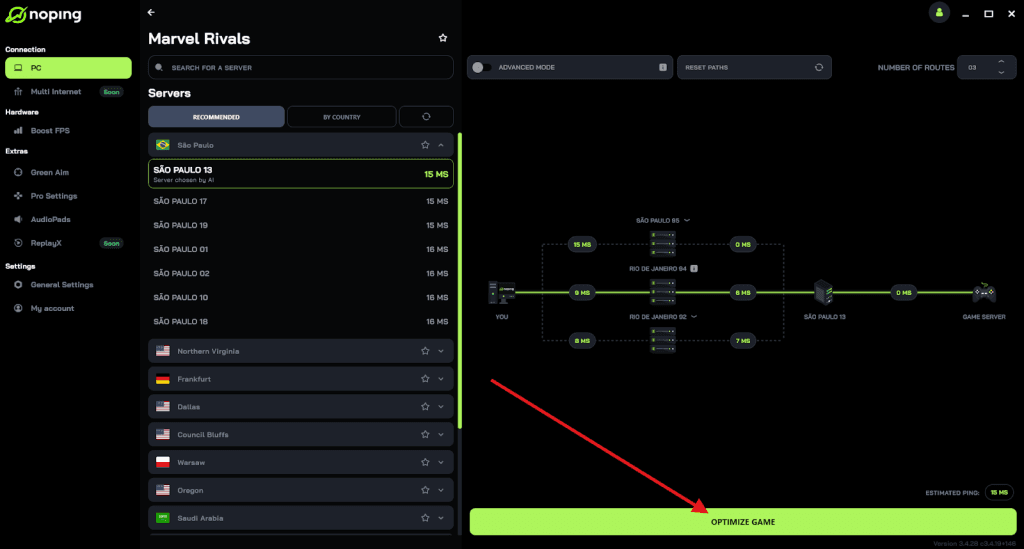
- And that’s it, you can start playing Marvel Rivals with optimized ping!
You can test different servers within NoPing to see which gives you the lowest latency.
What should you do if Marvel Rivals keeps crashing?
If your game is crashing, especially with an "Out of Video Memory" error on high-end Intel CPUs, you likely need a BIOS update or to verify your game files.
Many players with 13th and 14th Gen Intel processors have reported stability issues that are only fixed by adjusting power limits in the motherboard settings.
Try these fixes to stop the crashes:
- Verify Game Files: On Steam, right-click Marvel Rivals > Properties > Installed Files > Verify integrity of game files. This fixes corrupted assets that might be causing the game to close.
- Shader Cache: Sometimes the shader cache gets bugged after an update. Go to your GPU control panel (NVIDIA or AMD) and clear the shader cache, or delete the "MarvelRivals" folder in your %LocalAppData% directory.
- BIOS Update: If you have a high-end Intel CPU, check your motherboard manufacturer's website for a BIOS update that includes the "Intel Default Settings" profile. This has been a major fix for many Unreal Engine 5 games.
- DirectX 12 Issues: Ensure your Windows is fully updated. Marvel Rivals runs on DX12, which requires a modern version of Windows 10 or 11 to function correctly.
Is your hardware bottlenecking your performance?
Understanding whether your CPU or GPU is the bottleneck allows you to make the right adjustments. If your GPU usage is at 99%, you need to lower graphics settings: if your CPU usage is high while the GPU is sitting at 60%, you are likely limited by your processor or RAM speed.
Marvel Rivals is surprisingly CPU-intensive because of the physics-based destruction. When a building collapses, your CPU has to calculate all those falling pieces. If you have a budget CPU, try lowering the Foliage Quality and Model Detail, as these settings often rely on the processor to tell the GPU what to render.
For players with plenty of RAM, ensure you have XMP or DOCP enabled in your BIOS. Since the game requires 16GB, having that memory running at its advertised speed (e.g., 3200MHz or 6000MHz) can provide a noticeable boost in minimum frame rates, which prevents those annoying stutters during big fights.
Mastering Marvel Rivals optimization is a continuous process. As the developers release new seasons and characters, the performance profile of the game might change.
By keeping your drivers updated, using the optimized settings we discussed, and relying on NoPing to handle your connection, you put yourself in the best position to win.
Remember, a high FPS makes the game look smooth, but a low ping makes the game feel right. When both are in sync, you are not just playing: you are dominating. Take the time to tweak these settings today, and you will see the results in your next match.
Play Marvel Rivals without lag. Download NoPing now and start your free trial!