

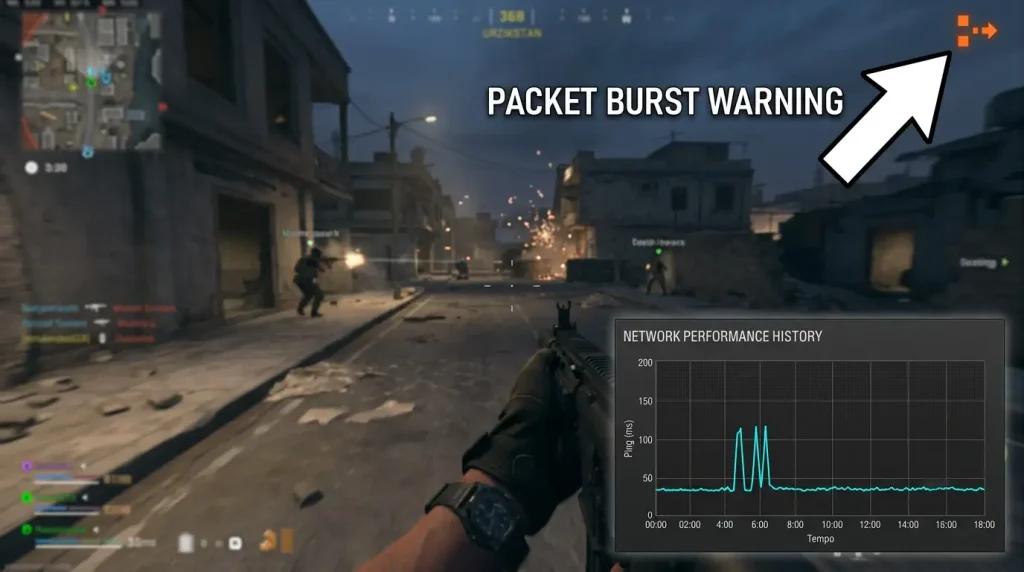
Rollback in Warzone Resurgence happens when the server rewrites your position after packet loss, delay, or packet reordering. The most visible symptom is usually the orange packet burst icon. To reduce it, use an Ethernet cable, enable the Net Performance overlay, and activate NoPing’s Multi Connection with 5 simultaneous parallel routes.
If you have residential fiber combined with fixed 5G from Vivo, Claro, or TIM, enable Multi Internet with up to 6 parallel connections in the same session.
You drop into Urzikstan with your squad on a quad bike, deploy your parachute over Levin Resort, land on top of a ground-loot AR, eliminate the first enemy, and then a second player appears from behind a wall.
You shoot first, see four red hitmarkers, then five, and still die.
You wait for redeploy, buy your squad back at the buy station, return to the zone, and during the next rotation that orange square-shaped icon appears in the top-right corner of the screen. Packet burst.
You run to cover, hear footsteps, peek, fire, and when you regain control, you're three meters behind the wall with 30 HP left, wondering how you died.
That's rollback.
[QUICK SUMMARY]
- Install NoPing and enable Multi Connection with 5 simultaneous parallel routes for Warzone before opening the launcher.
- Check whether the orange packet burst icon appears less frequently during zone rotations in Urzikstan and during loadout drops.
- If you have residential fiber combined with fixed 5G, enable Multi Internet with up to 6 parallel connections throughout the match.
- Diagnose whether the issue is yours (ISP jitter) or server-related (crowded NA East servers) by comparing menu ping and in-game ping.
- Before ranked Resurgence matches, close Chrome, OBS, and Discord overlay, open NoPing first, and only then launch Battle.net or Steam.
If you play Warzone Resurgence in your region on residential fiber connected to NA East or NA West servers, this scenario happens every match. And it’s not just because your ping is higher.
Rollback is a network stability issue, not an average latency issue.
You can have a stable 60 ms connection for an entire match and still suffer rollback if your connection has jitter, loses 0.5% of packets, or if your ISP’s route to Activision servers passes through a congested hop.
This article explains what rollback is in Warzone, why it becomes more noticeable in Resurgence on Urzikstan and Rebirth Island, how to diagnose the source of the problem (your network, the server, or the game), and the step-by-step process to reduce it using Multi Connection with 5 simultaneous parallel routes and Multi Internet with up to 6 parallel connections.
It also answers a key question for Diamond and Champion ranked players: Is NoPing compatible with Ricochet?
Quick rollback diagnosis for Warzone Resurgence
| Symptom | Likely Cause | How to Test | Recommended Fix |
|---|---|---|---|
| Orange packet burst icon during zone rotations | Jitter or packet loss from your ISP | Net Performance overlay: fluctuating ms, packet loss above 0.5% | Multi Connection with 5 simultaneous parallel routes |
| Dying behind cover after peeking | Client-server desync | Compare long peeks versus short peeks | Multi Connection helps reduce jitter-related desync |
| Shots deal no damage during squad fights | Hit registration issues | Check if hitmarkers disappear | Multi Connection and verify NA East server quality |
| 60 ms ping in menu, 90+ ms in match | Routing changes after server connection | Compare lobby ping and in-game ping | Multi Connection selects the best in-game route |
| Ranked matches freeze mid-round | Packet loss during peak hours | Compare Net Performance at minute 6 and minute 16 | Multi Internet bonding fiber and fixed 5G |
| Loadout drop arrives empty | Server packet confirmation failure | Request a second loadout drop | Multi Connection combined with Multi Internet |
What Is Rollback in Warzone and Why Does It Happen?
Rollback in Warzone occurs when Activision’s server rewrites your position and sequence of actions after receiving packets out of order or with losses. In a client-server game, you send inputs to the server (move right, aim, shoot), the server calculates the outcome, and then returns your authoritative position.
When packets arrive late or incomplete, the server determines that the position it simulated was incorrect and pulls you back to where you "should have been." That pull is rollback.
In Warzone, this creates a set of familiar symptoms for players running Resurgence on Urzikstan, Rebirth Island, or Vondel.
1. You die after peeking even though you already reached cover. On your screen, you got behind the wall in time. On the server, your movement packets arrived late, so it had already validated the enemy’s shot. The server kills you 200 ms after reaching cover. This is peeker’s advantage combined with rollback.
2. Hit registration fails during squad fights. You fire first with an SMG, hear the weapon firing, see four red hitmarkers with a Striker or HRM-9, and the opponent survives. Some of your hits arrived outside the server validation window. The server discards them and no damage is applied. In Resurgence, where fights are short and every bullet matters, this is brutal. In traditional Battle Royale, the same issue often appears in the Gulag.
3. Position snapping during zone rotations. You sprint up a hill in Urzikstan, climb a fence, and suddenly your character appears three meters behind. The server rewrote your position based on the last packets it successfully accepted.
4. Empty or delayed loadout drops. Loadout drops depend on a sequence of server packets confirming the item purchased at the buy station. When your connection loses packets during that sequence, the loadout may arrive empty or significantly delayed.
5. Disconnects caused by persistent packet burst. When the server detects ongoing packet loss, it may remove you from the match and display a generic connection error.
The root cause is always the same: instability between your PC and the Activision server. It’s not necessarily high latency. It’s latency variation (jitter), packet loss, and packet reordering. You can have low average ping and still suffer rollback because the server does not tolerate even short transmission gaps.
Real Causes: ISP Peering, Packet Burst, and Fixed 5G in Your Region
When you open the Net Performance overlay in Warzone (Account & Network > Network Latency and Packet Loss set to Show), the game displays your ping in milliseconds and packet loss percentage. On residential fiber, the most problematic metric in Resurgence is not average ping but packet loss spikes and jitter peaks.
Peering to Activision is not direct. The most common servers used by players are NA East and, in some cases, NA West. Traffic leaves your modem, passes through your ISP’s network, reaches an internet exchange point, transitions to an international carrier, and finally arrives at Activision’s data center network.
During peak hours, any hop can become congested. Congestion creates packet queues, and packet queues create jitter. The server receives packets late, marks them outside the acceptable window, and triggers rollback.
The orange packet burst icon is the visible symptom of that queue. When Warzone detects packets arriving in bursts with gaps instead of a consistent flow, it displays the orange icon.
Every appearance is commonly accompanied by some form of micro rollback. In Diamond and Champion ranked matches, where SMGs dominate, even a 100 ms rollback can be the difference between winning and losing a fight.
High jitter is more dangerous than high ping in Warzone. A stable 80 ms ping is playable. A ping fluctuating between 35 ms and 95 ms is not. The client and server maintain a validation window for packets, and jitter destroys that consistency.
In Resurgence, with a short TTK and SMG-heavy meta, jitter is often what gets you killed during a peek.
Fixed 5G introduces another layer of complexity. Fixed 5G services deliver excellent download performance, but during peak hours towers serve more users and transmission windows become contested.
This introduces latency variation. In many regions, 5G infrastructure is still expanding and operators often prioritize streaming throughput over latency consistency for competitive gaming. As a result, fixed 5G alone can still generate packet burst issues during peak times even when average speeds remain high.
Changing your meta AR or SMG won’t fix it. Many players think changing weapons solves the problem. Switching from a meta SMG to a weaker one only reduces your firepower. It does not fix rollback.
Residential Wi-Fi doesn’t help, even on gigabit networks. If you play ranked Resurgence on Wi-Fi 6, channel interference can add 5 to 15 ms of jitter. Direct Ethernet connections remain the minimum recommendation.
When the Problem Is Not Your Network
Before spending an entire session troubleshooting your own setup, perform two quick checks.
Look at the official Activision status page. If there is an active service instability warning, packet burst may be server-side.
Ask your squad whether everyone experienced the problem simultaneously and whether it started after a seasonal update. If the answer is yes, the issue is likely with the game itself rather than your connection.
At that point, waiting for an Activision hotfix is usually the only solution.
How NoPing Reduces Rollback in Warzone Resurgence
Internet guides usually recommend using an Ethernet cable, closing Chrome, or updating network drivers. All of these help at the margins. What they cannot address is the peering route to Activision’s NA East servers.
That is where NoPing’s Multi Connection and Multi Internet come in.
Multi Connection: 5 simultaneous parallel routes.
Most gaming network tools use failover. They select one route and switch only if it fails.
Failover introduces a detection window, and during that window you may experience rollback.
NoPing’s Multi Connection works differently.
It sends your Warzone traffic through 5 simultaneous parallel routes. All five routes remain active throughout the entire session.
When a congested ISP hop delays a packet on one route, the remaining routes can still deliver that packet to the server in time.
Because the routes remain active simultaneously, NoPing’s AI can prioritize the cleanest signal without waiting for a route to fail first.
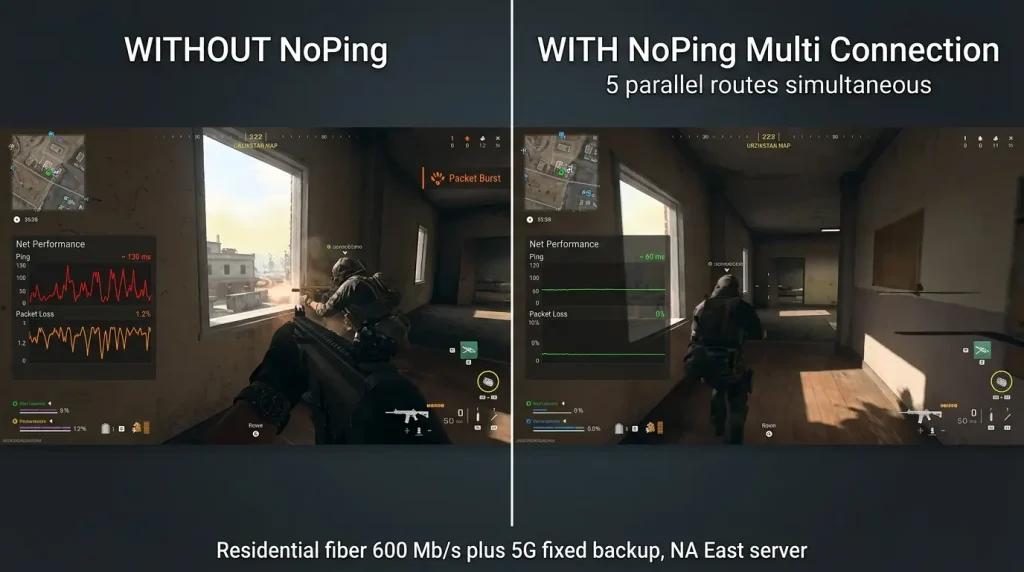
As a result, the orange packet burst icon tends to appear less frequently because the jitter observed by the server is reduced.
Multi Internet: up to 6 internet connections in parallel.
For players with residential fiber and fixed 5G, Multi Internet goes even further.
It combines up to 6 internet connections (WANs) simultaneously into a single Warzone session.
This is not simple load balancing. It is active bonding, with all connections working together throughout the match.
If the 5G tower becomes congested, fiber helps maintain session stability. If the fiber connection experiences issues, 5G can compensate.
Together, they create a significantly more stable gaming session than either connection alone.
Boost FPS helps, but it is not the hero of this story.
When a player launches Warzone Resurgence on a mid-range PC and FPS drops during the final circles, part of the issue may be CPU saturation and background processes.
NoPing’s Boost FPS frees RAM, prioritizes CPU and GPU resources, and closes more than 40 background Windows processes.
However, Boost FPS alone does not solve rollback.
Rollback is a network problem.
Multi Connection is the primary solution.
Practical Step-by-Step Guide to Reduce Rollback in Warzone Resurgence
1. Install NoPing before opening Battle.net or Steam.
Create an account, download the client, and log in. The free 1-day trial includes Multi Connection, Multi Internet, Boost FPS, Pro Settings, and Aim Trainer.
2. Select Call of Duty: Warzone from the game list.
NoPing already includes optimized profiles for NA East and NA West routes.
3. Enable Multi Connection with 5 simultaneous parallel routes.
Verify in the dashboard that all 5 routes are active and transmitting traffic simultaneously.
4. If you have more than one internet connection, enable Multi Internet.
Connect your fiber line and fixed 5G connection and allow Multi Internet to use both in parallel.
5. Confirm the server region in Warzone.
Sometimes the game connects to a more distant server region. Verify your settings.
6. Launch Battle.net (or Steam) and Warzone only after NoPing is already running.
Launch order matters.
7. Enable the Net Performance overlay.
Display Network Latency and Packet Loss in real time.
8. Close Chrome, OBS, Discord overlay, Spotify, and NVIDIA overlay.
Use Boost FPS to automate the process.
9. Use Ethernet whenever possible.
Even with Multi Internet enabled, Ethernet helps reduce jitter.
10. In Diamond or Champion ranked matches, enable Boost FPS as well.
Prioritize CPU and GPU resources for Warzone.
11. Verify the results.
Play a few matches on Urzikstan or Rebirth Island and monitor packet burst frequency, hit registration consistency, and overall desync behavior.
FAQ: Frequently Asked Questions About Rollback and Packet Burst in Warzone Resurgence
Why does the orange packet burst icon appear in Warzone?
The icon appears when the game detects packets arriving in bursts with gaps instead of a continuous flow. It is a visual warning that the server is receiving your data outside the optimal timing window.
Does Warzone have local servers?
Most Warzone players connect to NA East servers and, in some cases, NA West servers. Optimizing the route to those servers is often more important than reducing average latency alone.
How do I tell the difference between rollback and normal lag?
Normal lag is consistent delay. Rollback occurs when your actions or position are overwritten by the server. If your ping is stable and low but you still die behind cover or lose fights after shooting first, rollback is likely involved.
Is it worth paying for a gaming network optimizer for Warzone?
Players experiencing rollback, packet burst, or desync may consider network optimization tools because these issues often originate from routing instability rather than raw download speed.
Is NoPing compatible with Ricochet in Warzone?
NoPing operates at the network optimization layer and Windows optimization layer. It does not inject code into the game, modify Warzone memory, or alter executable files.
Does Multi Internet help fixed 5G users in Warzone?
Yes. Fixed 5G provides excellent throughput but can introduce jitter during peak hours. Combining fixed 5G with fiber through Multi Internet helps improve stability.
Why is Resurgence worse than Battle Royale for rollback?
Because Resurgence is significantly faster-paced. The shorter TTK, constant redeploys, and frequent close-range engagements make every packet burst and every rollback far more noticeable than in traditional Battle Royale modes.
Conclusion and Next Steps
Rollback in Warzone Resurgence is not a skill issue, a GPU issue, or a fiber cable issue.
It happens when your connection reaches Activision servers with packets arriving late, out of order, or missing entirely.
The visible symptom is the orange packet burst icon.
The gameplay symptom is desync during squad fights, rollback after peeking, and deaths behind cover during zone rotations.
The real solution is maintaining stable routing and minimizing packet instability throughout the entire session.
NoPing’s Multi Connection with 5 simultaneous parallel routes and Multi Internet with up to 6 parallel connections are designed specifically for that purpose.
Rather than relying on failover, they keep multiple routes active simultaneously.
Combined with Boost FPS for resource optimization, plus Pro Settings and Aim Trainer for gameplay refinement, they provide a more consistent competitive Warzone experience.
Try NoPing free for 1 day, no credit card required. Enable Multi Connection with 5 simultaneous parallel routes and launch Warzone.
If the orange packet burst icon appears significantly less often and your hit registration improves after a few matches, you will have a much clearer picture of what was causing the issue.
If you use residential fiber together with fixed 5G, activate Multi Internet and run up to 6 connections in parallel during the same session for one of the most stable Warzone Resurgence setups available today.