

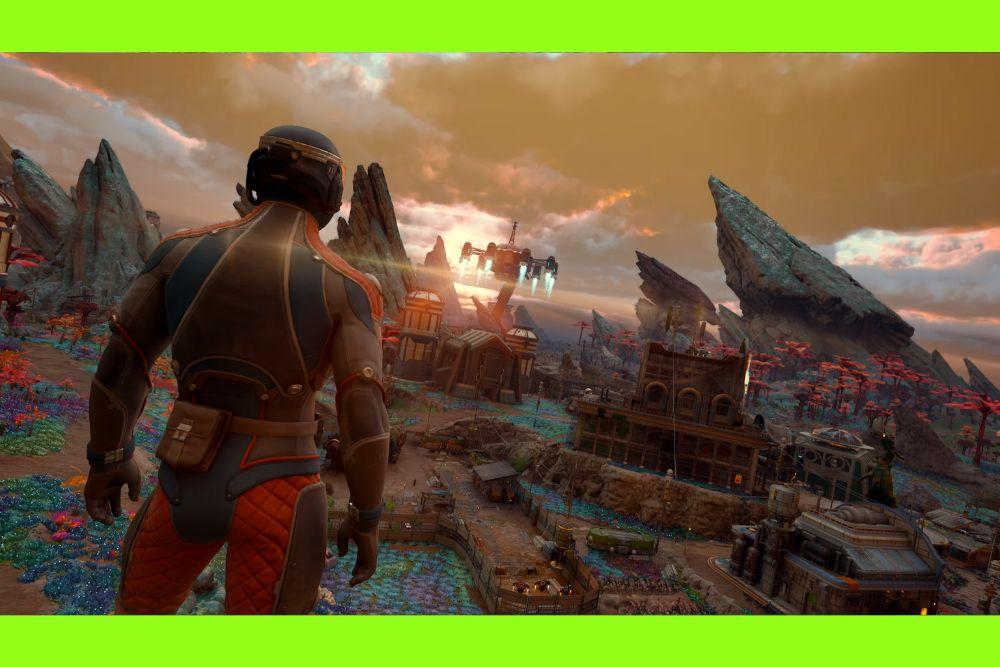
If you liked the first game but wanted the option to see your character while exploring and shooting, you are not alone. The Outer Worlds 2 in third person is an option Obsidian added to the sequel so players can play from behind their character instead of only from the first-person perspective.
This article explains how to enable third-person, what the mode feels like, what to watch out for, customization and settings, the pros and cons for gameplay and roleplay, and where community mods can expand the experience.
Source: Hack the Minotaur
How to switch to third-person (quick how-to)
On PC you can toggle to third-person by pressing the U key while in-game.
On controllers hold the Back/View/Menu-left button (the button to the left of the menu/start button on Xbox controllers) or hold the PlayStation touchpad to switch perspectives.
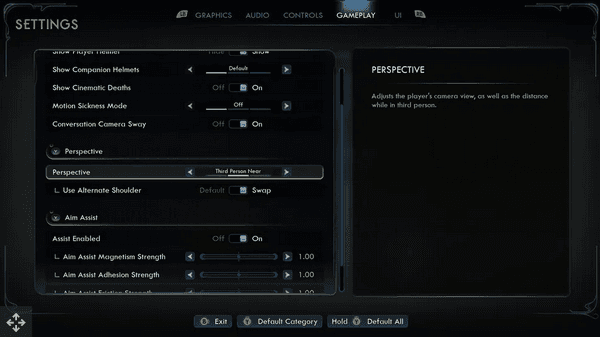
Holding the button often cycles between close third-person, far third-person, and returning to first-person. You can also set third-person as the default through the in-game Gameplay settings menu.
If you prefer the camera to always be third-person, go to Settings → Gameplay → Perspective and choose the default view you want.
That makes the game load and play in your chosen perspective without needing to toggle each session.
Source: PC Gamer
What the third-person mode in Outer Worlds 2 offers
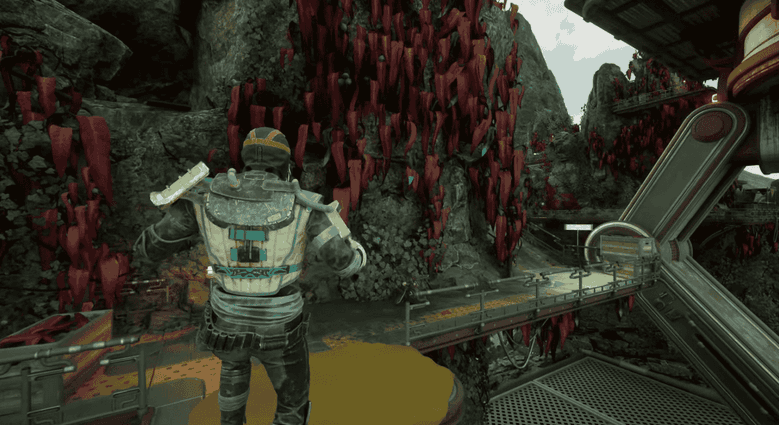
Third-person gives you a full view of your character, armor, and customizations, which is great for role-playing and for players who find long first-person play uncomfortable.
It also helps with spatial awareness: you can see incoming threats that would be just out of frame in first-person.
Early previews and hands-on coverage note that the camera is free-moving and that Obsidian implemented a few different height/shoulder presets and an idle camera that slowly pans around your character when you stop moving.

How the third person camera affects combat and aiming
The Outer Worlds series originally focused on a first-person camera, so some systems were tuned with that perspective in mind.
That means third-person works well for exploration and roleplay, but some combat animations and melee feel are still shaped by a first-person design.
You can still aim precisely (the third-person camera offers an over-the-shoulder aiming mode and supports aim down sights) but in close-quarters fights you may notice animations or hit feedback that feel more natural in first-person.
Also read: What is Input Lag and How Can You Fix it?
Camera options and customization
The game gives three main camera presets: first-person, close third-person, and far third-person.
You can rotate the camera around your character freely with the right stick or mouse.
If you use the controller toggle, pressing or holding the view button cycles the presets so you can find the best distance and shoulder angle for aiming and visibility.
Accessibility and comfort
One big reason third-person was added was community feedback. Many players from the first game had motion sickness issues or headaches with sustained first-person play. Obsidian listened and prioritized adding third-person late in development because players asked for it.
If you are sensitive to first-person motion, third-person is often much more comfortable and can extend play sessions without physical discomfort.
Also read: Rubberbanding: What it is And How to Stop it in Games?
Tips for playing The Outer Worlds 2 in third person
- Try both close and far third-person to see which helps you aim and read the battlefield better.
- Use aim-down-sights when precision matters; the camera supports that mode and it tightens up aiming.
- If melee feels off, consider switching to first-person for pure melee builds, or rely on ranged and companions in third-person.
- Tweak sensitivity separately for the third-person camera if the game exposes camera sensitivity options; small changes can make the camera feel far smoother.
- If you plan to show off character builds or take screenshots, use the idle camera and the third-person wide view for better framing.
Roleplay and immersion
If you like seeing your character’s gear and cosmetics, third-person adds a strong roleplay element. Armor, backpacks, and cosmetic choices are visible, which matters for players who invest in appearance.
The camera can also make companion interactions feel different because you see your character reacting in the scene.
If roleplay and presentation matter to you, playing in third-person can be very satisfying.
Also read: How to Fix Internet Issues for Gaming: The Complete Guide
Final practical checklist
- PC: press U to toggle views.
- Xbox: hold the Back/View-left button to cycle between camera modes.
- PlayStation: hold the touchpad to switch perspectives.
- Settings: go to Settings → Gameplay → Perspective to choose a default.
Third-person was a requested feature from the community and Obsidian added it so players have a choice. The implementation gives you multiple presets, aiming support, and enough polish to be a valid, comfortable way to play.
If you try it and want help tuning camera sensitivity or finding a recommended PC mod, tell me your platform and what specifically you want adjusted and I can point you to settings and mods that match your needs.
Play more than 3000 games with top online performance! Download NoPing now and start your free trial!