

A smooth online experience often depends on a technique called port forwarding, which acts as a direct map for data packets entering your network.
If you have ever faced connection drops, unexplained lag, or were prevented from joining a match with friends due to your NAT type, this guide is for you.
Below, we detail everything you need to know about this technology, how to set it up safely, and why it is the secret professional players use to keep latency under control.
What exactly is Port Forwarding?
It is a networking technique that tells your router exactly where to send incoming data from the internet. In a standard home network, your router acts as a security guard.
It receives all the information coming from the web and decides which device (your PC, console, or smartphone) should receive it.
However, routers are often overprotective. By default, they block unsolicited incoming traffic to protect your devices.
Port forwarding creates a specific "rule" in the router’s brain, stating that any data arriving through a specific digital "door" (a port) must be sent directly to your gaming station.
This bypasses the general inspection and ensures that game servers can talk to your machine without any interruptions.

How does port forwarding work in practice?
Think of your router as the lobby of a massive apartment building. The building has one main street address (your Public IP), but it contains thousands of individual mailboxes (ports).
Without port forwarding, the mailman (the game server) arrives at the lobby with a package but doesn't know which apartment it belongs to.
The guard might just throw the package away for safety.
When you set up port forwarding, you are telling the guard: "If a package comes for apartment 25565, send it straight to the resident in unit 4B."
This direct communication is vital for activities that require a constant, two-way flow of data, such as hosting a game server or participating in a peer-to-peer (P2P) match.
Why do gamers need to care about it?
Gamers need port forwarding primarily to solve issues related to NAT (Network Address Translation).
If your router is too restrictive, you will likely see a "Strict" NAT type in your game settings. This is a nightmare for multiplayer gaming because it prevents you from hosting matches and often makes it impossible to connect to players who also have restricted networks.
By opening the correct ports, you transition from a Strict or Moderate NAT to an "Open" NAT.
This status allows your console or PC to communicate freely with other players, significantly reducing the time it takes to find a match and eliminating many "Connection Lost" errors.
According to technical documentation from platforms like Xbox and PlayStation, an Open NAT is the gold standard for a glitch-free experience.
What are NAT Types and how do they relate to ports?
NAT types are essentially a grade given to your network's accessibility. There are three main categories:
- Open (Type 1): Your device is directly connected to the internet or has all necessary ports forwarded. You can talk to everyone.
- Moderate (Type 2): Some ports are open, but the firewall is still active. You can connect to most players, but you might experience slight delays or inability to host.
- Strict (Type 3): All incoming ports are closed. You can only connect to players with an Open NAT, leading to long queue times and frequent disconnects.
Port forwarding is the manual way to force your network into an "Open" state by giving the internet a clear path to your gaming device.
Is Port Forwarding safe for my computer?
Yes, as long as you only open the specific ports required for the applications you use. The risk associated with port forwarding comes from opening wide ranges of ports (like 1 to 65535) or leaving ports open for outdated software with known vulnerabilities.
When you open a port for a modern game like Call of Duty or Valorant, you are only allowing traffic that the game's code expects to receive.
It is like opening a small cat-door instead of leaving your front door wide open. To stay safe, you should always set a static IP for your gaming device and ensure your OS firewall is active and updated.
How do I set up Port Forwarding on my router?
The process varies slightly between router brands, but the core logic remains the same. Follow these steps:
- Assign a Static IP: Go to your console or PC network settings and set a static IP address. This ensures that your router always knows which device is your "gaming station."
- Access the Router: Open a web browser and type your router’s IP address (usually 192.168.0.1 or 192.168.1.1).
- Log In: Enter your admin credentials. If you haven't changed them, they are usually on a sticker on the bottom of the device.
- Find the Port Forwarding Section: Look for tabs labeled "Advanced," "NAT," "Virtual Server," or "Port Forwarding."
- Create a New Rule: Enter the name of the game, the port numbers (TCP and UDP), and the static IP address you assigned in step one.
- Save and Reboot: Apply the changes and restart your router for the new "map" to take effect.
Which ports should I open for my favorite games?
Every game uses different digital "doors." Here are some of the most common ports for popular titles in 2026:
| Game | Protocol | Port Numbers |
| Call of Duty | TCP / UDP | 3074 |
| Minecraft | TCP / UDP | 25565 |
| Counter-Strike 2 | UDP | 27000-27031 |
| Valorant | UDP | 5000-5500 |
| FIFA / EA Sports FC | UDP | 3659, 14000-14016 |
Can a specialized service replace manual port forwarding?
While port forwarding is effective, it doesn't solve every connection problem.
Issues like "jitter" or "bad routing" by your ISP (Internet Service Provider) can still cause lag even if your ports are open. This is where NoPing comes in.
NoPing optimizes the entire path your data takes from your home to the game server. Instead of just opening the door (port forwarding), NoPing builds a private, high-speed highway for your data.
It automatically finds the best route, reducing ping and jitter without requiring you to dive into complex router settings every time you play a new game.
Here’s how to use NoPing to fix high ping in online games:
- Sign-up through the website and download NoPing (you can test it for free).
- Open NoPing and search for your game inside the software

- Once you find it, click on it and, on the next screen, select “Choose automatic” or “Choose manual” and click “Continue”. We recommend choosing automatic, as NoPing’s technology analyzes all routes on a global scale and automatically selects the best option for you.
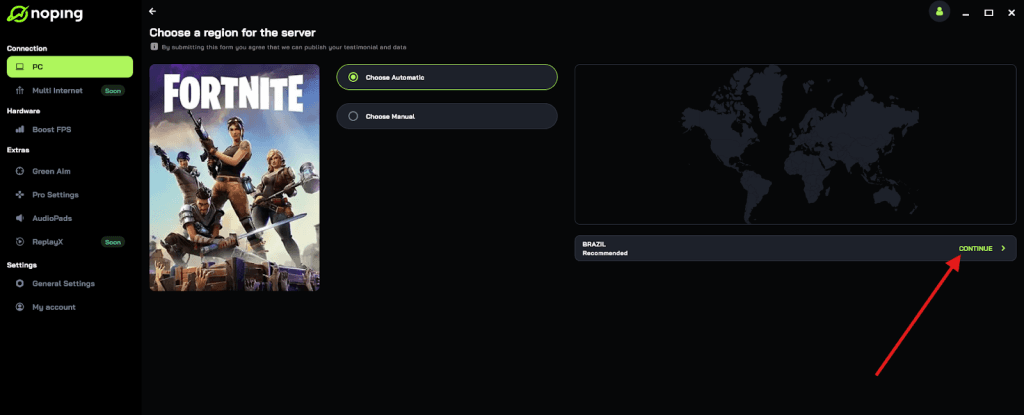
- On the next screen, click on “Optimize Game”.

- And that’s it, you can start playing with optimized ping!
You can test different servers within NoPing to see which gives you the lowest latency.
Play more than 3000 games without lag. Download NoPing now and start your free trial!