


World of Warcraft Wi-Fi issues are surprisingly common.
Players report everything from higher-than-normal latency and rubberbanding to full Wi-Fi disconnects the moment they log in.
The game isn’t unusually demanding in raw bandwidth, but it is sensitive to latency, packet loss and unstable wireless links, which is why Wi-Fi can feel flaky compared to a wired connection.
This article explains why Wi-Fi can misbehave with WoW, what specific problems players see, and, most importantly, practical steps to fix or mitigate them.
Can I Play World of Warcraft Over Wi-Fi? How Good is it?
Yes, you can play World of Warcraft over Wi-Fi. Many players do it every day. That said, Wi-Fi is inherently less stable and more susceptible to interference, roaming, and congestion than a direct Ethernet cable.
WoW’s requirements are modest in terms of bandwidth, but it’s sensitive to latency and packet loss. A stable 10 Mbps Wi-Fi link with low latency will beat an unstable 100 Mbps line every time.
When Wi-Fi works well (strong signal, minimal interference, modern hardware), the experience can be perfectly fine, especially for casual play and questing. Problems show up most often in high-stress network situations: large raids, populated city servers, cross-realm events, or when other household devices saturate the link.
Bottom line: Wi-Fi is usable, but wired (Ethernet) is more reliable and should be your go-to for competitive or raid play if you can.
How to Solve Wi-Fi Disconnecting When Playing World of Warcraft
If your game disconnects when you start or during play, follow this concise sequence: it’s ordered from easiest/fastest to more advanced changes.
- Switch temporarily to wired. If possible, plug an Ethernet cable from your router/modem to your PC. If the issue disappears, it’s almost certainly a Wi-Fi problem (interference, adapter, or router). Blizzard’s troubleshooting documentation and many forum threads point to “switch to wired” as the simplest diagnostic step.
- Power cycle and update: reboot your modem/router and PC; update your Wi-Fi adapter drivers and router firmware. These are common fixes cited by Blizzard and the community.
- Flush DNS and renew IP: run ipconfig /release then ipconfig /renew and ipconfig /flushdns on Windows; this clears stale routes and can fix odd disconnect behavior. Blizzard recommends this for connection issues.
- Disable “Optimize network for speed” in WoW: some players report that unchecking the in-game network optimization option reduces disconnects. Test with it toggled off.
- Change DNS: try Cloudflare (1.1.1.1) or Google (8.8.8.8) DNS; sometimes ISP DNS hiccups produce odd disconnects. Community reports often list DNS swaps as helpful for stability.
- Check Wi-Fi adapter advanced settings: reduce roaming aggressiveness, disable power saving for the adapter, and ensure 802.11 channel settings aren’t forcing automatic switching that causes brief disconnects.
- Test another network / mobile tether: try playing on a friend’s network or tethering your phone. If that fixes it, the issue is likely your ISP or home hardware.
- Contact ISP / analyze hops: if WoW shows packet loss while other services are fine, the problem may be outside your house (ISP route, neighborhood hop). Users and support staff often advise contacting the ISP with ping/pingplotter traces.
If you’ve gone through these and Wi-Fi still fails, a replacement router or a good mesh system (or simply running Ethernet) is the next step.
What Issues You May Have Playing World of Warcraft Over Wi-Fi? How to Solve Them?
Here are the common symptoms and how to approach each:
High latency (high ping)
Symptoms: spells cast late, movement rubberbanding.
Fixes: move closer to the router, reduce competing devices, use 5 GHz if your device is close enough (shorter range but less interference), close background downloads/streams, or use NoPing. Also check for bufferbloat (saturation of upload) and run a speed/bufferbloat test from a wired device to confirm.
Packet loss
Symptoms: sudden stuttering, spells not registering, disconnects.
Fixes: test with pingplotter or similar to find where packets drop; update drivers and router firmware; try different DNS; switch to wired to confirm. If packet loss occurs at ISP hops, open a ticket with them.
Interference / roaming
Symptoms: brief drops when Windows scans for other networks, or when you move around the house.
Fixes: set Wi-Fi channel manually (use a 5 GHz channel for gaming), lower roaming aggressiveness in adapter settings, disable Bluetooth if it interferes, and position the router higher/central.
Game causes Wi-Fi to crash immediately on login
Symptoms: the Wi-Fi adapter or router seems to “die” when the game connects.
Fixes: update drivers and firmware, test another network, and consider that a faulty network card or router might be at fault; players report that replacing ISP-provided routers resolved this in some cases.
QoS / router features making things worse
Symptoms: network hiccups when router’s “Game Mode”, QoS or traffic prioritization is enabled.
Fixes: disable experimental QoS/game features and let the connection behave normally; some community reports suggest these features can actually interfere and cause instability.
Port forwarding confusion
Many players think opening ports will reduce lag in WoW or stops disconnects. In practice, if you can connect at all, blocked ports are not the cause of intermittent disconnects; port forwarding is rarely helpful for fixing unstable Wi-Fi. Focus on stability, not ports.
How to Boost Your Connection in World of Warcraft? (answer with NoPing)
If you want a simple, low-effort way to improve routing and lowering ping in WoW, NoPing optimizes paths to game servers, including World of Warcraft.
It works by routing your game traffic through its network to shorten or stabilize the route to Blizzard’s servers.
Here’s how to use NoPing to fix high ping in World of Warcraft:
- Sign-up through the website and download NoPing (you can try it for free)
- Open NoPing and search for World of Warcraft inside the software
- Once you find World of Warcraft, click on it and, on the next screen, select “Choose automatic” or “Choose manual” and click “Continue”. We recommend choosing automatic, as NoPing’s technology analyzes all routes on a global scale and automatically selects the best option for you.
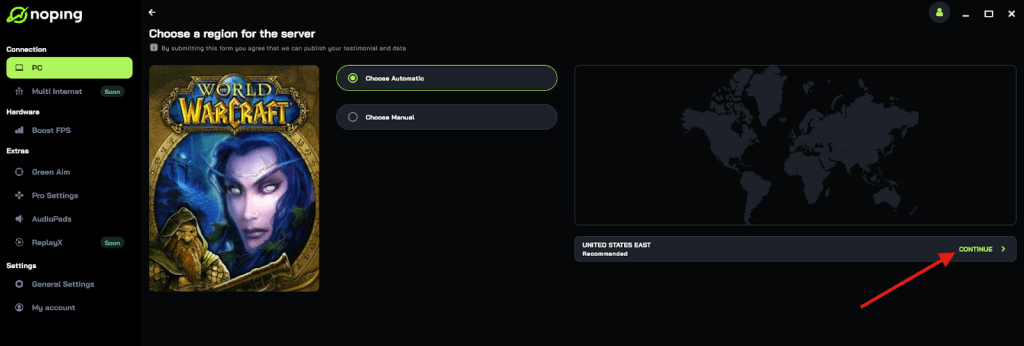
- On the next screen, click on “Optimize Game”.
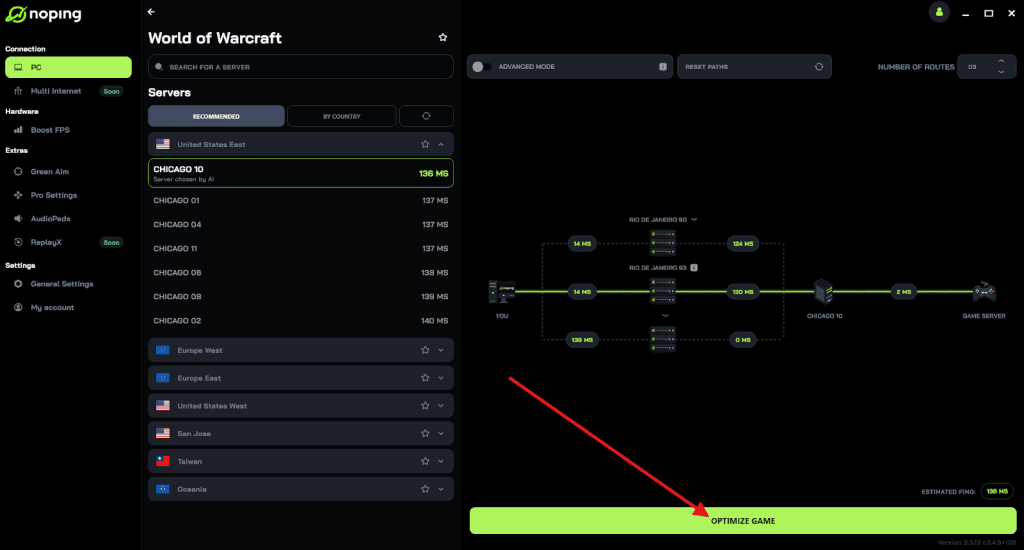
- And that’s it, you can start playing World of Warcraft with optimized ping!
You can test different servers within NoPing to see which gives you the lowest latency.
FAQ - World of Warcraft Wi-Fi Issues
Q: Does WoW require a lot of download speed?
A: Not really. WoW needs modest bandwidth for gameplay; what matters most is consistent latency and low packet loss. Large downloads like patches obviously need bandwidth, but gameplay itself is light.
Q: Should I disable IPv6?
A: Some users have reported stability improvements after disabling IPv6 in adapter settings, especially if their router or ISP has spotty IPv6 support. Try disabling it as a test; it’s reversible.
Q: Is Wi-Fi 5 GHz always better than 2.4 GHz?
A: 5 GHz usually has less interference and higher throughput but shorter range. If you’re close to the router, prefer 5 GHz. If you’re far away or have lots of walls, 2.4 GHz may be more stable.
Q: Do game settings affect network load?
A: Not much. In-game graphics options affect CPU/GPU usage, but network options are limited. There is an option to “Optimize network for speed” — if toggling it changes stability, use the setting that keeps you connected.
Q: Will replacing my router solve it?
A: If the router is old, using buggy drivers, or the ISP-provided box is low quality, swapping to a modern router or using a bridge/AP with a better router can fix persistent problems. If possible, test with another router before buying.
To always play World of Warcraft without worrying about high ping (even on Wi-Fi), use NoPing! Download now and start your free trial!