

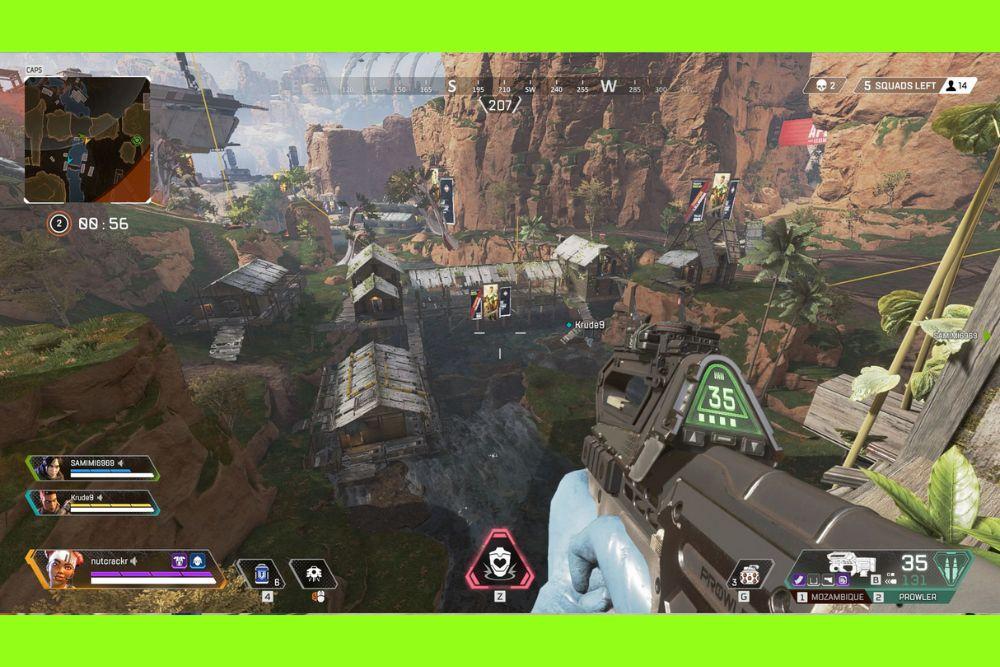
The best Apex Legends settings are the key to making the game feel smooth, responsive, and competitive.
While flashy graphics can be nice, Apex is a fast-paced battle royale where clear visuals and stable FPS make the real difference.
With the right balance, you can keep the game looking sharp while making sure every frame and every input registers exactly when you need it.
In this guide, we’ll break down the settings that give you the best mix of performance and clarity, plus a few tips to fine-tune them for your own playstyle.
Best Video Settings for Apex Legends
Below is a performance-first baseline using Respawn’s own recommendations as a starting point, with competitive tweaks layered on top.
Use it as your default, then adjust one slider at a time while watching both FPS and clarity of enemies and projectiles.
Display Mode: Full Screen
Full screen reduces compositing overhead and minimizes conflicts with overlays.
Resolution & Aspect Ratio: Your native monitor resolution and aspect ratio
Drop resolution only if your GPU is truly the bottleneck and you’re still below your target FPS after other changes.
Field of View (FOV): 100–110
Higher FOV shows more visual information and helps with tracking, but slightly reduces target size. EA suggests 90–110; many competitive players live at 104–110. Try 104 as a middle ground.
V-Sync: Disabled
Turn V-Sync off to avoid added input latency and inconsistent frame pacing. If you have a variable refresh display (G-SYNC/FreeSync), keep that on in your driver instead of enabling in-game V-Sync.
NVIDIA Reflex: Enabled (or Enabled + Boost on systems that frequently CPU-bottleneck)
Reflex synchronizes CPU/GPU work to reduce render queueing and lower end-to-end system latency, hugely valuable in a twitch shooter. “Enabled + Boost” can hold GPU clocks higher in CPU-bound moments. If you’re on AMD, use Radeon Anti-Lag/Anti-Lag 2 via Adrenalin/HYPR-RX for a similar effect.
Adaptive Resolution FPS Target: 0 (Off)
Keep sharpening/softening out of the equation while you tune. Only revisit this if you desperately need stability on very weak hardware.
Anti-Aliasing: TSAA
TSAA is Respawn’s default pick because it tames shimmering without the huge cost of higher-end methods. On extremely weak GPUs you can test “None,” but expect more aliasing.
Texture Streaming Budget: Match, or slightly under, your GPU VRAM
If your GPU has 6 GB VRAM, try 4–6 GB settings; if it has 8 GB, try 6–8 GB. Too high here invites VRAM swapping and stutter; too low can muddy critical details. EA’s table shows how each step maps to VRAM budgets.
Texture Filtering: Anisotropic 4x–16x
Anisotropic filtering is cheap on modern GPUs and improves clarity of angled surfaces and distant ground. 8x is a great sweet spot.
Ambient Occlusion Quality: Disabled
AO is costly and adds subtle shadowing that doesn’t help you see targets. Respawn flags this as a performance-heavy option. Turn it off for competitive play.
Sun Shadow Coverage & Detail: Low / Low
Shadow quality is one of the bigger GPU sinks. Keep sun shadows low; the competitive win is minimal for the cost.
Spot Shadow Detail & Dynamic Spot Shadows: Disabled
Again: cost without a real targeting benefit in fights.
Volumetric Lighting: Disabled
Pretty god rays, real performance tax. Off.
Model Detail: Medium
Medium keeps character readability without hammering your GPU in crowded areas. If you’re still well below your target FPS, try Low.
Effects Detail: Low
Explosions and certain abilities hit this. Low improves worst-case frame times (the “spikes” you feel in fights).
Impact Marks: Low
Lower here reduces decal spam from bullets and ordnance, helping consistency during scrappy fights.
Ragdolls: Low
Cheaper physics on death scenes means fewer hitches after wipes.
Frame Rate Cap: Cap just above what you can sustain
If you can hold 165 most of the time, cap ~170–175 in the in-game limiter or driver. This keeps frame times tight and can reduce latency (especially paired with Reflex/Anti-Lag). NVIDIA documents that Reflex is designed to minimize latency at a given FPS by emptying render queues; a small cap helps keep things even.
A note on system requirements
If you’re hovering at or below the game’s recommended GPU (GTX 970 / R9 290) or CPU (Ryzen 5-class), favor clarity-per-frame settings, low shadows, low effects, TSAA on, textures set to your VRAM budget, rather than bumping “eye candy” that doesn’t help you spot enemies.
Check the current spec table on Steam to see where your rig stands.

Config for low/mid tier PC. Source: Reddit
Best Mouse Settings for Apex Legends
Mouse settings are about control, not fashion.
Two players with the same FPS can have wildly different hit rates because one runs a sensible eDPI and consistent zoom behavior, while the other fights their muscle memory every spray.
DPI & Sensitivity (eDPI)
Most competitive Apex players cluster around 400–800 DPI with in-game sensitivity between 1.0 and 2.5, which translates to an eDPI range (DPI × sens) of roughly 400–1600. That cluster gives enough arm movement for precision without forcing constant mouse-pad resets. Don’t chase someone else’s exact numbers; instead, pick any combo in that range that lets you comfortably do 180-degree turns without running off the pad. Aggregated pro data and sensitivity guides show these are the common ranges in Apex.
ADS Sensitivity
Keep ADS relative to hip-fire at 1.0 initially so your tracking feels consistent when you right-click. If you prefer fine control with 1x/2x scopes, slide ADS slightly lower (for example 0.8–0.9) and test in the firing range.
Acceleration & Smoothing
Disable OS mouse acceleration (Windows “Enhance pointer precision”) and avoid third-party smoothing. You want one inch of hand movement to mean the same number of degrees, every time.
Polling Rate
Use your mouse’s highest stable polling rate (usually 1000 Hz). It reduces input granularity and pairs well with Reflex/Anti-Lag for snappy response.
FOV & Sens Perception
Higher FOV makes targets look smaller and can feel like lower sensitivity. If you raise FOV into the 104–110 range, expect to nudge sensitivity up a touch, or give yourself a few days to adapt. EA’s recommended 90–110 window keeps this trade-off manageable.
Tips for Finding the Best Apex Legends Settings for Your Playstyle
Finding your personal sweet spot takes about 20–30 minutes of structured testing. Here’s a no-nonsense approach that works for most players, from mid-tier PCs to high-refresh monsters.
Lock in a stable FPS first
Use the performance baseline above, then set an FPS cap 5–10 frames above what you can hold in Firing Range and a populated pub match. The point isn’t to see the biggest number; it’s to avoid frame-time spikes. NVIDIA’s latency docs show that consistent FPS with a short render queue beats wild swings at the top end.
Enable your latency tech
On GeForce, turn on Reflex (start with “Enabled” and try “Enabled + Boost” if you’re often CPU-bound). On Radeon, enable Anti-Lag / Anti-Lag 2 (via HYPR-RX or game profiles). Both aim to keep CPU and GPU in sync so your clicks appear on screen sooner.
Tune for clarity you can aim with
Hold TSAA, keep anisotropic filtering at least 8x, raise Model Detail to Medium if you went lower and find silhouettes muddy, and avoid turning on expensive “pretty” settings like volumetric lighting and high sun shadows. Respawn’s own guide flags these as visual candy that costs more than it helps in a fight.
Right-size textures to your VRAM
If you see stutters entering new POIs or turning quickly, your texture budget might be too high. Drop the Texture Streaming Budget one notch below your card’s VRAM and retest. EA’s table maps these options directly to VRAM targets.
Dial in mouse control last
Pick an eDPI in the 400–1600 band that lets you do a clean 180 without running out of pad, set ADS to 1.0 initially, and disable accelerations. Fine-tune from there. Pro aggregates confirm most end up in that neighborhood.
Driver housekeeping
Keep GPU drivers current and disable heavy overlays you don’t need. This is boring but it’s free performance and can fix odd stutters. Steam lists and EA support pages both remind players to meet current requirements and keep drivers up to date.
How to Boost FPS in Apex Legends?
If you want a quick, centralized way to squeeze extra performance without digging through Windows, NoPing includes a Boost FPS feature inside the app.
It focuses on system-level tweaks that free resources for the game: cleaning temporary files, closing or suspending non-essential background services and overlays, and optimizing CPU/GPU scheduling so Apex has fewer interruptions.
The idea is the same as the manual steps many guides suggest, but automated and reversible inside one dashboard. You can enable Boost FPS from within NoPing before you launch Apex and let it handle the heavy lifting while you play.
How to use the Boost FPS feature:
- Sign-up through the website and download NoPing (you can test it for free).
- When you open the software, click on "Boost FPS" in the left side menu.
- On the next screen, you'll see a range of options to customize the feature (there are over 50 settings). You can enable or disable everything and choose between Windows default or user settings. You can also filter the options using the bar on the right.
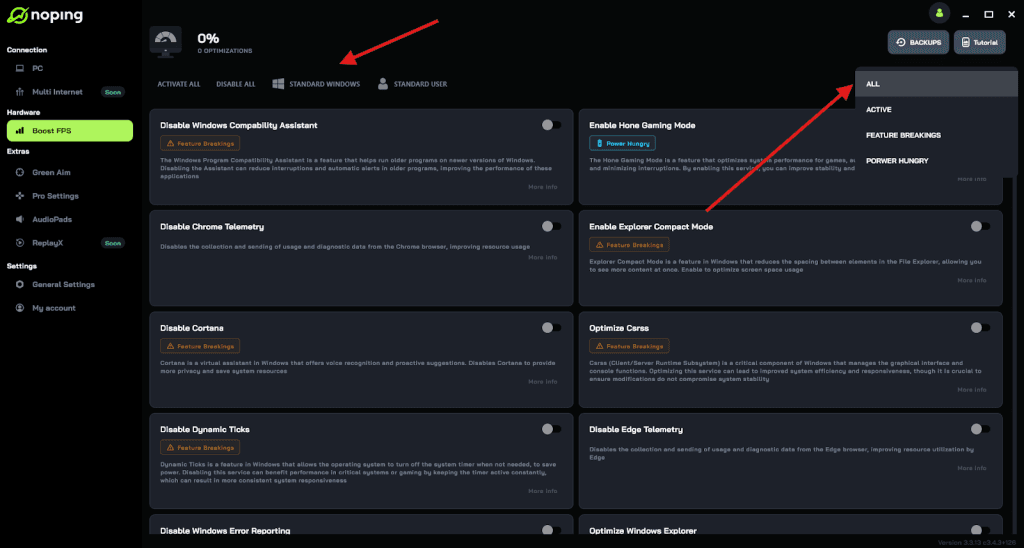
And that's it! Boost FPS is now activated. Just launch your game and enjoy high FPS!
Bonus: NoPing’s core product reduces network jitter and packet loss by optimizing your route to EA’s servers.
It cuts network delay, which feels like snappier hit-reg and cleaner peeks when combined with your newly stable frame times. Turn on Boost FPS, then route Apex through a low-latency NoPing server near your game region for a one-two punch of performance and responsiveness.
FAQ - Best Apex Legends Settings
What’s the best FOV for controller players?
Most controller players land slightly lower than mouse players, often 90–104, because extreme FOV can make targets too small for aim assist tracking in mid-range fights.
Should I use in-game FPS cap, driver cap, or leave it uncapped?
Cap just above your sustainable FPS. Uncapped may look great in menus but risks spiky frame times in combat. In-game caps are convenient and work well; some users prefer driver caps or tools like RTSS for tighter pacing. Pair the cap with NVIDIA Reflex or Radeon Anti-Lag to minimize the render queue and keep input latency low at that cap.
Does NVIDIA Reflex or AMD Anti-Lag increase FPS?
They’re not FPS boosters per se; they reduce latency by coordinating CPU/GPU work so frames spend less time queued. Your FPS can remain similar, but your inputs feel more immediate. On GeForce, enable Reflex (try “Enabled + Boost” if your CPU is the limiter). On Radeon, enable Anti-Lag (or Anti-Lag 2 in supported games).
I’m on a low-VRAM GPU. What two settings matter most?
Set Texture Streaming Budget at or slightly below your VRAM tier, and keep Sun/Spot Shadows low or off. That combination attacks both stutters and GPU load without destroying clarity. Respawn’s settings explanations back these choices for performance-oriented players.
Do higher resolutions hurt aim?
Not directly, but higher resolutions reduce FPS on the same hardware and can increase input latency if your frame times rise. If you want the crispest picture on a mid-range GPU, try native resolution with the competitive baseline above and a sensible cap. If FPS still dips below your target, step down one resolution tier and retest with Reflex/Anti-Lag on.
Any benefit to FreeSync/G-SYNC with V-Sync off?
Yes. Variable refresh tech smooths presentation at fluctuating FPS without the input-lag penalty of traditional V-Sync. Leave V-Sync off in Apex, keep G-SYNC/FreeSync on in your driver, and use a modest FPS cap to stay within your panel’s VRR window while Reflex/Anti-Lag handles latency. (This aligns with NVIDIA’s latency guidance.)
Do I need to change launch options or edit config files?
Not anymore for most people. Apex exposes the important performance and latency controls in-game and through drivers. Launch options and config edits from older guides often bring negligible gains today, and can break after updates. Stick to in-game settings first; only use advanced tweaks if you understand the trade-offs and can revert easily. For requirements and stability, keep an eye on the official Steam page.
Start with the performance baseline above, set an FPS cap you can hold, enable Reflex (or Anti-Lag), and fine-tune textures and shadows to your hardware. Then personalize mouse settings within that 400–1600 eDPI window and give your hands a few sessions to adapt.
If you want help corralling background processes and keeping Windows distractions out of your matches, flip on NoPing’s Boost FPS before you queue.
Download NoPing now and play Apex Legends with improved FPS and reduced ping. Start your free trial!